
"I just updated to the most recent version of Windows 11, and now I'm getting a bunch of driver errors. "A driver cannot load on this device. A security setting is detecting this as a vulnerable driver and blocking it from loading. You'll need to adjust your settings to load this driver…"AlphaDag13
The error "a driver cannot load on this device" highlights an important need to maintain seamless interaction between the operating system and hardware components. Whenever this issue occurs, it eventually raises concerns about your system compatibility and security. Considering this, prevention becomes even more important to ensure that all device functionalities operate as intended.
In fact, the presence of this error signals underlying system conflicts that should not be overlooked. Before the problem worsens, thoroughly read the following guide to identify actual causes and try solutions promptly. Most importantly, you'll be guided through step-by-step tutorials to better understand the application.
In this article
-
- Way 1. Run Windows Device Troubleshooter
- Way 2. Disable Conflicting Third-Party Software
- Way 3. Update or Reinstall the Problematic Driver
- Way 4. Roll Back Driver to the Previous Working Version
- Way 5. Scan for Corrupted System Files (SFC / DISM)
- Way 6. Check Driver Signature Enforcement Settings
- Way 7. Boot in Safe Mode and Retry Driver Installation
Part 1. What "A Driver Cannot Load on This Device" Indicates
"A driver cannot load on this device Ene.sys" means Windows security has blocked a driver from starting because it seems unsafe. Other reasons could be that the drivers are outdated or incompatible with your current system. Often, on Windows 10/11, this message appears alongside names such as "ENE.sys", "ASIO.sys", or "IQVW64E.sys." Simply, it happens when Memory Integrity or other security features stop those drivers from loading at boot.
Common Causes of ENE.sys, ASIO.sys, IQVW64E.sys Errors
Look closer at the given causes for "a driver cannot load on this device ASIO.sys" and resolve it effectively:
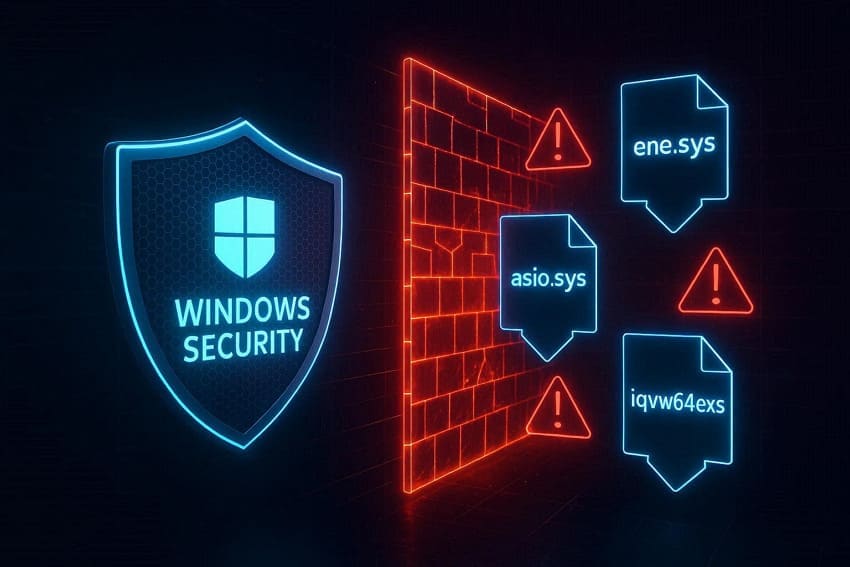
- Unsupported ENE.sys (RGB/Utility Driver): ENE.sys is linked to RGB lighting or motherboard utility software, and older versions may not meet newer Windows security requirements. Plus, when the driver is outdated or no longer supported, Windows can flag it as vulnerable.
- Vulnerable ASIO.sys (ASUS Utility Driver): ASIO.sys is usually an ASUS motherboard or utility driver that may conflict with Windows 11’s security features after updates. So, if Windows detects ASIO.sys as a risky or poorly behaving driver, it blocks it from loading.
- Deprecated IQVW64E.sys (INDD): IQVW64E.sys belongs to older Intel Network Adapter Diagnostic or similar components that are no longer supported on newer Windows builds. When Memory Integrity (Core Isolation) is turned on, Windows treats this legacy driver as incompatible or insecure.
- Stricter Windows 11 Security: Windows 11 Memory Integrity and related core isolation features block drivers that don't follow newer security standards. ENE.sys, ASIO.sys, and IQVW64E.sys now falls into this "vulnerable" category, even if it used to work fine.
- Driver Corruption or Bad Installation: Once any driver is partially corrupted or installed incorrectly, Windows may fail to load it cleanly at boot. This broken state can also cause the system to treat them as unstable or unsafe, leading to repeated errors.
Part 2. 7 Ways to Resolve ENE.sys, ASIO.sys, or IQVW64E.sys Errors
Instead, you apply fixes directly; remember, it's important to approach this error with a structured method to avoid further conflicts. In this context, the following methods provide practical ways to resolve "a driver cannot load on this device Windows 11":
Way 1. Run Windows Device Troubleshooter
This built-in troubleshooter tool detects and fixes common driver-related problems, saving both time and effort. It's more valuable when the issue is unclear, as it scans your system for misconfigurations, missing drivers, or minor glitches. For a recurrent error, running this troubleshooter provides a reliable first step towards restoring device functionality. To know how to run the Windows troubleshooter, follow the guided tutorial below:
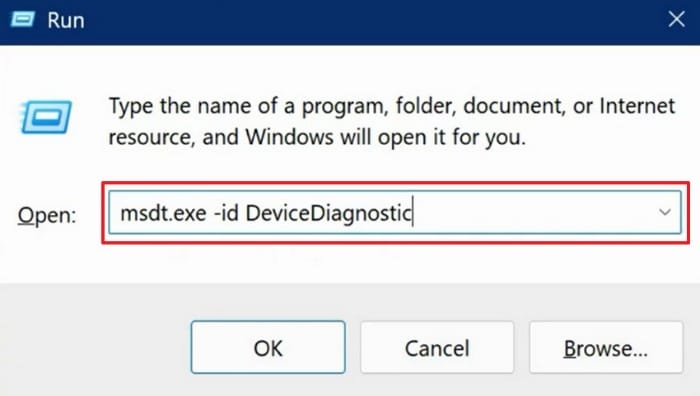
Step 1. Press the "Windows + R" keys collectively and type "msdt.exe -id DeviceDiagnostic" command, then press "Enter" to run.
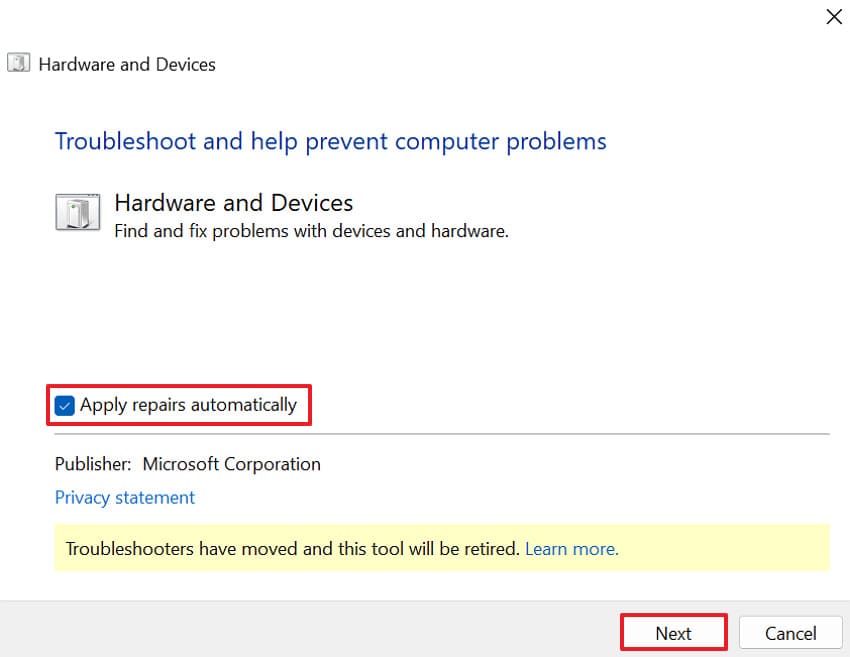
Step 2. From the Hardware and Devices window, click the "Advanced" option and check "Apply Repair Automatically." Now, press the "Next" button and let the Window detect the problems.
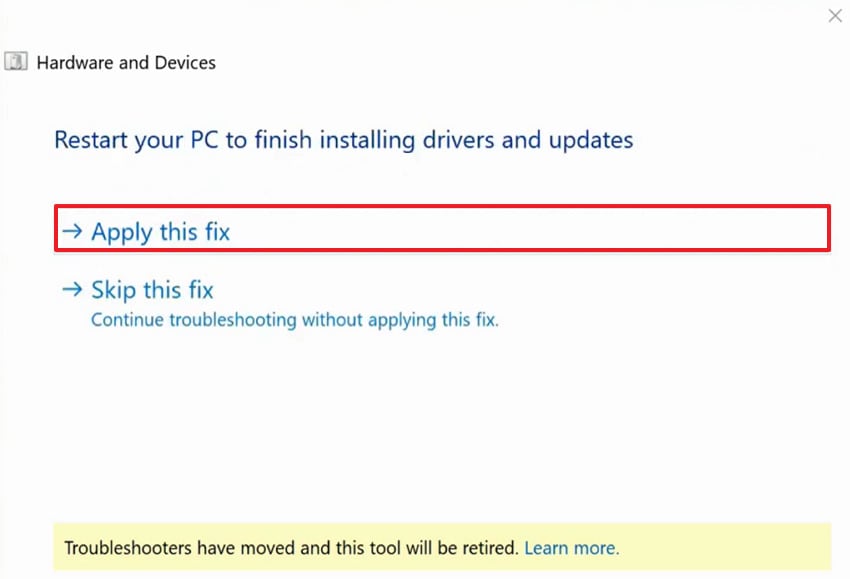
Step 3. After this, press the "Apply This Fix" option to restart your PC and complete installing drivers or updates.
Way 2. Disable Conflicting Third-Party Software
Conflicting third-party applications, particularly startup programs or security software, can interfere with driver installation or operation. When you disable these applications, it ensures that drivers have unobstructed access to system resources. This selective application disabling reduces background resource usage, allowing the driver to function without interference. For the "a driver cannot load on this device ASIO.sys" error, turn off interrupting applications following the instructions:
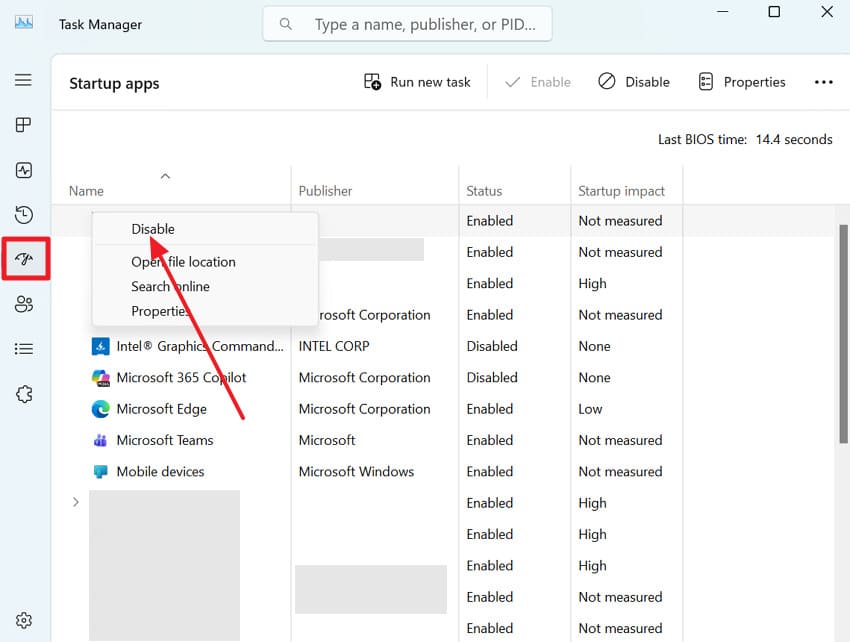
Instructions. Access the Task Manager, open the "Startup Apps" section, and right-click on any unnecessary utilities. Next, choose the "Disable" option to close them, and repeat this step for old overclocking/tuning apps.
Way 3. Update or Reinstall the Problematic Driver
Once you update the driver, it ensures complete compatibility with the latest Windows updates, security patches, and hardware requirements. Plus, keeping drivers updated improves system reliability, optimizes performance, and reduces the recurrence of this error. This method provides both a preventive and a corrective approach to maintaining a stable, fully functional system. To address the "a driver cannot load on this device" error, read the guidelines and update the problematic driver:
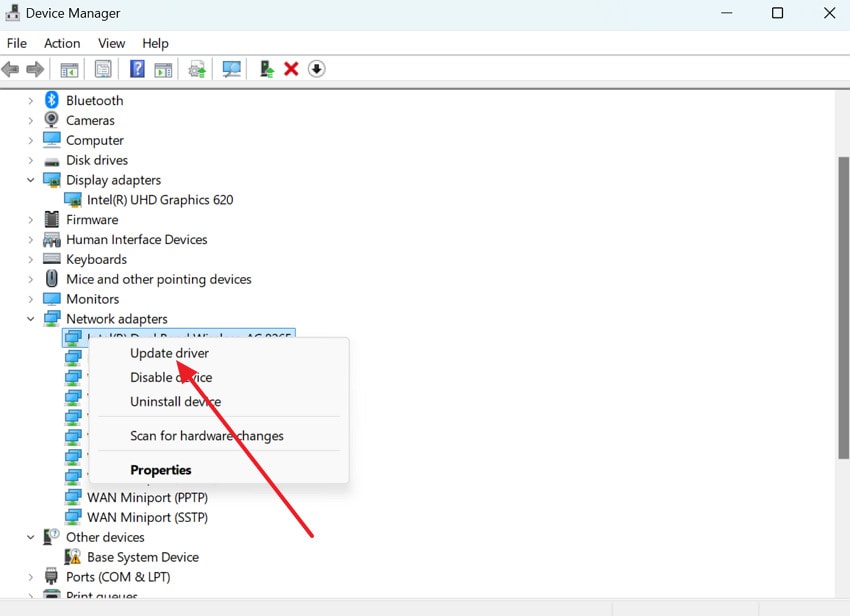
Step 1. Open Device Manager, then expand the menu for "Network Adapters" and right-click the error-displaying driver. Once done, press the "Update Driver" option to update your driver to the latest version.
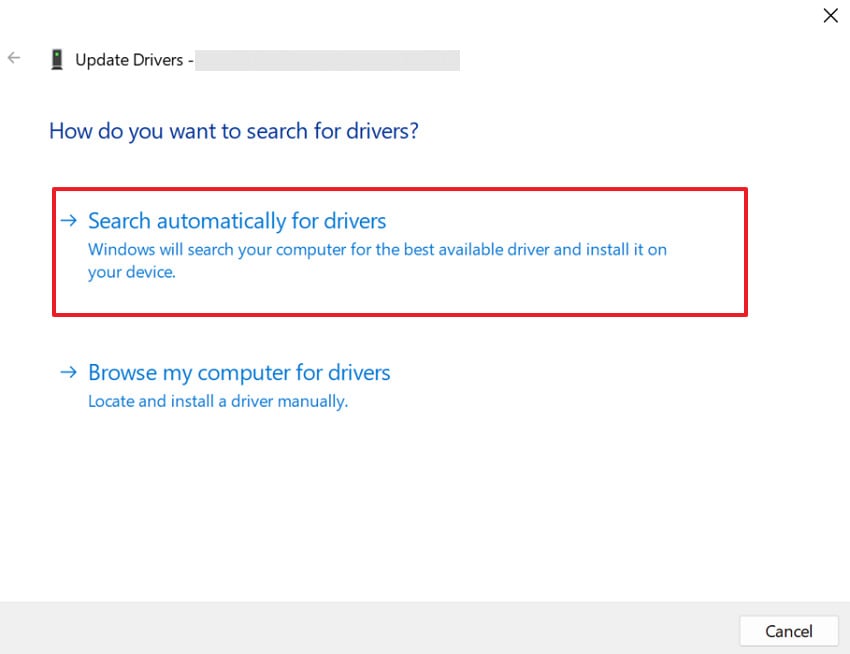
Step 2. Now, click the "Search Automatically for Drivers" option to allow Windows to search and install the latest drivers.
Way 4. Roll Back Driver to the Previous Working Version
Rolling back a driver lets you restore a previous stable version that was working correctly before an update caused issues. This method is useful when a new driver update introduces bugs, compatibility problems, or security restrictions. Precisely, reverting back to a trusted version helps users quickly regain device functionality without any complex troubleshooting. Explore the guidelines to revert the driver’s version for "a driver cannot load on this device Ene.sys":
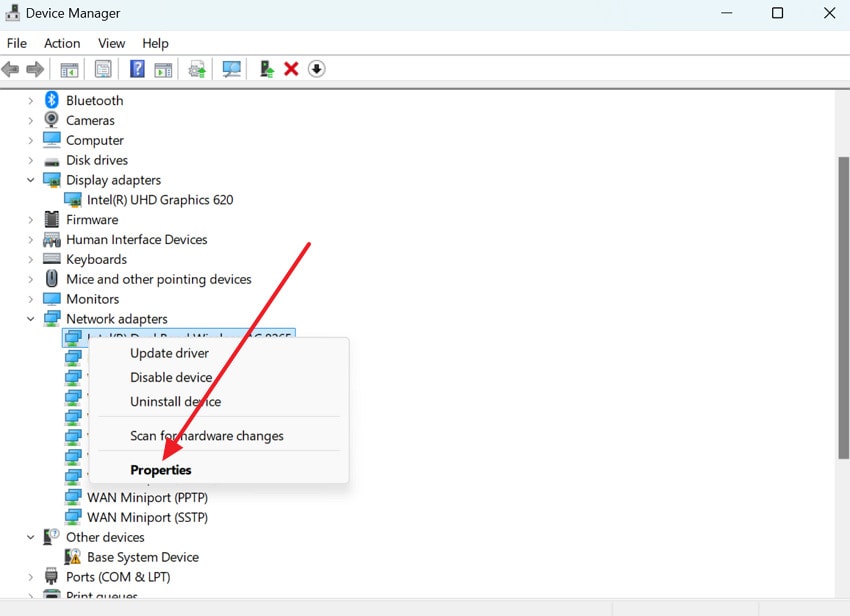
Step 1. Enter Device Manager, then right-click the devices linked to ENE.sys, ASIO.sys, or IQVW64E.sys. Move forward and choose the "Properties" option from the menu to roll back the selected driver.
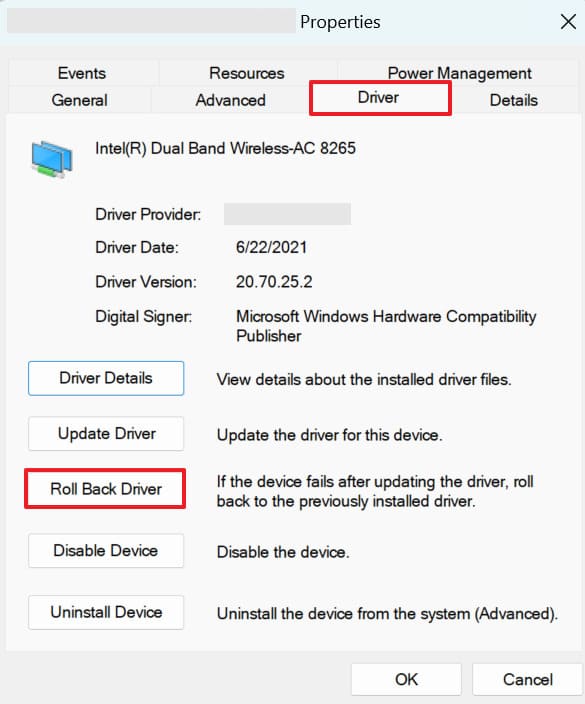
Step 2. Then, access the "Driver" section and press the "Roll Back Driver" option to proceed. Now, choose a reason and restart your PC to see if the warning disappears with the older driver.
Way 5. Scan for Corrupted System Files (SFC / DISM)
Corrupted or missing system files are a common cause of drivers failing to load properly. With SFC and DISM, these files are repaired, ensuring the operating system can now communicate with all drivers. The method not only resolves the immediate issue but also helps prevent future driver-related errors, improving system reliability and performance. Thus, perform system file scans for "a driver cannot load on this device IQVW64E.sys" through the instructions below:
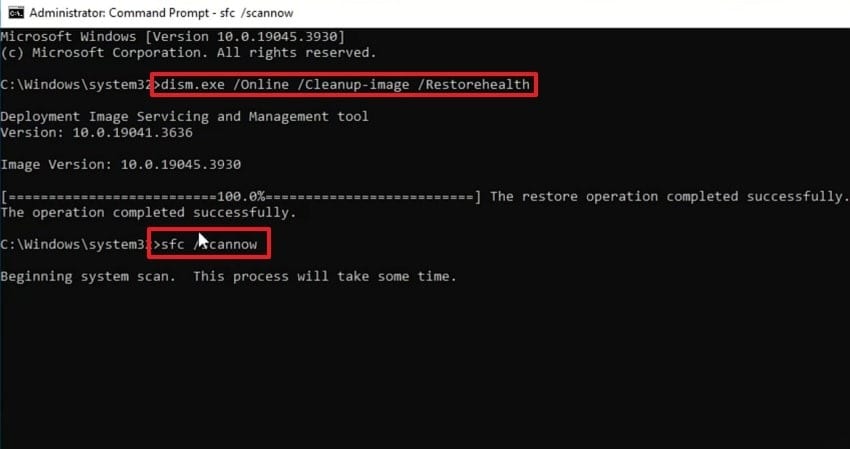
Instructions. Run Command Prompt as an administrator, then type the following commands in the given order:
"DISM /Online /Cleanup-Image /RestoreHealth", then enter and allow the scan to complete first.
Now, type the "sfc /scannow" command and enter to finish repairing any system files.
Once the scan and repair are complete, restart your PC to check if the driver now loads normally.
Way 6: Check Driver Signature Enforcement Settings
Windows enforces strict driver signature policies to protect system integrity, which can sometimes block legitimate drivers. For this, check and temporarily adjust the driver signature enforcement settings to confirm these measures aren’t preventing drivers from loading. This solution guarantees that security measures do not inadvertently prevent essential hardware from functioning while maintaining system safety. To proceed, follow the guided manual and check driver signature enforcement settings for load errors:
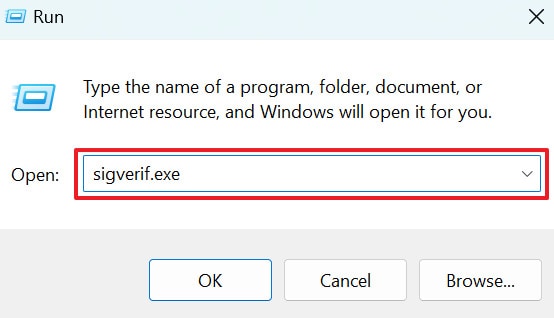
Step 1. To begin, press the "Windows and R" keys together and type "sigverif.exe", then hit Enter.
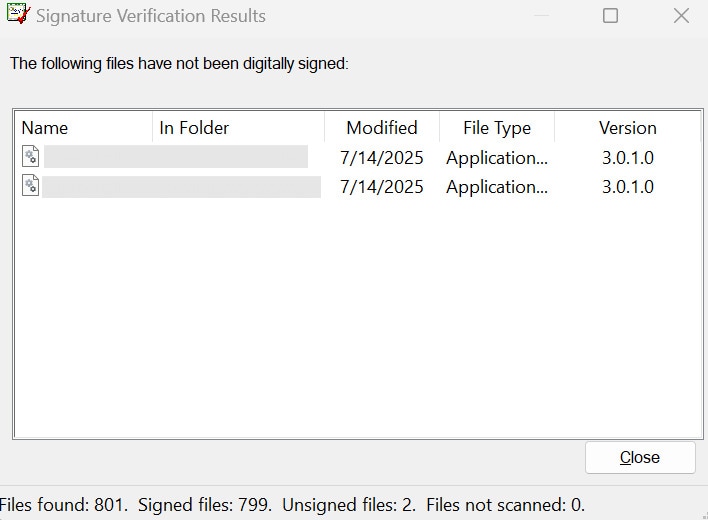
Step 2. Press the "Start" button to scan for any installed unsigned drivers and wait for the results. Once the scan finishes, check the list of files for your problematic driver that has not been digitally signed.
Way 7. Boot in Safe Mode and Retry Driver Installation
A clean boot starts Windows with only essential Microsoft services, disabling all other background applications that interfere with driver operations. This approach helps identify conflicts that prevent drivers from loading, causing "a driver cannot load on this device ASIO.sys." It's a workable diagnosis that provides a controlled environment for safely rebooting and fixing driver issues without startup services. Adhere to the tutorial and boot Windows in Safe Mode, then retry driver installation as explained:
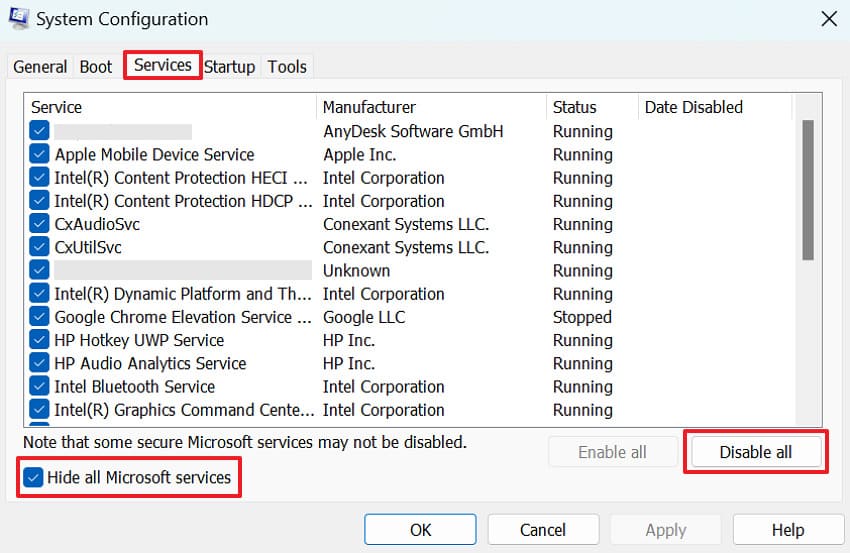
Step 1. Initially, press the "Windows + R" keys together, then type "msconfig" and press Enter. In the "System Configuration" section, check the "Hide All Microsoft Services" option and click the "Disable All" button.
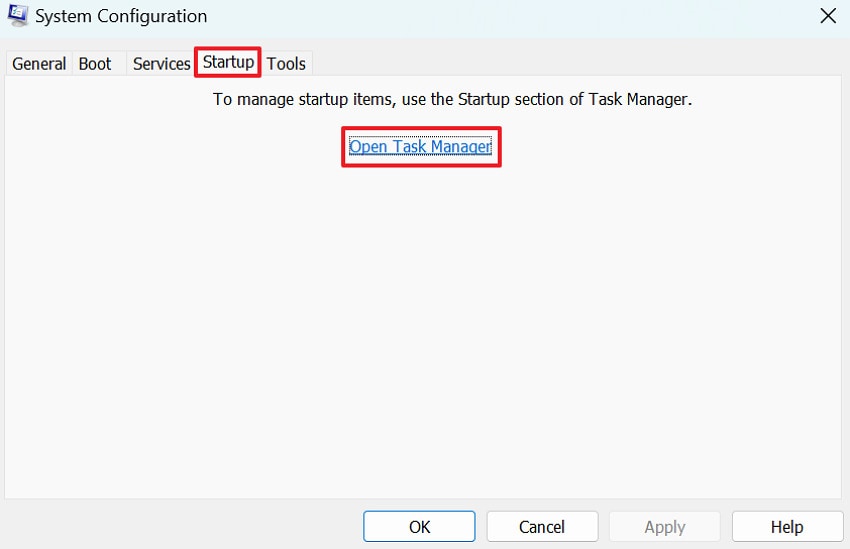
Step 2. Now, access the "Startup" section and press the "Open Task Manager" option. Afterward, disable all unnecessary or potentially conflicting startup programs, then close Task Manager.
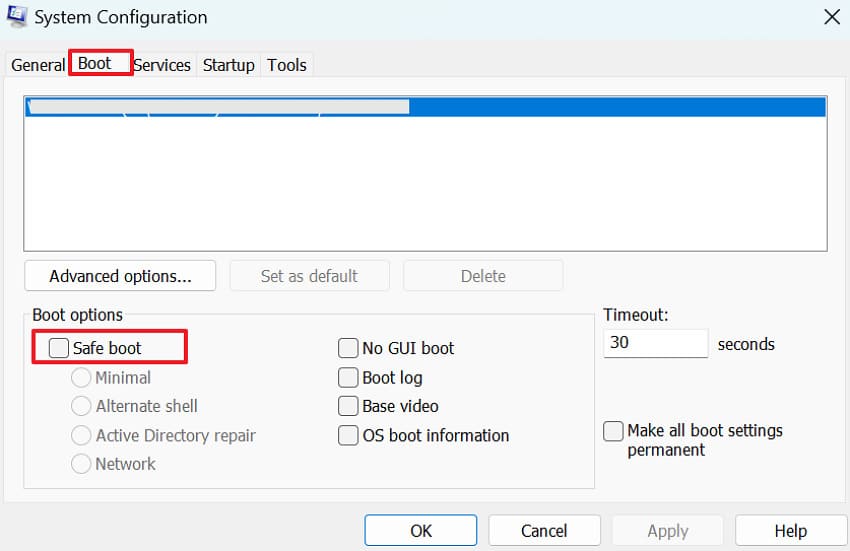
Step 3. Next, open the "Boot" section, then tick "Safe Boot," choose Minimal, and press OK. Restart your system and attempt to install the latest driver version through Device Manager.
Pro Tip. Recover Your Corrupt System or Other Files/Documents via Repairit
Besides the "IQVW64E.sys, a driver cannot load on this device" error, if you’re considering repairing your corrupted system/work files, use Repairit. This program excels at recovering files damaged by sudden shutdowns, system crashes, and forced restarts. More impressively, it helps you get back reports, spreadsheets, and presentations that stopped opening afterwards. In fact, the software restores text, charts, and layouts, making the repaired file look closer to the original.
Also, its batch repair facility allows users to repair multiple systems or other essential documents at once. Most importantly, the preview feature enables one to review repaired versions before downloading them to the device. The program offers broad system support on both Windows and Mac with innovative features across both platforms. Surprisingly, you can also choose between its desktop or online version, whenever and wherever.
Key Features

-
Repair Engineering Files: The software can repair PSD and other complex project files with layers, metadata, and previews rebuilt.
-
Fixes Archive Files: It restores corrupted ZIP, RAR, and other files in batches of over 1 GB, keeping the folder structure intact.
-
Support Multiple Document Formats: You can fix Word, Excel, and other file formats with original formatting, text, and layout preserved.
Comprehensive Guide to Repair Corrupted Files Using Repairit
To address corrupted files successfully, follow the guided tutorial as demonstrated and get sorted in no time:
Step 1. Insert Your Corrupted Files
Open the "More Types Repair" tab and press the "Start" button to proceed with the required feature. After this, click the "+Add" button to insert all corrupted documents.

Step 2. Start the AI-Powered Repair Process
Now, press the "Repair" button to start the process, and keep checking the progress on the screen.

Step 3. Preview the Files & Download Them
Once the repair action is completed, click on "Preview" to review, then save the files for later use.

Repair Corrupted Files
 Security Verified. Over 7,302,189 people have downloaded it.
Conclusion
In conclusion, the error "a driver cannot load on this device" can cause significant disruption, restrict hardware components, and affect overall system performance. To overcome this, you’re completely guided with possible root causes and workable solutions with stepwise tutorials. Moreover, if there’s a need to repair corrupted system or document files, consider Repairit for its deep scan.
FAQ
-
1. Will disabling driver signature enforcement permanently fix the issue?
No, disabling driver signature enforcement is usually a temporary solution to allow a trusted driver to load. It should be used cautiously and only when necessary, as Windows enforces these settings to maintain system security. -
2. How can I fix the error without reinstalling Windows?
Most cases can be resolved by troubleshooting steps such as running the Windows Device Troubleshooter, updating, or rolling back drivers. These methods address both driver-specific issues and underlying system conflicts, allowing you to restore hardware functionality without reinstalling Windows. -
3. How do I know which driver is causing the error?
For persistent errors like "a driver cannot load on this device ENE.sys", check Device Manager for devices marked with a yellow exclamation icon. Then open the device properties to view detailed error information, including the exact driver file name causing the issue.




