
“Really struggling with backing up OneDrive duplicate folder to ext drive. Getting message 0x8007016a "cloud file provider is not running". Ran sfc /scannow. Any thoughts, thank you in advance!” - DeliveryTop2325
Imagine that you open your cloud storage to access a vital file, and then the error 0x8007016a appears, and you cannot access files or synchronize them. It may create frustration, particularly where work-related documentation, photos, and important files are not available temporarily. The fault generally happens when the cloud file provider service is offline, incorrectly configured, or suffers as a result of system updates.
Thus, learning the cause is the initial step towards the solution. Therefore, this guide provides clear and straightforward steps to fix the cloud file provider error and restore secure and quick access to all your files.
In this article
Part 1. What “Cloud File Provider Is Not Running” Means
This “cloud file provider is not running” error is a sign that Windows is unable to connect to the application that manages your cloud files, which is typically OneDrive. This is because files in File Explorer are merely placeholders of cloud content, whereas the application that retrieves the actual file is either terminated, offline, or unable to perform as expected.
Consequently, you may not be able to read, duplicate, transfer, or erase files on the internet. Besides, cloud files will not act like ordinary local files until the issue is corrected.
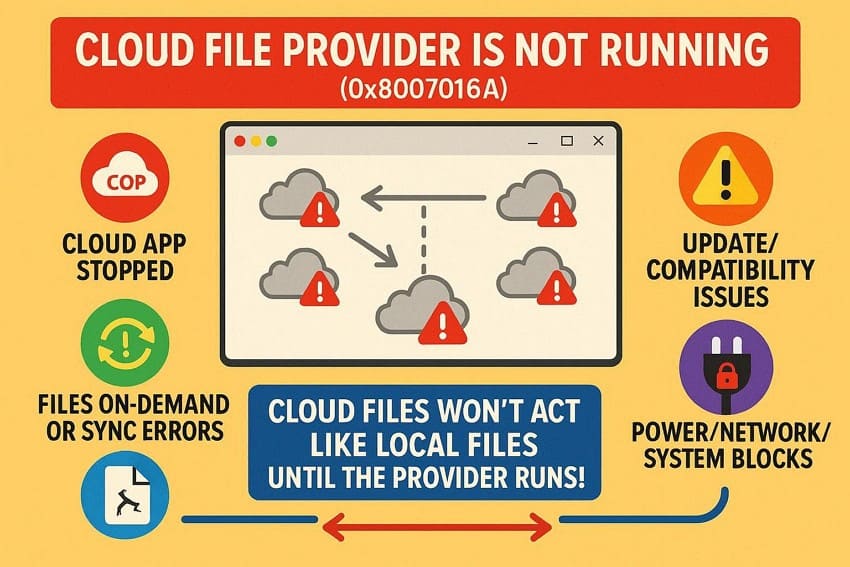
Why the Cloud File Provider Is Not Running (0x8007016a) Appears
If you want to know what factors lead to the “the cloud file provider is not running” error, review the 5 main reasons given below:
- OneDrive or Cloud App Not Running: If OneDrive or another cloud app is stopped, crashed, or misconfigured, Windows cannot access online-only files. This can happen after closing the app, signing out, or changing settings that break the connection to Windows.
- Windows or OneDrive Update Issues: Certain Windows or OneDrive updates can create compatibility issues with the cloud file provider service. When this layer fails, placeholders appear in File Explorer, but files cannot be opened, copied, or deleted.
- Files On-Demand or Sync Issues: As you turn off files On-Demand or disable sync, the cloud provider stops handling online placeholders. Thus, this results in greyed out cloud icons, unsynced files, and error 0x8007016a when Windows tries to access them.
- Corrupted OneDrive Files or Installation: Corrupted OneDrive cache, files, or program components can prevent the cloud provider from working. As a result, specific files or folders fail to respond, triggering repeated access errors.
- Power, Network, or System Blocks: Power-saving settings may pause background services, which stops the cloud provider from working. Additionally, poor internet connection or system restrictions can also block provider startup and file access.
Part 2. Seeing 0x8007016a? Here’s How to Fix the Cloud File Issue
To help you access files stored online, get to know how to resolve the 0x8007016a error via the 6 ways mentioned in this section:
Way 1. Check Your Internet Connection
If the internet is slow, unstable, or offline, files cannot sync or open properly. So, this can block access to cloud-only files and show the provider error. This is why a good internet connection ensures proper sync, prevents incomplete data, and helps determine whether the issue is on the network or in the system.
Way 2. Restart Your Computer and Sync Again
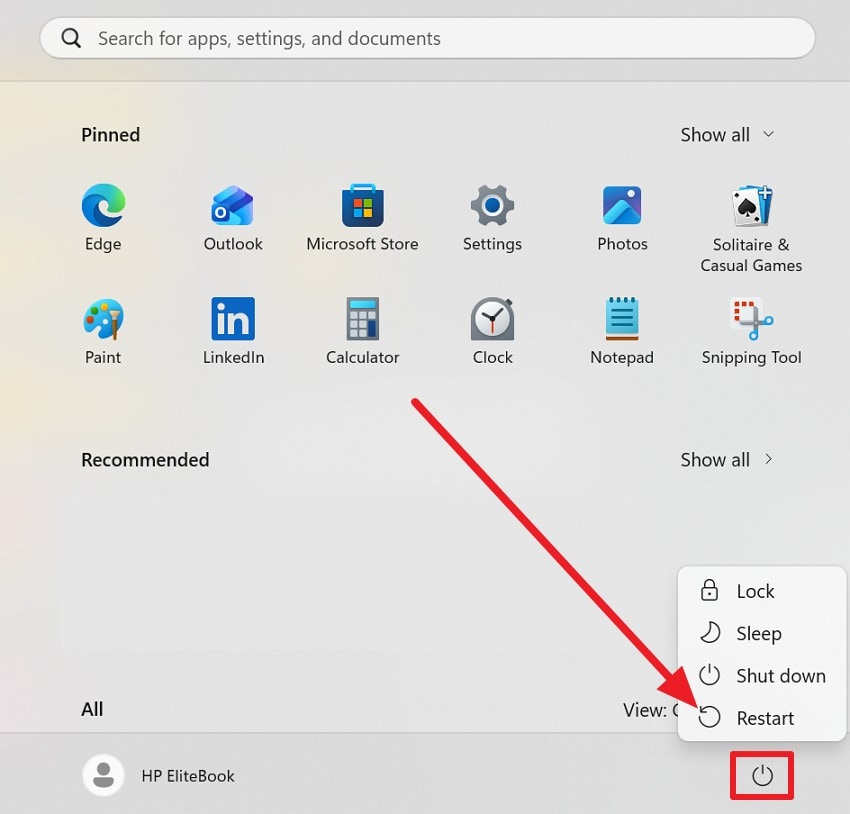
This solution can fix the “the cloud file provider is not running” error as it resets Windows and OneDrive services. Additionally, it clears temporary glitches, stuck sync processes, and small issues that block the cloud provider. After the restart, OneDrive can connect to the cloud and sync files properly again. So, once done via the listed steps, you can know if the problem is temporary or lies in deeper system or configuration issues:
Instructions. Head to the Start menu, tap on the “Power” icon, and choose the “Restart” option.
Way 3. Resume OneDrive Sync If It Is Paused
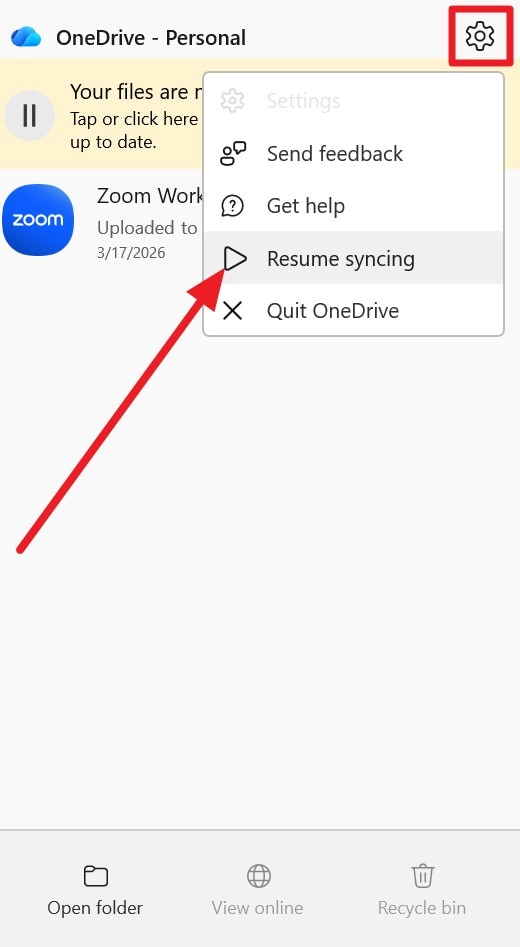
If the “cloud file provider is not running” error persists, try manually resuming the sync. As you resume it, OneDrive connects to the cloud and updates the files, restoring access. Moreover, this keeps data consistent and helps confirm if the problem comes from paused sync rather than deeper system issues. So, the seamless steps for this fix are guided below in detail:
Instructions. Press the “Greyed Cloud” icon at the bottom-right of the interface (on Windows 11), then tap the “Gear” icon to select “Resume Syncing.”
Way 4. Restart OneDrive on Your Computer
Try to restart the OneDrive too to resolve the 0x8007016a; it resets the cloud files provider service and clears internal app glitches. If OneDrive stops, crashes, or fails to connect, Windows cannot access cloud files and shows this error. So, after the restart, the app reconnects to servers, reloads sync processes, and restores file access, as guided ahead:
Step 1. In the taskbar, choose the OneDrive (Greyed Cloud) icon and tap on the “Settings” icon. After that, stretch the menu for “Pause Syncing” and tap on the “Quit OneDrive” option.
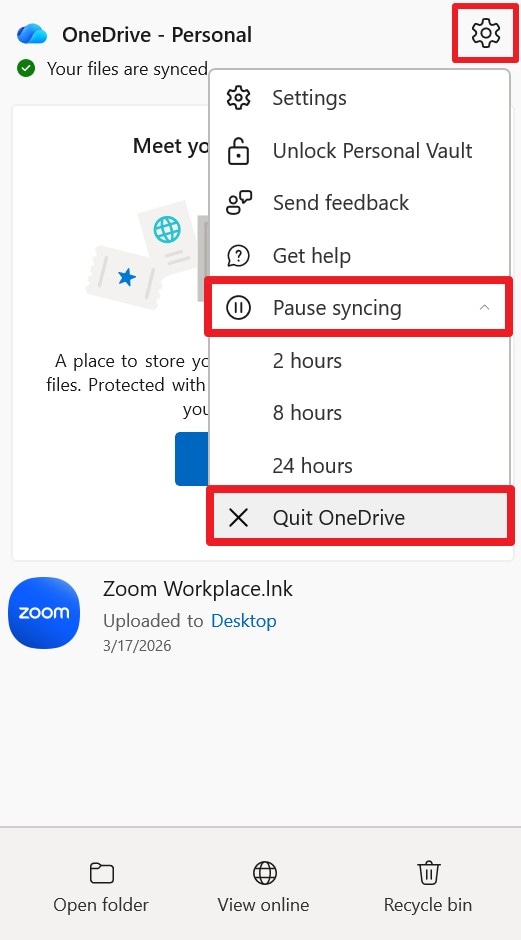
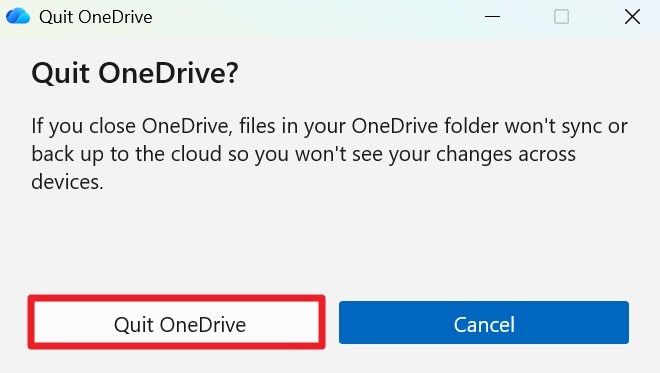
Step 2. As the warning popup appears, select the “Quit OneDrive” option. Wait a while, search for OneDrive in the Start menu, sign in again, and wait for the sync to resume.
Way 5. Enable Files On-Demand in OneDrive Settings
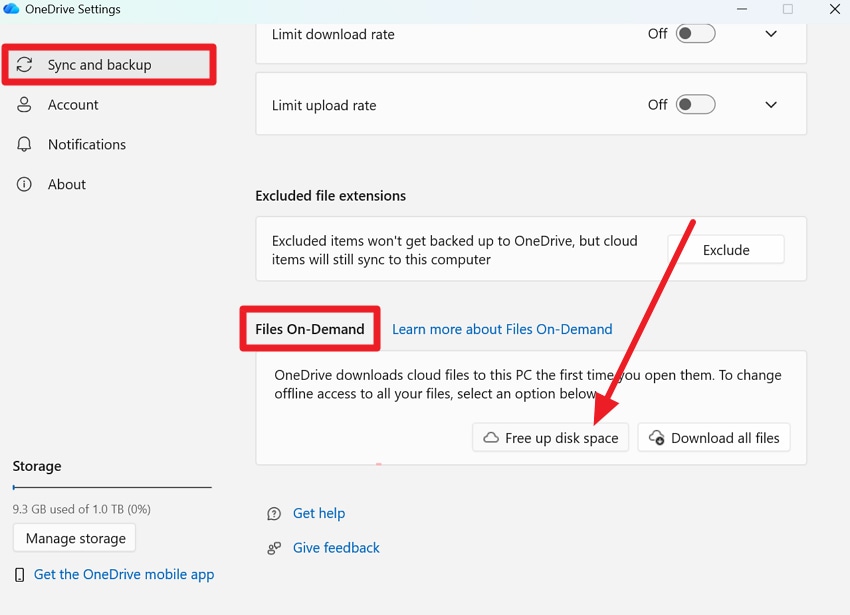
As another way to fix the “the cloud file provider is not running" error, try enabling Files On-Demand. Even though it can't directly resolve the error, properly configuring it helps the OneDrive cloud file provider work correctly. Once set correctly via the given steps, it allows proper file access, reduces sync load, saves storage space, and ensures cloud files appear and work normally in File Explorer:
Instructions. Tap the OneDrive icon in the taskbar, then go to the “Sync and Backup” tab. Now, locate the “Files On-Demand” tab and choose the “Free Up Disk Space” or “Download all files” options.
Way 6. Restart Windows Cloud File Services
As a last resort to the “cloud file provider is not running” error, restart cloud file services, as this action resets the cloud provider to a clear state. A full reset reloads the provider, clears stuck or corrupted data, and restores connections to the cloud. Thus, this improves file access, fixes deeper sync issues, and helps confirm whether the problem comes from the system services, as demonstrated:
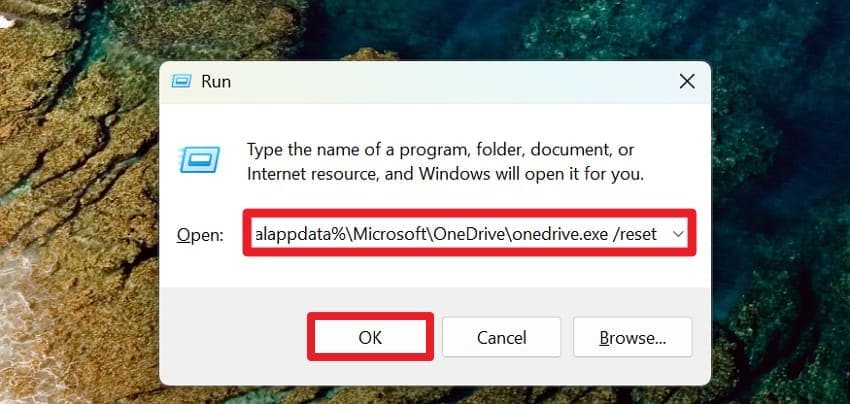
Step 1. Press “Win + R,” in the text box, type “%localappdata%\Microsoft\OneDrive\onedrive.exe /reset” and press the “OK” button.
Step 2. The OneDrive icon from the taskbar will disappear and reappear, and File Explorer will open. Wait for the reset to finish, sign in again if prompted, and let it complete the initial sync.
Pro Tip. Repair Corrupted OneDrive Files Failing to Sync
When corrupted OneDrive files lead to the 0x8007016a error and affect sync or access, a file repair tool is needed. Here, Repairit allows you to fix damaged Office documents, images, or videos after download, and lets you upload the repaired version again. Along with basic file formats, the desktop version can also repair PDFs, Archives, ZIP, and RAR files.
On the contrary, its online tool can fix Word, Excel, PPT, PDF, and photos and videos, but with size limits. Regardless of the tool one uses to repair OneDrive files, Repairit guarantees a seamless process with only 2-3 steps, thanks to its intuitive interface. Users can have complete control over the process and can cancel when needed, or preview files as the repair ends.
Key Features

-
Advanced or Professional Modes: Mainly for severely damaged files, using sample files or deep analysis to repair videos, documents, and Adobe files.
-
Metadata Preservation: Retains original file properties like format, resolution, and timestamps, ensuring consistency and integrity after repair.
-
Batch Repair: Allows batch repair, letting you fix multiple files at once across formats like Word, Excel, PDF, and video.
Guide to Fix OneDrive Corrupted Files to Fix the Sync and Access Issues
Let's say you want to fix corrupted video files while learning how to resolve the “cloud file provider is not running” error. If so, follow the detailed guide for Repairit (Desktop Tool) and let’s see how AI algorithms handle the corruption:
Step 1. Choose the Video Repair Tool to Fix OneDrive Files
Head to the “Video Repair” tab on Repairit and press the “Start” button to fetch the corrupted OneDrive files.

Step 2. Add More Files and Start the Quick Repair Mode
Here, import more files by pressing the “+Add Files(s)” button. After that, tap on the “Repair” button and wait for the AI to start the Quick Repair.

Step 3. Preview and Save the Fixed OneDrive Files
As you get the fixed OneDrive video files, choose the "Save” button. As you determine the accuracy, upload the files to OneDrive again and see if you still get sync issues.

Repair Corrupted Files
 Security Verified. Over 7,302,189 people have downloaded it.
Part 3. How to Avoid Cloud File Sync Errors in OneDrive - 5 Tips
To ensure you don't get the “the cloud file provider is not running” error in the future, disrupting your workflow, follow the 5 listed expert tips:
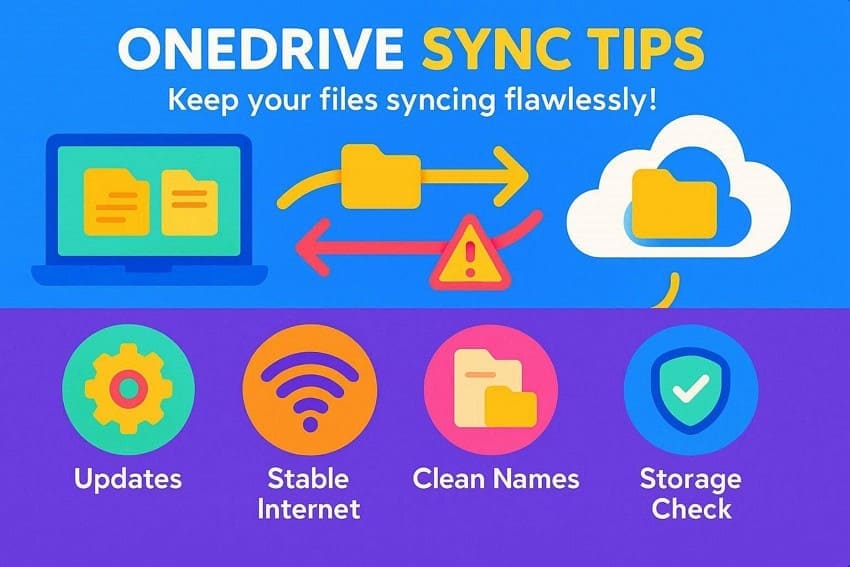
- Update OneDrive and Windows: Use the latest Windows updates and the current OneDrive client to prevent sync and compatibility errors. Updates fix bugs in the sync engines, improve handling of long paths, special characters, and SharePoint/OneDrive integration.
- Maintain Stable Internet: Always ensure a stable internet connection; slow or interrupted connections block file sync and trigger errors. So, prefer Ethernet or strong Wi-Fi and pause heavy downloads; resume sync from the OneDrive tray if files stall.
- Use Clean File Names and Paths: Avoid invalid characters (: *? " < > |), trailing spaces, and long folder paths that exceed limits. Additionally, keep paths under 400 characters, limit items to 300,000, and use organized project folders for smooth syncing.
- Monitor Storage and File Size: Check local disk and OneDrive cloud space; full driver or oversized files prevent syncing. Moreover, OneDrive usually allows 10–20 GB per file; compress, split, or move very large files outside OneDrive.
- Perform Sync Health Checks: Verify correct Microsoft account, permissions, and linked devices; stale tokens or cache can block sync. Additionally, use OneDrive repair, unlink/relink account, or remove rarely used libraries to maintain proper sync performance.
Conclusion
To sum up, many users face the 0x8007016a error when OneDrive or other cloud file providers fail to run properly, blocking access to online-only files. Therefore, this complete guide has explained the causes and solutions for this error. So, learn how to prevent it, and if the issue persists due to corrupted data, using Repairit is recommended to fix multiple format files in batches.
FAQ
-
1. Does 0x8007016a affect local files?
No, this error mainly affects cloud-based files. Your locally stored files remain accessible and safe. Even if online-only files encounter issues, downloaded files on your device will not be impacted. -
2. Can 0x8007016a appear on other cloud services?
Yes, similar issues may occur with services like iCloud or Google Drive, especially when synchronization features fail. Any cloud service integrated with Windows may trigger this error if the sync process is not running properly. -
3. Will error 0x8007016a cause data loss?
No, your data stored in the cloud remains safe. However, unsynced changes may require manual synchronization. This error usually blocks access temporarily but does not delete or corrupt your cloud files.




