 TL;DR:
To resolve file corruption and system instability caused by an incompatible or interrupted driver update, immediately roll back the affected device driver to its previous version via Device Manager.
● Run the System File Checker using the sfc /scannow command and DISM commands in an elevated Command Prompt to repair core Windows image damage, or run chkdsk /f /r to fix underlying storage drive bad sectors.
● If standard utilities fail to open specific documents or media, use Repairit File Repair on Windows or macOS to batch restore heavily damaged formats like Word, Excel, PDF, ZIP, PSD, and AI without altering the original formatting.
● Prevent future update-induced data loss by creating a system restore point prior to installation and exclusively downloading storage or chipset drivers from official manufacturer websites to avoid system conflicts.
Ask AI for a summary
 ChatGPT
 Perplexity
 Gemini
 Claude
 Grok
Grok
A driver update caused file corruption can lead to broken documents, unreadable media, or an unstable system. This usually happens when a driver is incompatible, installs incorrectly, or conflicts with existing system components. Even small mismatches between hardware and drivers can result in unexpected data damage.
In this article, you’ll learn how to repair files after driver update, identify the issue, recover lost data, and prevent the same problem from happening again.
In this article
How a Driver Update Can Cause File Corruption
Drivers connect your hardware and operating system, allowing both to communicate properly. When something goes wrong during a driver update, this connection can break. This leads to file corruption and system errors.
Common causes of this failure include:
- Incompatible or outdated drivers that conflict with your system and cause read/write errors.
- Interrupted installation or rollback issues that leave drivers partially installed or unstable.
- Storage or file system conflicts during updates disrupt how data is written or accessed.
When these issues occur, the effects can spread across your system. You may end up with corrupted documents, broken video or audio files. Plus, you might even face damaged system files that affect your system’s overall performance and stability.
Signs Your Files Were Corrupted After a Driver Update
After a driver update, file corruption shows clear warning signs. These issues appear shortly after the update is installed. You might notice some of these signs:
- Files won’t open or show errors when accessed
- Missing or unreadable data inside documents or folders
- System crashes or instability, such as freezing or unexpected restarts
- Performance issues after the update, including slow response or lag
- Corrupted media playback, distorted audio, or images that won’t load properly
How to Repair Files After Driver Update
If a driver update caused file corruption, you can troubleshoot it quickly using Windows tools. These repair system errors, restore stability, and recover damaged or missing files.
Fix 1. Use System File Checker (SFC)
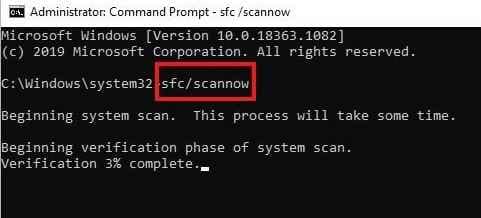
System File Checker is a Windows tool that scans your system for corrupted or missing files and automatically repairs them.
Step 1. Access Command Prompt and run it as admin.
Step 2. Enter the command sfc /scannow. Wait for the scan to complete. Restart your computer once finished.
Fix 2. Run DISM Tool
DISM (Deployment Image Servicing and Management) fixes deeper system image problems that SFC may not be able to repair. It helps restore the core Windows image, which can resolve corruption caused by faulty driver updates.
Step 1. In the Command Prompt window, enter each DISM command and press Enter after each line:
- DISM /Online /Cleanup-Image /CheckHealth
- DISM /Online /Cleanup-Image /ScanHealth
- DISM /Online /Cleanup-Image /RestoreHealth
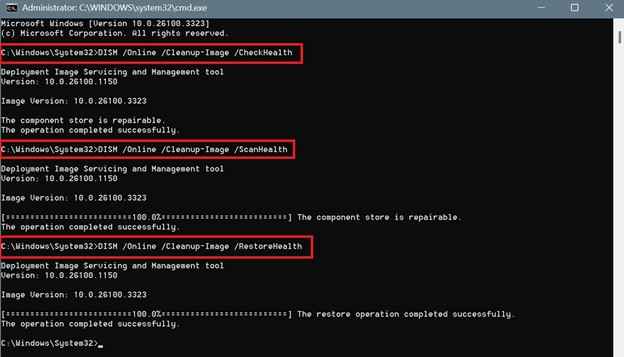
Step 2. Wait for the process to complete. Restart your PC once done.
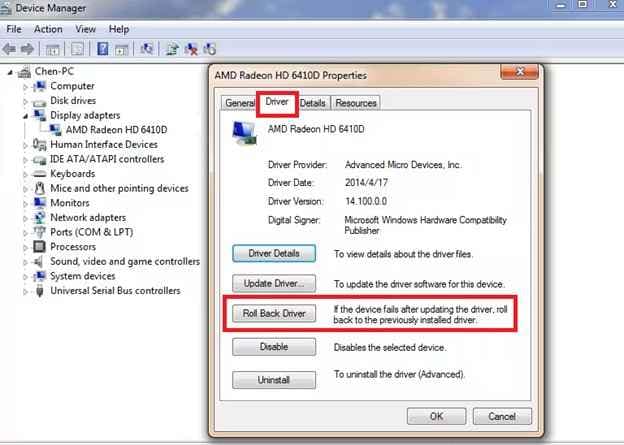
Fix 3. Roll Back the Driver
If the issue started right after a driver update, rolling back to its previous version can quickly restore system stability and stop further file corruption.
Step 1. Open your Device Manager. Locate and right-click the affected device.
Step 2. Click Properties and open the Driver tab. Press Roll Back Driver. Follow the on-screen instructions to roll back your driver and restart your system.
Fix 4. Run CHKDSK (Disk Repair Utility)
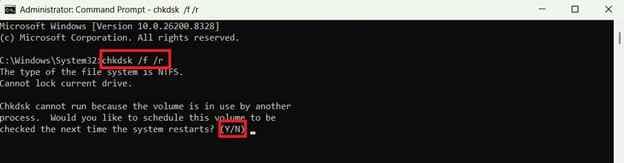
CHKDSK checks your storage drive for file system errors and bad sectors that may have been affected during the driver update. It helps repair disk-level issues that can cause file corruption.
Step 1. In the Command Prompt window, enter chkdsk /f /r.
Step 2. Confirm the scan on restart if prompted. Type Y. Reboot your system after running the chkdsk scan.
Fix 5. Restore from Backup or Previous Versions
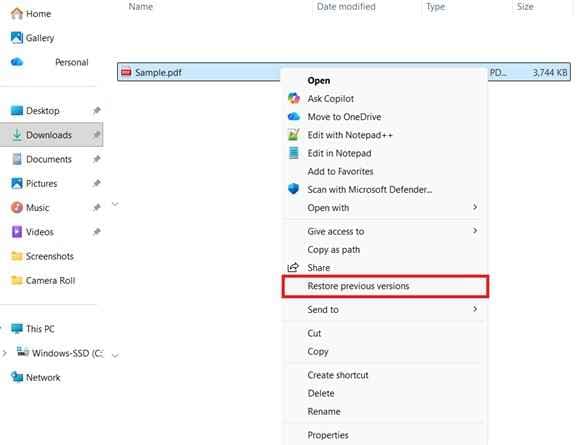
Restoring from backups or previous file versions is the most reliable way to recover clean, uncorrupted data after a driver update issue.
Step 1. Right-click the affected file or folder.
Step 2. Select Restore previous versions.
Advanced Corrupted File Repair After Driver Update
If files are heavily corrupted, a file repair tool may help recover or fix them when built-in system tools aren’t enough.
Repairit File Repair is a trusted tool that can help fix corrupted files caused by things like driver update issues, system crashes, malware, or unexpected shutdowns. It helps restore unreadable or damaged files quickly while preserving original content and structure.
It CAN:
- Repair multiple corrupted files at once for faster recovery after system or driver issues.
- Fix documents, archives, and engineering files, including Word, Excel, PDF, ZIP, PSD, AI, and more.
- Resolve unreadable files, garbled content, blank files, and files that won’t open after a driver update.
- Repair files without altering original formatting, layout, or content
- Support all major Microsoft Office and Adobe file versions.
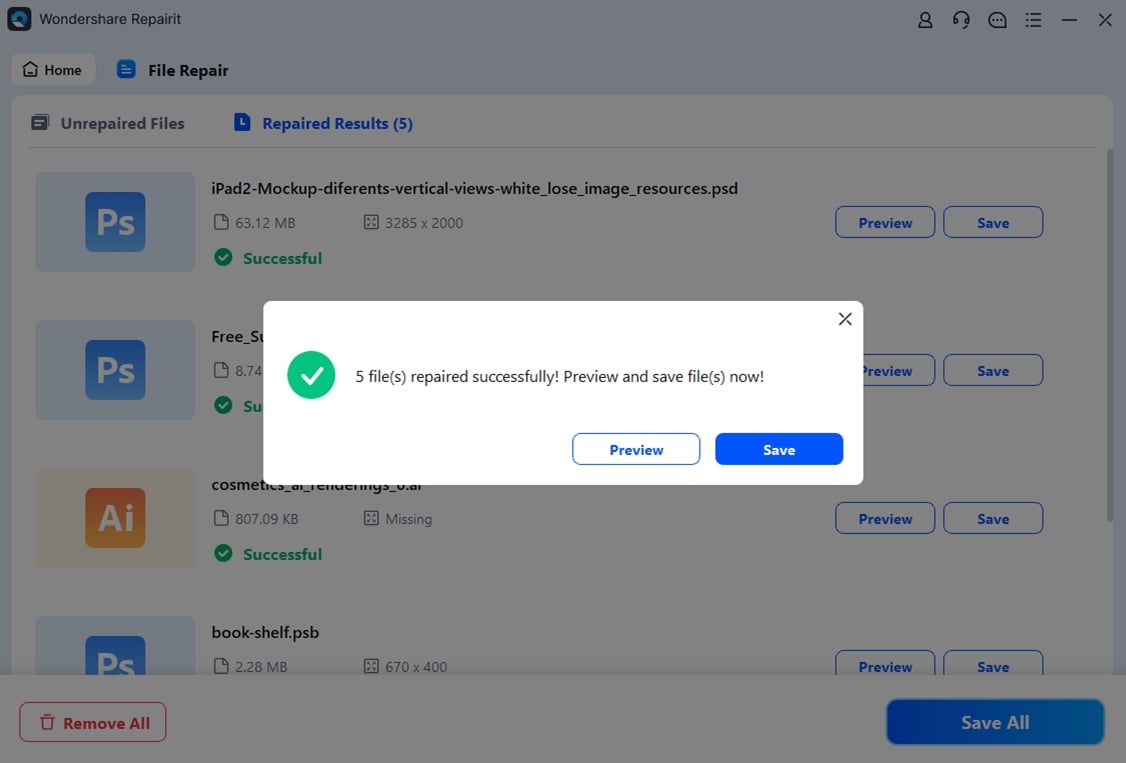
- Check repaired files before exporting to ensure successful recovery.
- Work on both Windows and macOS systems
Step-by-Step (Optional)
Step 1: Upload the corrupted files.
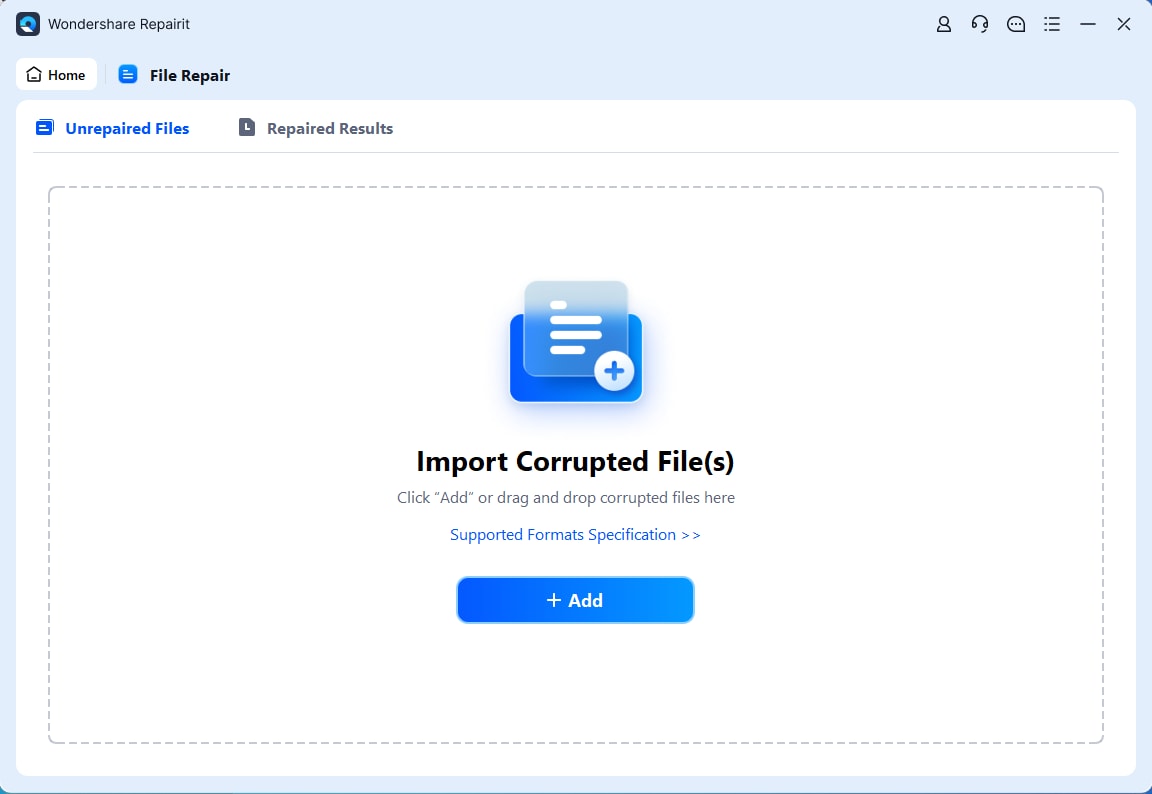
Step 2: Start the Repair process.
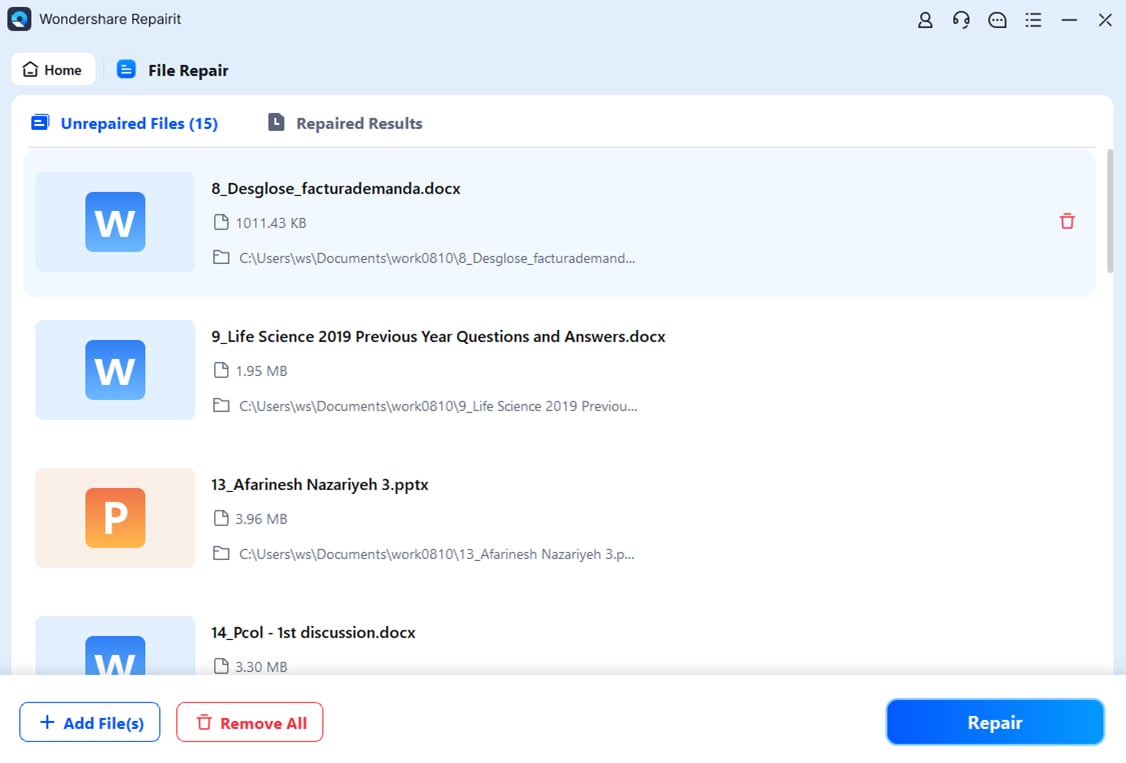
Step 3: Preview and save the restored file to a new location.
How to Prevent File Corruption After Future Driver Updates
Preventing file corruption is easier than fixing it. A few simple steps before and after driver updates can help avoid system issues and data loss.
- Create restore points before updates - Set a restore point so you can easily roll back if problems occur.
- Download drivers from official sources only - Use trusted manufacturer sites or Windows updates to avoid faulty drivers.
- Avoid interrupting updates - Don’t turn off or restart your device during installation.
- Keep system and drivers updated regularly - Update consistently to reduce compatibility issues.
- Maintain regular backups - Use cloud storage or external drives to protect your files.
Conclusion
A driver update can cause file corruption, disrupt your system and make important files inaccessible. Luckily, the issue is fixable using the built-in Windows tools and a repair tool. You can now fix corrupted files after a driver update, restore lost data, and bring your system back to stability. To reduce future risks, always keep backups, update drivers carefully, and use trusted sources for installations.
FAQs
-
What should I do first if I suspect file corruption?
Stop using the affected system, restart it, then check if the issue continues before making changes. -
Can a driver update affect my hard drive or SSD directly?
Yes. Storage or chipset driver updates can affect read/write processes and may lead to file errors or corruption. -
Should I uninstall the latest driver update if problems start?
Yes. Rolling back or uninstalling the recent driver is a key first step if issues begin after an update. -
Can outdated drivers also cause file corruption?
Yes. Outdated drivers can conflict with system updates or hardware and lead to file errors over time. -
Is it safe to reinstall drivers after corruption happens?
Yes, as long as you download the correct version from the official manufacturer's site.