
Have you ever clicked on a file only to be greeted by a warning that says it could harm your computer? This can cause frustration and confusion when you’re sure the file is safe. Above all, this error can stop you from opening important documents, images, or downloads and leave you stuck.
Worry not, since you can easily get rid of the “the file you are attempting to preview could harm your computer” error with the right approach. In this regard, review this guide to uncover what this error means and what practical and straightforward way can resolve it in no time.
Table of Contents
Part 1. Preview Warning: The File You Are Attempting to Preview Could Harm Your Computer
Know that the “the file you are attempting to preview could harm your computer” error is a safety alert from Windows. Hence, it appears that when File Explorer blocks the preview of a file, it thinks it might not be safe.
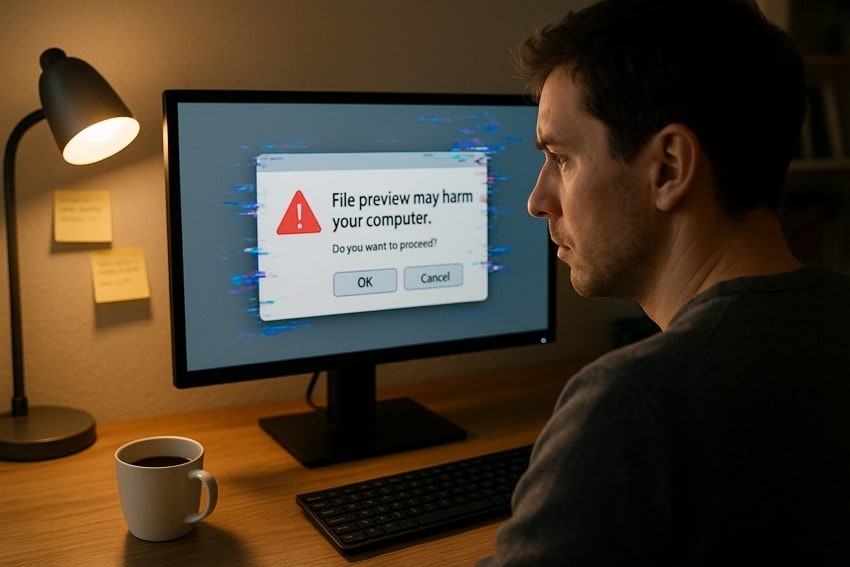
The warning doesn’t imply that the file is harmful and simply means Windows is being careful and wants to protect your computer. So, to know why users face this warning sign, review some of the causes mentioned ahead:
- File Marked as External/Untrusted Source: When you download a file from the web or another computer, Windows adds a tag that says it came from outside. After the new security rules, Windows blocks previews for such files and shows a warning to stop hidden, harmful parts from running in the preview pane.
- New Windows Security Rules: As a planned change, recent Windows updates removed preview support for many files from the internet. Thus, it closes a security gap where a preview could expose your data or run unsafe content.
- Documents With Active Elements: PDFs or HTML files can contain links or external sources, and when File Explorer opens them, it may connect to other servers. So, to stop that from happening without your knowledge, Windows stops the preview and shows a warning.
- Files From Shared or Untrusted Locations: Files on network drivers and third-party sync folders may fall under “Internet” or “Untrusted” zones. Thus, Windows blocks the preview by default and shows a warning, even if the file is safe.
- Stronger Malware Protection: Attackers tend to place harmful code within files that look safe, yet a simple preview can trigger them. Therefore, Windows treats such files as risky until you choose to open or unblock them.
Part 2. Resolve “The File You Are Attempting to Preview Could Harm Your Computer” Error - 6 Ways
Warnings like “the file you are attempting to preview could harm your computer” can put your work at risk any time they appear. The best and most effective workarounds to resolve this error are explained clearly below with easy-to-follow steps:
Fix 1. Unblock the File Manually
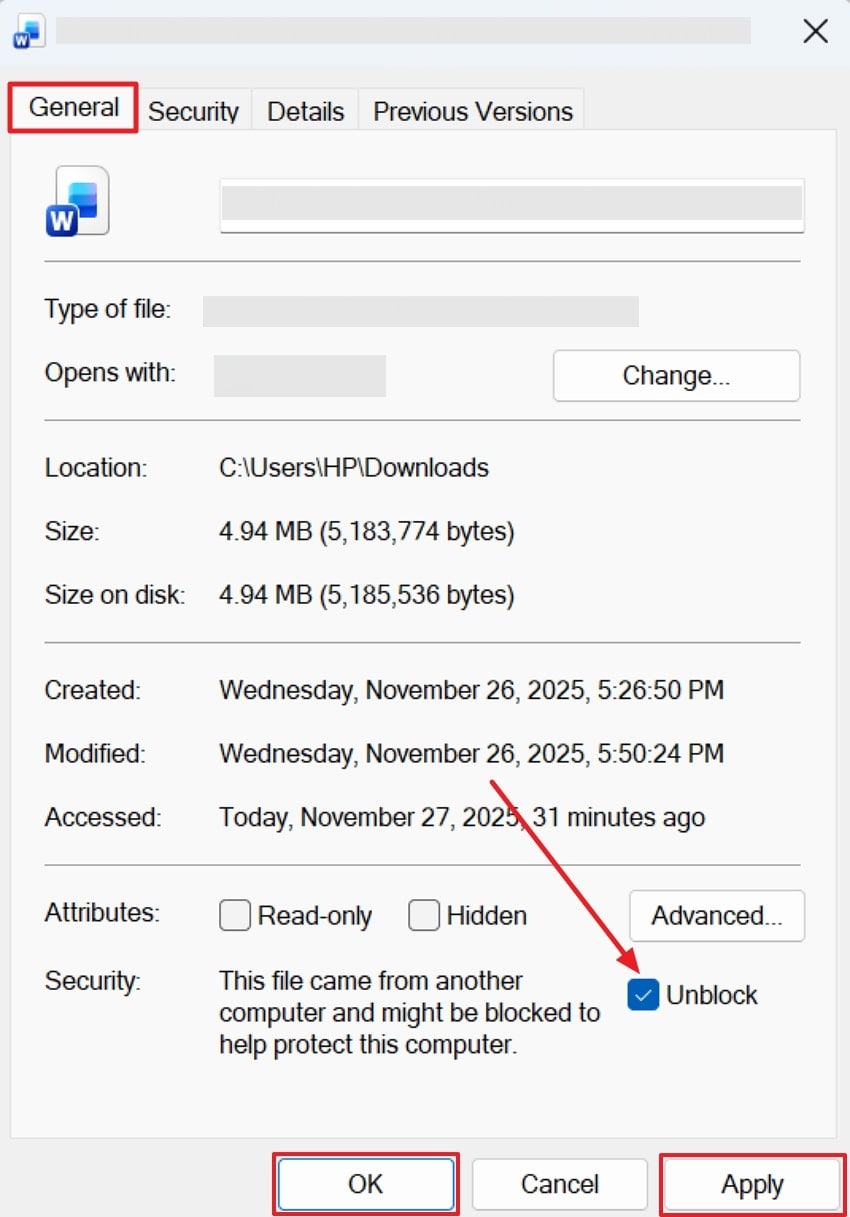
This is the simplest yet most reliable fix, especially if it comes from a trusted source. When you manually unblock the file, you’re telling Windows that you trust this file, which removes the warning instantly. It's the safest approach for trusted files because it avoids system changes and allows access without any restrictions. To proceed, follow the provided guidelines and unblock files manually:
Instructions: First, open File Explorer, right-click the file that shows a warning, and select the “Properties” option from the menu. Later, access the “General” section and tick the “Unblock” option from the Security section. Once done, press the “Apply” button to confirm the changes, then press the “OK” button.
Fix 2. Unblock Multiple Files Using PowerShell
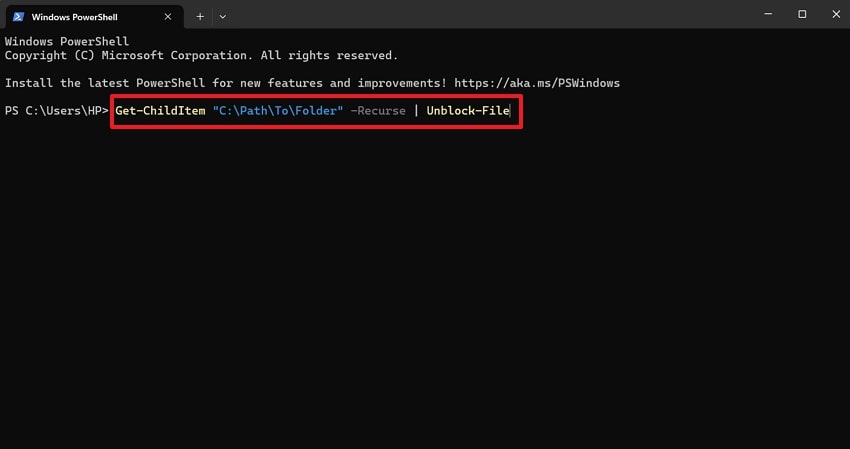
With multiple files triggering, “the file you are attempting to preview could harm your computer”, PowerShell could help unblock them all. Instead of clicking through hundreds of file properties, a single PowerShell command removes the security block from every file. For more clarity, follow the provided tutorial and unblock multiple files without manual repetitive steps:
Step 1. In your Windows search bar, look for Windows PowerShell and press “Run as Administrator” once located.
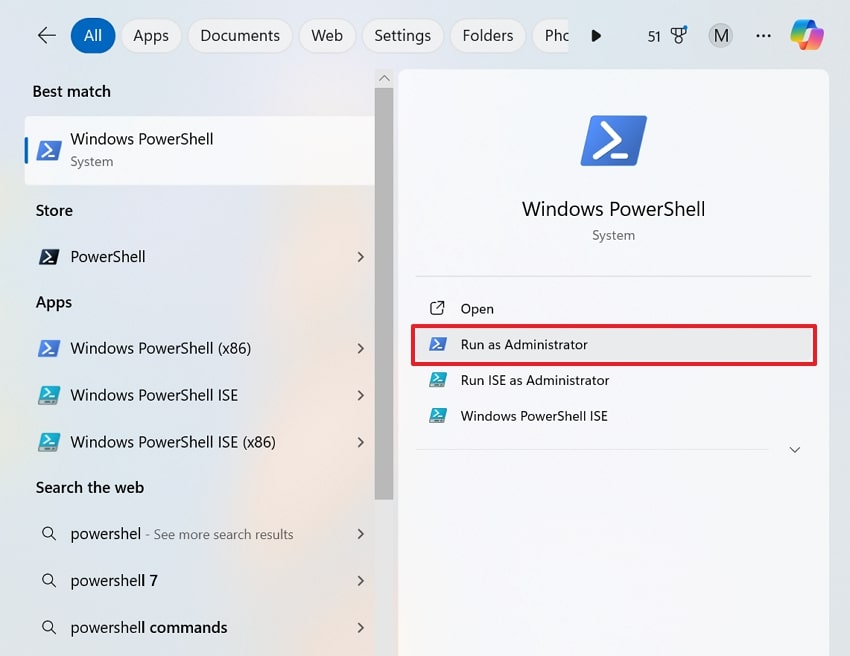
Step 2. Next, type “Get-ChildItem "C:\Path\To\Folder" -Recurse | Unblock-File” command, replacing C:\Path\To\Folder with your real path. Now, press Enter and wait for the command to finish before rechecking the previews.
Fix 3. Remove Security Update (Not Recommended)
In rare cases, a newly installed update may incorrectly flag safe files, causing the preview warning to repeat. Once the specific false-positive security updates are removed, the warning can stop immediately. However, this solution comes with a major trade-off: it can weaken your system’s defenses against malware or unsafe downloads. Dive into the tutorial and remove security updates from Windows for a free preview of files:
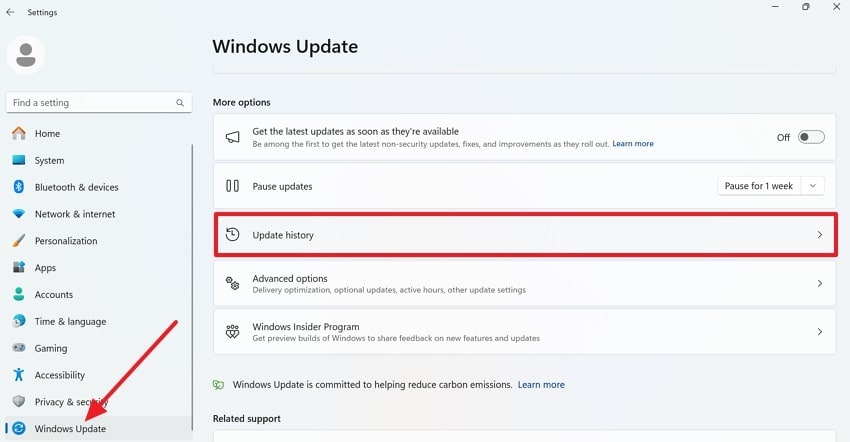
Step 1. Initially, enter your Windows Settings, access the “Windows Update” option, and click the “Update History” option.
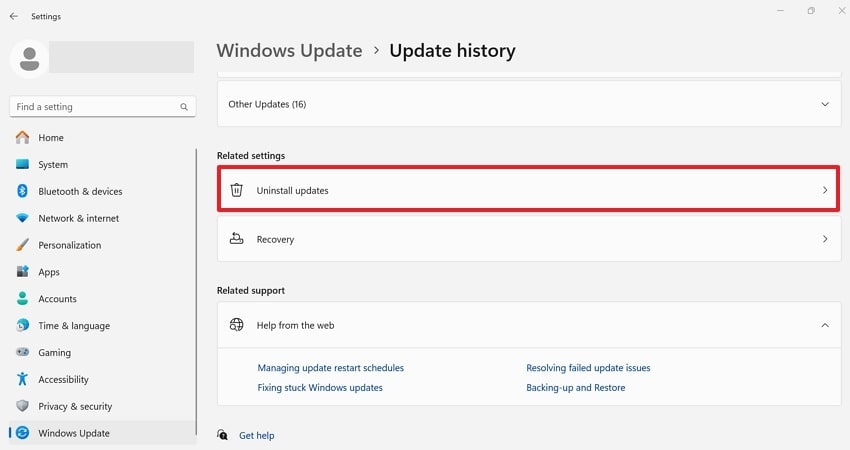
Step 2. Under Related Settings, select the “Uninstall Updates” option to find and uninstall the security update associated with preview issues.
Fix 4. Modify Registry or Group Policy (Advanced)
You can modify Windows policies if the warning “the file you are attempting to preview could harm your computer” becomes recurrent. This way, users can fine-tune Windows attachment-handling rules, making access more convenient while maintaining strict security checks. Besides, the Registry or Group Policy adjustment allows you to relax attachment checks for known safe locations. Follow the given tutorial and perform system-level changes to preview files easily:
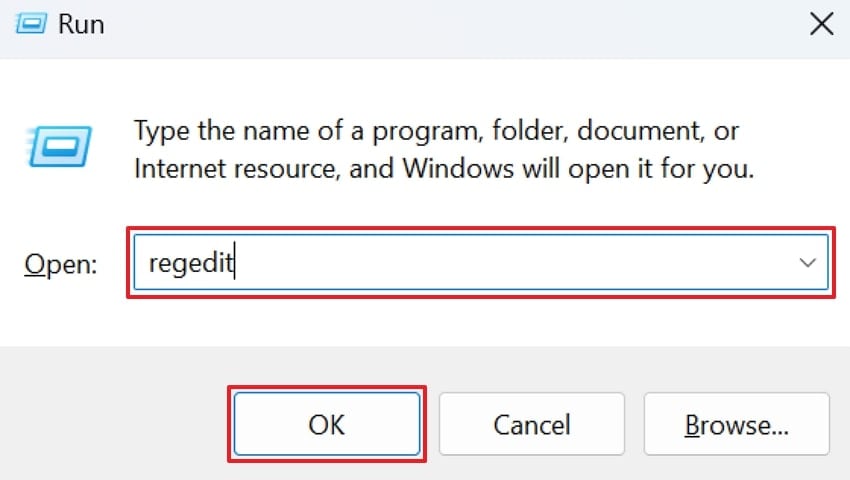
Step 1. To proceed, press the “Windows + R” keys together, type “regedit” in the given space, and click “OK.”
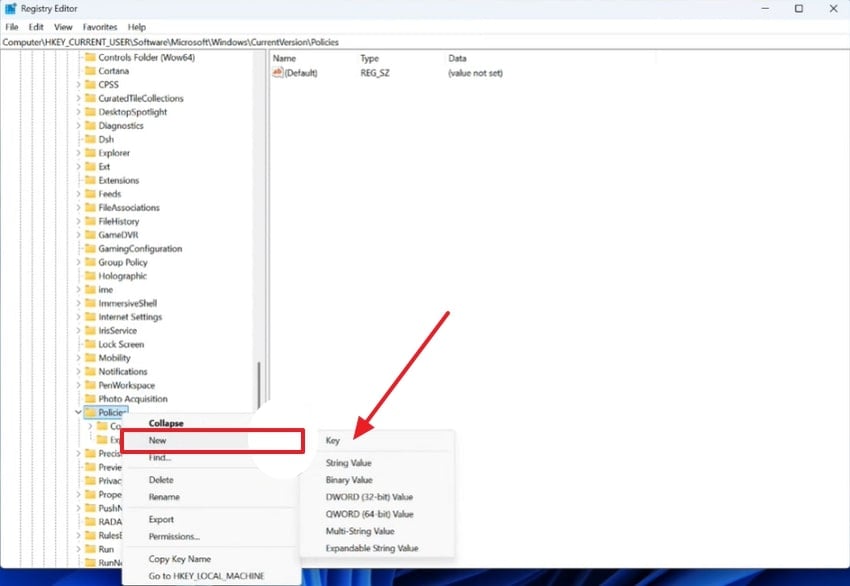
Step 2. Navigate to “HKEY_CURRENT_USER\Software\Microsoft\Windows\CurrentVersion\Policies” and right-click “Policies” (if there’s no attachment). Next, choose the “New” option, then select the “Key” option to create a new policy as an “Attachment.”
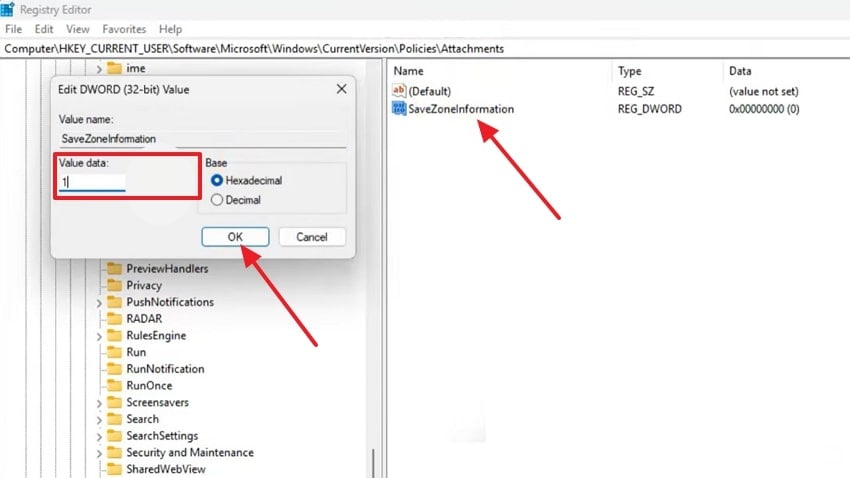
Step 3. In the right pane of Attachments, create a “DWORD (32‑bit)” value named “SavedZoneInformation” and double-click it. Once done, change its value to “1” and click the “OK” button to restart your PC later.
Fix 5. Add Source to Trusted Sites (For Web-Based or Portal-Delivered Files Only)
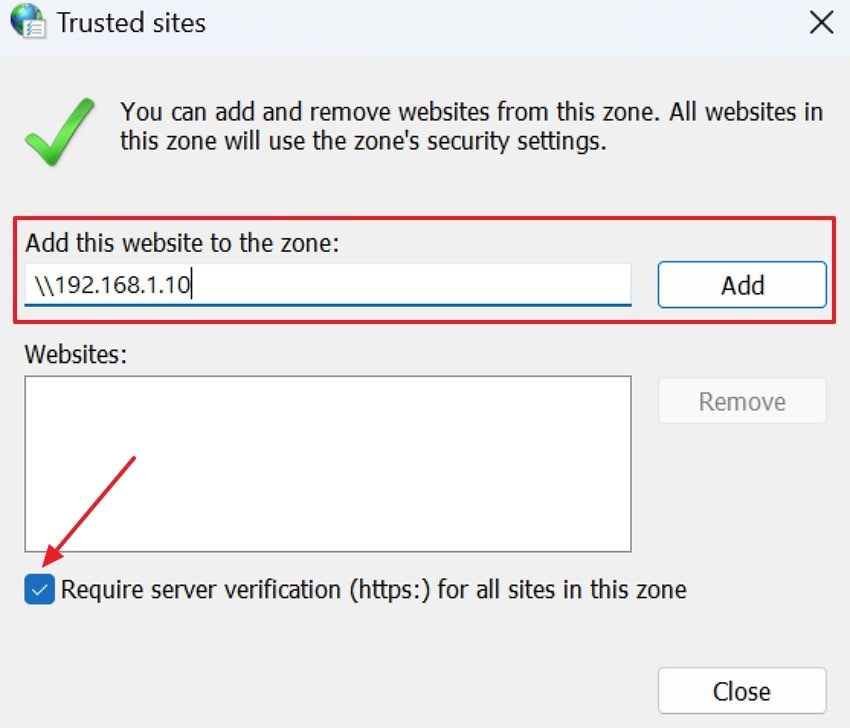
This method only helps when files come from an internal web portal, SharePoint, or a server that applies internet-zone tags. Adding the site to Trusted Sites can reduce strict browser rules and prevent new files from being tagged as untrusted. However, it does not remove existing preview warnings or clear Mark of the Web tags. Follow the steps to adjust trusted access safely:
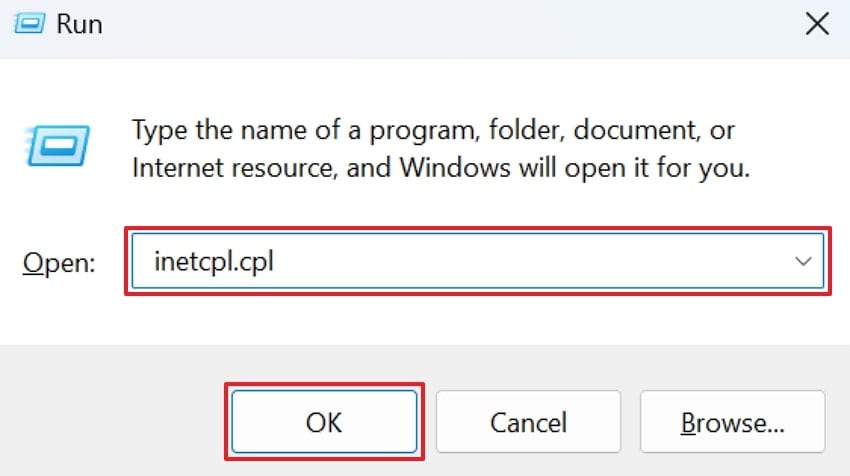
Step 1. To do so, press the “Windows + R” keys together and write “inetcpl.cpl,” then click the “OK” button.
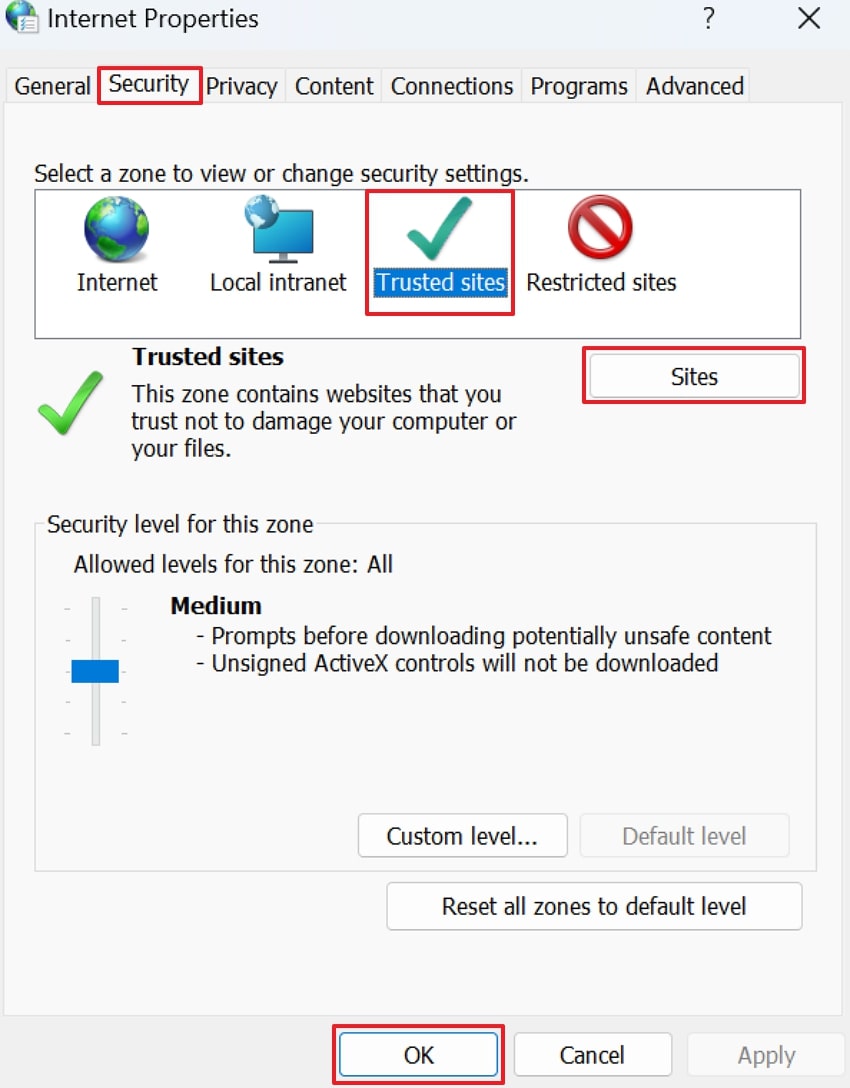
Step 2. Go to the “Security” tab, click the “Trusted Sites” option, and press the “Sites” button. Proceed, and click the “OK” button to confirm the action and add a trusted site.
Step 3. Move forward, enter your server’s IP address or hostname, and press the “Add” button. Next, uncheck the “Require server verification (https:)” option and click the “Close” button to preview files without warnings.
Fix 6. Understand the Security Purpose
This warning is part of Microsoft Defender SmartScreen/Attachment Manager and is designed to stop malware from being downloaded in files. Before you unblock anything, confirm your trust in the sender and source, then scan the file with your antivirus program. It is suggested that you should never turn off all protection systems-wide just to restore previews. Instead, unblock specific known-safe files or folders and keep antivirus active for everything else.
Pro Tip. Fix Risky or Corrupted Files Safely with Repairit - Your Ultimate Solution!
With a warning like “the file you are attempting to preview could harm your computer," it's natural to think that the file is corrupted. Instead of playing the guessing game, download Repairit to fix files that pose hidden risks to your system. Whether your file is corrupted due to hardware failure, virus infection, or an unexpected power outage, you’re sorted anyway. Supporting over 30 file formats, the program facilitates multiple corruption scenarios as well.
Key Features

-
Offers Complete Compatibility: It supports all versions of Microsoft Office and Adobe file formats with no feature loss across platforms.
-
Repairs AutoCAD Files: You can repair corrupted DWG and DXF files with precision, along with 2D/3D drawing recovery.
-
Fixes Excel Documents: The software restores all the corrupted formulas, charts, and content in a damaged Excel file without any loss.
Comprehensive Tutorial to Repair Risky Files Using Repairit
The provided tutorial guarantees that all your risky or corrupted files are repaired in no time with Repairit:
Step 1. Insert Your Risky Files
Initially, enter the “More Types Repair” tab and press the “Start” button for Document Repair. Proceed, then press the “+Add” button to add all the corrupted files at once.

Step 2. Begin Repairing the Corrupted Documents
Here, click the “Repair” button and start an all-around repair process on the damaged and risky files.

Step 3. Analyze and Save All the Fixed Files
Once the process completes, preview the repaired files and press the “Save All” button to save them.

Fix Risky or Corrupted Files
 Security Verified. Over 7,302,189 people have downloaded it.
Conclusion
In summary, “The file you are attempting to preview could harm your computer” can instantly raise concern, but in reality, it’s Windows that is protecting you. Instead of assuming the worst, think of it as a helpful warning light, alerting you before anything risky gets too close. Once the issue goes deeper, like actual file corruption, simply download Repairit and get them fixed immediately.
FAQs
-
Q1. Is it safe to ignore this warning?
Yes, but only if you’re 100% confirmed that the files come from a trusted source. However, ignoring warnings about unknown or suspicious files can expose your computer to viruses or hidden corruption. Double-check the file’s origin always, and when in doubt, scan it with antivirus software for assurance. -
Q2. Does this affect all versions of Windows?
This warning can appear in Windows 10, 11, and even older versions whenever security features flag a file as potentially harmful. Even trusted files can trigger the alert if Windows considers them “from another computer” or if your security settings are set to high. -
Q3. Is this error related to malware?
The file you are attempting to preview could harm your computer error isn’t always associated with malware. While malware can trigger the warning, it’s often just Windows being cautious about downloaded or network files.




