
![Fixing “The Extended Attributes Are Inconsistent” in Windows [Tested Guide]](https://images.wondershare.com/repairit/article-trans-image/2650/extended-attributes-are-inconsistent-1.jpg)
Windows may show a message saying the extended attributes are inconsistent, stopping tasks. This error often starts when core files break or system settings shift unexpectedly. Many users feel unsure because the message gives no clear clues about the causes. Learning the key triggers helps you act early and avoid bigger issues.
Moreover, this guide shares clear actions that help bring your system back to normal. Each method focuses on finding faults that interrupt daily work or reduce speed. With easy steps, you can fix the issue and prevent future errors.
Table of Contents
Part 1. What “The Extended Attributes Are Inconsistent” Means on Windows
“The Extended Attributes Are Inconsistent” means Windows can’t read the important data it needs to run safely. These attributes help the system open tools, check permissions, and load user settings. When they break, Windows can’t trust its own files, so core features stop working. This shows the system is unstable, not just having a small or simple glitch.
Why The Extended Attributes Are Inconsistent After Updates or Crashes - 6 Reasons
Review the main reasons below why the extended attributes are inconsistent after major system changes:

- File Damage: Crashes can break essential files needed for Windows to run basic tasks. These broken files cause errors when Windows loads tools needing higher access.
- Profile Issues: User accounts can break when updates change simple settings linked to profiles. These broken profiles fail when Windows checks permissions for admin-level work.
- Registry Problems: Updates may leave registry data mixed up, confusing simple Windows functions. These mixed entries block services that help Windows start with correct checks.
- App Conflict: Removed apps sometimes leave parts behind that block normal Windows actions. New apps may add drivers that cause issues with admin access.
- Security Tools: Security apps can change basic processes that handle login and permission checks. These changes may clash when Windows updates are needed for higher access.
- Hardware Issues: Failing drives can cause corruption that affects simple Windows settings badly. Weak memory may create wrong data inside parts that Windows needs every day.
Part 2. 8 Quick Fixes for The Extended Attributes Are Inconsistent
To continue, here are 8 easy methods that usually clear “the extended attributes are inconsistent” issue:
Fix 1. Change Sound Settings
Changing the sound scheme removes broken audio events linked with UAC prompts. This change works by clearing sound settings that stop permission windows from loading. It helps because damaged sound files can block simple tasks needing admin rights. This choice is helpful when prompts feel slow or fail. Continue ahead to see how these sound adjustments are applied step by step:
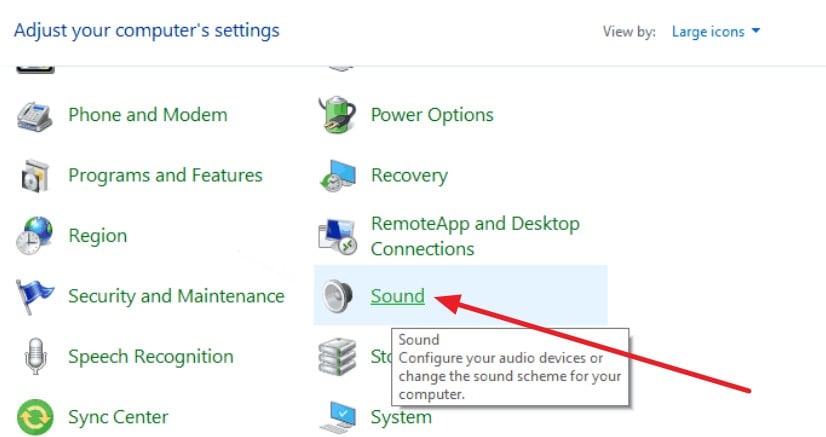
Step 1. First, go to the Control Panel and select “Sound” from the list of system options.
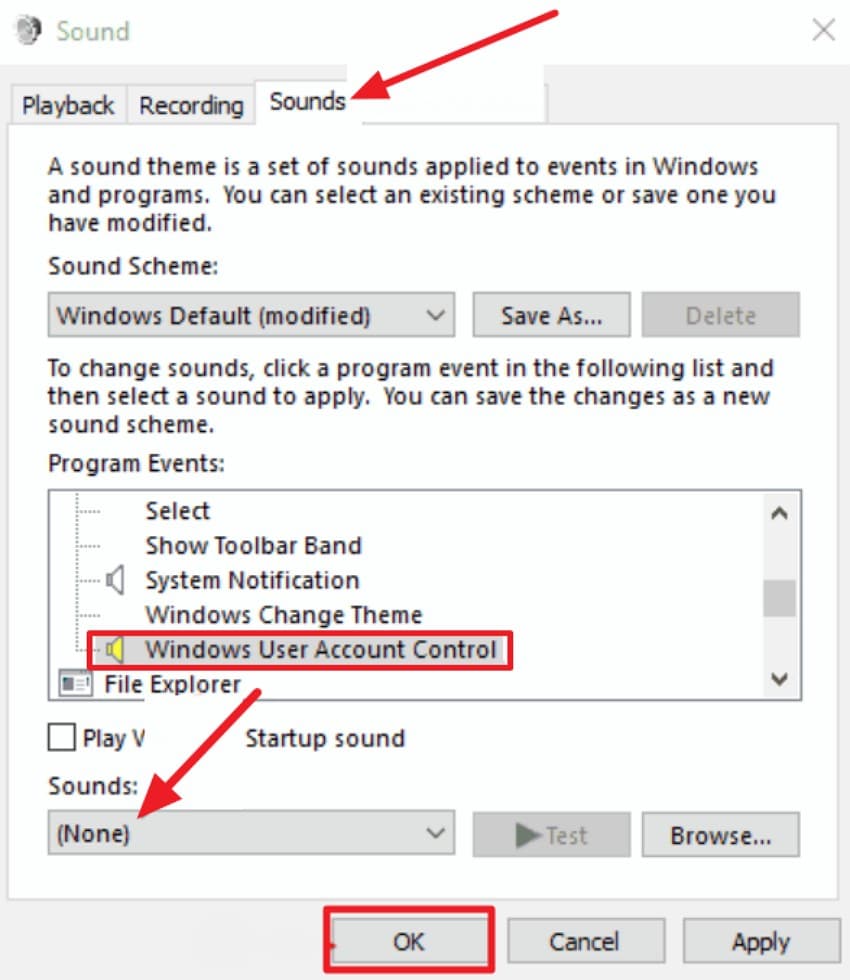
Step 2. Next, choose “Windows User Account Control” in the “Sounds” tab, and set Sounds to “(None)”. After that, click “OK” to apply the changes and remove the faulty UAC sound event.
Fix 2. Uninstall Recently Installed Applications
Newly installed apps can sometimes disrupt system permissions or modify rules required for secure operations. Thus, uninstalling them removes any recent changes that may have changed key files or settings. This helps because many permission-related errors appear after adding new software. Consider using this fix if the problem started right after installing an application.
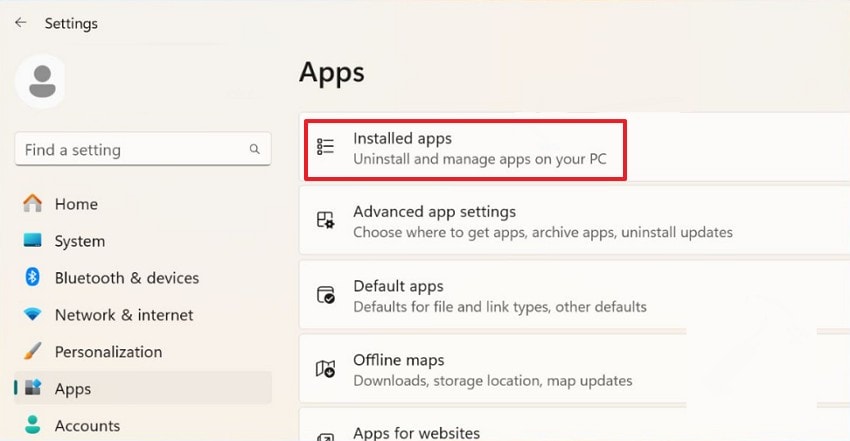
Step 1. To start, go to “Settings,” select “Apps,” and click “Installed apps” to view programs on your PC.
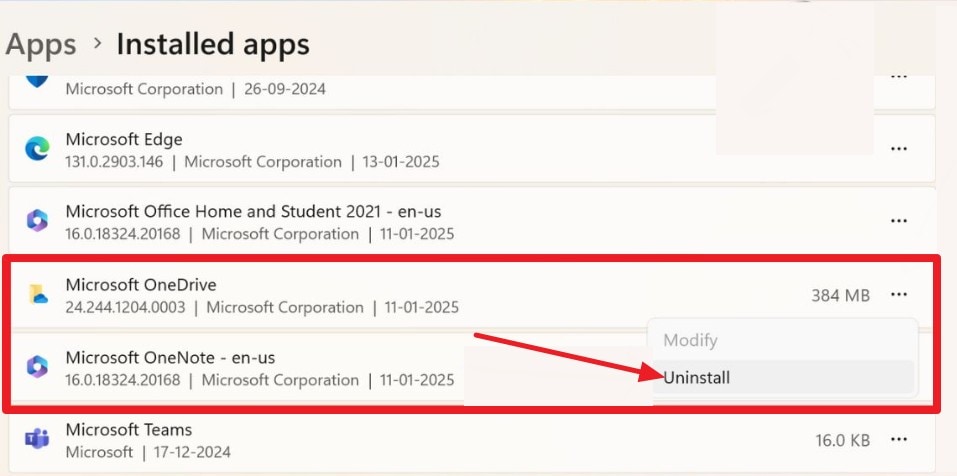
Step 2. Afterwards, locate the app you want to remove, click on the three dots, and choose the “Uninstall” option.
Fix 3. Clean Boot Your Computer
A clean boot loads Windows with only simple and safe system items. It works by turning off extra apps that may disturb secure tasks. Above all, it helps because some background tools block admin prompts from opening. This method is useful when crashes happen only during normal startup. Next, review the steps required to perform a clean boot safely:
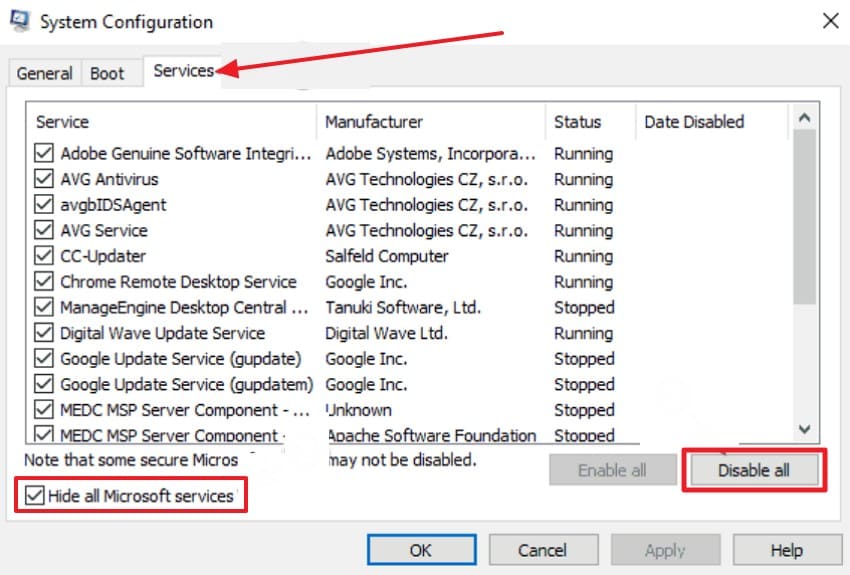
Step 1. First, access the System Configuration, go to the “Services” tab, and check “Hide all Microsoft services.” Then click “Disable all” to turn off all third-party services that might cause conflicts.
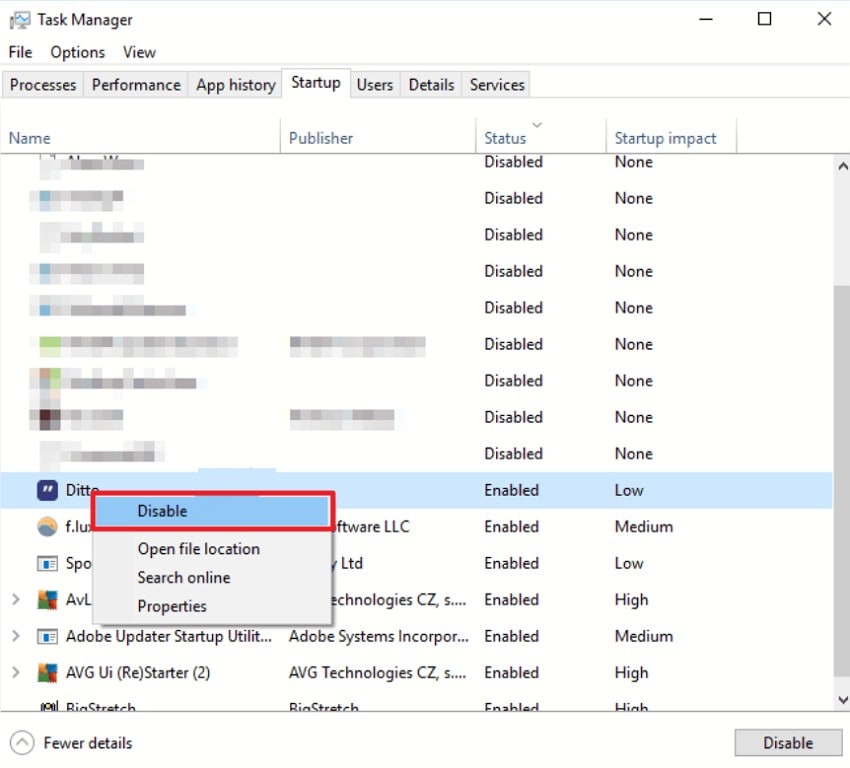
Step 2. Next, move towards the “Startup” tab in “System Configuration” and click “Open Task Manager.” Then right-click each enabled startup app and choose “Disable” to stop them from loading.
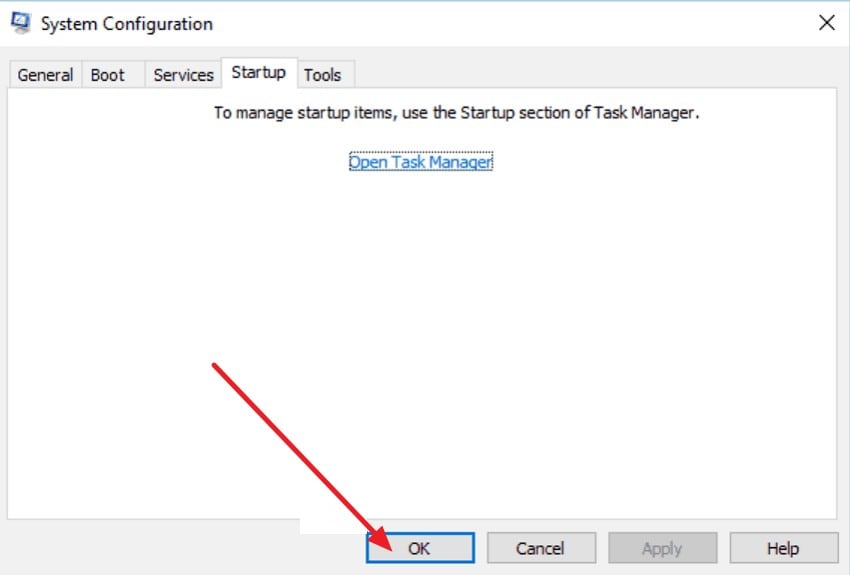
Step 3. Finally, go back to “System Configuration” and open the “Startup” tab again. Then click “OK” to save the changes and restart Windows in clean boot mode.
Fix 4. Run SFC Scan
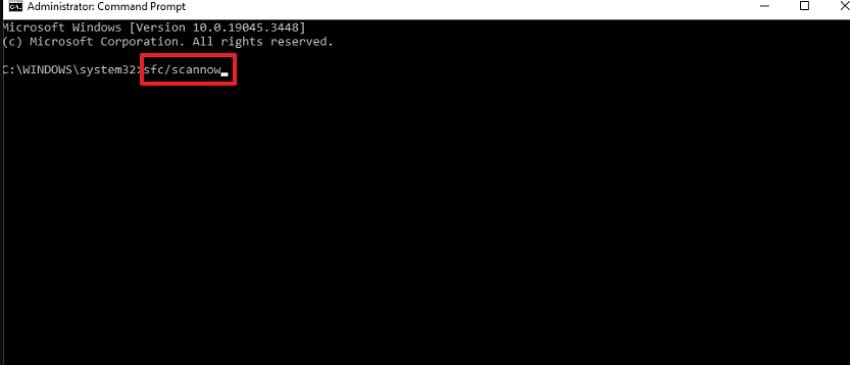
An SFC scan checks system files for damage that blocks safe actions. This method works by replacing broken files with clean ones already stored in Windows. Plus, it helps because damaged files often cause slow or failed admin prompts. This method becomes vital when tools crash with no helpful explanation. Continue below to review the steps involved in running this repair:
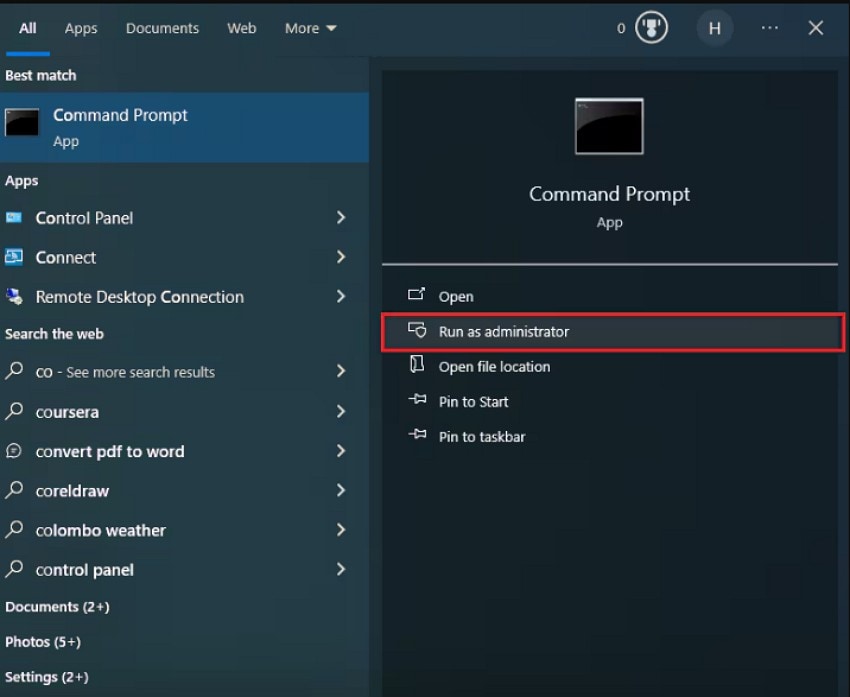
Step 1. Start by choosing the "Run as Administrator” option after accessing the Command Prompt from the Search window.
Step 2. Afterward, enter the command “sfc /scannow,” then press the “Enter” button and wait until the scan is completed.
Fix 5. Change the Group Membership
Updating a user's group role brought back the rights needed for admin-level tasks. It works by giving the account access paths expected during secure actions. Also, it helps because wrong group settings often block permission windows. This change is beneficial when accounts lose rights after updates. Let's walk through the steps for adjusting account roles easily:
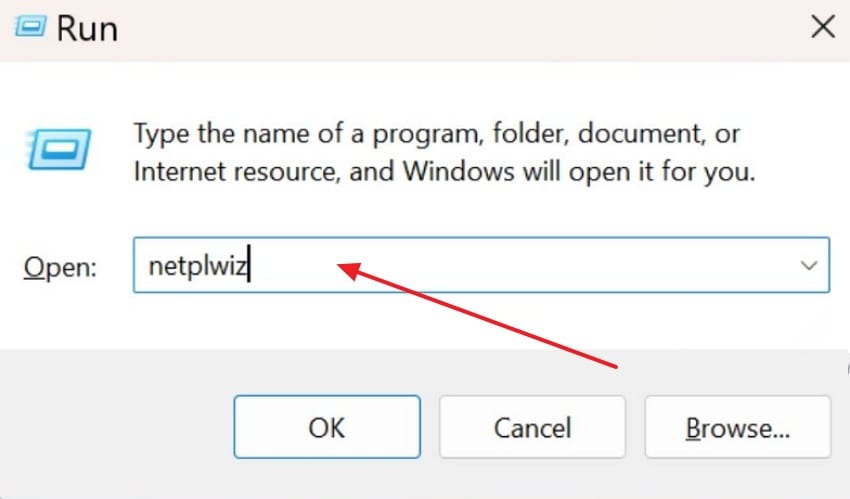
Step 1. To start, press Win + R, type “netplwiz”, and hit the “OK” button to open the User Accounts panel.
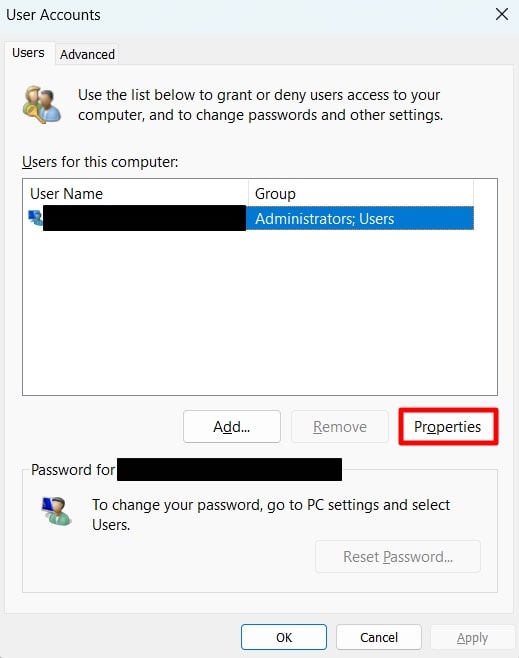
Step 2. Later, select the user you want to modify and click on the “Properties” on the right side. This opens a new window where you can change access settings for the selected account.
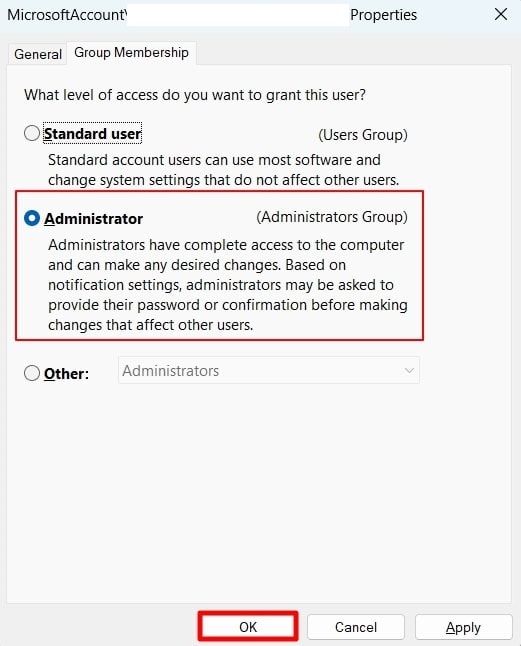
Step 3. Lastly, navigate to the “Group Membership” tab and choose “Administrator” under the available options. Afterwards, click “OK” to apply the new role and grant full administrator privileges.
Fix 6. Create a New User Account
A new account avoids damaged data hidden inside older user profiles. The method works by giving clean settings that prevent errors tied to secure tasks. It helps because broken profiles often cause “the extended attributes are inconsistent” problem. This step is useful when login issues keep appearing on Windows systems. Review the steps below to create a new account without losing important files:
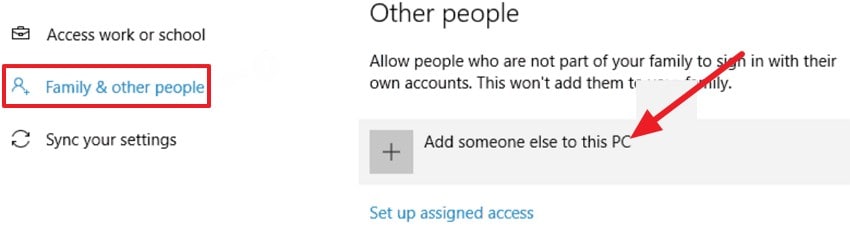
Step 1. Start by locating “Settings” to further select “Family & other people,” and click “Add someone else to this PC” to proceed.
Step 2. Here, type a new “Username,” add a password if needed, and press “Next” to continue.

Fix 7. Perform System Restore
Restoring Windows to an earlier state returns files and settings to stable versions. The process works by undoing harmful changes introduced during updates or installs. It helps because many errors start after recent system modifications. This option becomes valuable when lighter repairs fail to improve stability. Follow the guide below to use the System Restore process effectively:
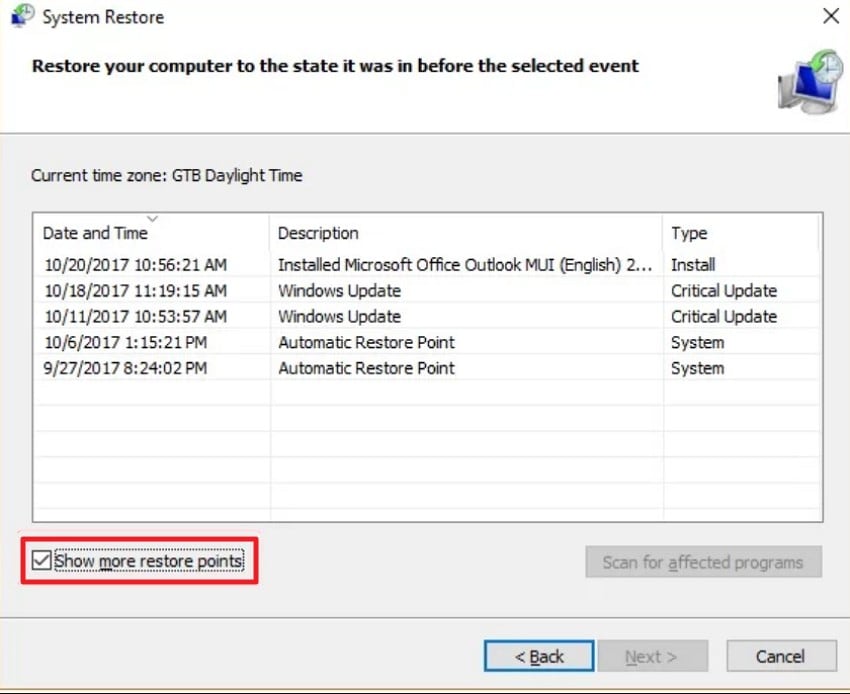
Step 1. Firstly, press Win + R, type “rstrui”, and click “OK” to launch the System Restore window.

Step 2. Later, select a restore point created before the error appeared and click “Next” to continue. Afterwards, confirm the action to let Windows roll back system files and settings safely.
Fix 8. Restore System Image Using DISM
A system image repair fixes deeper files that normal scans cannot handle. It works by restoring core parts of Windows that are needed for safe and stable use. Moreover, it helps because damaged image layers recreate the same errors often. This repair is useful when problems return after simple checks. Adhere to the steps below to learn how to run this repair:
Instructions. After running Command Prompt as administrator, type the command “Dism /Online /Cleanup-Image /RestoreHealth” and press the “Enter” key.

Pro Tip. Use Repairit to Fix Corrupted Files When “The Extended Attributes Are Inconsistent” Causes Damage
When system errors damage important files, you need a direct way to repair them quickly. This matters most after repeated crashes leave videos or documents broken and unreadable. In such cases, Repairit becomes useful because it rebuilds lost file sections safely. The tool analyzes corrupted frames or pages and restores stable versions without complex steps.
When extended attributes become inconsistent and start disrupting files, Repairit begins repairing damaged data to restore normal access. It also checks damaged headers, missing blocks, and unreadable previews before starting repairs. Besides, these checks help when Windows denies access after permission or loading issues. Repairit even rebuilds usable versions while keeping original files safe from more harm.
Key Features

-
Repair damaged files with all levels of corruption, including blank files, files not opening, unrecognizable format, unreadable content, files layout changed, etc.
-
Support to repair all formats of PDF, Word, Excel, PowerPoint, Zip, and Adobe files.
-
Perfectly repair corrupted files with a very high success rate, without modifying the original file.
-
No limit to the number and size of the repairable files.
-
Support Windows 11/10/8/7/Vista, Windows Server 2003/2008/2012/2016/2019/2022, and macOS 10.13~macOS 15.
Simplified Tutorial to Repair Corrupted Files Instantly with Repairit
Review the step-by-step guide below to repair damaged files precisely with advanced algorithms of Repairit:
Step 1. Import the Corrupted Files to Proceed
First, click the “Add” button on the main Repairit screen and choose the damaged files. You can also drag and drop the files directly into the “Unrepaired Files" section.

Step 2. Run the Repairing Process
After the files appear in the list, press the “Repair” button at the bottom right. Later, Repairit will start analyzing and fixing each file, showing progress for every item.

Step 3. Preview the Results and Save Them
Finally, when the repair completes, select “Preview” to check the recovered results before saving. If the files look correct, click “Save” to store them or choose “Save All” for bulk recovery.

Fix Corrupted Files Due to “The Extended Attributes Are Inconsistent” Issue
 Security Verified. Over 7,302,189 people have downloaded it.
Part 3. How to Prevent “The Extended Attributes Are Inconsistent” in the Future
To avoid seeing the extended attributes are inconsistent, follow these simple prevention habits:

- Clean Shutdown: Always shut down Windows from the Start menu to stop sudden errors from happening. This simple step protects files when updates run and prevents hidden system damage.
- Regular Updates: Keep Windows and apps updated so you avoid crashes caused by old bugs. New updates fix common issues and help your computer run stably every day.
- Safe Software: Avoid risky apps that change system settings and create unwanted system problems. Using safe tools keeps your computer stable and protects important Windows features.
- System Health: Check your disk and system files often to catch issues early on. These quick checks stop minor problems from growing and blocking needed tasks later.
- Steady Backups: Create restore points before making big system changes to protect your computer. Backups help you return safely when errors appear and affect normal Windows work.
Conclusion
To conclude, when the extended attributes are inconsistent, Windows may fail during key tasks or permission checks. We covered the signs, causes, and practical fixes that help restore steady system performance. And if the error leaves your photos, videos, or documents damaged, Repairit offers a simple way to recover them.
FAQs
-
1. What does the “extended attributes are inconsistent” error mean?
It means Windows cannot read important data needed to run its tasks correctly. These broken parts stop permissions, file access, and other actions from working normally. -
2. Why does this error appear when opening the admin tools?
Admin tools need secure checks that fail when some system files are damaged. The error shows up because Windows cannot confirm the permissions for these tools. -
3. Is it safe to create a new user account to fix this?
Yes, a new account replaces damaged profile data that causes permission issues. This helps avoid errors made by broken settings in the old user account.




