 TL;DR:
You can recover documents corrupted during interrupted saving processes by utilizing the native Open and Repair function, changing the extension to .txt or .rtf to extract raw data, or opening auto-saved .asd and .tmp backup files.
● Move files experiencing access errors from cloud directories or external drives directly to your local C: drive, ensuring the Read-only attribute is unchecked before attempting recovery.
● Use Repairit File Repair on Windows (Vista through 11) or macOS (10.12 or later) to rebuild severely damaged data structures for .docx, .xlsx, and .pptx documents when manual application bypasses fail.
● Treat corrupted files displaying a 0KB size as completely empty of written data, meaning recovery is only possible by locating an earlier version in your system's temporary folders.
Ask AI for a summary
 ChatGPT
 Perplexity
 Gemini
 Claude
 Grok
Grok
Few things are more frustrating than working on a file for hours only to find that your documents become corrupted during saving. This usually happens when the saving process is suddenly interrupted, causing the file to be saved incompletely and become unreadable. These interruptions are often linked to the causes of save corruption, such as power outages, system crashes, or unstable storage devices. Understanding these causes is important in protecting your files and keeping your work safe.
In this article
When Files Fail While Saving
File corruption happens when data is not fully or correctly written to a storage device. When documents become corrupted during saving, the process is interrupted, leaving the file incomplete or unreadable.
Common Causes of Save Corruption
- Interrupted saving - Power loss, crashes, or sudden shutdowns can stop the save process.
- Software conflicts - Other programs like antivirus tools may interfere while saving.
- Storage issues - Bad sectors or failing drives can prevent proper data writing.
- Network problems - Dropped connections during cloud or network saves can break files.
- Unsafe removal - Unplugging USB or external drives too soon can corrupt data.
How File Corruption Appears
When a save process fails, the damage can show up in different ways,from small display errors to a completely unusable file. Spotting these signs early helps you tell if it’s a minor issue or a serious file problem.
Common Signs of File Corruption
- Unreadable text - The file opens with random symbols or strange characters instead of normal content.
- Broken layout - Images may not load, formatting is lost, or the document structure looks messed up.
- Access errors - You may see messages like Access Denied or File is in use.
- App crashes - The program may close unexpectedly when trying to open the file.
- Missing content - Parts of the document, especially recent edits, may disappear.
Simple Fixes for Damaged Files
Restoring a damaged file often involves simple troubleshooting steps that can help bypass errors or recover readable data. Before assuming the file is permanently lost, try these basic fixes first.
Fix 1. Use Built-in Open and Repair Tools
Many apps have a repair option that can fix minor file damage.
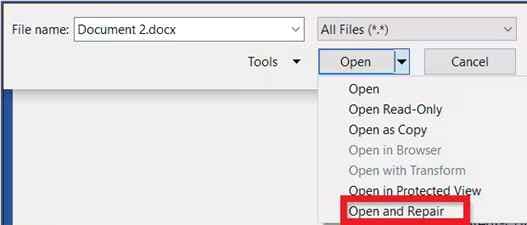
Step 1. Open the program, then File menu. Select Open instead of double-clicking the file.

Step 2. Select the file, click the arrow beside Open, and choose Open and Repair.
Fix 2. Try Changing the File Format
Converting the file can sometimes bypass corrupted parts.
Step 1. Create a copy of the file and manually rename the extension (e.g., changing .docx to .rtf or .txt).
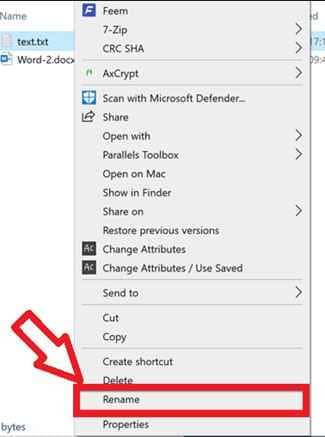
Step 2. Attempt to open the new version in a basic text editor to extract the raw data, then resave it back to the original format.
Fix 3. Check Auto-Saved or Temporary Files
Some programs store backup versions automatically.
Step 1. Look for AutoRecover or temporary files (.asd or .tmp) in the app settings or folders.
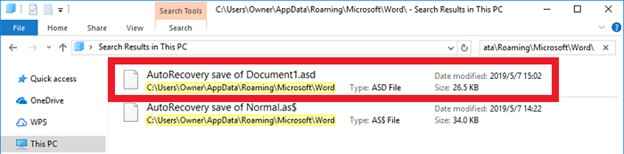
Step 2. Rename and open the backup file to see if a working version is available.
Fix 4. Move the File to Local Storage
Storage or sync issues can sometimes cause corruption.
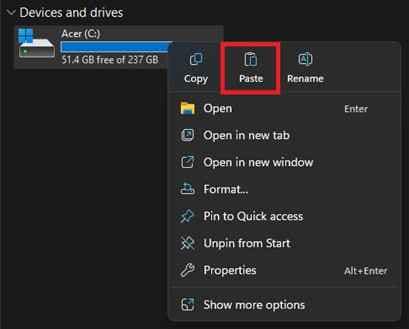
Step 1. Copy the file from the cloud folder, external drive, or network path and Paste directly onto your primary C: drive.
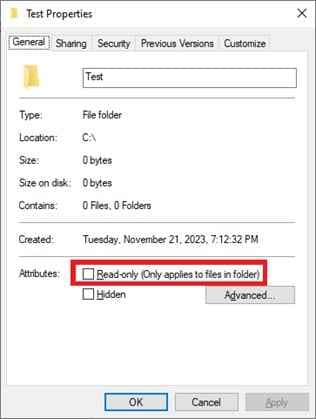
Step 2. Right-click the file to ensure Read-only attributes are unchecked in the Properties menu before attempting to open it.
Fix 5. Open the File in Another Program
Different apps may still read the file even if one cannot.
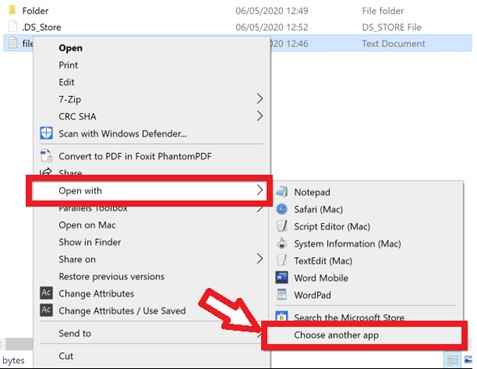
Step 1. Right-click the corrupted file and select Open With to choose a different but compatible program (e.g., opening a Word file in LibreOffice or Google Docs).
Step 2. If the file opens, immediately use Save As to create a fresh, clean version of the document on your drive.
Advanced Fix to Restore Severely Corrupted Files
If basic fixes don’t work, the file is likely more seriously damaged. This means important file information (like structure and data layout) is broken. At this stage, advanced repair tools are used to scan and rebuild the file as much as possible without changing the original copy.
It CAN:
- Restore missing data needed to open the file.
- Repair damaged parts caused by crashes or failed saves.
- Extract content from files that won’t open.
- Fix several corrupted documents at once.
If you confirm the file is corrupted beyond manual recovery, a specialized repair tool can safely restore its functionality. The Repairit File Repair works with common file types like .docx, .xlsx, .pptx, and even complex media formats.
Step-by-Step (Optional)
Step 1. Upload the corrupted file.
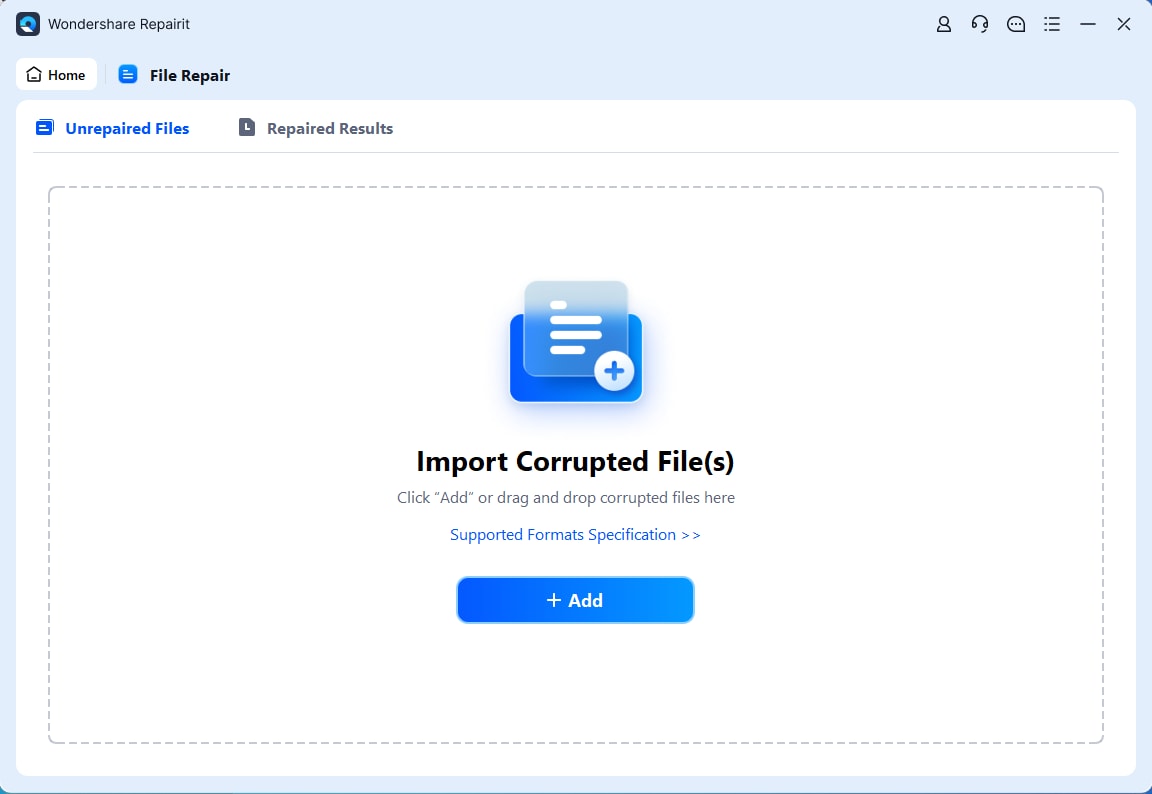
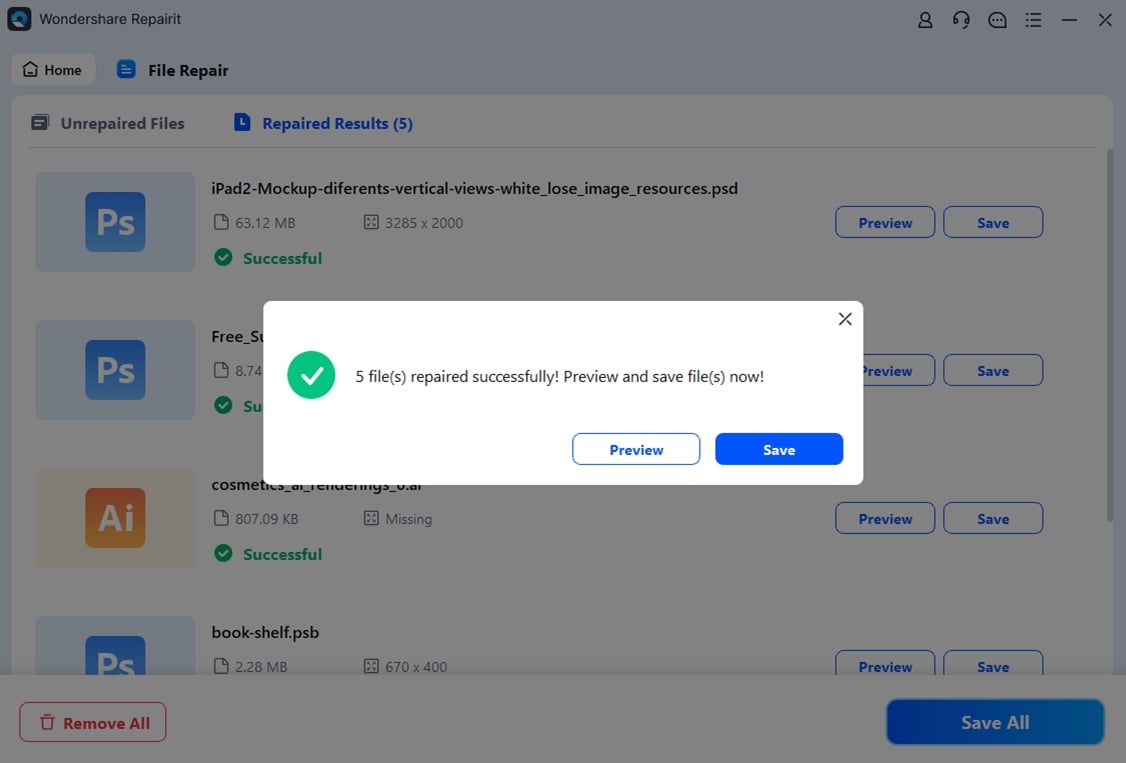
Step 2. Start the Repair process.
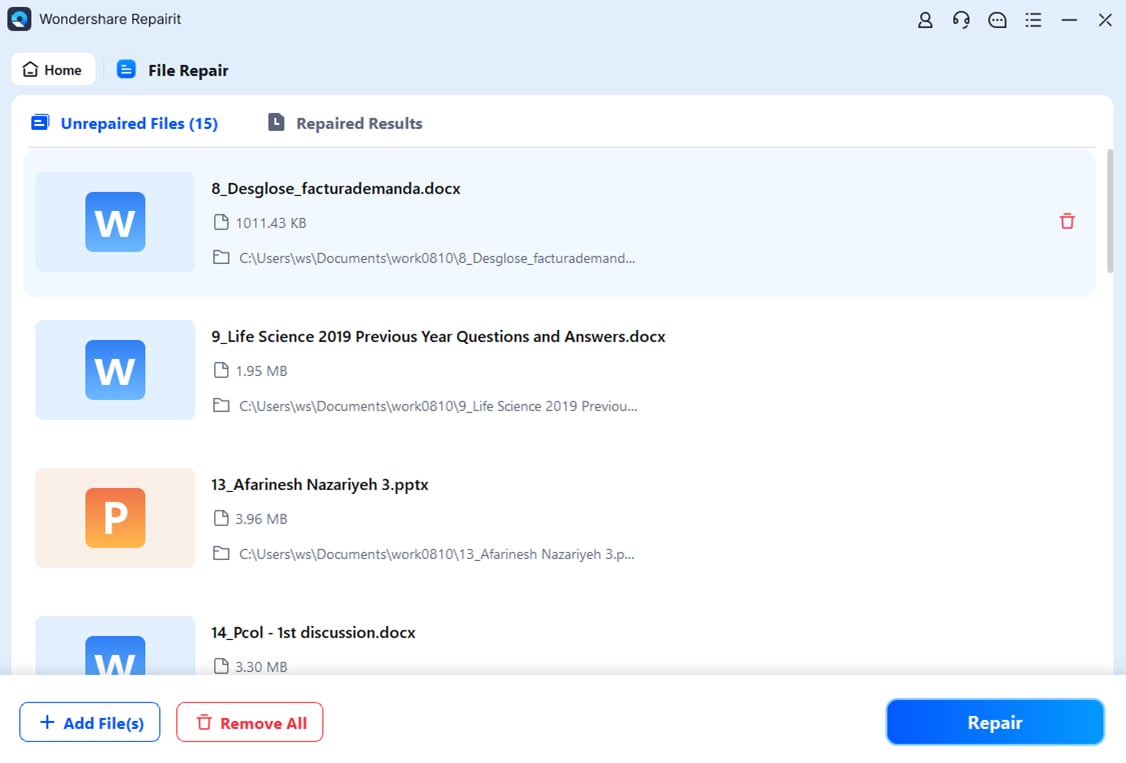
Step 3. Preview and save the restored file to a new location.
How to Prevent File Corruption Before It Happens
The best way to deal with file corruption is to prevent it from happening. Small changes in how you save and manage files can greatly reduce the risk of errors and data loss.
Best Practices for Data Protection
1. Turn on backup copies - Enable settings that automatically create backup versions of your files.
2. Safely remove devices - Always eject USB or external drives properly before unplugging them.
3. Avoid direct cloud saving for large files - Save locally first, then move the file to cloud storage after it’s fully saved.
4. Check your storage health - Run disk checks regularly to detect and fix drive issues early.
5. Use a power backup (UPS) - Helps prevent sudden shutdowns during saving when there’s a power outage.
Conclusion
Keeping your files safe depends on good saving habits and knowing how to respond when problems happen. While documents become corrupted during saving because of system errors or hardware issues, many files can still be recovered using built-in repair tools or simple fixes like format conversion. By understanding the main causes of save corruption and using regular backups, you can reduce data loss and keep your files secure and accessible.
FAQs
-
Why do my documents become corrupted during saving so often?
This usually happens due to unstable hardware, a failing drive, or background programs interfering while the file is being saved. -
Can a power outage cause corruption?
Yes. If power is lost during saving, the file may not finish writing properly, making it unreadable. -
Can I recover a file that shows 0KB?
A 0KB file usually means no data was saved. Your best option is checking AutoRecover or temporary backup files. -
How can I find the cause of the corruption on my computer?
Check if the issue happens across multiple apps or only one. Widespread issues often point to hardware or system problems. -
Does saving to the cloud increase corruption risk?
It can, especially if your internet connection is unstable during saving, which may result in incomplete file syncing.