Nothing ruins the excitement of a new system update faster than finding your photos and videos suddenly won’t open or play. If you’re experiencing video and photo corruption after an update, this can happen when the update interrupts file indexing, changes system settings, or affects file metadata during installation. You may notice errors like unsupported formats, missing files, or media that refuses to load.
The good news is that many of these issues are fixable, and you can often repair media files broken after a system update using the right recovery and repair tools without losing the original quality.
In this article
Understanding Why Media Files Break After a System Update
System updates can sometimes affect existing photos and videos, making them unreadable or unplayable. Identifying the cause helps you choose the right repair method.
Common Causes of Media File Issues
- Interrupted indexing - Files may appear missing or fail to open after the system reorganizes storage.
- Driver or codec issues - Updates can affect media compatibility and playback support.
- Damaged file headers - Important file data may become altered, preventing apps from recognizing the file.
- Incomplete file migration - Large updates may leave files corrupted, incomplete, or showing as 0KB.
- Transfer errors from external drives - Moving files after an update may cause corruption if connection or driver issues interrupt the transfer.
- Write errors during transfer - Reset system settings can interrupt saving processes, leaving files incomplete or broken.
Signs of Media File Damage After an Update
Media corruption can show in different ways, not just as a file not found error. Spotting these signs early helps confirm if your files were affected.
Common Signs
- Playback errors - Files won’t open or show format/codec errors.
- Visual glitches - Images appear distorted, gray, or pixelated.
- 0KB files - File exists but has no data.
- Missing thumbnails - No preview images in folders or galleries.
- App crashes - Media apps freeze or close when opening files.
- Sync issues - Videos may lag, freeze, or have audio-video mismatch.
Simple Fixes to Restore Unreadable Media Files
Before using advanced repair tools, try simple fixes first. Many post-update media issues are caused by system glitches, not permanent file damage.
Fix 1. Update Graphics and Media Drivers
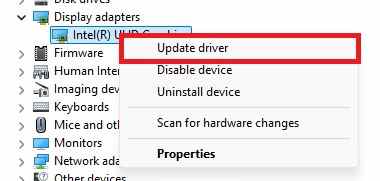
Update your display and media drivers, as outdated or unstable drivers after an update can cause playback issues even if the file is not corrupted.
Step 1. Open your Device Manager (Windows) or check Software Update (macOS) to locate your Display Adapters.
Step 2. Right-click your GPU and select Update Driver, or visit the manufacturer's site to download the latest version.
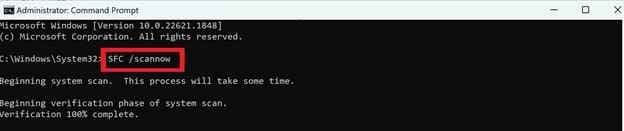
Fix 2. Run System File Checker (SFC)
Use the built-in SFC tool to repair missing or damaged system files that may affect how media is read or played.
Step 1. Launch the Command Prompt as an Administrator.
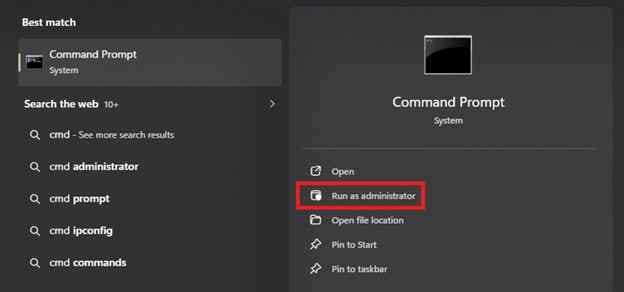
Step 2. Type sfc /scannow and press Enter to allow the system to verify and replace damaged system files automatically.
Fix 3. Check or Fix File Extensions
Make sure the file has the correct extension (like .mp4 or .jpg), as updates can sometimes affect file recognition.
Step 1. Create a copy of the broken file to prevent further data loss during restoring.
Step 2. Right-click the copy, select Rename, and change the extension (e.g., from .mov to .mp4 or .jpeg to .jpg) to force the media player to re-read the header.
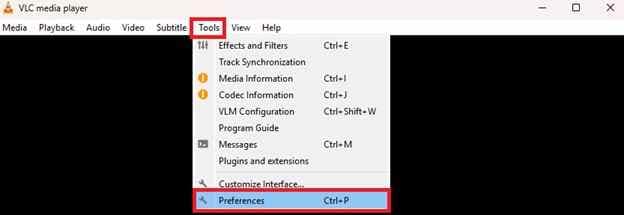
Fix 4. Try VLC Media Player
Use VLC Media Player, which can often play or partially fix damaged video files that other players cannot open.
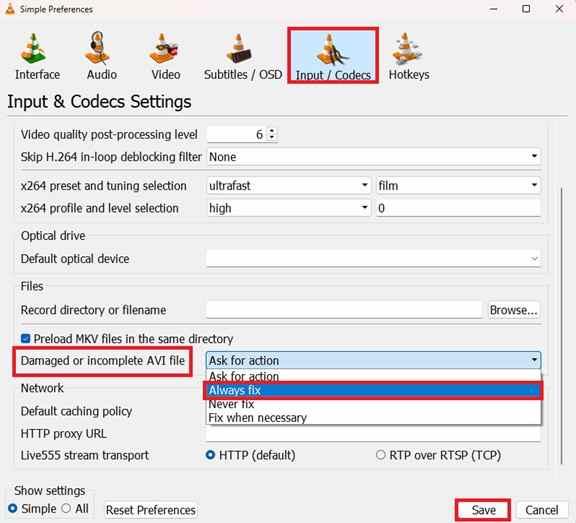
Step 1. Open VLC and navigate to Tools, Preferences, and Input / Codecs.
Step 2. Set the Damaged or incomplete AVI file option to Always Fix and Save to attempt to play the corrupted video.
Fix 5. Run CHKDSK
Check your storage drive for errors using CHKDSK, especially if the update caused disk or file system issues.
Step 1. In the Command Prompt, type chkdsk C: /f (replace C: with your specific drive letter).

Step 2. Confirm the scan for the next reboot to allow the OS to find and repair errors.
Advanced Fix to Restore Severely Media File Corruption
If basic fixes don’t work, the damage may be inside the file itself. In this case, you’ll need advanced repair tools that can fix deeper corruption caused during the update or file transfer.
It CAN
- Restores the key data that helps media files open and play correctly.
- Realigns sound and visuals that are out of sync.
- Removes pixelation, distortion, or frozen frames.
- Reconstructs file structure even when files appear empty or broken.
If your files are still corrupted after trying basic solutions, you can use professional repair tools like Repairit Video Repair to restore common formats such as MP4, MOV, MKV, JPEG, and PNG.
Step-by-Step (Optional)
Step 1. Upload the corrupted video file.

Step 2. Start the Repair process.

Step 3. Preview and save the restored file to a new location.

How to Prevent Media File Corruption in the Future
You can’t always control system updates, but you can protect your photos and videos from getting damaged by taking a few simple precautions.
Best Practices for Data Safety
- Save important photos and videos to an external drive or cloud storage before installing major updates.
- Use a UPS or make sure your device won’t shut down during updates to avoid file damage.
- Don’t move large files while the system is downloading or installing updates.
- Regularly monitor your hard drive or SSD to catch early signs of failure.
- Let updates finish properly, even if they take time, to prevent file corruption.
Conclusion
Dealing with video and photo corruption after an update can be stressful, but it doesn’t always mean your files are permanently lost. Start with simple fixes like driver updates and system checks, as these can often resolve problems caused by system glitches. If the file itself is damaged, using a dedicated tool to repair media files broken after a system update can help rebuild the missing or broken data. To avoid future issues, always keep backups and ensure your device is stable during updates.
FAQs
-
Why did my files become unreadable right after an update?
This usually happens because the update changes system files, drivers, or file indexing, which can temporarily break access to your media or damage file data. -
Can a 0KB file be fixed?
Sometimes. If the file data is still on the drive but the link is broken, recovery tools may restore it. If the data is gone, it may not be recoverable. -
Is it safe to change file extensions to fix a file?
Yes, but only on a copy of the file. In some cases, the correct extension helps media players read the file properly. -
Does VLC permanently fix broken videos?
Not always. VLC can often play damaged videos or repair playback issues, but it doesn’t always permanently restore the original file. -
How can I tell if my file or my media player is the problem?
Try opening the file in another player or device. If it still doesn’t work, the file itself is likely corrupted.