
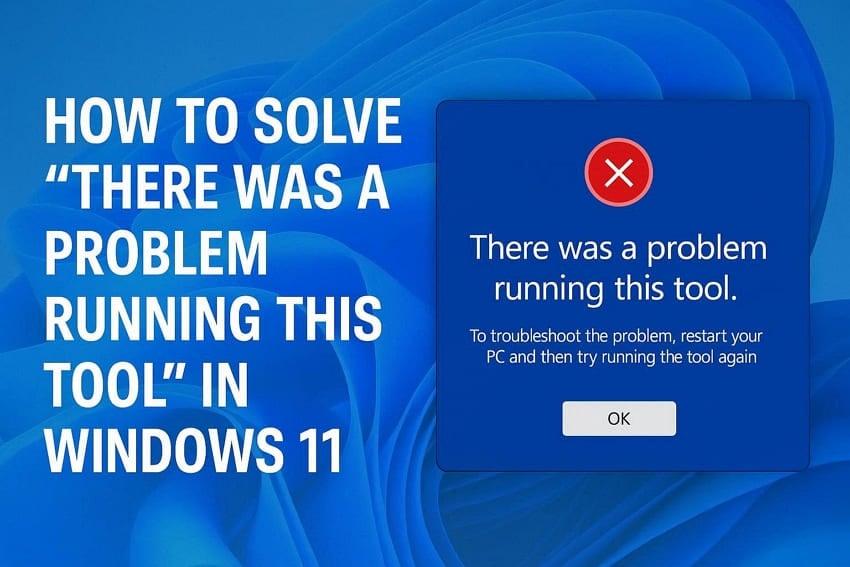
The work was progressing smoothly until the message "There was a problem running this tool" suddenly appeared on the screen. The tool stopped responding, delaying an important task and creating frustration. Errors like this often interrupt workflows, especially when tools are essential for daily work or study. Without clear guidance, users may feel unsure about the next step to take.
This article explains what the error message means and how to deal with it in a structured way. By following the solutions shared below, users can restore normal functionality and continue their tasks efficiently without unnecessary trial and error.
Table of Contents
Part 1. Why Windows Shows "There Was a Problem Running This Tool"
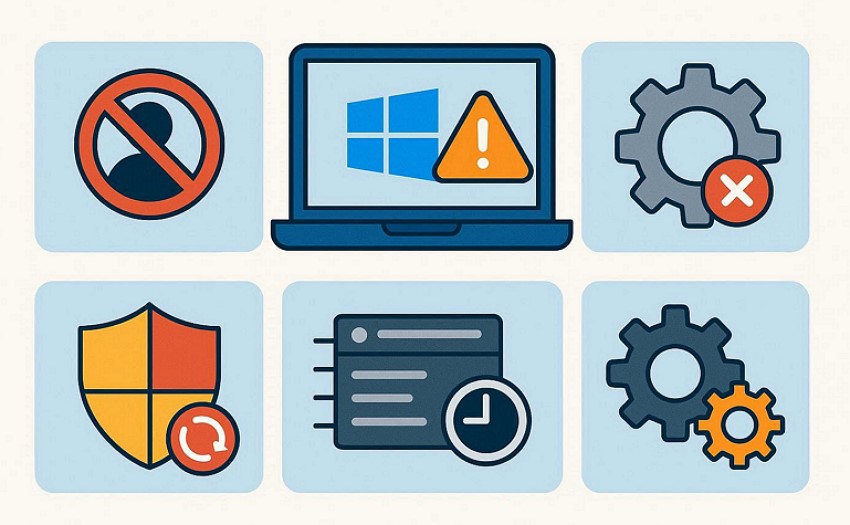
After understanding how disruptive this error can be, it's important to examine why it occurs in the first place. On modern systems, "there was a problem running this tool Windows 11" error that users encounter is often linked to how the operating system manages apps. Some of the common reasons that cause this error are mentioned below:
- Permission Restrictions: Windows may block the tool if it does not have the required administrative access. This prevents unauthorized changes and can stop the tool from launching.
- Corrupted System Components: Some Windows files needed to run the tool may be damaged or incomplete. When this happens, the system cannot execute the tool properly.
- Outdated Windows Version: An older Windows build may not fully support certain tools or features. Missing updates can lead to execution errors and system conflicts.
- Conflicting Background Processes: Other running applications or services can interfere with the tool's operation. These conflicts may cause Windows to automatically halt the process.
- Temporary System Glitches: Short-term system errors can occur after long usage or improper shutdowns. These glitches often prevent tools from running as expected.
Part 2. Quick Fix Guide: Make Your Windows 11 Tool Work Again
When the "there was a problem running this tool" message disrupts your workflow, quick, practical fixes can help restore functionality. Provided below are the top quick fixes that you can try to get the error resolved in no time:
Way 1. Run the Tool as Administrator
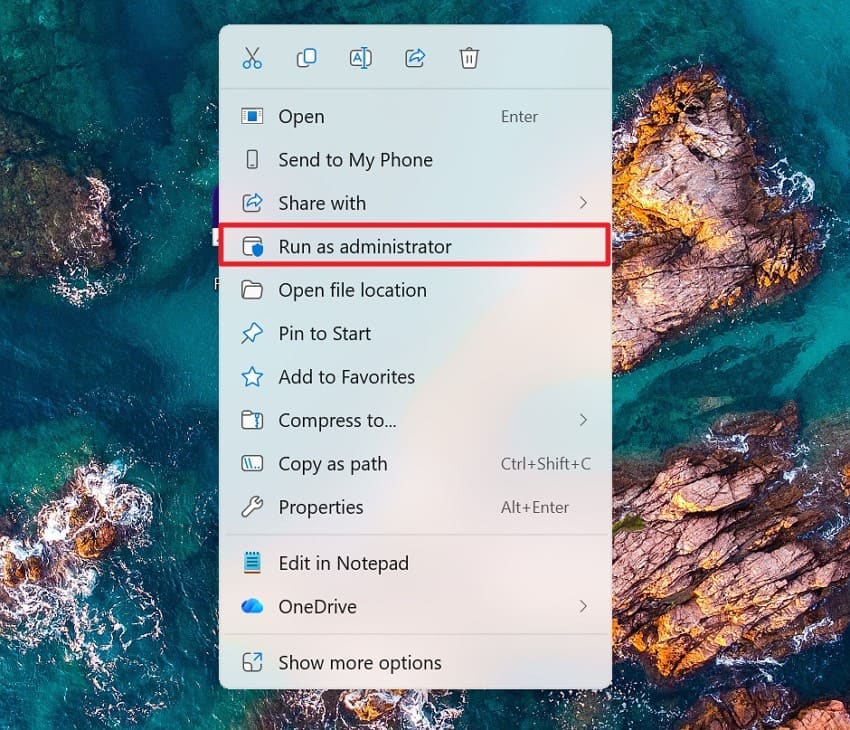
Sometimes, restricted access prevents tools from launching correctly. When encountering "there was a problem running this tool" issue, elevated permissions allow Windows to grant full control, enabling the tool to access required system resources. This approach often resolves execution issues caused by limited user privileges without permanently changing system settings. Follow the instructions provided next to learn how to run the tool as an admin:
Instructions. To begin, open the tool and right-click it to display the list of options. From here, locate the "Run as Administrator" option and click on it to execute the program with admin privileges.
Way 2. Restart Windows Before Attempting the Tool
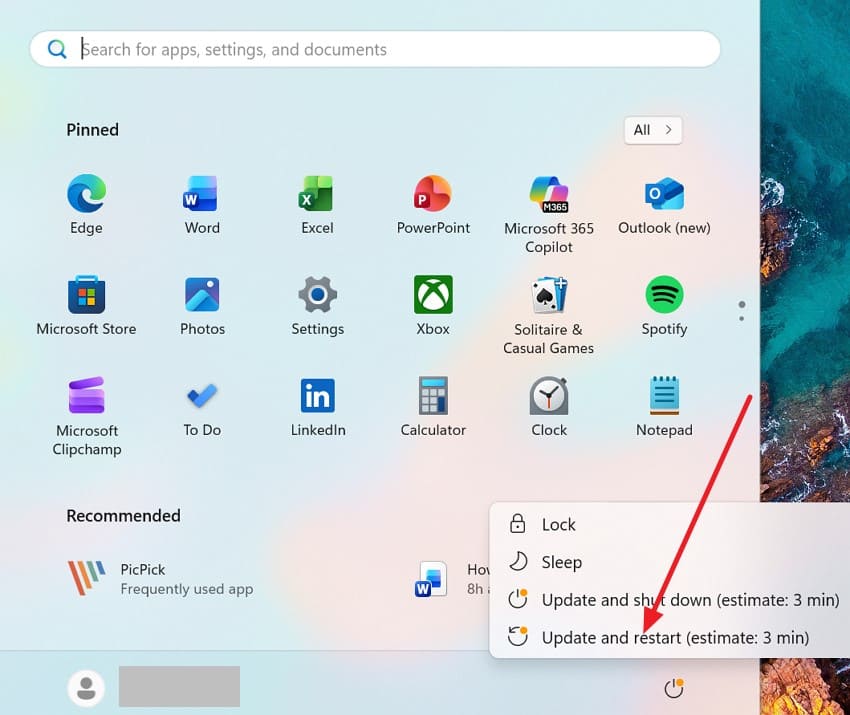
System processes can remain stuck after long sessions or background activity. If you are facing "there was a problem running this tool on Windows 11" issue, a restart refreshes memory, clears temporary conflicts, and restores normal system behavior. This simple action often removes hidden interruptions affecting tool performance. Read the instructions provided next to learn how to restart Windows:
Instructions. Click on the "Start" menu and opt for the "Restart" option to successfully restart your Windows and system.
Way 3. Disable Antivirus or Security Software Temporarily
Security programs may mistakenly block trusted tools during execution. In cases where there was a problem running this tool, disabling protection briefly helps confirm whether security restrictions are interfering. This ensures the tool can run without being flagged as a potential threat. To learn how to disable the antivirus, read the steps provided next:
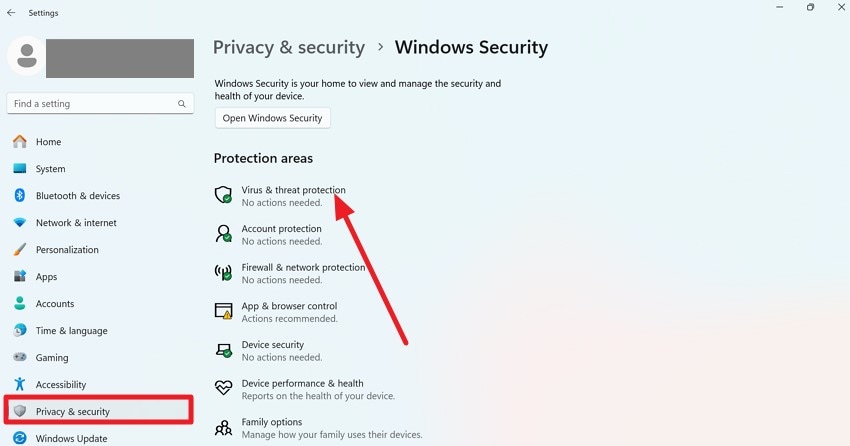
Step 1. Begin by accessing your device’s "Settings" and clicking on the "Privacy and Security" option from the left. Next, locate the "Virus & Threat Protection" option and click on it.
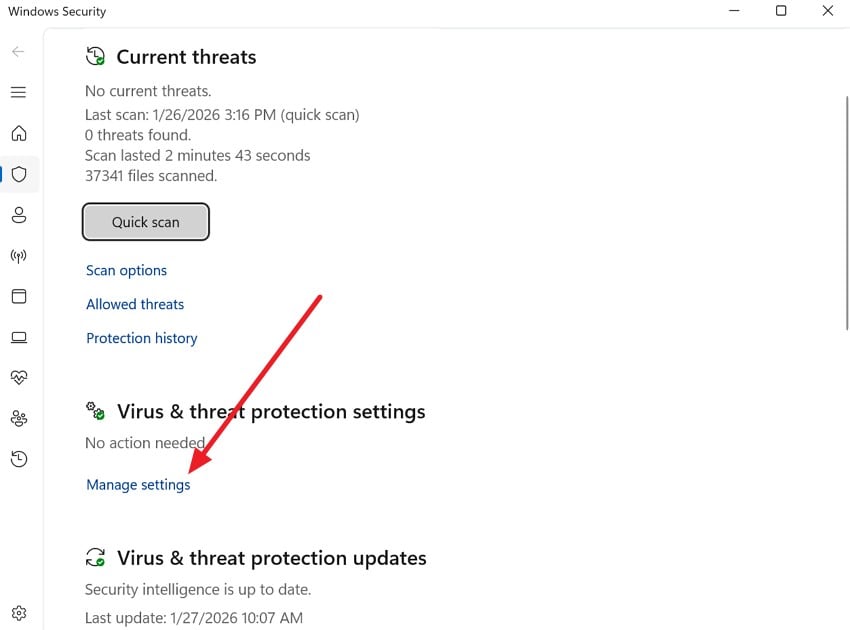
Step 2. In the following interface, press the "Manage Settings" option under the "Virus & Threat Protection" section.
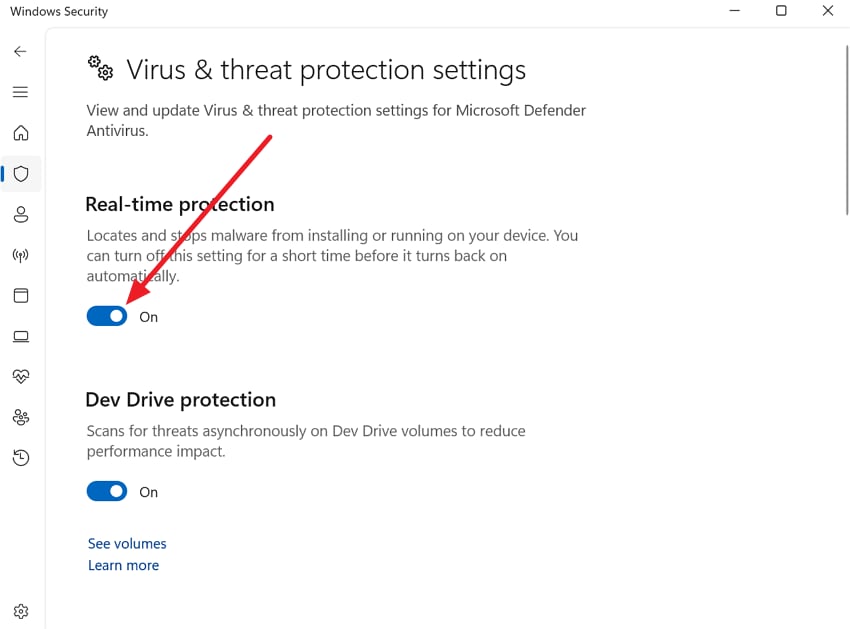
Step 3. Moving forward, turn the toggle off for "Real Time Protection" to successfully disable the antivirus within the system.
Way 4. Use Compatibility Mode for Older Tools
Older software may struggle to function on newer operating systems. When "there was a problem running this tool on Windows 11" message comes up, adjusting compatibility settings allows Windows to mimic earlier environments. This helps legacy tools run smoothly without requiring major system changes or replacements. To learn how to run the tool within the compatibility mode, read the instructions provided below:
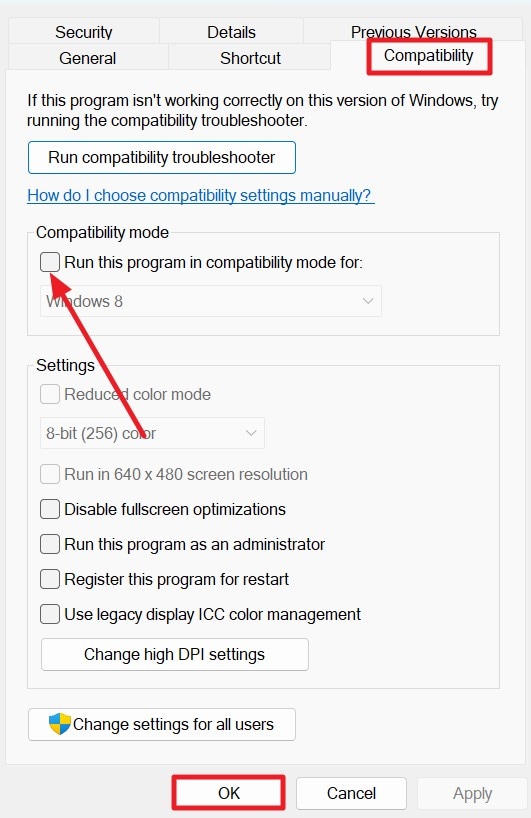
Instructions. Right-click on the tool’s icon and access the "Properties" option. In the Properties window, acquire the "Compatibility" tab and enable the "Run This Program in Compatibility Mode for" option and select the Windows version. Now, press the "OK" button to successfully save the applied changes.
Way 5. Re-register or Repair Corrupted System Files
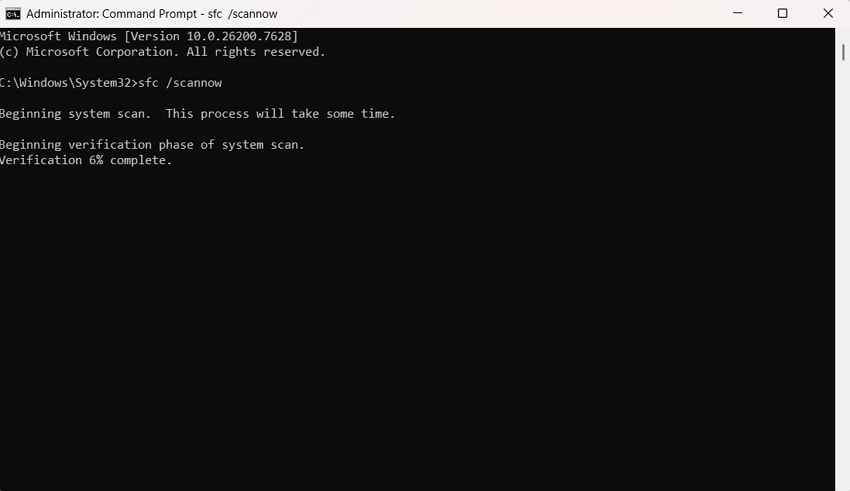
Damaged system files can interrupt how tools communicate with Windows. If "there is a problem running this tool" issue comes up, repairing core components restores stability and improves execution reliability. This fix targets deeper system-level issues that basic solutions may not resolve. For this, you can run an SFC scan and get the file systems fixed. To learn how to run an SFC scan, read the instructions provided next:
Instructions: Open the Command Prompt and enter "sfc /scannow," then press Enter. The System File Checker will examine your system for missing or corrupted files. If any problems are found, the tool will automatically fix them to restore system stability.
Part 3. Quick Repair Guide for Damaged Files Blocking Tool Execution
When "there was a problem running this tool on Windows 11" error occurs due to corrupted or damaged files, Repairit stands out as a powerful solution designed to restore your workflow. It uses advanced repair algorithms to analyze and reconstruct damaged data structures across many file types. The tool’s intuitive interface guides users through file repair without requiring deep technical knowledge, making it helpful for scenarios where essential files are unreadable.
In addition to basic recovery capabilities, Repairit offers features specifically tailored to restore severely damaged files, which can indirectly resolve many issues that disrupt other tool executions. The software’s batch processing allows multiple files to be repaired at once, speeding up recovery in bulk-file situations.
Key Features

-
Extensive Document Repair Compatibility: Repairs corrupted or unreadable Word, Excel, PowerPoint, and PDF files, restoring text, layout, headers, and links while keeping original formatting intact.
-
Supports Wide Format Range: Handles over 30+ common and specialized formats, including archives (ZIP/RAR), engineering files (CAD, PSD, AI), and large datasets that typical tools can’t fix.
-
Support for Encrypted Files: Can repair password‑protected documents when correct credentials are provided, ensuring security isn’t a barrier.
Step-by-Step Guide on How to Use Repairit for Damaged Files
Having learned about this file repairing tool in detail, let us now have a look at the steps for using Repairit for file repairing:
Step 1. Select Repair Mode
Start by choosing the correct repair type, like "Document Repair," from the main menu. Click the "Start" button, then upload the corrupted files directly into the program interface.

Step 2. Upload Files and Start Repair
Then, highlight the uploaded files and hit the "Repair" button at the bottom. Repairit will immediately begin analyzing and restoring the damaged content.

Step 3. Preview and Save Restored Files
Once the repair process finishes, review the fixed documents in the preview pane. When ready, press "Save" to download the repaired files to your device.

Repair Corrupted Files Now
 Security Verified. Over 7,302,189 people have downloaded it.
Part 4. Persistent Tool Won’t Run? Try These Advanced Fixes
Even after applying basic solutions, some tools may still fail to start. When "there is a problem running this tool" issue persists, deeper system or configuration issues are often the cause. The following advanced fixes address these underlying problems, helping users restore full functionality.
Way 1. Reset Windows Components Affecting Tools
Windows components can get corrupted or misconfigured. Resetting these components restores default settings. It fixes broken configurations and removes conflicts. This method works well when basic fixes fail. Errors like there was a problem running this tool often resolve after a reset. To learn how to apply this fix, read the steps provided next:
Step 1. Download and locate the "Reset Windows Components" batch file on your system. Right-click the file and select "Run as administrator."
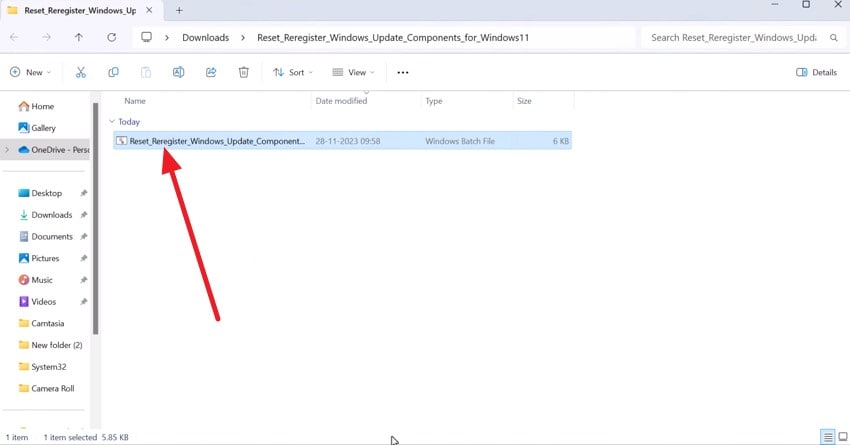
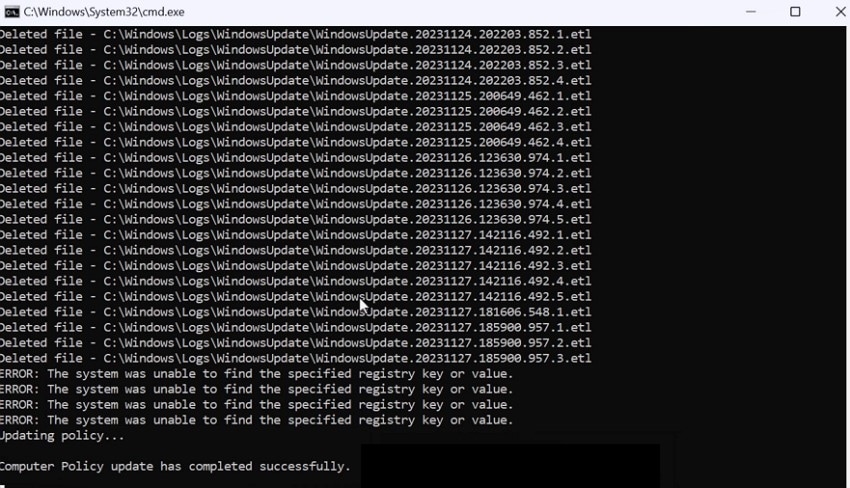
Step 2. Allow the Command Prompt window to run and complete all operations.
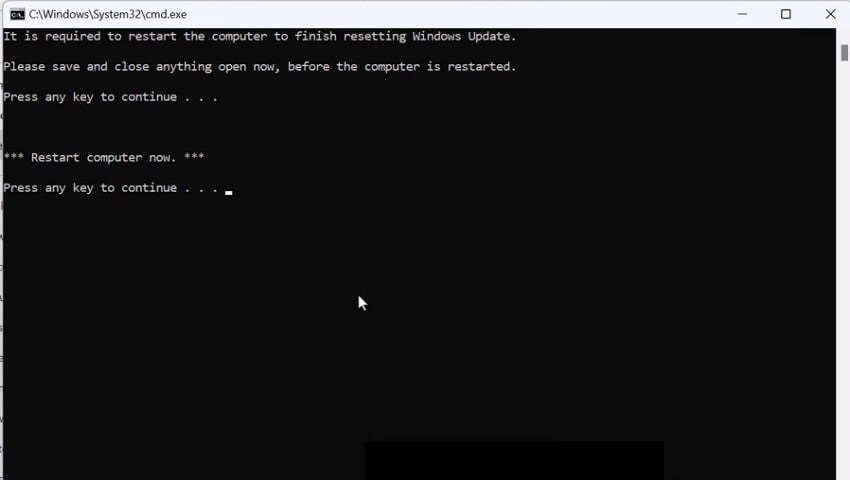
Step 3. Once done, press any key on the keyboard to continue. Again, press any key to continue and restart your system to save the changes made.
Way 2. Check Registry for Misconfigured Paths or Permissions
Registry errors can block tools from accessing files or system resources. Incorrect paths or permissions often cause this. Checking and correcting these entries ensures Windows finds the right executables. This fix helps when there is a problem running this tool persists. Read the steps provided next to learn how to check the registry for permissions:
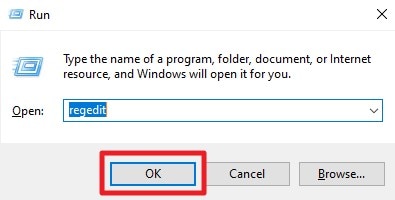
Step 1. Press "Windows + R," type "Regedit," and press "Enter."
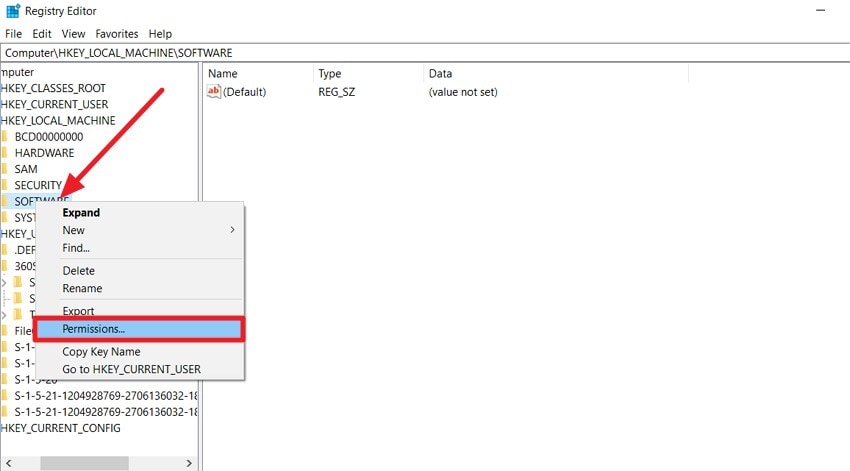
Step 2. Navigate to the registry path related to the affected tool or application. Check that file paths point to the correct installation folder. Right-click the key and select "Permissions" to review access rights.
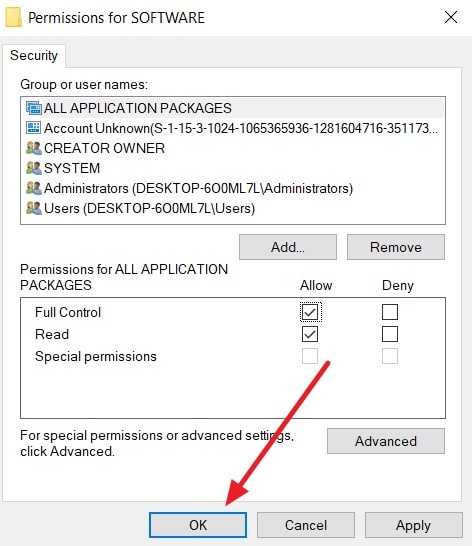
Step 3. Ensure the system and administrator accounts have proper permissions. Press the "OK" button and restart Windows to apply changes.
Conclusion
To wrap it up, this article provided a complete guide on how to fix the "there was a problem running this tool" error. The article discussed various first-hand fixes that you can try to get the tool up and running. However, if you have damaged or corrupted files that are not letting you open your tool, you can repair them using Repairit. This advanced AI-powered tool allows users to get all types of files fixed in no time.
Frequently Asked Questions
-
1. Why does Windows show "There was a problem running this tool"?
This error usually appears when a tool lacks permission, has corrupted system files, conflicts with background processes, or is incompatible with your Windows version. Checking these areas often resolves the issue. -
2. Can restarting Windows fix the "There was a problem running this tool" error?
Yes, restarting clears temporary glitches and refreshes system processes. Many users find that a simple reboot resolves minor execution errors. -
3. How can I repair corrupted files that block tool execution?
Corrupted files often prevent tools from running correctly. Using a dedicated repair tool like Repairit can restore damaged documents, archives, or media files, removing the hidden causes of this error.




