
What if your Excel sheet suddenly fills with unexpected errors, numbers and formulas refuse to fit, and the dreaded #SPILL! Excel error appears? Spills happen when a formula tries to return multiple values, but the cells next to it already contain data, blocking the result. Hence, understanding why these errors appear helps you fix them quickly and prevent mistakes in your workbooks.
To that end, this guide explains the causes of #SPILL! Errors and shows how to identify the problem areas. Besides, you will be able to get simple solutions to restore proper results in your Excel sheets without frustration.
Table of Contents
Part 1. Understanding the #SPILL Error in Excel
In Excel, #SPILL! error appears when a formula tries to return multiple results but cannot place them all in the sheet. Modern Excel lets one formula fill several cells automatically, and the area it wants to fill is called the “spill range.” Hence, you see #SPILL! when that area cannot be used to its full capacity.
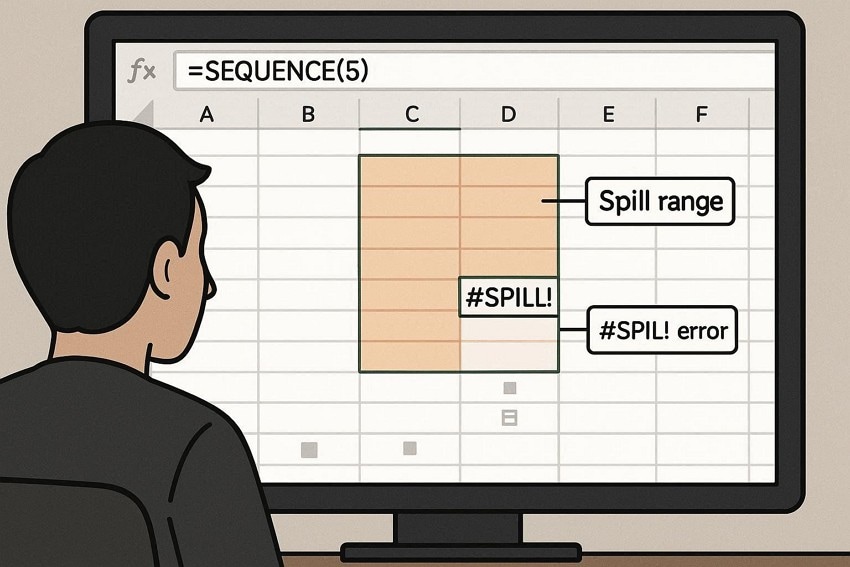
This happens if some cells are not empty, merged, part of a table, or outside the sheet edge. For example, if you enter =SEQUENCE(5) in B2, Excel wants to fill B2:B6. If B4 already has text, the formula shows #SPILL! instead of the numbers.
Common Causes of #SPILL Errors in Excel
To further know in detail why you get the #SPILL! in Excel, adhere to the listed causes:
- Spill Range is Blocked: The most common cause of #SPILL! is that one or more cells already contain numbers, text, or formulas. Even invisible content like spaces or empty strings can block the spill.
- Merged Cells in the Spill Range: If any cell in the intended spill area is merged with another, Excel cannot fill the range correctly. Moreover, header or labels that use Merge & Center often block dynamic arrays, causing the #SPILL! error.
- Formula Inside an Excel Table: Dynamic array formulas cannot spill inside Excel Tables because the table fills formulas row by row. Hence, when a formula tries to return multiple results, Excel cannot place them inside the table, showing #SPILL!
- Spill Range is Too Big or Goes Off the Sheet: Some formulas create very large arrays that exceed the sheet limits, such as full-column references or large sequences. Thus, Excel cannot place results that go beyond the last row or column, leading to a #SPILL! error.
- Spill Range Is Unknown, or Formula Is Unstable: Formulas using volatile functions, such as RANDARRAY or RANDBETWEEN, recalculate frequently and may change spill size. Hence, indirect, volatile, or complex references can make it impossible to determine how many cells the formula needs to reference.
Part 2. 6 Tested Fixes to Resolve #SPILL Errors in Excel
To learn how to fix #SPILL Error in Excel, adhere to the 6 simple solutions along with a detailed guide:
Fix 1. Clear Obstructing Cells
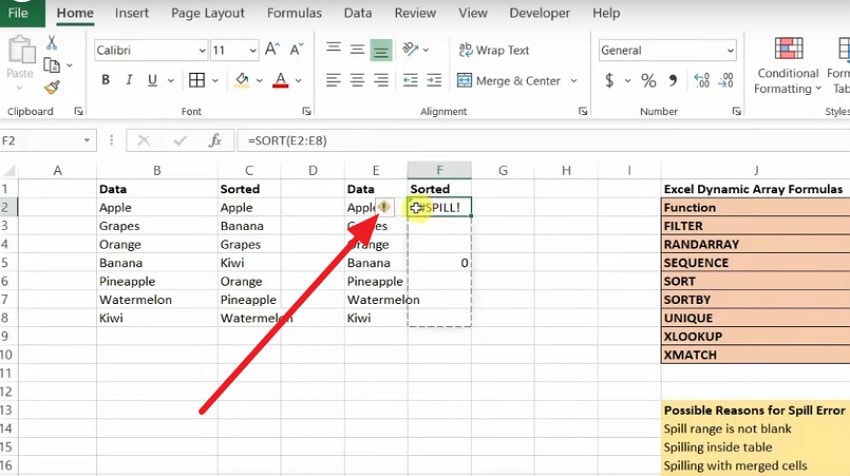
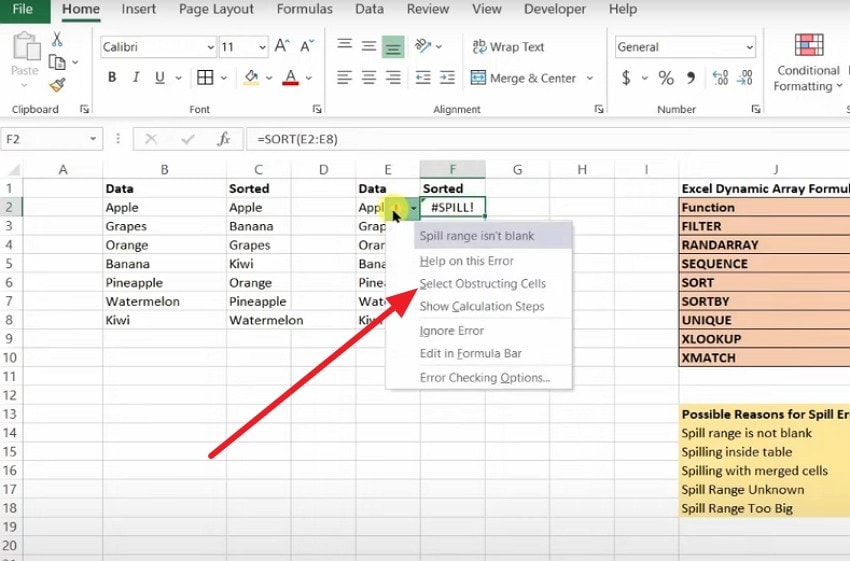
Try to clear the cells that block a spill range, fixes many #SPILL! errors because Excel can write all results into empty spaces. Once the block is free, the formula returns all results correctly. Thus, this restores dynamic formulas, prevents hidden layout problems, makes the workbook easier to manage, and helps organize sheets more clearly. To do it via the “Select Obstructing Cells” option, adhere to the listed steps:
Step 1. Click the “Yellow” warning sign indicating the “#SPILL!” error.
Step 2. After that, choose the “Select Obstructing Cells” option, and Excel will highlight the cells that are blocking the spill range.
Fix 2. Unmerge Merged Cells
Functions like FILTER, SORT, and SEQUENCE can expand or shrink their output freely since no merged cells block the spill range. Without merged cells, the sheet layout becomes more flexible, allowing rows, columns, and formulas to be adjusted easily. Besides, merged cells often hide problems, so unmerging reduces confusing errors and makes troubleshooting simpler. To unmerge the cells, adhere to the listed ways, and learn how to fix #SPILL Error in Excel:
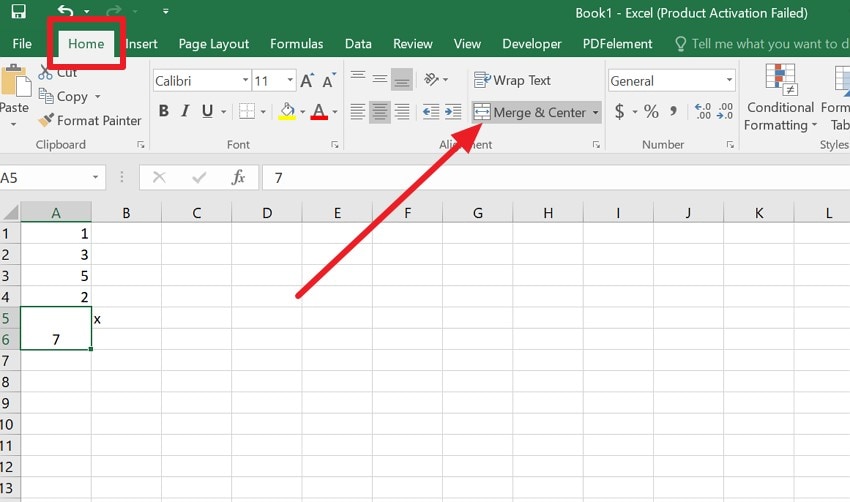
Step 1. Select the merged cells and in the “Home” tab, choose the “Merge & Center” menu.
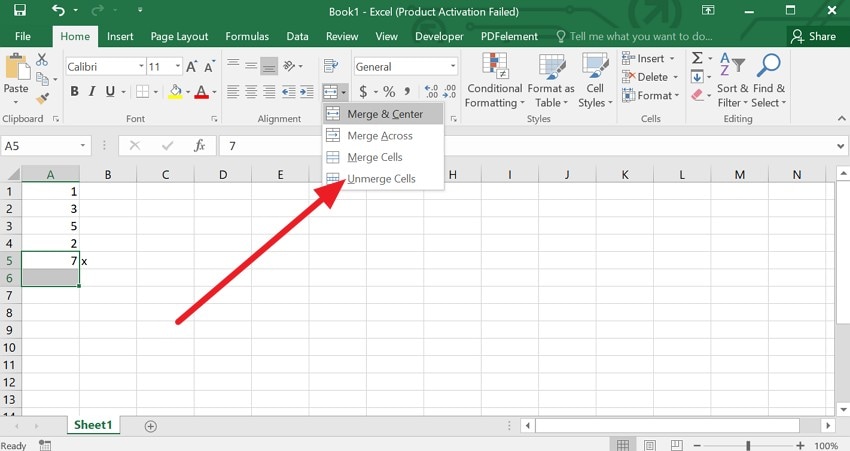
Step 2. There, choose the “Unmerge Cells” option to split the merged cell back into separate cells.
Fix 3. Adjust Formulas or Spill Ranges
To fix the #SPILL! Excel error, limit the spill ranges, and avoid whole-column references. This is important with volatile functions like RAND, RANDARRAY, or RANDBETWEEN, which change size or content on recalculation. Hence, small ranges improve performance because Excel calculates and redraws fewer cells, reducing lag and CPU load.
Careful spill placement also keeps layouts clean, separating inputs, outputs, and tables to avoid accidental overlaps. If you want to adjust the formulas, follow the listed examples for guidance:
When the Spill Extends Beyond the Sheet:
Instead of =SORT(A:A) or =FILTER(A:C,B:B="OK"), use a bounded range such as A2:A5000 or A2:C5000 so the result fits within available rows.
When the Spill Size is “Unknown” or Unstable:
Rather than =SEQUENCE(RANDBETWEEN(1,1000)), decide a safe maximum and use =SEQUENCE(1000) or tie the size to a non‑volatile count, e.g. =SEQUENCE(COUNTA(A2:A1000)).
When Formulas Are in Tables, and You Don’t Want Them to Spill:
Add the @ implicit intersection operator in a Table formula to force a single value per row, e.g., change =[@[Price]]*[@[Qty]] to =@[Price]*@[Qty] when referencing spilling sources.
Fix 4. Convert Tables to Normal Ranges
If you still see Excel #SPILL! error, this fix allows dynamic array formulas like FILTER, SORT, UNIQUE, and SEQUENCE to work correctly. It also returns multiple rows or columns from a single cell, and prevents repeated #SPILL! errors in table rows, where each row tries to spill into the one below. Hence, normal ranges make layout and troubleshooting simpler because the start and end points are clear.
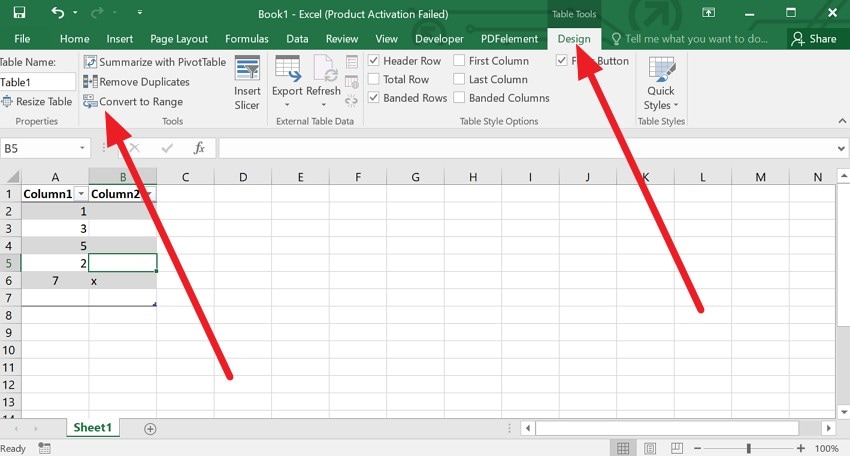
Step 1. As you select any cell inside the table, go to the “Design” tab to choose the “Convert to Range” option.
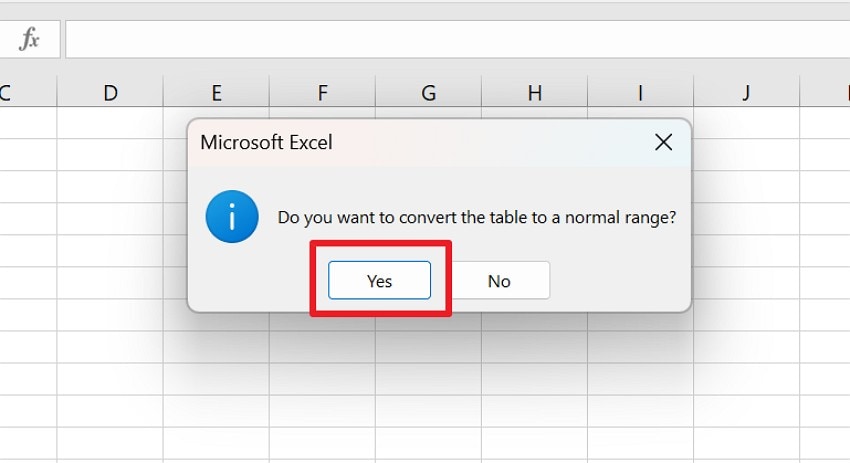
Step 2. After that, pick “Yes” on the popup menu, and the data remains in place.
Fix 5. Check for Volatile or Complex Functions
This solution helps dynamic arrays produce stable and predictable spill ranges, so formulas return results reliably without random #SPILL! errors. As you simplify formulas, recalculation is faster, especially in large workbooks, and CPU and memory usage are lower. Moreover, clear and simple formulas are easier to read, maintain, and audit.
Fix 6. Restart Excel or Clear Memory
To get rid of #SPILL! in Excel, this fix resolves hidden calculation or cache problems and saves time compared to debugging a formula that works correctly. A restart also improves performance, makes Excel more responsive, and reduces the risk of partial recalculation or resource-related errors. Hence, if the #SPILL! disappears after a restart via the given steps, the issue was likely temporary, not a design problem.
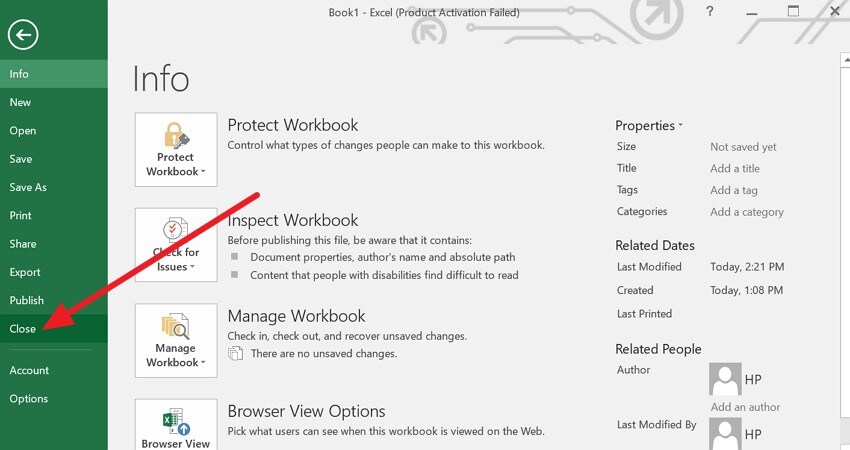
Restart Excel (Windows & macOS):
Step 1. Simply press the “X” icon as you save the file or go to the “File” menu to pick the “Close” option.
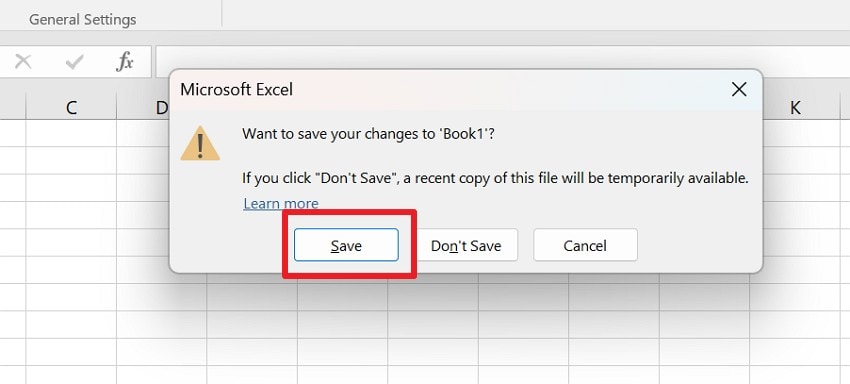
Step 2. When prompted, choose to save the file, then wait a few seconds for Excel to finish shutting down.
Clear Excel’s Cache / Memory (Windows):
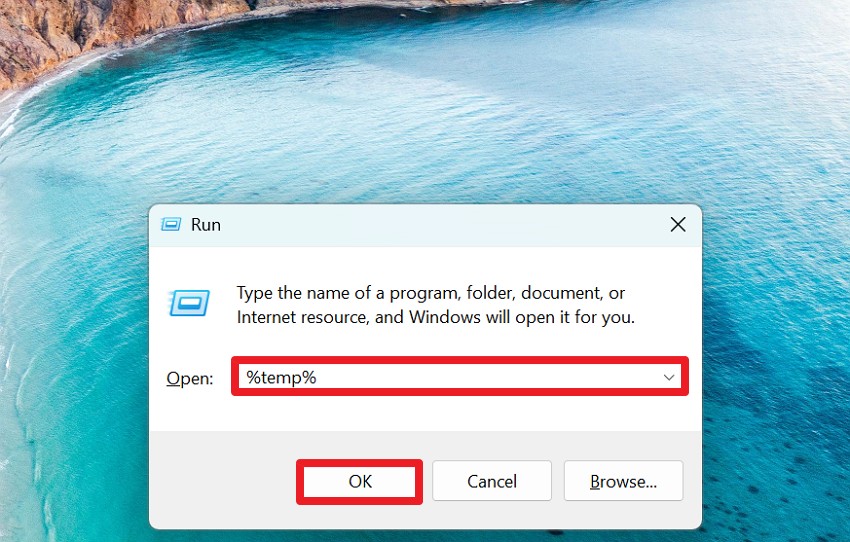
Instructions. As you close the Excel, press “Win + R,” type “%temp%” and press the “OK” button. In the Temp folder, select unused files and delete them; skip files in use.
Pro Tip. Fix Persistent Excel #SPILL Errors by Repairing Corrupted Workbooks
When a workbook becomes damaged due to crashes, bad saves, virus attacks, or disk problems, Excel may not load ranges, tables, or formula data correctly. Thus, tools like Repairit can help fix Excel #SPILL! problems that come from file damage, not from layout or formula design. Repairit scans the file to find broken records, damaged objects, and bad metadata.
It then restores sheets, data, styles, and references in bulk, so the file opens cleanly and formulas work as expected, making it an intuitive repairing tool for all users. Additionally, the tool can also safely repair multiple XLS/XLSX files without needing any learning curve. Above all, it offers support for Microsoft Excel 2019, 2016, 2013, 2010, 2007, and Office 365.
Key Features

-
Restores Visible and Hidden Content: Repairit can restore visible and hidden sheets, tables, charts, and layouts to reduce calculation errors.
-
Simple Workflow: With seamless use in 3 steps, this tool is a practical last step when standard #SPILL! fixes fail.
-
Online Excel Repair Option for Light Corruption: Repairit Online lets you upload a smaller Excel file via a web browser and have it repaired on their server.
Guide to Fix the Corrupted Excel File to Fix #SPILL! in Excel
To avoid having persistent #SPILL! Excel error, repair your corrupted file with Repairit via the listed steps:
Step 1. Access the Document Repair Tool to Fix Excel Files
Within the “More Types Repair” tab, choose the “Document Repair” tool and press the “Start” button.

Step 2. Add Excel Files and Continue to Repair Them
After that, pick the “+Add” button on the tool to add multiple corrupted Excel files and press the “Repair” button to start the process.

Step 3. Preview the Fixed Files and Save All
When the scan ends, click the “Preview” button, view the fixed file, and click “Save” or “Save All.”

Fix #SPILL! Error in Excel
 Security Verified. Over 7,302,189 people have downloaded it.
Part 3. 5 Prevention Tips & Tricks for Smooth Excel Spills
To ensure you don’t get the #SPILL! in Excel in the future, adhere to the listed tips for guidance:
| Tip or Trick | What to Do Briefly | Why It Helps |
| Keep Spill Ranges Clear | Leave empty space where FILTER, UNIQUE, SORT, and SEQUENCE will spill. Do not type inside that output area. | Prevents “spill range isn’t blank” errors and lets arrays fill correctly. |
| Avoid Merged Cells in Spill Areas | Avoid Merge and Center near spill outputs. Use Center Across Selection for visual centering instead. | Prevents “spill into merged cell” errors and keeps the grid editable. |
| Use Bounded Ranges, Not Whole Columns | Use A2:A1000 instead of A:A, and A2:C5000 instead of A:C when possible. | Reduces oversized spills, avoids sheet edge limits, and improves calculation speed. |
| Keep Spilling Formulas Out of Tables | Put FILTER, UNIQUE, SORT, SEQUENCE results outside Tables. If you need the results in a Table, spill beside it, then reference the results. | Avoids conflicts with Table auto fill behavior and prevents repeated spill failures. |
| Minimize Volatile or Complex Logic | Limit RAND, RANDARRAY, OFFSET, INDIRECT. Use helper columns or LET to simplify large formulas. | Makes spill size predictable, reduces random recalculation issues, and speeds up large workbooks. |
| Plan Output Zones | Reserve an output section for dynamic arrays and keep inputs and outputs separated. | Prevents accidental overlaps, keeps layouts cleaner, and makes troubleshooting faster. |
| Use Structured Inputs | Use clean source ranges, remove trailing spaces, and keep data types consistent in source columns. | Reduces unexpected blanks, mismatches, and unstable array results that can trigger errors. |
Conclusion
To wrap up, this guide has explained the #SPILL! Excel error and why it appears. Additionally, 6 possible solutions are given in detail to help you resolve the error easily. However, if the error occurs due to a corrupted workbook, Repairit is recommended to fix it, as the tool supports Excel 2019, 2016, 2013, 2010, 2007, and Office 365.
Frequently Asked Questions
-
1. Can #SPILL! affect performance in large workbooks?
Yes, large dynamic arrays can slow Excel because many cells need calculation at the same time. In addition, repeated recalculation of big arrays increases CPU use, which can make workbooks respond slowly. -
2. Does #SPILL! appear in older Excel versions?
No, older versions of Excel do not support dynamic arrays, so #SPILL! does not appear. However, Excel 365 and newer versions of Excel include dynamic arrays and display the #SPILL! Excel error. -
3. Can workbook corruption trigger #SPILL! errors?
Yes, corrupted workbooks can misread ranges or formula structures, causing the #SPILL! error unexpectedly. Hence, Repairit can fix damaged Excel files, restoring proper formulas, ranges, and dynamic arrays.




