
 TL;DR:
Resolve Office file save corruptions by utilizing Microsoft's built-in Open and Repair tool or inserting the damaged file's data into a new, blank document.
● Bypass add-in conflicts by holding Ctrl while launching Word, Excel, or PowerPoint in Safe Mode, or manually change the file extension to formats like .rtf or .csv to extract readable data.
● Deploy Repairit File Repair on Windows Vista/7/8/10/11 or macOS X 10.12 or later to rebuild severely damaged .docx, .xlsx, and .pptx files that display "unreadable content" or complete loading failures.
● Prevent future save interruptions by enabling AutoRecover, transferring files from USB or cloud drives to local storage before editing, and utilizing Save As to maintain backup versions.
Ask AI for a summary
 ChatGPT
 Perplexity
 Gemini
 Claude
 Grok
Grok
Losing hours of work because of a sudden crash or a “file is corrupted" message can be stressful. If you need to repair Office files corrupted by save errors, you’re not alone, Word, Excel, or PowerPoint save corruption can happen due to unexpected shutdowns or interrupted saves. This guide will show simple and practical steps to help you recover your files and get your documents working again quickly.
In this article
Why Office Files Become Corrupted During Save
Understanding why a file fails during saving is the first step to fixing it. Corruption usually happens when the save process is suddenly interrupted, leaving the file incomplete or unreadable.
Common Causes of Save Errors
- Power failures or system crashes while saving
- Low memory or storage space during the save process
- Faulty add-ins interfering with Word, Excel, or PowerPoint
Transfer-Specific Triggers
- Unstable internet during cloud saving (OneDrive, Dropbox, etc.)
- Removing a USB or external drive before the save is fully complete
Detecting Signs of Office File Corruption
When a save error corrupts an Office file, it usually shows clear warning signs instead of fully disappearing. These symptoms help you quickly identify whether the file is partially damaged or seriously corrupted.
Signs of File Corruption
- Error messages like “unreadable content” or format issues when opening the file
- Missing elements such as blank slides, empty sheets, or lost sections
- Word, Excel, or PowerPoint freezing or crashing during access
- Random symbols or unreadable text appearing instead of normal content
- False file locked or access denied errors despite no active use
Basic Methods to Recover Corrupted Office Files
Before using advanced recovery tools, you can often fix corrupted Office files using built-in features or simple workarounds. These methods help bypass save errors and recover usable data.
Fix 1. Use the Open and Repair Tool
Microsoft Office has a built-in repair option that can fix damaged files during opening.
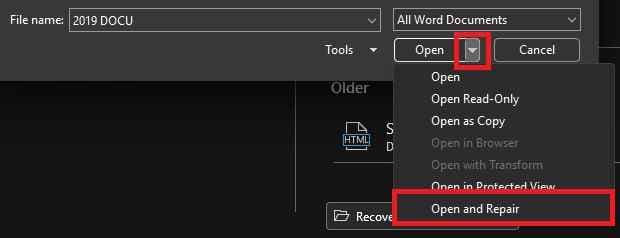
Step 1. Go to File, Open, then Browse and select the file.

Step 2. Instead of clicking the Open button, click the small arrow next to it and select Open and Repair to initiate the self-healing process.
Fix 2. Copy Content to a New File
If only parts of the file are damaged, transferring the content may solve the issue.
Step 1. Create a new, blank document/workbook and use the Insert tab to select Object, Text from File (for Word) or New Slide, Reuse Slides (for PowerPoint).
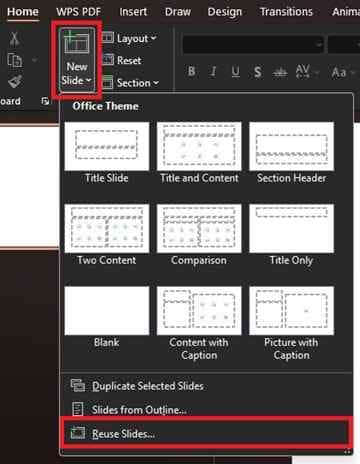
Step 2. Use Insert, Object / Reuse Slides / Import content to bring in data from the corrupted file. Save the new file immediately.
Fix 3. Try Changing the File Format
Switching formats can sometimes help recover readable data.
Step 1. Rename the file after enabling the file extension (e.g., .docx to .rtf or .xlsx to .csv)

Step 2. Open the file and check if the content appears. Save it again in the correct Office format
Fix 4. Open the App in Safe Mode
Safe Mode turns off add-ins and custom settings that may be causing problems, helping Office open the file more easily.
Step 1. Hold Ctrl while opening Word, Excel, or PowerPoint, then click Yes.

Step 2. Try opening the corrupted file again to reject a possibility of plugin conflicts.
Advanced Fix to Restore Severely Corrupted Office Files
If basic fixes don’t work, the file may be more seriously damaged. In this case, you can use advanced repair tools designed to deeply scan and rebuild corrupted Office files caused by save errors.
It CAN:
- Fix broken file headers so Word, Excel, or PowerPoint can read the file again
- Extract text, numbers, and media even if formatting is lost
- Fix several corrupted documents at once after a system crash
- Repair broken relationships like Excel formulas or PowerPoint slide order
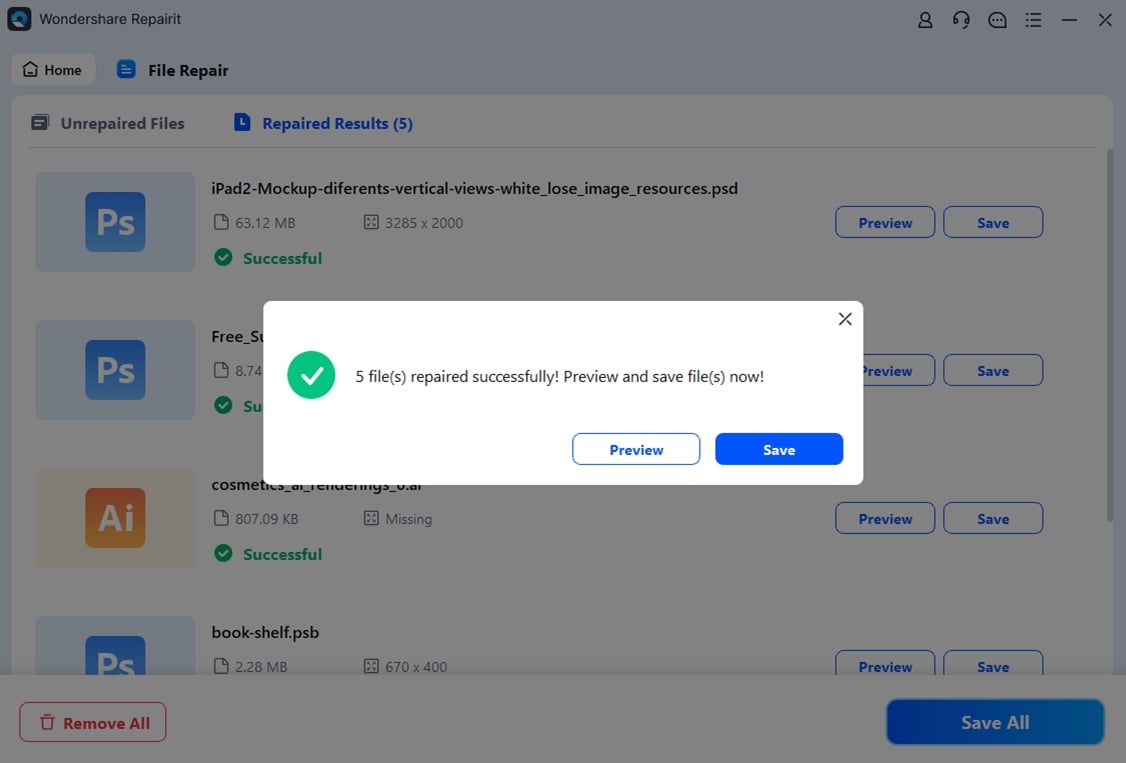
If the file still won’t open, using a professional repair tool like Repairit File Repair can help restore files such as .docx, .xlsx, and .pptx, especially those showing “unreadable content” or complete loading failure.
Step-by-Step (Optional)
Step 1. Upload the corrupted file.
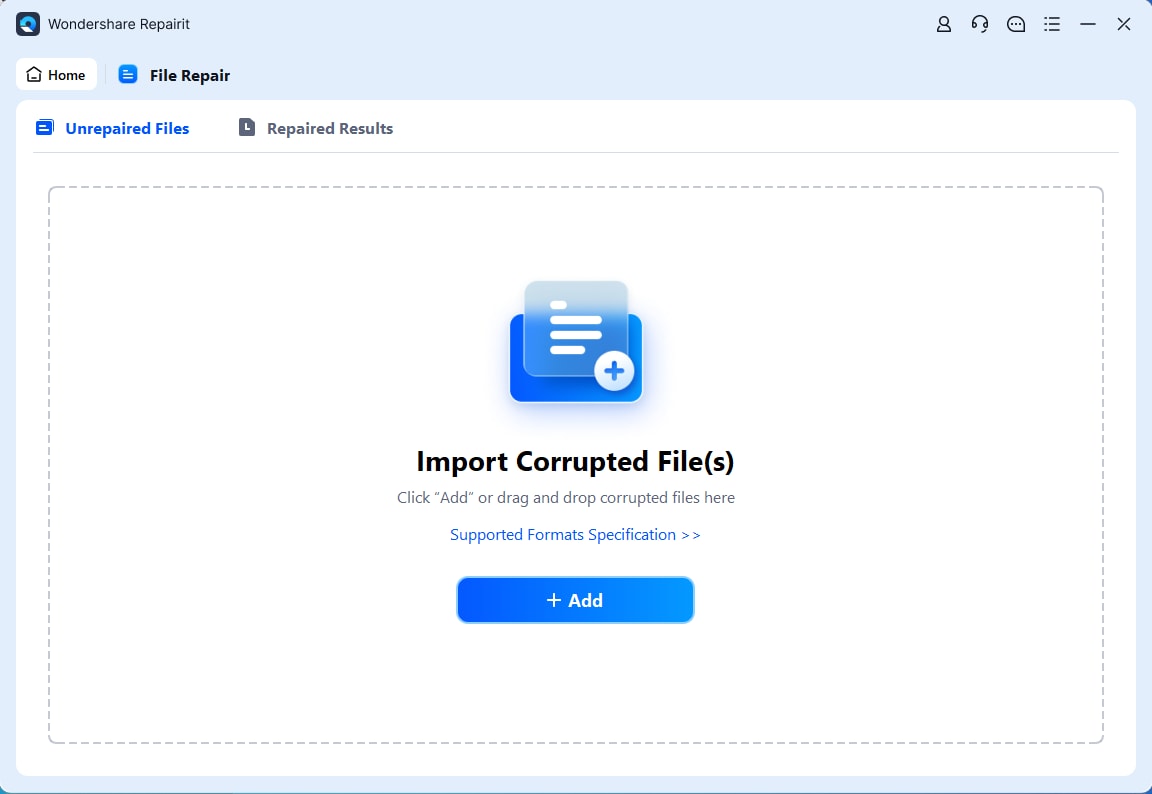
Step 2. Start the Repair process.

Step 3. Preview and save the restored file to a new location.
How to Prevent Save Errors and File Corruption
The best way to deal with corrupted Office files is to prevent them from happening in the first place. Building safe saving habits helps protect your files from damage during crashes or save failures.
Best Practices for Data Protection
- Turn on AutoSave and AutoRecover - Set Office to automatically save backups every few minutes so you can recover work after a crash
- Don’t edit files directly from USB or cloud drives - Copy files to your computer first before editing to avoid save interruptions
- Eject storage devices safely - Never remove USB drives while a file is open or still saving
- Keep your system stable - Close unnecessary apps when working on large Word, Excel, or PowerPoint files
- Save multiple versions - Use “Save As” regularly to keep backup copies of your work in case the current file gets corrupted
Conclusion
To repair Office files corrupted by save errors, you need to act quickly using built-in recovery tools and simple file restoration methods. While Word, Excel, and PowerPoint save corruption can interrupt your work, most files can still be recovered if the damage is addressed early. Combining quick fixes with preventive habits like AutoSave and working from stable local storage helps protect your documents from future issues.
FAQs
-
Why does my Office file show “unreadable content” after saving?
This usually happens when the file wasn’t fully saved due to a crash or interruption, causing incomplete data. -
Can I recover a file after a power outage during saving?
Yes. You can often restore it using AutoRecover or the Open and Repair tool in Office. -
Does changing the file extension fix a corrupted file?
Not directly, but it can help you open or extract the readable data from the file. -
Why is saving to a USB drive risky?
USB drives can disconnect or slow down during saving, which may lead to file corruption. -
When should I use a professional repair tool?
Use advanced tools when the file won’t open at all, shows 0 KB size, or cannot be repaired using built-in Office features.