 TL;DR:
Recover files damaged during a program freeze by renaming application temporary files, utilizing built-in Open and Repair features, or executing an administrator disk check before relying on dedicated repair software.
● Search the %AppData% folder for .tmp or .autosave files and manually replace their extensions with the original format to recover interrupted save data.
● Run chkdsk [drive letter]: /f in an Administrator Command Prompt to fix underlying storage errors, or restore a previous version if system backups were already enabled before the freeze.
● Apply dedicated tools like Repairit File Repair for structurally broken files displaying CRC errors or random symbols, though files reading as 0KB are usually unrecoverable.
Ask AI for a summary
 ChatGPT
 Perplexity
 Gemini
 Claude
 Grok
Grok
It’s kind of irritating when you get a file damaged when the program froze, especially if you’re working under a deadline. When a program crashes while you’re working, it can damage your file, but it doesn’t always mean the data is lost. With the right recovery steps, you may still be able to repair file after program freeze and restore your work using auto-save files or temporary backups.
In this article
Why Files Get Corrupted
When a program freezes, it interrupts the process of saving data to your storage drive. This sudden stop prevents the file from being properly saved, which can leave it damaged or unreadable. Knowing what caused the issue and how to spot the damage is the first step in recovery.
Common Causes of File Damage
- The program freezes while data is still being processed in memory (RAM), so it never fully gets saved to the drive.
- High CPU or memory usage can cause the program to crash mid-save, resulting in incomplete or broken files.
- Other programs or system updates may interfere with the active application and disrupt the saving process.
Issues During File Transfer
- If a freeze happens while saving to cloud storage or a network drive, incomplete data transfer can corrupt the file.
- A sudden stop during saving to a USB or external drive can leave the file incomplete or unusable.
Signs of a Corrupted File
When a program freezes during saving or editing, file damage isn’t always obvious right away. However, there are clear signs that the file’s structure has been affected. Spotting these early can help you repair file after program freeze more effectively.
Common Signs of Corruption
- File won’t open - You may see errors like cannot open file or unsupported format.
- Unreadable content - The file opens but shows random symbols or broken data instead of normal content.
- Program crashes again - The application may freeze or crash when trying to open the damaged file.
- Missing data - Parts of your work may be gone, especially recent changes.
- Error warnings - You might see system messages like CRC errors, which indicate file data is corrupted.
Quick Fixes for Damaged Files
Before using advanced recovery tools, start with basic and safe methods. These steps focus on checking temporary files and built-in system features that may help you repair files after program freeze and recover lost data.
Fix 1. Check Auto-Recover and Temporary Files
Many programs automatically save backup or temporary files during use.
Step 1. Run the program’s App Data or Temp folder (often in %AppData% on Windows).
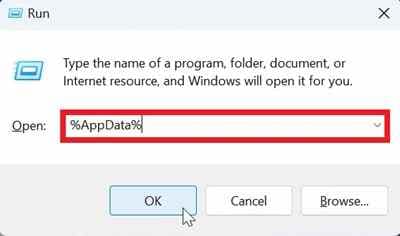
Step 2. Look for files with .tmp or .autosave, copy the latest one, and rename it with the correct file extension.
Fix 2. Use Built-in Open and Repair Tool
Some applications like MS Word have a repair feature for damaged files.
Step 1. Open the program and go to File, then Browse.
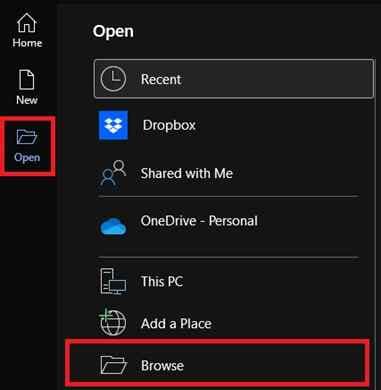
Step 2. Select the file, then choose Open and Repair if available.
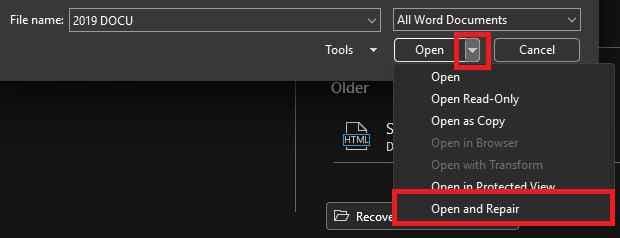
Fix 3. Run a System Check (chkdsk)
This helps fix storage errors that may cause file damage.
Step 1. Open Command Prompt as administrator and type chkdsk [drive letter]: /f.

Step 2. Restart your PC after the scan to apply repairs.
Fix 4. Restore Previous Versions
If backups are enabled, you may recover an earlier copy of the file.
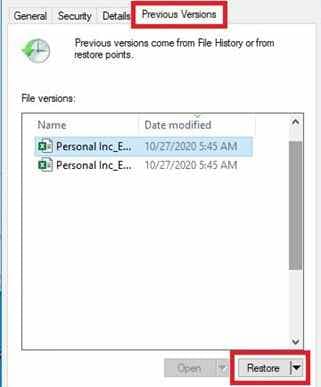
Step 1. Right-click the file and go to Properties, then Previous Versions.
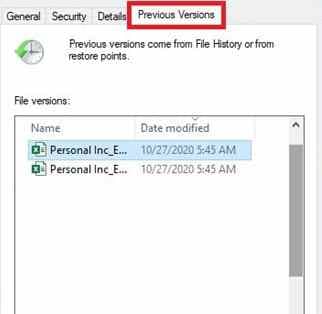
Step 2. Choose a version before the freeze and click Restore.
Advanced Fix to Restore Severely Corrupted Files
When basic fixes and system recovery methods don’t work, it usually means the file is more seriously damaged. This happens when the file’s internal structure is broken, making it unreadable by normal programs.
It CAN:
- Rebuild broken file headers so the file is recognized again
- Recover damaged or misplaced parts of the file
- Fix issues caused by improper saving or system crashes
- Repair several corrupted files at the same time
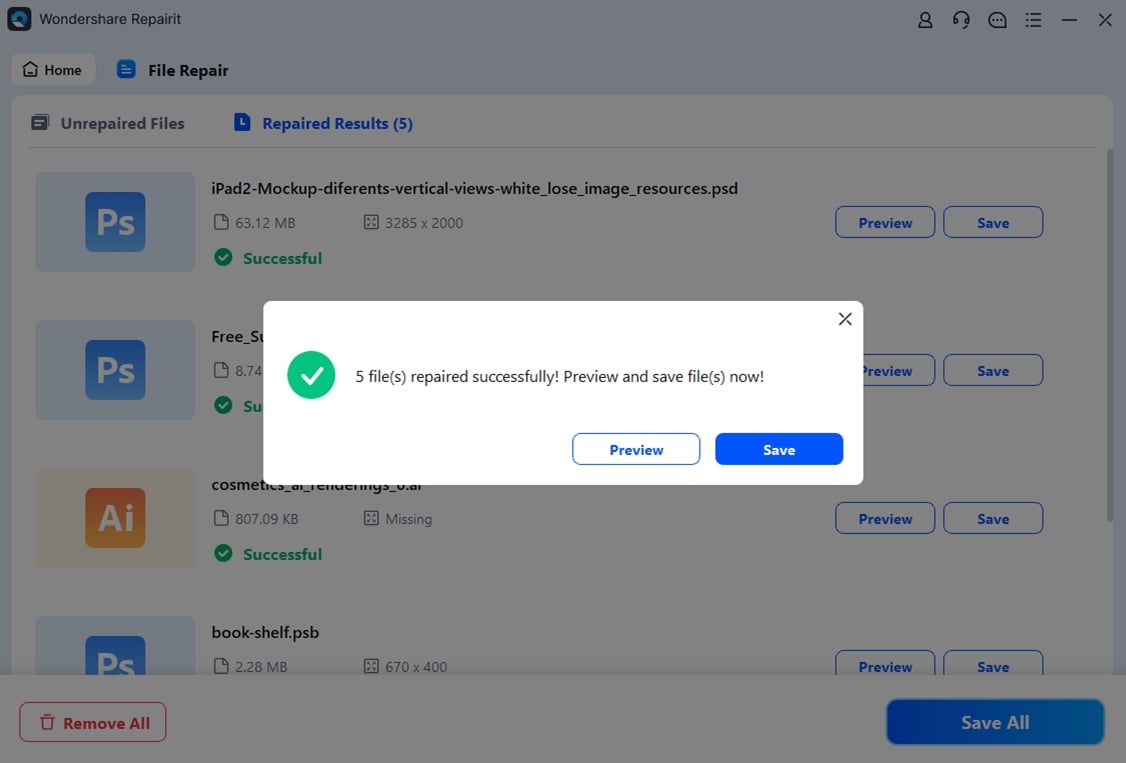
For severely damaged files, especially videos or documents, dedicated tools like Repairit File Repair can help restore file types like Microsoft Word, Excel, PowerPoint, and PDF. These tools perform a deeper scan of the file to recover as much data as possible and bring the file back to working condition.
Step-by-Step (Optional)
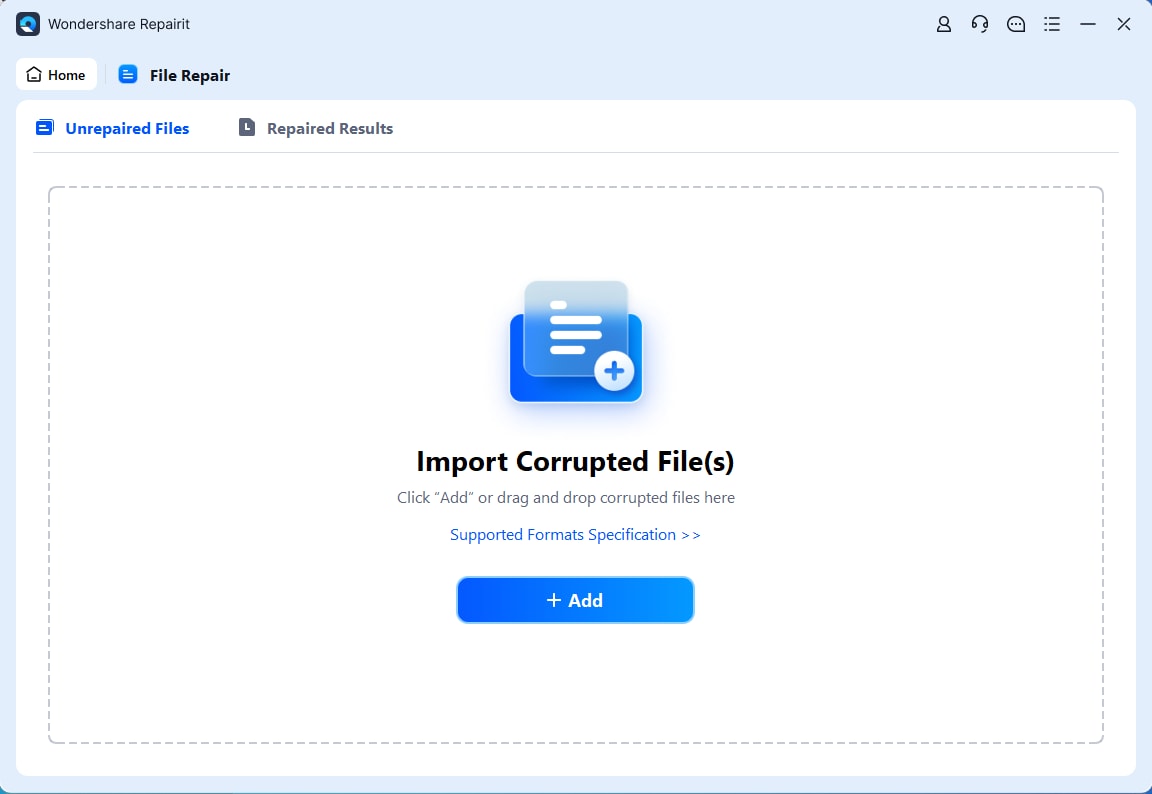
Step 1. Upload the corrupted file.
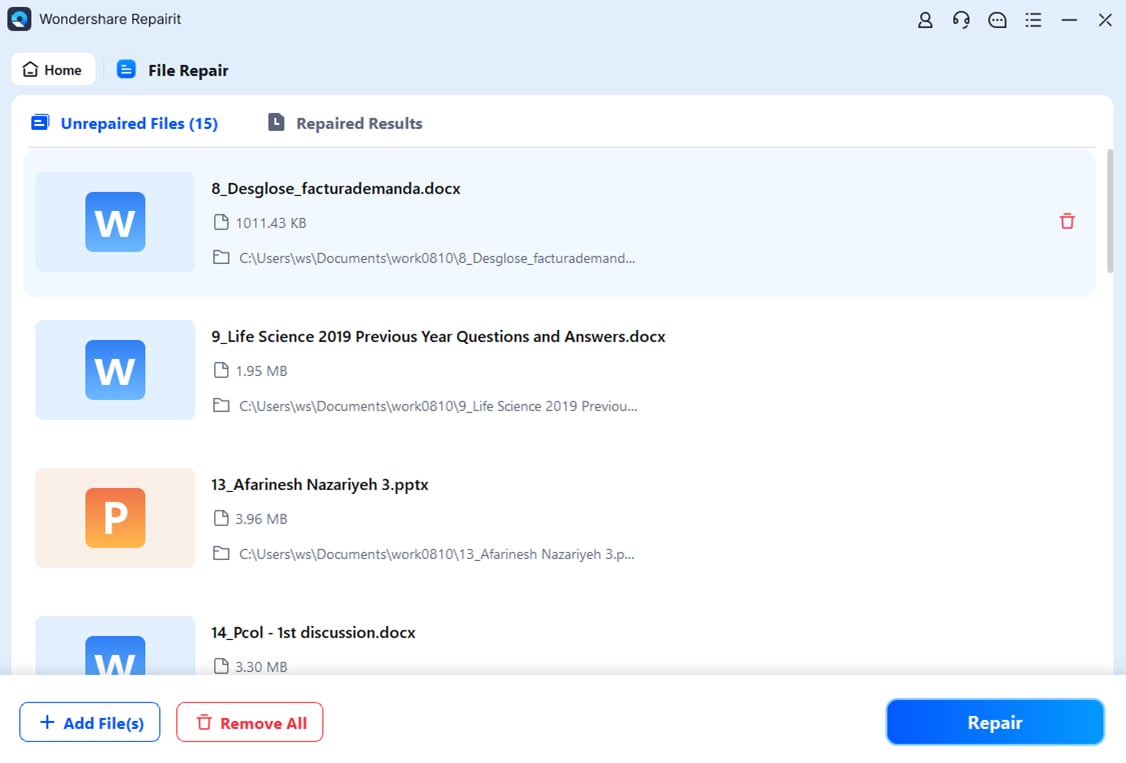
Step 2. Start the Repair process.
Step 3. Preview and save the restored file to a new location.
How to Prevent File Corruption
Even though recovery tools can help, the best solution is to prevent a file damaged when the program froze from happening in the first place. This comes down to keeping your system stable and protecting your files while you work.
How to Prevent Data Loss
- Turn on auto-save - Set your programs to save every 3-5 minutes so you don’t lose much work if a freeze happens.
- Avoid system overload - Don’t run too many heavy apps or browser tabs while working on important files.
- Follow the 3-2-1 backup rule - Keep 3 copies of your files, on 2 different storage types, with 1 copy stored off-site or in the cloud.
- Keep your storage healthy - Make sure your drive isn’t too full and run regular maintenance to avoid errors.
- Use a UPS for desktops - A backup power supply helps prevent sudden shutdowns during power interruptions.
Conclusion
A file damaged when the program froze is a common issue, but it usually doesn’t mean your work is gone for good. In many cases, you can still recover it by checking temporary files or using built-in repair tools. These methods may help you repair file after program freeze and bring back your lost progress. For more serious damage, advanced repair software can help restore the file. Using regular backups also helps protect your data from future problems.
FAQs
-
Why does my file become unreadable after a program freeze?
This happens because the saving process is interrupted, leaving the file incomplete or missing important data like its structure or metadata. -
Can I repair files after the program freezes without extra software?
Yes. You can try built-in repair options or look for auto-saved and temporary files in your system folders. -
Does renaming a .tmp file always work?
Not always, but it can work if the temporary file still contains your latest saved data. -
How do I know if a file is too damaged to recover?
If the file shows 0KB size or cannot be recognized even by repair tools, it may be beyond recovery. -
Can a system check tool help fix damaged files?
Yes. Tools like system disk checks can fix storage errors that may allow the file to be found or opened again.