
You load Rainbow Six Siege with hope, ready for a match, but your progress stays stuck. Not just that, your rank, skins, or loadout fail to appear, the game feels broken, and frustration takes over. This issue affects many players who switch devices or platforms, and a synchronization error prevents data sharing between accounts and servers.
The issue may stem from server faults, account link issues, or network trouble, but simple fixes exist. Hence, this guide explains why the cross-platform sync failed issue appears and how to fix it fast with simple and tested solutions.
Table of Contents
-
- Fix 1. Log Out of Ubisoft Connect and Re-Auth
- Fix 2. Run Ubisoft Connect as Administrator and Fix Permissions
- Fix 3. Toggle or Temporarily Disable Cloud Saves
- Fix 4. Verify Game Files (PC: Steam / Ubisoft Connect)
- Fix 5. Check Cross-platform/Cross-play Settings
- Fix 6. Clear Ubisoft Connect Cache and Fix Network Stack (PC)
- Fix 7. Consider Temporary Offline/Local Play (If Allowed)
Part 1. Understanding Rainbow Six Siege Synchronization Failed Errors
A Rainbow Six Siege synchronization error means the game cannot match your device data with Ubisoft online data. As a result, your progress or settings do not update online, and this issue generally comes from network trouble, server issues, or data conflict. However, this doesn’t imply that your PC or console is damaged.
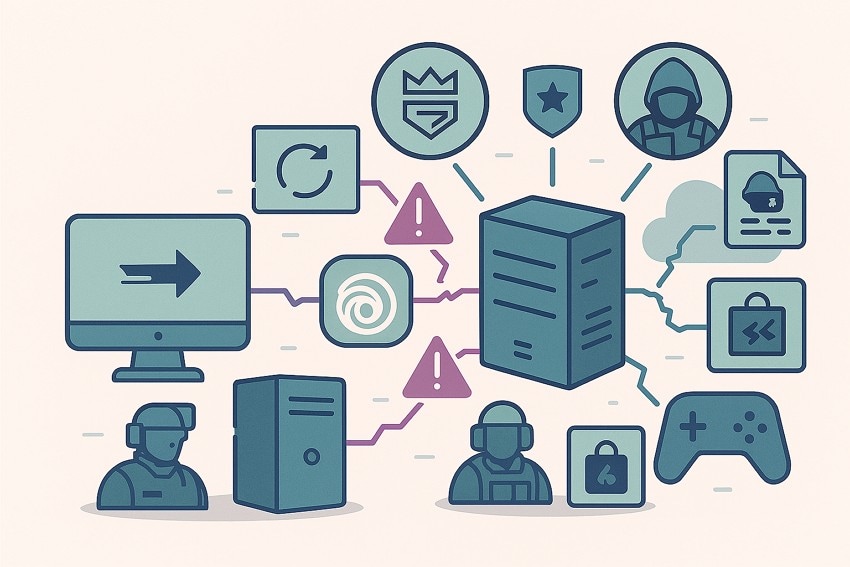
Additionally, the game checks both your local and cloud saves each time you open or close it. You can still play the game, but new progress may not be saved online or shared across platforms.
Difference Between Local Save and Cloud Save Data
To better understand why this error appears, let’s know the difference between local save data and cloud save data. With this, you will understand how the games validate both saved data types and why a mismatch between them can cause a synchronization error.
| Aspect | Local Save Data | Cloud Save Data |
| Storage Location | Stored on your own device (PC/console drive). | Stored on online servers linked to your account. |
| Internet Required | Works fully offline once downloaded. | Requires an internet connection to upload/download and stay up to date. |
| Use Across Devices | Usually, it is only available on the device where it was created. | Can sync progress between different devices or platforms if cross‑progression is supported. |
| Risk Of Data Loss | Lost if your device/storage fails or files are corrupted without backup. | Safer against local hardware failure, but can be lost/overwritten if conflicts are poorly resolved. |
| When Conflicts Occur | The game/launcher may ask whether to keep this or the cloud copy. | The game/launcher may ask whether to keep this or the local copy. |
| Best Use Case | Stability and control on one device; useful if you rarely switch systems. | Backup and seamless play on multiple devices or after reinstalling the game. |
How Ubisoft Servers Handle Siege Data
Know that Ubisoft servers control most Rainbow Six Siege data, not your device alone. Thus, the servers run matches, track results, handle rank changes, and stop cheats, while your game only sends actions. Your account items, operators, skins, and stats are stored on Ubisoft servers, not just in local files.
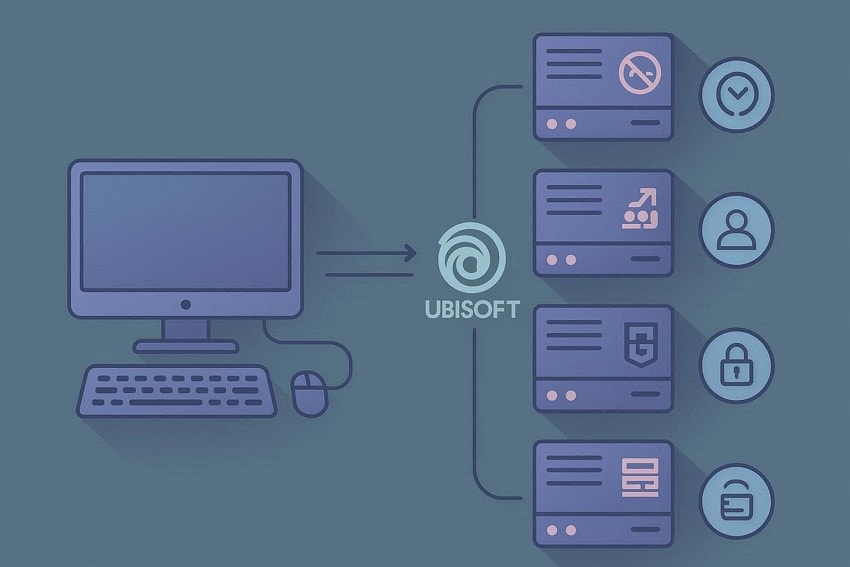
When you log in, the game retrieves this data and matches it against your device settings. Not just that, Cloud saves also stay online and link to your account. Hence, the Rainbow Six Siege Synchronization Failed Error: Failed to Synchronize Data for Cross Platform error appears when your device data and server data fail to match. Despite the fact that your primary account data stays safe.
Part 2. What Triggers Rainbow Six Siege Synchronization Error Message
While having the basics of Rainbow Six Siege synchronization error, adhere to the listed reasons to know which solution to opt for:
1. Ubisoft Connect and Its Role in Siege Data Sync
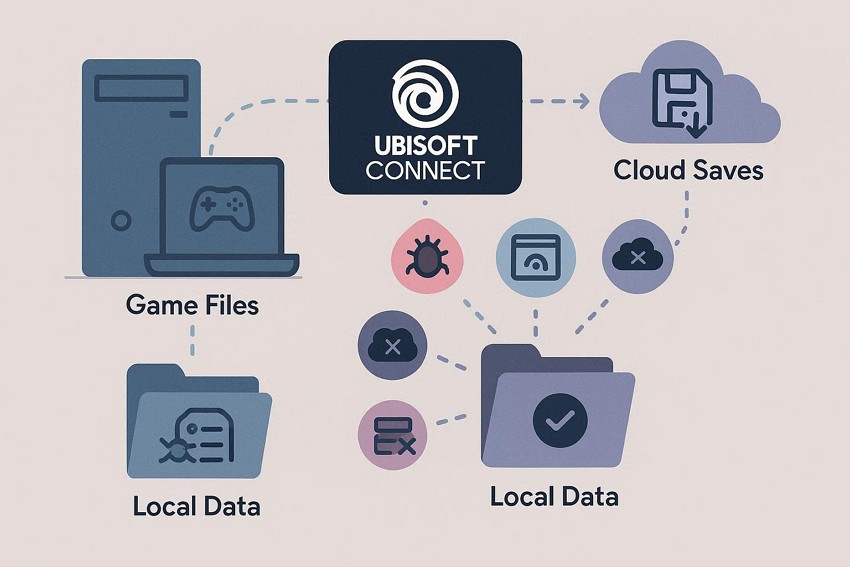
Ubisoft Connect works as a link between your Siege files on your device and Ubisoft Cloud data. So, if Ubisoft Connect has bugs, stays outdated, goes offline, or has damaged cache data, the game cannot send or receive cloud saves. As a result, a synchronization error may appear when you open or close the game.
2. Server Status Problems That Stop Siege Synchronization
When Ubisoft’s Siege or cloud save servers are busy, under maintenance, or recovering from issues, sync requests can fail. Hence, this causes the “Rainbow Six Siege Synchronization Failed Error: Failed to Synchronize Data for Cross Platform” message.
3. Network Issues That Cause Rainbow Six Siege Sync Failure
Unstable or restricted internet, such as frequent disconnects, high packet loss, strict NAT, VPNs, or blocked ports, can prevent cloud saves and cross-platform sync. When data packets fail to reach Ubisoft servers, Ubisoft Connect may think the sync did not finish and show a synchronization error, even though the game can still start.
4. Account Linking Errors Between Ubisoft and Platform Accounts
If your console or PC account links to the wrong Ubisoft account, links twice, or links incompletely, Siege cannot match your cloud profile correctly. Additionally, having old progress on one Ubisoft account and a current license on another can cause sync failures until support fixes the account links.
5. Cross-Play and Cross-Progression Configuration Mistakes
Cross progression needs one main Ubisoft account and a clearly chosen primary platform. Hence, when one chooses the wrong account or stops a merge, it can leave data inconsistent and cause a Rainbow Six Siege synchronization error.
Part 3. How to Fix Rainbow Six Siege Synchronization Failed and Cross-Platform Sync Errors
To know how you can resolve the Rainbow Six Siege synchronization error, follow the 7 simple solutions given along with detailed instructions:
Fix 1. Log Out of Ubisoft Connect and Re‑Auth
This solution refreshes your session, permissions, and cached data without touching your saves or reinstalling the game. Additionally, a fresh login generates new security tokens, which help when old tokens block cloud saves or cross progression. It also clears stuck client states, such as overlay bugs or offline flags, reloads cloud save settings, and fixes account or platform link mismatches, once performed via the listed steps:
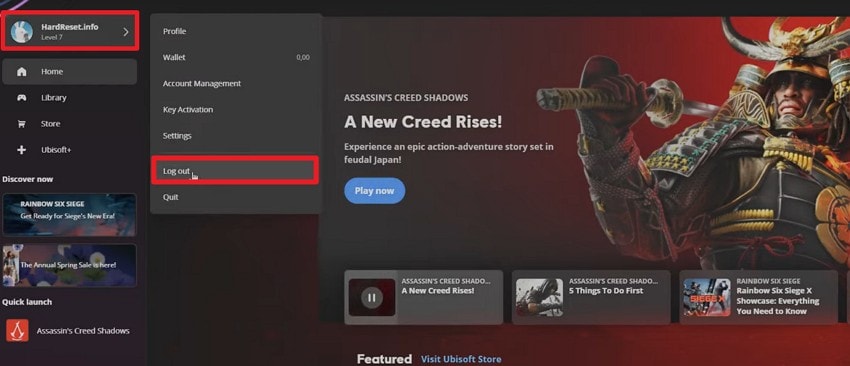
Instructions: Launch the Ubisoft Connect app on your PC or console as you close Rainbow Six Siege. Now, click your “Profile” icon in the top right corner, and select the “Log Out” option. After 10 to 20 seconds, log back in with your correct Ubisoft account, launch Rainbow Six Siege from Ubisoft Connect, and check if the sync error persists.
Fix 2. Run Ubisoft Connect as Administrator and Fix Permissions
To resolve the Rainbow Six Siege synchronization error, this solution ensures the launcher can read, write, and modify the save and config files required for cloud and cross-platform sync. Without these rights, cloud saves can fail silently, causing a "Failed to synchronize" error. Additionally, admin mode lets Ubisoft Connect access protected folders like Program Files, Documents, and AppData, as performed via guided steps:
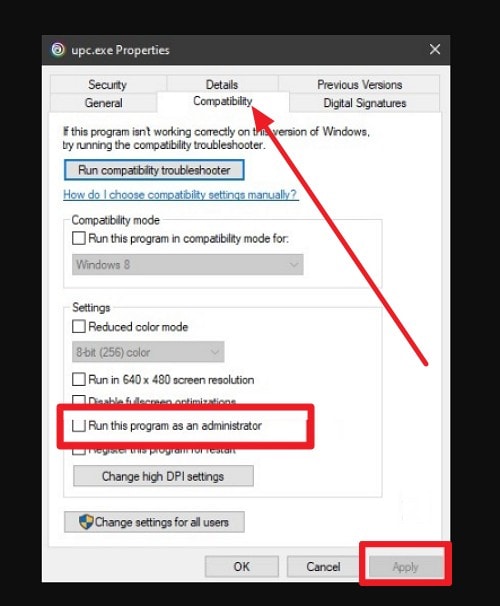
Step 1. As you open the Ubisoft Connect file location upon right click, locate the “Ubisoft\Ubisoft Game Launcher” folder to pick the “upc.exe" option. After that, right-click on it to choose the "Properties” option.
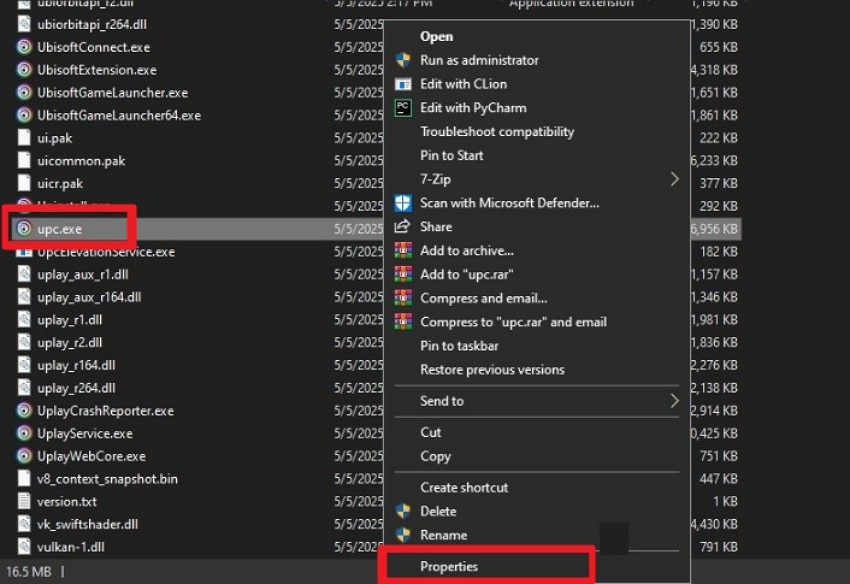
Step 2. Within the "Compatibility" tab, tick the “Run This Program as Administrator” and press the “Apply” button.
Fix 3. Toggle or Temporarily Disable Cloud Saves
If the Rainbow Six Siege Synchronization Failed Error: Failed to Synchronize Data for Cross Platform persists, temporarily toggle cloud saves on and off in Ubisoft Connect. This stops the game from using a possibly broken cloud copy, relies on a clean local save, and then rebuilds a fresh cloud version. When you disable the cloud saves via the listed steps, it lets the game save locally and avoids repeated sync failures:
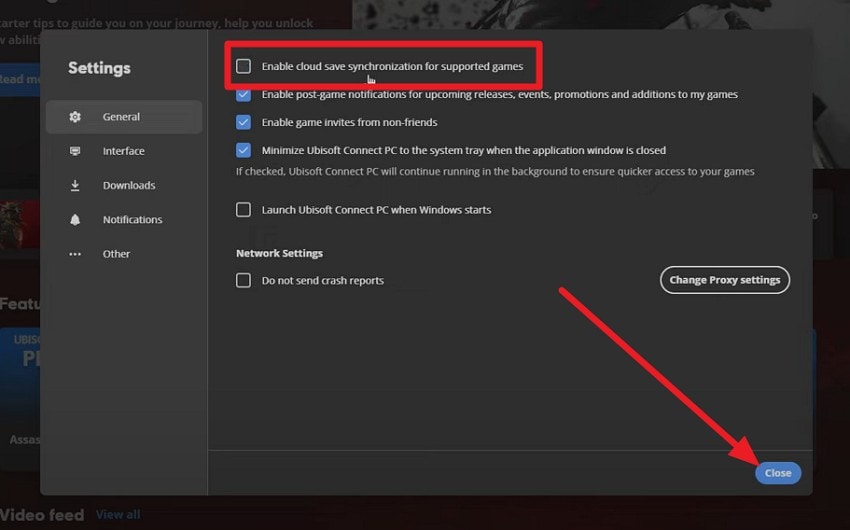
Instructions: As you close Rainbow Six Siege, launch Ubisoft Connect on PC, and head to the “General” settings by pressing the Profile icon. There, toggle the “Enable Cloud Save Synchronization for Supported Games” option and press “Close.”
Fix 4. Verify Game Files (Pc: Steam / Ubisoft Connect)
This solution checks for missing or damaged game files that Ubisoft Connect needs to load saves and connect to cloud services. The process repairs corrupted DLLs, configuration files, or executables and prevents crashes or load failures that would stop syncing. On Steam, it also ensures the Ubisoft launch chain works correctly, as you verify the game's files for Rainbow Six Siege via the given guidelines:
Ubisoft Connect (PC)
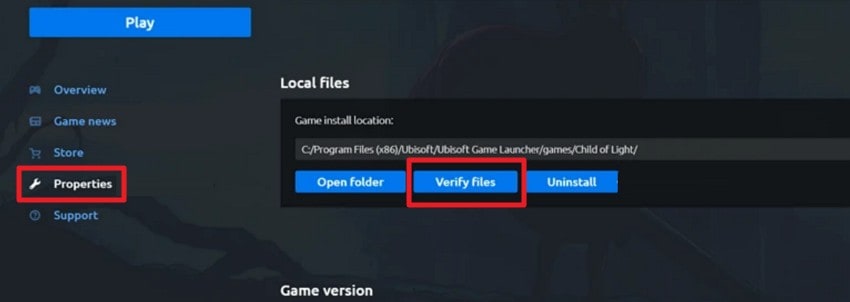
Instructions: On Ubisoft Connect, head to the “Properties" as you right-click the game title and "Three Dots.” From the left panel, choose the “Local Files” option, tap “Verify Files,” and pick the “Confirm” button. Let the scan and any downloads finish, then restart Ubisoft Connect and open Siege.
Steam (PC)
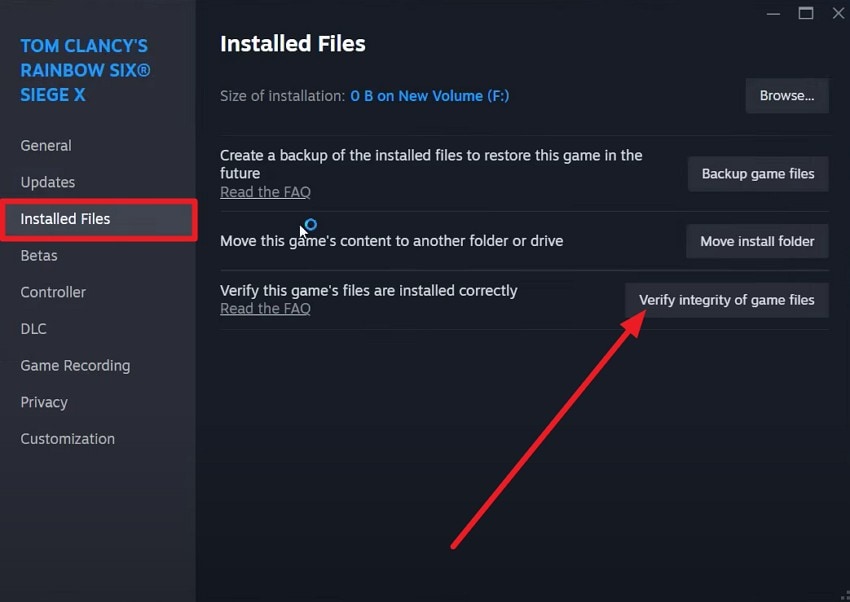
Instructions: Head to the “Library" on Steam and choose "Properties" as you right-click Tom Clancy's Rainbow Six Siege. Head to the "Installed Files” tab and press the “Verify Integrity of Game Files” option.
Fix 5. Check Cross‑platform/Cross‑play Settings
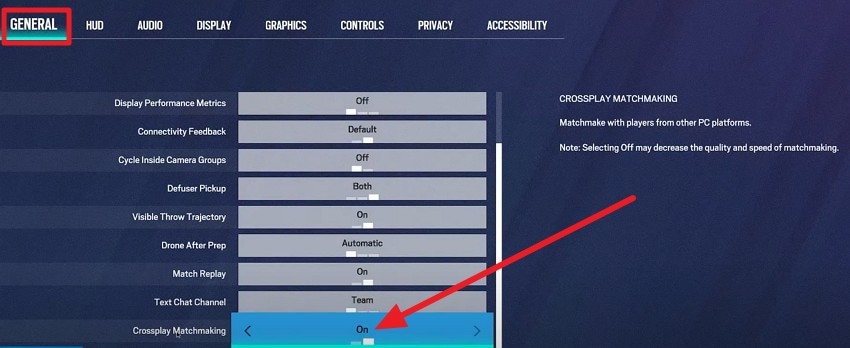
To resolve the Rainbow Six Siege synchronization error, check Rainbow Six Siege's cross-play and cross-progression settings. As you turn on cross-play, it ensures the game connects properly to Ubisoft's backend, while correct cross-progression settings make your main Ubisoft account the active profile everywhere. So, if errors stop after adjusting settings via the listed guidelines, the issue was misconfiguration:
Instructions: In Rainbow Six Siege, go to “Options” and choose the “General” tab. Set Cross‑play Matchmaking “ON” to play and sync with other platforms, or “OFF” to play only on the same platform.
Fix 6. Clear Ubisoft Connect Cache and Fix Network Stack (PC)
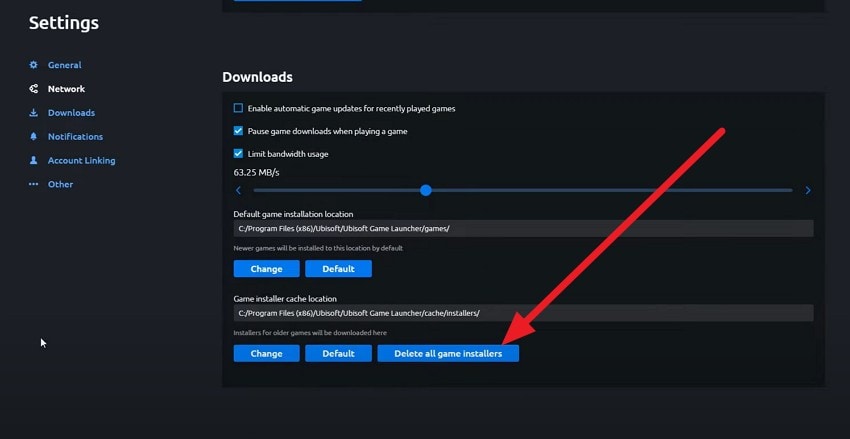
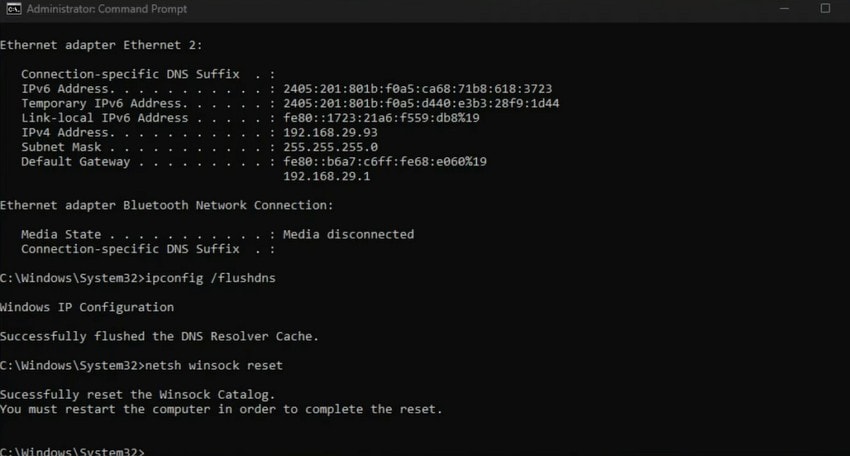
If you still get the Rainbow Six Siege Synchronization Failed Error: Failed to Synchronize Data for Cross Platform notification, try this solution. As you set the network stack, it clears stale DNS, Winsock, and IP settings so Ubisoft servers can be reached reliably. Also, this step gives Ubisoft Connect a fresh start, reduces routing issues, and helps progression sync correctly, as illustrated below:
Clear Ubisoft Connect Cache (PC):
Step 1. Head to the “Downloads” tab in Ubisoft Connect by pressing the “Hamburger" icon and choosing the "Delete All Game Installers” option.
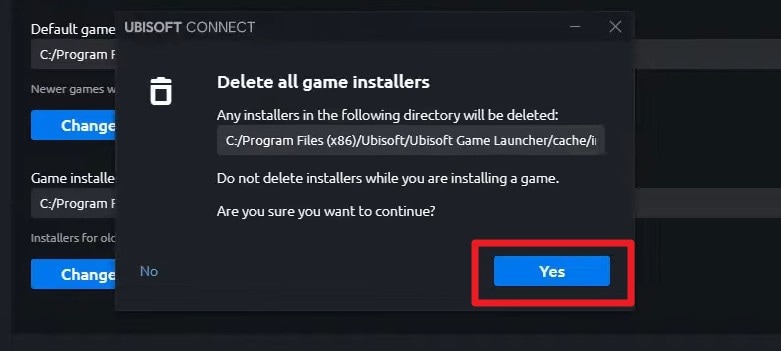
Step 2. In the popup menu that appears, select “Yes” to confirm.
Reset Windows Network Stack (PC)
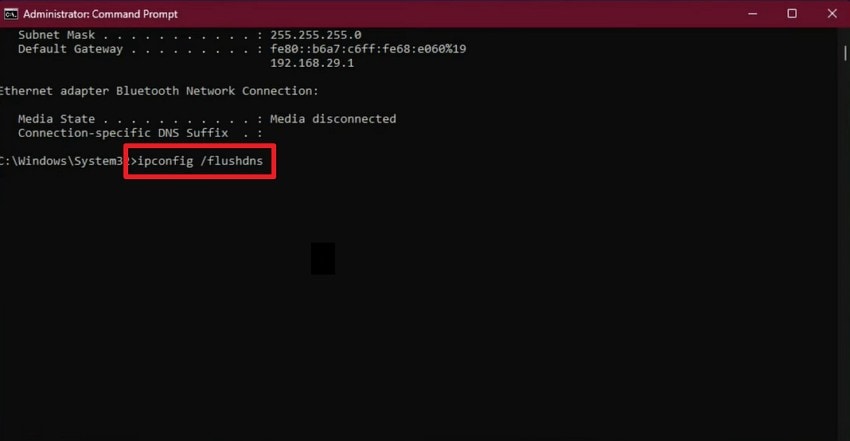
Step 1. Run Command Prompt as administrator and type the given command one by one and press “Enter.”
ipconfig /flushdns
ipconfig /release
ipconfig /renew
netsh winsock reset
netsh int ip reset
Step 2. Once it ends, restart the PC and start Rainbow Six Siege on Ubisoft Connect.
Fix 7. Consider Temporary Offline/Local Play (If Allowed)
Playing Rainbow Six Siege in offline or local mode, or with cloud saves turned off, can help fix sync problems. This bypasses broken cloud communication and keeps your local save safe. Not just that, offline play stops bad cloud copies from overwriting good local saves and gives time to back up your progress.
Smart Fix Tip. Repair Rainbow Six Siege Corrupted Files via Repairit
When trying to resolve the Rainbow Six Siege synchronization error, if the game file gets corrupted or the error occurs due to an already damaged file, Repairit can help. This tool is designed to fix Engineering Files, AutoCAD, and SketchUp Files in real time. In addition, it provides support for standard file formats like Archive or ZIP, including ISU, RAR, 7Z, etc.
Besides this, the tools come with an intuitive interface and guided steps to make their usage seamless for all types of users. So, while having the 100% success rate, users can also use it to fix documents like Word, PDF, Excel, PPT, or iWork. Hence, within its desktop version, users can fix files of unlimited size, which makes it suitable for professional users.
Key Features

-
Configuration File Repair: Repairs corrupted Rainbow Six Siege configuration, save, and launcher-generated data files that may block cloud synchronization and profile loading.
-
Archive and Cache File Recovery: Fixes damaged ZIP, RAR, and cache-stored Ubisoft Connect data files that can interrupt cross-platform sync verification.
-
Document and Log File Restoration: Recovers Ubisoft Connect reports, crash logs, and system documents used for troubleshooting synchronization failure causes.
Simple Steps to Fix the Corrupted Rainbow Six Siege Files [Repairit]
To fix the corrupted Rainbow Six Siege files, adhere to the listed guidelines and learn how this innovative tool functions:
Step 1. Fix Corrupt Rainbow Six Siege Game Files
Within the “More Types Repair” tab, press the “Start” button under the “Document Repair” tool.

Step 2. Add the Corrupted Files & Start Repairing
Choose the “+Add” button to import corrupted Rainbow Six Siege files and tap the “Repair” button to start the process.

Step 3. Export Your Rainbow Six Siege Game Files
Preview the repaired Rainbow Six Siege files by selecting the “Preview” button, then press “Save All” to export them.

Repair Corrupted Files Now
 Security Verified. Over 7,302,189 people have downloaded it.
Conclusion
To wrap up, this guide has addressed Rainbow Six Siege synchronization errors and highlighted the reasons behind them. Also, possible solutions regarding this error are covered with detailed guidelines for clarity. However, for instances where the error appears because of corrupted game files or any file gets damaged in trying any solution, usage of Repairit is suggested because of its massive format support.
Frequently Asked Questions
-
1. Can synchronization errors cause loss of progress?
No, Ubisoft servers keep your main account data safe, so progress stays secure online always. -
2. Will sync errors affect multiplayer or ranked matches?
Sync errors do not block matchmaking, but progression or rank updates may not show immediately. -
3. Do sync errors appear on all platforms equally?
No, errors happen more on PC and when players switch between multiple consoles or devices.




