
A sudden power outage can do more than turn off your device, it can leave you with a file damaged after power outage. If your computer shuts down while a file is saving, updating, or syncing, the file may become corrupted and stop opening properly.
The good news is that there are ways to fix this problem. With the right methods and tools, you can often repair file after power outage and recover access to your important documents.
In this article
Why Files Get Corrupted After a Power Outage
When the power suddenly goes out, your computer may shut down before it finishes saving a file. This can leave the file incomplete or damaged, which is why it may stop opening or show errors.
Common Causes of File Corruption
- The computer shuts down while a file is being saved, copied, or updated.
- An unexpected shutdown can damage file data and make files unreadable.
- Power surges after electricity returns may harm hard drives or SSDs.
During File Transfer
- A power outage can erase temporary data stored in RAM before it is saved.
- File transfers to USB drives, SD cards, or external drives may stop halfway, leaving files incomplete.
Signs Your File Was Damaged After a Power Outage
After a power outage, file damage is not always obvious right away. Sometimes the file still appears normal, but problems show up when you try to open or use it.
Common Signs of File Corruption
- You may get a no permission error even if the file is yours.
- Files may open but show missing parts, freeze, or stop halfway.
- Apps like Word, Excel, or photo editors may crash when opening the file.
- A CRC (Cyclic Redundancy Check) error means the file may contain damaged or missing data.
Other Signs
- Blank File Icon - The system no longer recognizes the file type.
- Ghost Files - The file appears in the folder but cannot be opened, moved, renamed, or deleted.
Basic Ways to Fix Damaged Files After a Power Outage
Before using advanced recovery software, try these simple built-in fixes first. These methods can help repair minor file or drive issues caused by a sudden shutdown.
Fix 1. Run System File Checker (SFC)
This Windows tool scans for damaged system files and replaces them with healthy copies. It is helpful if the power outage also causes your computer to act unstable or show system errors.
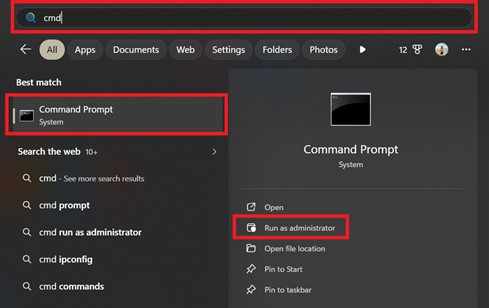
Step 1. Open Command Prompt as an administrator, then click Run as administrator.
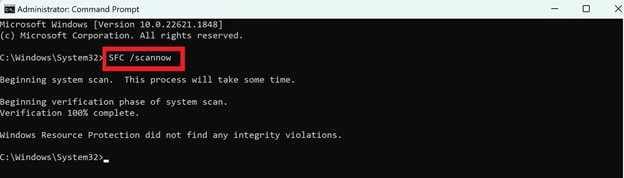
Step 2. Input the command sfc /scannow and press Enter; wait for the verification and follow any prompted repair instructions.
Fix 2. Use CHKDSK to Check Your Drive
CHKDSK scans your hard drive or SSD for file system errors and bad sectors, then attempts to fix them. This can help if the outage affected your storage device.
Step 1. Launch the Command Prompt.
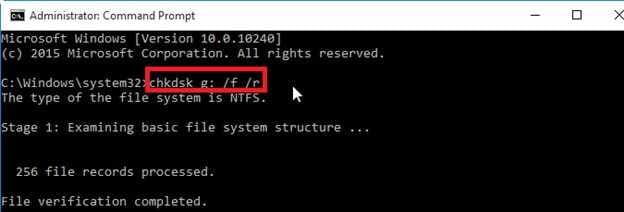
Step 2. Type chkdsk C: /f /r (replace "C" with the letter of the affected drive) and hit Enter.
Fix 3. Use Open and Repair in Apps
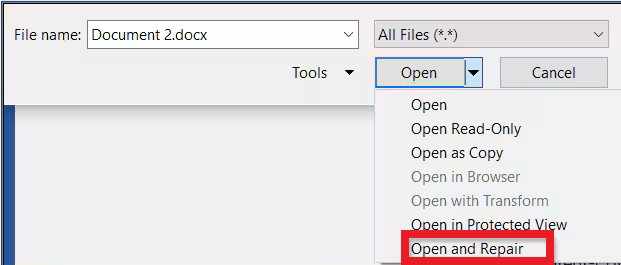
Programs like Microsoft Word, Excel, and PowerPoint have a built-in repair option that may fix damaged files automatically.
Step 1. Launch the application, navigate to the Open menu, and select Browse to locate your corrupted file.

Step 2. Click the arrow beside the Open button, then choose Open and Repair from the dropdown menu to start the repair process.
Fix 4. Restore Previous Versions
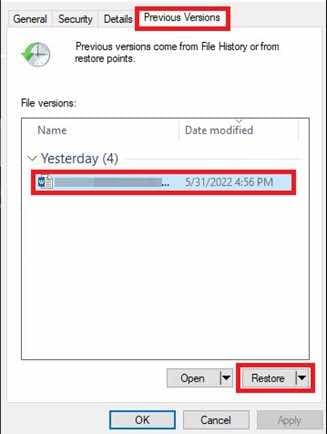
Windows may have saved an earlier version of your file before the outage. You can check if a backup or restore point is available.
Step 1. Right-click the damaged file and select Properties from the context menu.
Step 2. Navigate to the Previous Versions tab, select a timestamp prior to the power outage, and click Restore to overwrite the damaged data.
Fix 5. Move the File to Another Drive
Sometimes the problem is related to the storage location, not the file itself. Copying or moving the file to another folder, USB, or drive may help it work properly again.
Step 1. Attempt to copy, not move, the corrupted file to a secondary USB drive.
Step 2. Try opening the new copy from the secondary location to see if the file system handshake is successfully restored.
Advance Fix to Restore Severely Corrupted Files
If system tools and manual fixes don't work, the file may be deeply corrupted. This means the damage is inside the file itself, not just in the storage device. In this case, advanced repair tools can scan the damaged file, remove broken parts, and rebuild the file so it becomes usable again.
It CAN:
- Fix damaged file headers so the file can open properly.
- Restore broken metadata like timestamps and file details.
- Repair multiple corrupted files at the same time.
- Fix video issues by skipping damaged frames to keep playback working.
If you confirm the file is corrupted, a repair tool can safely restore its functionality. One example is the Repairit File Repair, which works with common file types like DOCX, PPT, PDF, XLSX, and XLS.
Step-by-Step (Optional)
Step 1. Upload the corrupted file.

Step 2. Start the Repair process.

Step 3. Preview and save the restored file to a new location.

How to Prevent File Corruption
Preventing data damage is much easier than trying to recover files after a power failure. With the right tools and habits, you can protect your files from sudden shutdowns and system errors.
- Use a UPS - Keep your device on for a short time during outages so you can save files and shut down safely.
- Enable cloud backup - Automatically saves online copies of your files for easy recovery.
- Follow the 3-2-1 backup rule - Keep 3 copies of files on 2 storage types, with 1 copy stored elsewhere or in the cloud.
- Use modern file systems - Systems like NTFS or APFS help protect data during crashes.
- Maintain your hardware - Regularly check drives and power supplies to reduce corruption risks.
Conclusion
A file damaged after power outage can interrupt your workflow, but it doesn't always mean permanent loss. You can often recover it using built-in tools like SFC and CHKDSK, or by using professional tools to repair file after power outage. The best way to avoid this problem is through prevention, using a UPS and keeping regular backups to protect your files during unexpected blackouts.
FAQs
-
Why does a power outage cause file corruption?
Corruption happens when power is lost during a write cycle. If the computer stops before it finishes saving or updating file data, the file becomes incomplete and unreadable. -
Can a power surge damage my SSD or Hard Drive?
Yes. When power comes back, a sudden voltage spike can damage the drive's hardware, leading to failure or data corruption. -
Will CHKDSK delete my files?
CHKDSK mainly repairs file system errors, but it may move damaged data into recovery folders. It's best to back up files before using it. -
What if the "Open and Repair" feature in Word fails?
If it fails, the file is likely severely damaged. In this case, a specialized tool is needed to repair the file after a power outage by rebuilding its internal structure. -
How does a UPS prevent file damage?
A UPS (Uninterruptible Power Supply) provides temporary battery power during outages, allowing you to save your work and shut down your device safely so no files are left unfinished.




