 TL;DR:
Documents unreadable due to forced quits or system crashes can often be recovered by utilizing built-in "Open and Repair" features, extracting text from temporary .tmp or .asd files, or using dedicated repair software.
● Manual recovery methods include reverting to previous versions via Windows File History or macOS Time Machine, changing the file extension to formats like .rtf to extract raw text, or importing the damaged file into a blank document using the Text from File option.
● For severely corrupted DOCX, XLSX, PPT, and PDF documents, Repairit can rebuild damaged headers and missing data segments without altering the original file, requiring Windows Vista/7/8/10/11 or macOS X 10.12 or later.
● To minimize future data loss from system freezes or interrupted transfers, enable application auto-save intervals, safely eject external storage devices, and apply the 3-2-1 backup rule across local devices, cloud storage, and external drives.
Ask AI for a summary
 ChatGPT
 Perplexity
 Gemini
 Claude
 Grok
Grok
A document unreadable after forced quit can be very stressful, especially if you’ve lost important work. This usually happens because the program didn’t have enough time to properly save the file before it closed. If this happens, knowing how to repair file after forced quit can help you recover your data. In many cases, tools like Repairit can fix the corrupted file and restore your document so you can continue working.
In this article
Why Documents Become Unreadable
When a program is forced to close, it may stop before properly saving the file. This can damage the file structure and make the document unreadable.
Common Causes
- Incomplete saving - The file isn’t fully written when the app closes suddenly.
- Lost temporary data - Temporary files used during editing may be deleted or not saved.
- System crash or freeze - Memory data may not match the saved file.
Transfer or Sync Issues
- Interrupted transfer - Moving files during a forced quit can cause incomplete data.
- Sync errors - Cloud or network syncing may break, resulting in corrupted or empty files.
What Are The Signs of a Corrupted Document
Knowing how a damaged file behaves can help you understand how serious the problem is. After a crash or forced quit, corrupted documents often show clear warning signs.
Common Signs of File Corruption
- Unreadable text - The file opens with strange symbols or broken characters instead of normal content.
- Wrong or unknown file type - The system may not recognize the file.
- Access errors - You may see messages saying the file is locked, in use, or cannot be opened.
- Freezing or crashing - The app may hang or close when trying to open the file.
- File format errors - You might get a message saying the file is damaged or not supported, even if the format is correct.
Quick Fixes to Recover an Unreadable Document
Before using advanced repair tools, try built-in options that may help recover a slightly corrupted file.
Fix 1. Use Open and Repair
Many apps like Word or Excel have a built-in repair option that can try to fix damaged files when opening them.
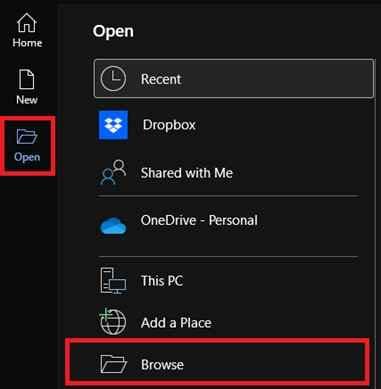
Step 1. Open your application, go to the File menu, and select Open to browse for the corrupted document.
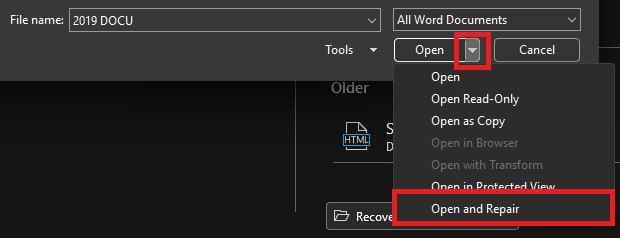
Step 2. Click the arrow next to the Open button in the dialog box and select Open and Repair to process.
Fix 2. Restore previous versions
Check if your system saved an earlier copy through File History or backup features like Time Machine.
Step 1. Right-click the affected file in your folder and select Properties (Windows) or Browse Time Machine Backups (macOS).
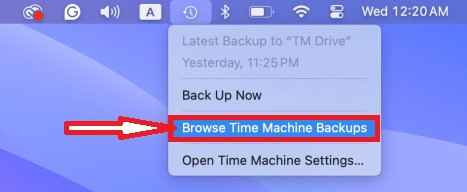
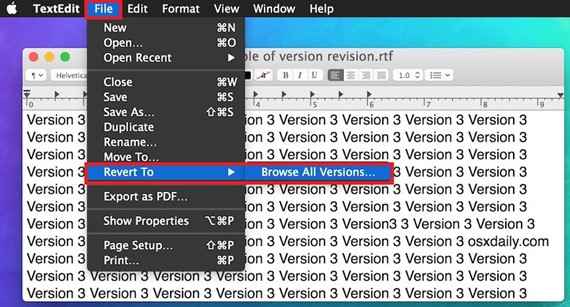
Step 2. For Windows, go to the Previous Versions tab, select the most recent before the crash, and Restore. For macOS, go to File and Select Revert To, then Browse All Versions.
Fix 3. Check the file extension
Sometimes the file type gets misread after a crash. Changing the extension back to the correct format may help it open.
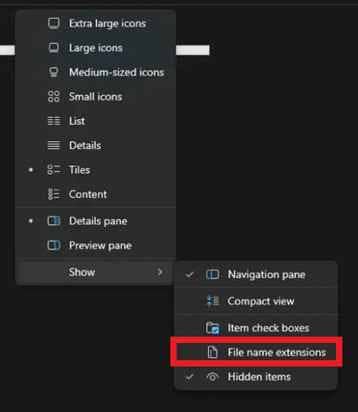
Step 1. Enable File name extensions in your view settings and right-click the file to select Rename.
Step 2. Change the suffix (e.g., from .docx to .rtf or .txt) and attempt to open it to extract the raw text from the corrupted shell.
Fix 4. Copy content into a new file
Try opening the file in another program and copying whatever data is still readable into a new document.
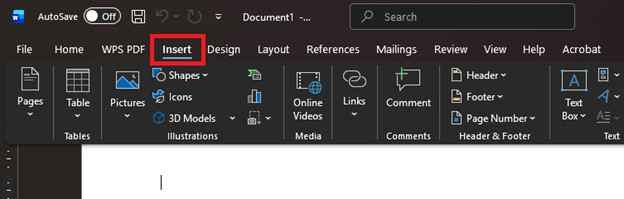
Step 1. Open a completely blank document in Word and go to the Insert tab.
Step 2. Select Object followed by Text from File, then choose the unreadable document to see if the content can be imported without the corrupted formatting.

Fix 5. Look for autosave or temp files
Some apps save temporary or autosaved versions that may still be recoverable after a forced quit.
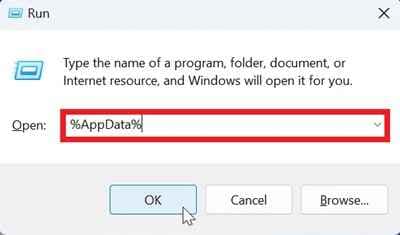
Step 1. Run AppData or Library folder and locate the UnsavedFiles or Temp.
Step 2. Search for files with a .tmp or .asd extension that match the date and time of your recent work session.
Advanced Fix to Restore Severely Corrupted Files
If basic fixes don’t work, the file is likely more seriously damaged. At this stage, using a dedicated repair tool can help rebuild the broken structure of the document and recover readable data. This process helps fix structural errors caused by a forced quit or system crash.
It CAN:
- Scan and detect corrupted file structures automatically
- Rebuild damaged headers and missing data segments
- Recover readable text, images, and formatting where possible
- Support multiple file types like DOCX, XLSX, PPT, and PDF
- Create a repaired copy without altering the original file
If the file is corrupted, a repair tool can safely restore its functionality. The Repairit File Repair works with common file types like Word documents, Excel sheets, PowerPoint files, and PDF documents, helping recover data that manual fixes can’t always restore.
Step-by-Step (Optional)
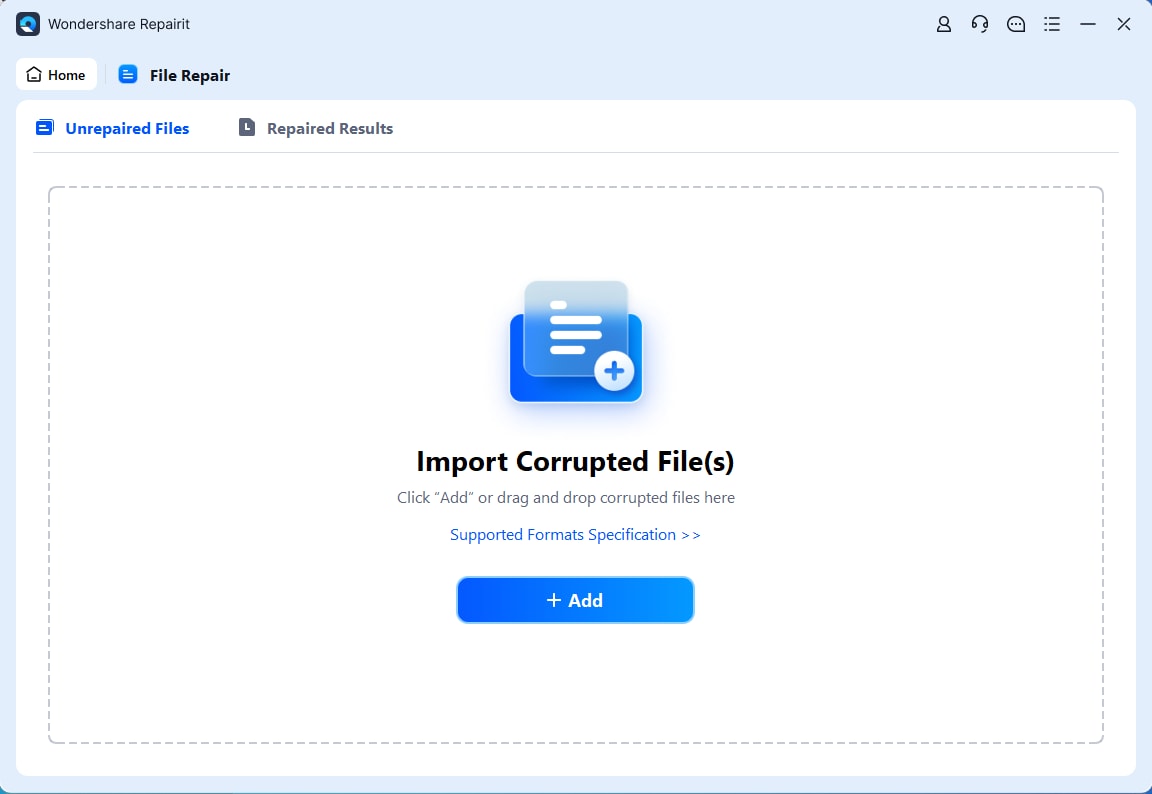
Step 1. Upload the corrupted file.
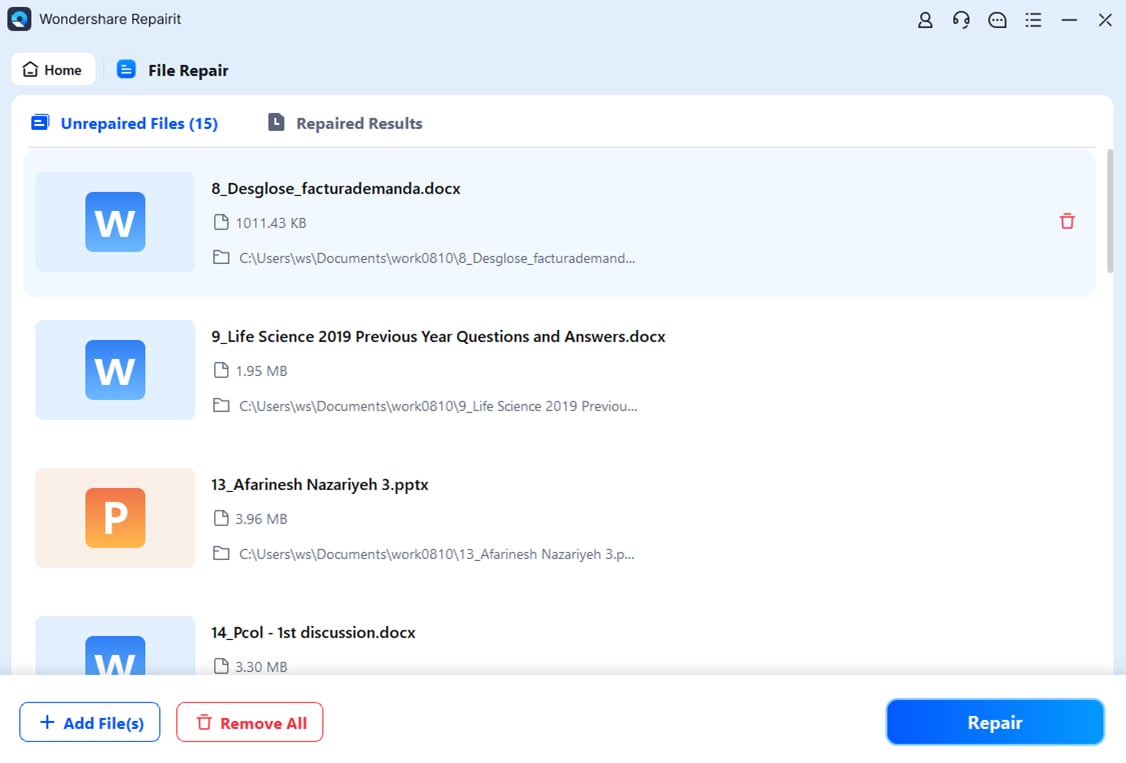
Step 2. Start the Repair process.
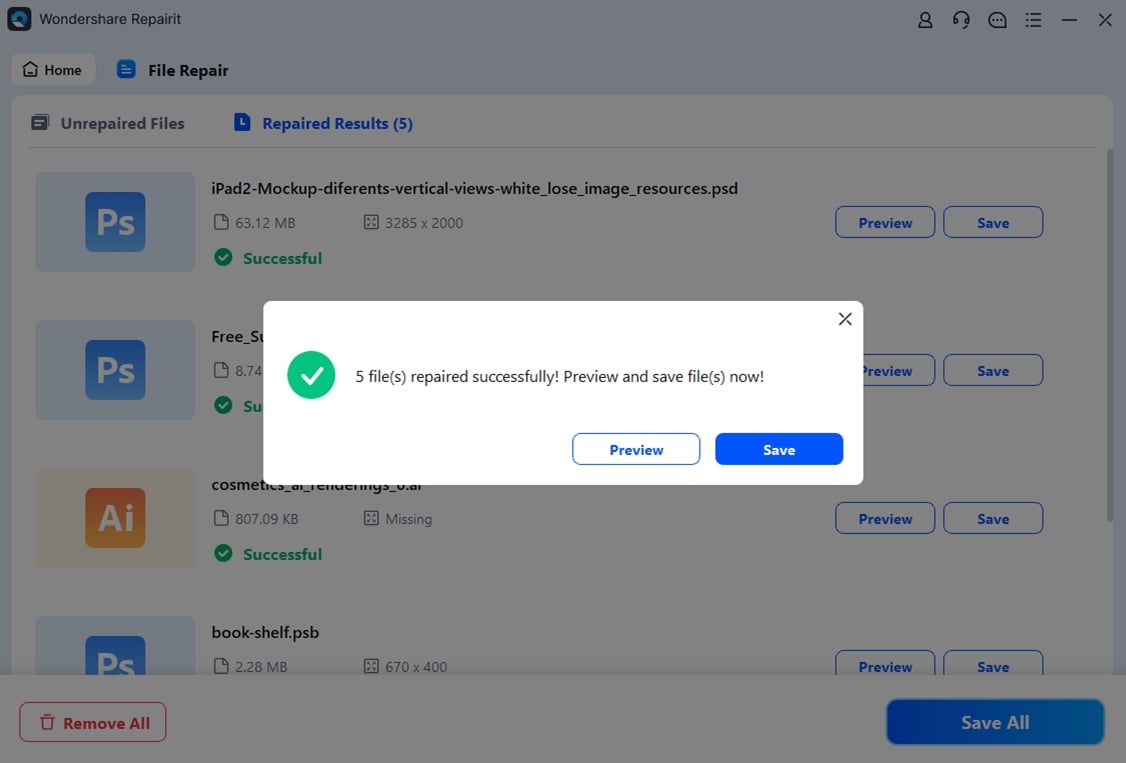
Step 3. Preview and save the restored file to a new location.
How to Prevent Document Corruption
The best way to avoid a document becoming unreadable after a forced quit is to build safe saving habits and keep your system stable. While crashes can’t always be avoided, you can greatly reduce the risk of file damage.
Best Practices for Data Safety
1. Turn on auto-save - Set your app to save every few minutes so less work is lost if it crashes.
2. Use backups (3-2-1 rule) - Keep multiple copies of your files on your device, cloud storage, and an external drive.
3. Close heavy apps - Too many running programs can slow your system and increase crash risk.
4. Safely remove storage devices - Always eject USBs or external drives properly before unplugging them.
5. Save new versions regularly - Use Save As to create a fresh copy of your file and reduce corruption risk.
Conclusion
A document unreadable after forced quit error is common and usually not the end of your file. With basic fixes like checking temporary files or restoring previous versions, and advanced tools like Repairit, you can often repair file after forced quit and recover your work. To avoid this in the future, it’s best to use auto-save and keep regular backups.
FAQs
-
Why does my document become unreadable after a forced quit?
Because the program stops suddenly before it can finish saving, leaving the file structure incomplete or broken. -
Can I recover the file without extra software?
Yes. You can try built-in tools like “Open and Repair” or look for temporary or autosaved files. -
Will changing the file extension help?
Sometimes. It may allow you to open the file and recover at least part of the content. -
Does Repairit work for all files?
It supports common formats like Word (DOCX), Excel (XLSX), PowerPoint (PPTX), and PDF that are damaged due to crashes. -
How can I prevent this issue?
Use auto-save, keep backups, and properly close programs and external drives to reduce the risk of corruption.