 TL;DR:
To recover files damaged by a software update, utilize built-in operating system features like SFC scans and version rollbacks to resolve system-level conflicts, or use dedicated read-only repair tools to rebuild severely corrupted file headers and metadata.
● Test the inaccessible file on a different device or application first to determine whether the issue is true file corruption or merely a compatibility conflict with the newly updated software.
● Attempt built-in manual fixes by executing sfc /scannow via an Administrator Command Prompt to repair system errors, or navigate to Windows Update History to uninstall the problematic patch entirely.
● For files exhibiting severe symptoms like a 0 KB size or unreadable errors, utilize tools like Repairit (supporting Windows Vista to 11 and macOS 10.12 or later) to safely reconstruct damaged formats without altering the original file.
Ask AI for a summary
 ChatGPT
 Perplexity
 Gemini
 Claude
 Grok
Grok
A file damaged after software update can be frustrating, especially when an update meant to improve your device causes files to stop working instead. Whether it’s a corrupted document, photo, or video, learning how to repair file after app update issues is important to prevent data loss. In many cases, file damage happens because updates interrupt file structures or corrupt important metadata.
In this article
Why Files Get Corrupted After an Update
Software updates improve performance and security, but problems during installation can sometimes damage saved files or make them unreadable.
Common Reasons Files Get Damaged
- Interrupted Update - A restart, crash, or power loss during an update can damage files.
- Compatibility Issues - New software versions may not properly support older files.
- System Errors - Update errors can affect file paths or storage settings.
Other Causes
- Incomplete Transfer - Files moved during updates may become damaged if the process is interrupted.
- Sync Conflicts - Updating while files are syncing can corrupt file data.
What Are The Signs of File Corruption After Software Update
A file damaged after software update may not always be obvious right away. Sometimes the issue only shows up when you try to open or use the file in the updated app. Spotting the signs early can help you decide whether basic fixes are enough or if you need to repair file after app update using a dedicated tool.
Common Signs of File Damage
- Invalid File or Error Messages - The file won’t open and shows errors like “file unreadable” or missing header.
- Broken Display or Playback - Videos may glitch or freeze, and documents may look scrambled or show incorrect text.
- App Freezing or Crashing - The updated program may hang or close when trying to open the file.
- File Shows 0 KB Size - In serious cases, the file appears empty, meaning its data may be lost or disconnected.
- Missing or Wrong Details - File info like thumbnail, date, or author may disappear or look incorrect.
Basic Ways to Fix Files Damaged After an Update
Before using advanced recovery tools, you can try some built-in fixes to solve a file damaged after software update issue. These methods help check whether the problem is caused by system errors or the update itself.
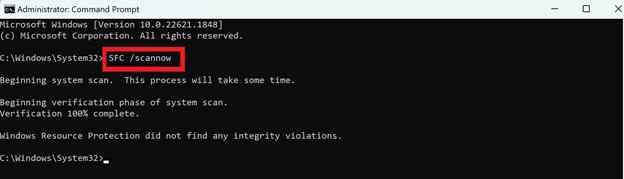
Fix 1. Run System File Checker (SFC)
This tool checks and repairs corrupted system files that may stop apps from opening your files properly.
Step 1. Open Command Prompt as Administrator. Type cmd in search
Step 2. Enter sfc /scannow and press Enter. Wait for the scan to finish and fix any detected issues.
Fix 2. Restore a Previous Version
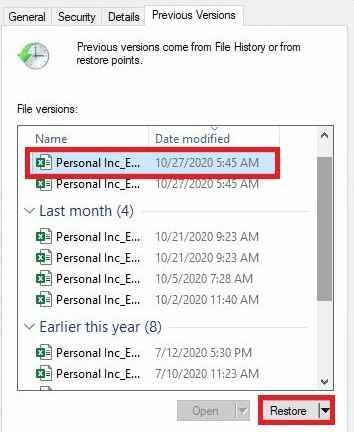
Windows may have saved an earlier working copy of your file before the update.
Step 1. Right-click the file and select Properties.
Step 2. Go to Previous Versions. Choose a version before the update and click Restore.
Fix 3. Clear Cache and Temporary Files
Old cache files can conflict with the updated app and make files seem damaged.
Step 1. Open the app settings or go to the system temp folder.
Step 2. Delete temporary and cache files. Restart the app and try opening the file again.
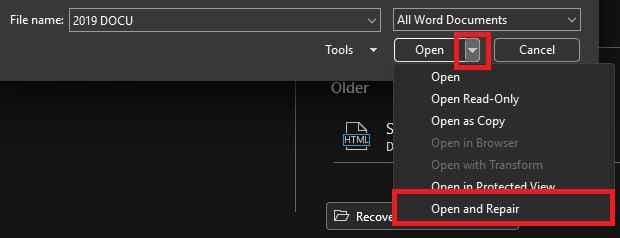
Fix 4. Use Open and Repair
Some apps like Microsoft Word have a built-in repair option.
Step 1. Open the app and go to File, then Open.
Step 2. Select the damaged file. Click the arrow next to Open and choose Open and Repair.
Fix 5. Reinstall or Roll Back the Update
Sometimes the update itself causes the issue instead of the file.
Step 1. Go to Settings, Windows Security, and Update History.
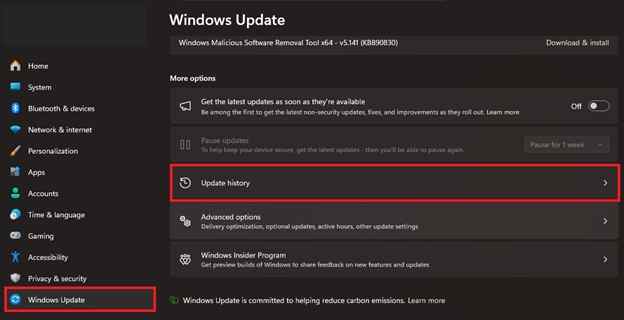
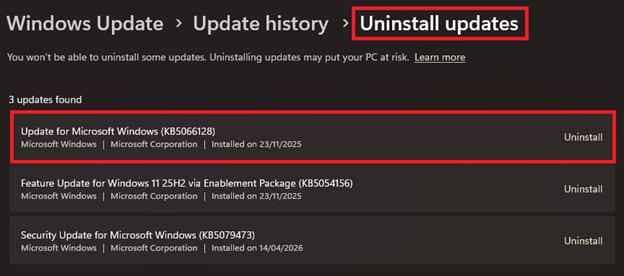
Step 2. Uninstall the latest update. Restart your device and try opening the file again.
Advanced Fix Severe File Damage After Software Update
If basic fixes don’t work, it usually means the file damaged after software update has deeper issues, such as broken structure or missing data inside the file. In this case, professional repair tools are often needed. These tools don’t just try to open the file, they rebuild its damaged parts so it can work again.
It CAN:
- Restore broken file headers so the system can recognize the file again.
- Correct important details like format info, resolution, or document properties that may have been damaged during the update.
- Use a healthy sample file to help rebuild missing or corrupted parts.
- Fix several damaged files in one process to save time.
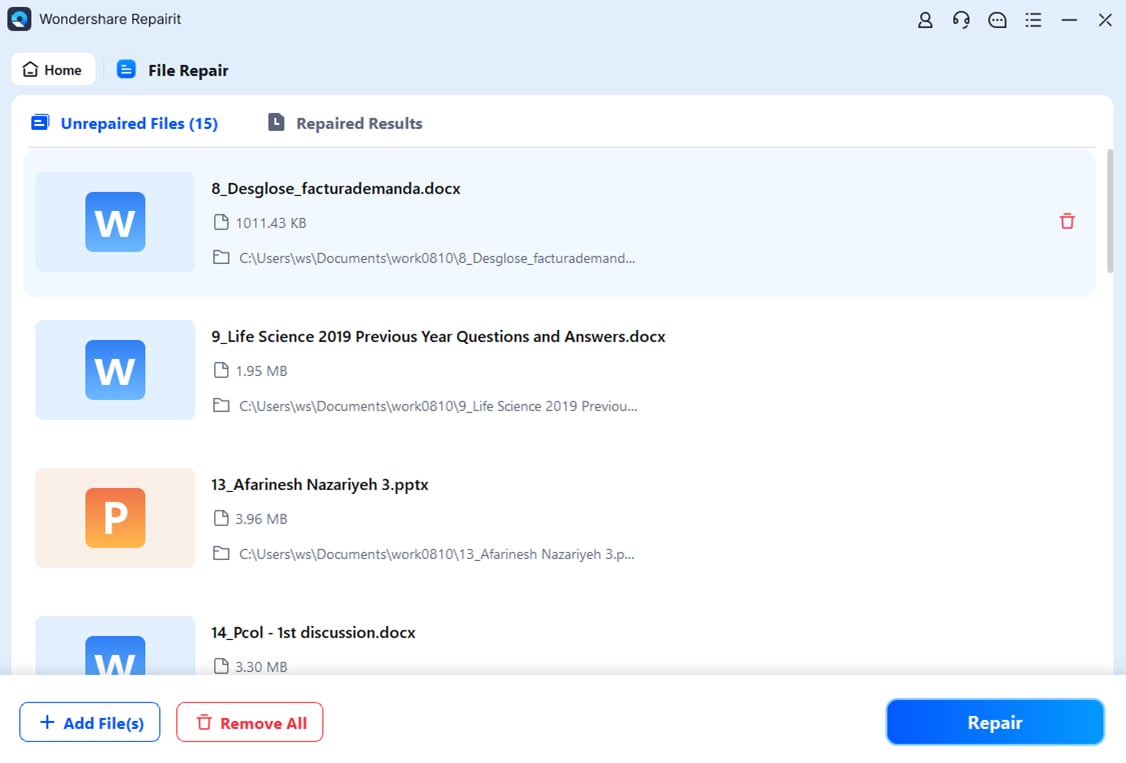
If the file is truly corrupted, tools like Repairit File Repair can help restore it. It supports common file types such as videos (MP4, MOV), photos (JPG, RAW), and documents (PDF, DOCX, XLSX). Unlike manual fixes, it works in a safe, read-only mode, so your original files are not further damaged during the repair process.
Step-by-Step (Optional)
Step 1. Upload the corrupted file.
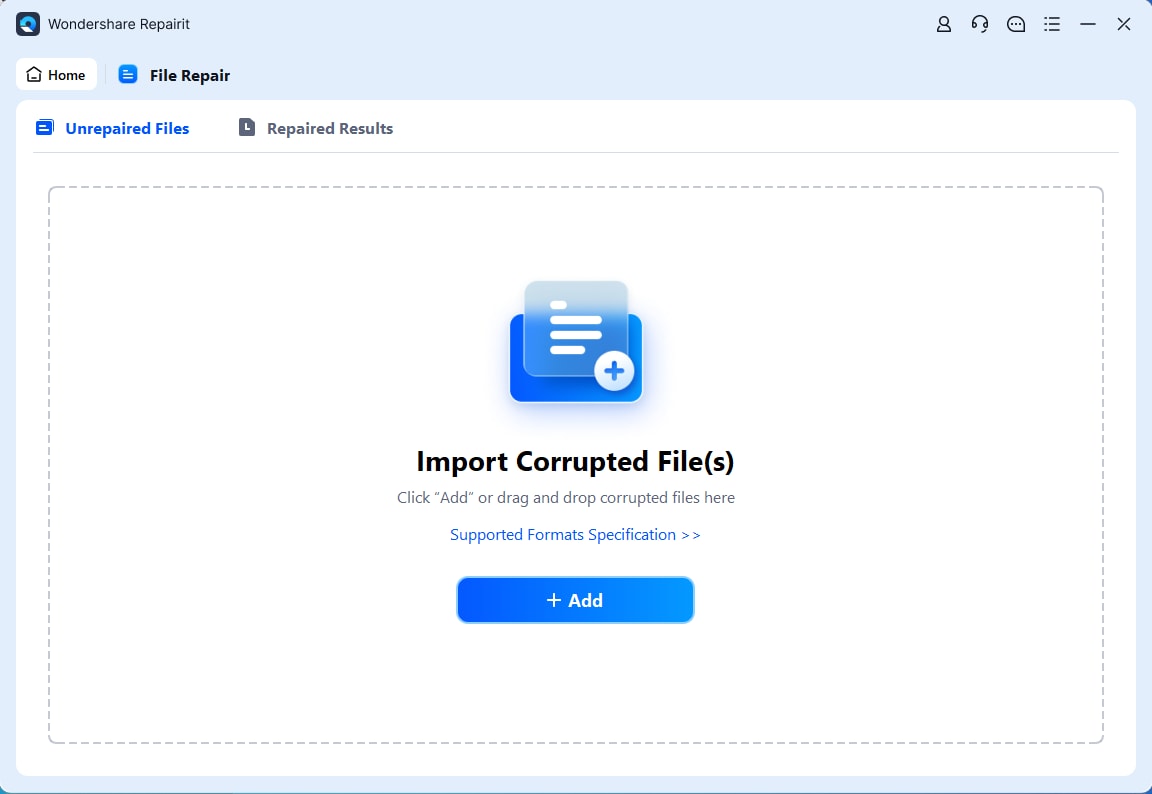
Step 2. Start the Repair process.
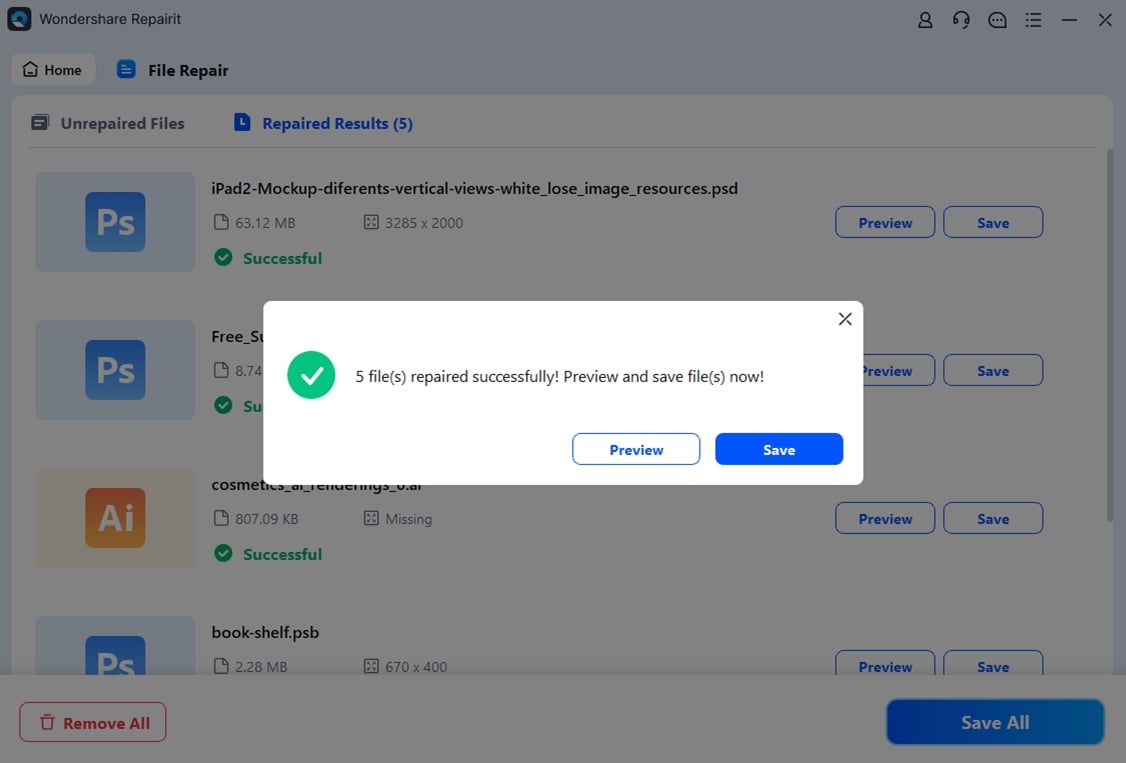
Step 3. Preview and save the restored file to a new location.
How to Prevent File Damage After Future Updates
Even though software updates are usually safe, there is still a risk that a file damaged after software update issue can happen during installation. A few simple precautions can help you avoid it in the future.
Best Practices for File Safety
- Keep Backups (3-2-1 Rule) - Save 3 copies of your files on 2 different storage types, with 1 stored in the cloud or off-site.
- Avoid Power Interruptions - Make sure your device doesn’t shut down during updates by using a UPS (for desktops) or keeping laptops charged.
- Close Apps Before Updating - Shut down all open files and programs before starting an update to prevent conflicts.
- Check Disk Health Regularly - Run basic disk checks to avoid errors from bad storage sectors that can corrupt files.
- Don’t Install Updates Immediately - Waiting for early bug fixes or patch versions can help avoid update-related file issues.
Conclusion
A file damaged after software update can be stressful, but in most cases, it can still be fixed. By checking the common signs of corruption and using built-in Windows tools, you can often recover your files without much difficulty. If these methods don’t work, professional tools can help repair file after app update issues by rebuilding damaged file data like headers and metadata. To avoid future problems, always keep backups and make sure your system is stable during updates.
FAQs
-
Why does a software update damage files?
It usually happens when an update is interrupted or when the new version conflicts with existing file data. -
Can a 0 KB file still be fixed?
Sometimes yes. You can try restoring a previous version or using repair tools like Repairit to recover missing data. -
Is file repair software safe to use?
Yes, trusted tools like Repairit work in read-only mode, so your original file is not changed or further damaged. -
How can I tell if the update caused the problem?
Try opening the file on another device or app. If it works there, the issue is likely compatibility, not file damage. -
How can I prevent this in the future?
Always back up your files, keep your device charged or plugged in during updates, and close all apps before installing updates.