 TL;DR:
Operating system updates often break fragile recovered files by altering system permissions, changing file paths, or overwriting incomplete data, but functionality can typically be restored through manual system tweaks or dedicated repair software.
● Resolve permission-based access errors by manually reclaiming rights in the file's Advanced Security properties, or fix OS-induced disk structure issues by executing the chkdsk /f /r command via an elevated Command Prompt.
● Rebuild severely corrupted internal data structures using Repairit File Repair, which requires Windows Vista/7/8/10/11 or macOS X 10.12 or later to fix damaged Word, Excel, PDF, JPEG, MP4, and ZIP formats that freeze or crash standard applications.
● Prevent incomplete data overwrites during future installations by moving recovered files to a separate external drive away from the primary operating system drive and temporarily disabling automatic updates.
Ask AI for a summary
 ChatGPT
 Perplexity
 Gemini
 Claude
 Grok
Grok
Updating your operating system is meant to improve your device, but sometimes it can cause problems with files you previously recovered. It can be frustrating to successfully restore deleted or lost files, only to find them no longer opening or working after an OS update. In many cases, a recovered file corrupted after an update happens because the new system changes file compatibility, permissions, or how certain programs read the file.
The good news is that your files may still be repairable. If your recovered files stop working after an OS update, there are several troubleshooting methods you can try, such as checking file permissions, updating software, adjusting compatibility settings, or using file repair tools to restore access.
In this article
Why Recovered Files Stop Working After an OS Update
Recovered files are often more fragile than regular files. They may look fine after recovery but can still contain hidden damage. An OS update can change system settings or software behavior, which may cause these files to stop working.
Common Causes
- File Overwrites - OS updates install large files that may overwrite incomplete recovered data.
- System Changes - Updates can change file paths or settings, affecting file access.
- Software Compatibility - Updated apps may no longer open slightly damaged recovered files.
Transfer Issues
- Permission Changes - Updates may reset permissions and block file access.
- Incomplete Transfers - Files moved before updating may become corrupted if the transfer was unfinished.
Signs Your Recovered Files Were Affected by an OS Update
When an OS update affects recovered files, the problem can show up in different ways. Knowing these signs can help you identify what went wrong.
Common Signs
- Apps Crash or Freeze - Opening the file causes the program to stop responding or suddenly close.
- File Won’t Open - The file is visible, but the system says it cannot be found or opened.
- Corrupted Content - The file opens with strange symbols, missing content, or blank pages.
- Access Denied Errors - The system says you don’t have permission to open, edit, or move the file.
Basic Fixes to Try First
Before using advanced repair tools, try these simple fixes. Many file issues after an OS update are caused by small system changes.
Fix 1. Check File Permissions
The update may change your user account or permissions. This can block access to recovered files and reset the file permissions to regain access.
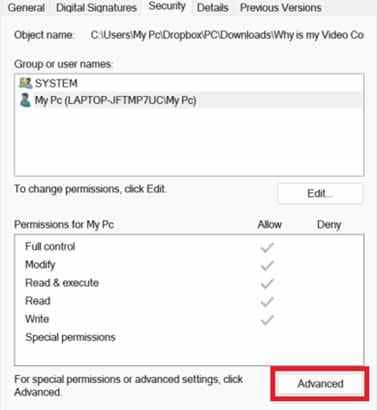
Step 1. Right-click the broken file or folder, select Properties, navigate to the Security tab, and click Advanced.
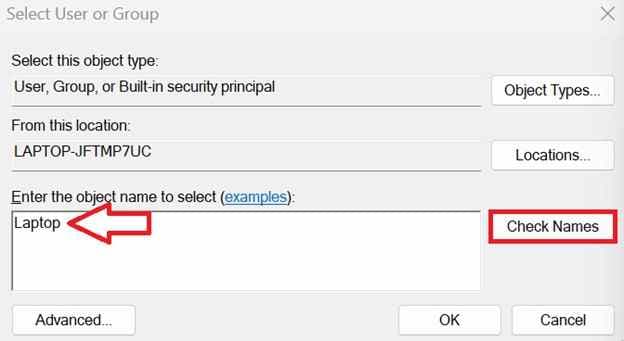
Step 2. Click Change next to the Owner field, type your current username into the box, click Check Names, and hit Apply to reclaim access rights.
Fix 2. Run CHKDSK
The OS update may cause file system errors. CHKDSK can scan and fix disk structure problems and helps the system read your files correctly again.
Step 1. Open Command Prompt, and select Run as administrator.
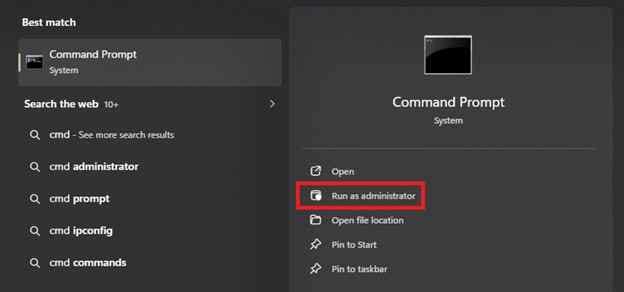
Step 2. Input the command chkdsk C: /f /r (replace C: with the letter of the drive hosting the files) and press Enter to scan and repair.

Fix 3. Use File History or Backups
The update may create restore points or backups. You can recover an older working version of the file. This may fix corrupted or missing data.
Step 1. Navigate to the folder containing the unreadable file, right-click it, and select Properties, then Restore previous versions.
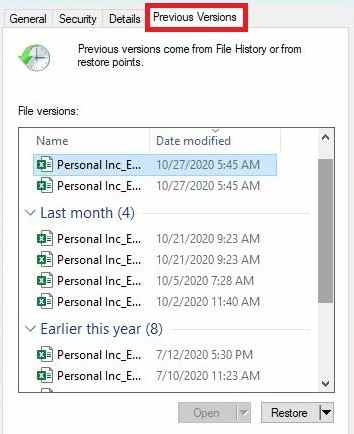
Step 2. Review the listed timestamps, choose a version dated right before the operating system update occurred, and click Restore.
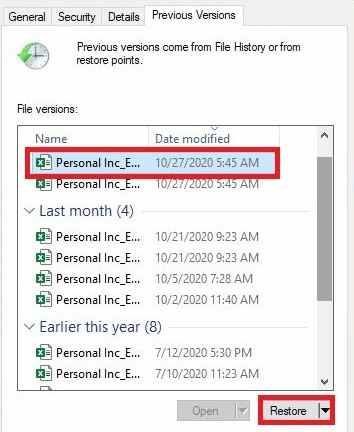
Fix 4. Open With Another Program
The default app may not support the file anymore. Try opening it using a different compatible program since the file itself may still be fine.
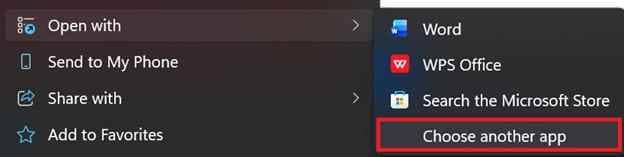
Step 1. Right-click the problematic file and hover your cursor over the Open with option in the context menu.
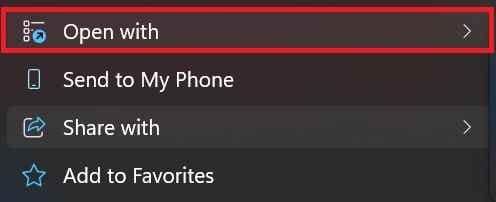
Step 2. Choose a different, third-party program (e.g., VLC for media, LibreOffice for documents), or Choose another app to bypass the app’s strict verification checks.
Advanced Repair Solutions to Severely Corrupted Files
If basic fixes don’t work, the problem may be deeper inside the file itself. An OS update can damage the file’s internal structure, making it unreadable. In this case, you may need a specialized repair tool.
It CAN:
- Restore the important data at the start of the file that tells the system how to open it.
- Reconnect missing or fragmented pieces of data caused by corruption or system changes.
- Remove corrupted sections that prevent the file from opening correctly.
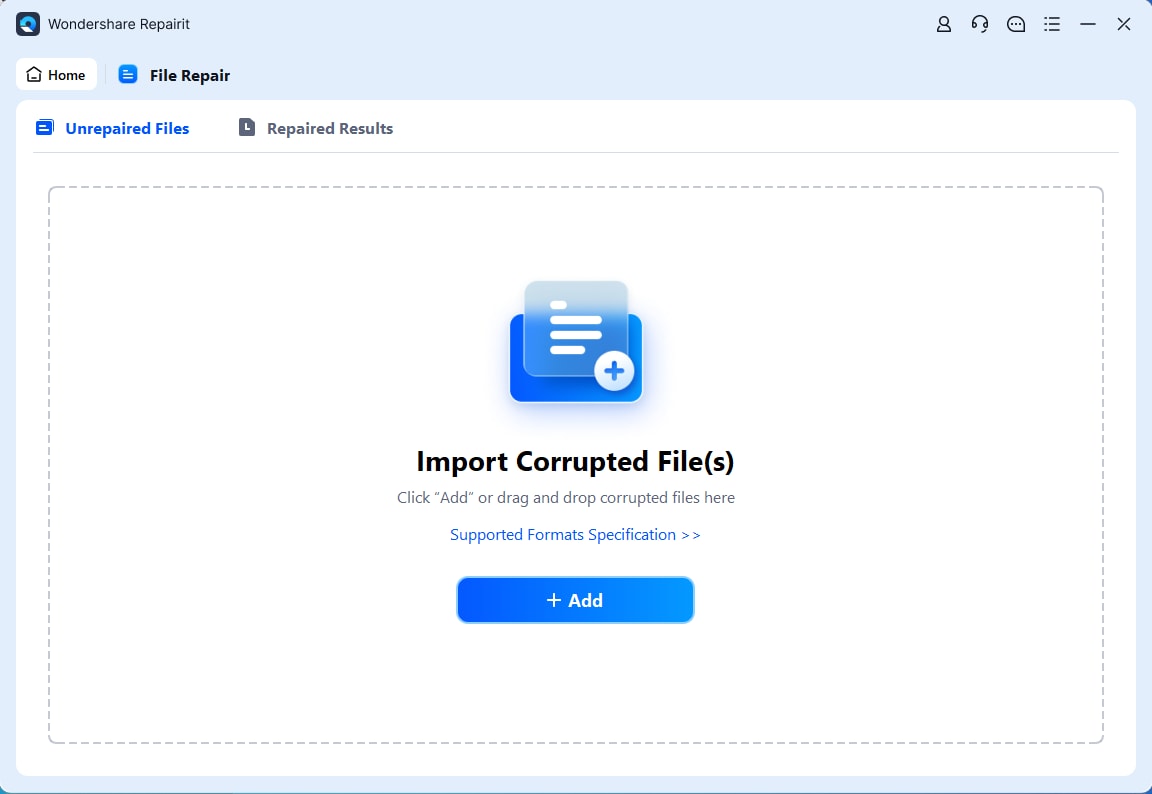
If the file is truly corrupted, a repair tool may help restore it. Tools like Repairit File Repair can scan and fix common file types such as documents (Word, Excel, PDF), images (JPEG), videos (MP4), and ZIP files, helping recover usable content from damaged files.
Step-by-Step (Optional)
Step 1. Upload the corrupted file.
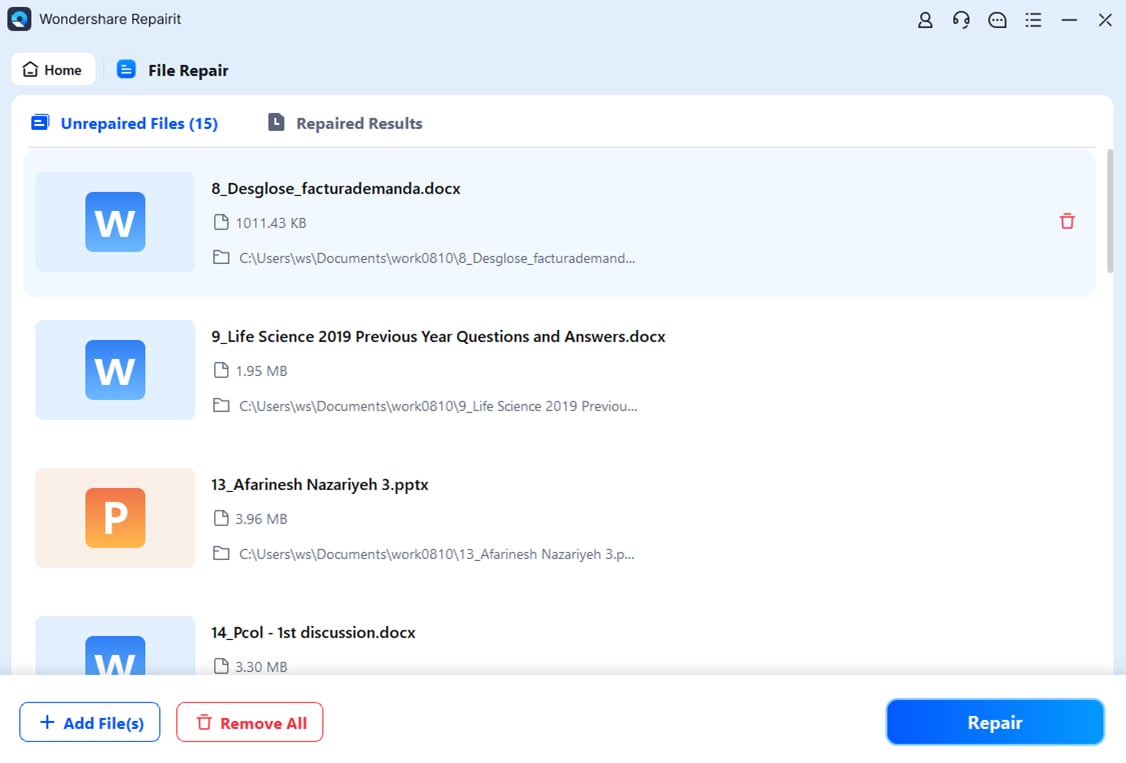
Step 2. Start the Repair process.
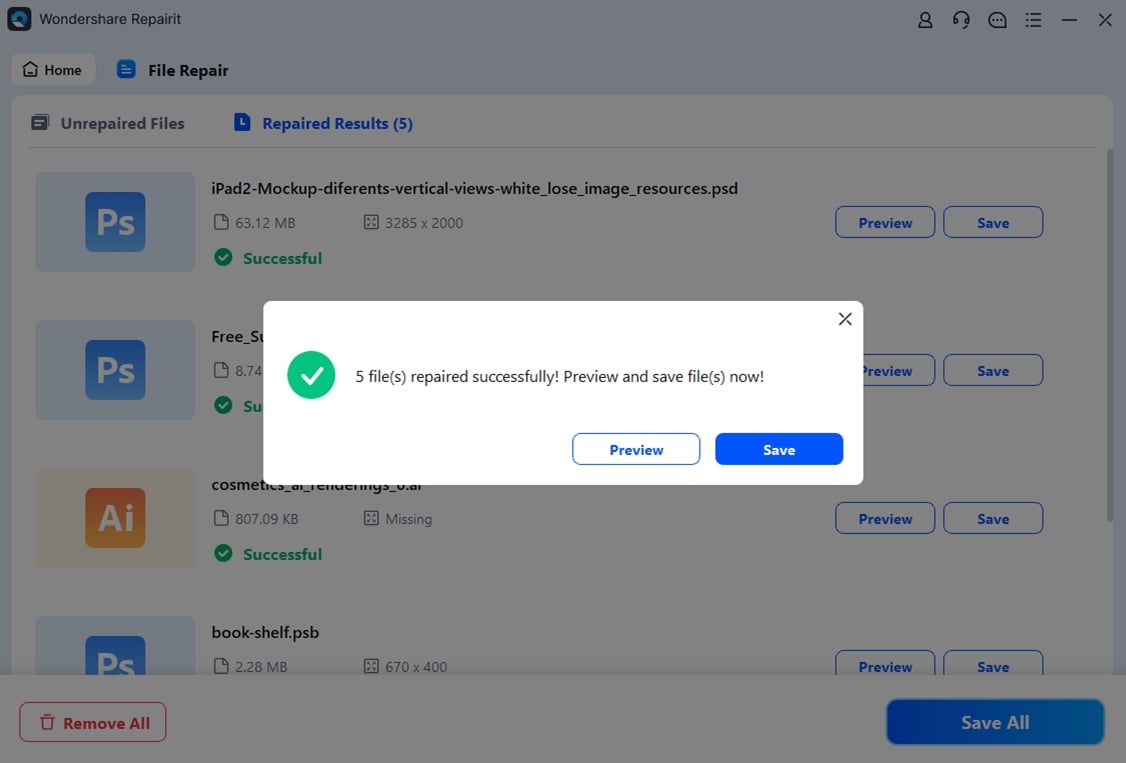
Step 3. Preview and save the restored file to a new location.
How to Prevent File Problems After OS Update
To avoid issues after future updates, it’s important to protect your recovered files in advance. Simple habits can help keep your data safe and working properly.
Best Practices
- Store recovered files on a separate drive - Do not keep them on the same drive as your operating system. Use an external drive or another storage location.
- Create a backup before updating - Copy your recovered files to cloud storage or a backup drive before installing any OS update.
- Check files before updating - Open and test important files first. Make sure they are fully working before starting the update.
- Delay automatic updates - Turn off or postpone automatic updates. This gives you time to secure and back up your files properly.
Conclusion
Updating your system does not have to mean losing access to your recovered files. When recovered files stop working after an OS update, the issue is usually caused by changed file permissions, broken file paths, or file damage during system changes. In most cases, you can fix the problem by checking file access, running disk repair tools, or using recovery software when a recovered file is corrupted after an update.
FAQs
-
Why do recovered files stop working after an OS update?
OS updates can change system settings, file paths, and user permissions. If recovered files are already fragile, these changes may make them unreadable or inaccessible. -
Can an OS update corrupt recovered files?
Yes. During an update, the system writes and reorganizes large amounts of data. This can overwrite or damage parts of recovered files, especially if they were not fully restored. -
How do I fix a recovered file corrupted after an update?
Try basic fixes first, such as checking file permissions, running CHKDSK, or opening the file with another program. These steps can often restore access. -
What if basic fixes don’t work?
If the file is still broken, it may have deeper damage. In that case, use a file repair tool to rebuild the corrupted file structure. -
How can I prevent this problem in the future?
Keep recovered files on a separate drive, create backups before updating, and always verify file integrity before installing system updates.