
Losing hours of work can be infuriating, especially when a document corrupted after a power outage makes your files unreadable. Whether caused by a sudden blackout or power surge, knowing how to repair document after power outage issues can help you avoid permanent data loss.
This guide will walk you through simple and effective recovery tools and software options so you can choose the best way to restore your files and get back to work quickly.
In this article
Why Documents Corrupted After Power Outage
When power suddenly cuts off, a computer may stop saving a file halfway, causing a file to be corrupted after a power outage error.
Common Causes
- Interrupted saving - The file wasn't fully saved before shutdown.
- System errors - The OS fails to properly close and save the file.
- Power surge damage - Voltage spikes can affect storage and make files unreadable.
During File Transfers
- Incomplete transfer - Files being copied may end up partial or empty.
- Drive disconnection - External drives may disconnect suddenly, causing file errors.
How to Identify the Damage
A document corrupted after a power outage doesn't always disappear, it often opens in a broken or incomplete state. Knowing the signs helps you decide whether basic fixes are enough or if you need tools to repair documents after power outage problems.
Common Symptoms
- Unreadable text - The file shows random symbols or broken characters instead of your content.
- App crashes - Programs like Word or Excel freeze or close when opening the file.
- File stuck as in use - The system says the file is still open, even when it isn't.
- Missing content - The file opens, but the text or data is gone while the format remains.
Simple Ways to Recover Files After a Power Outage
Before using specialized software, try built-in tools first. These methods can often help fix a document corrupted after a power outage by repairing or recovering the file using basic system features.
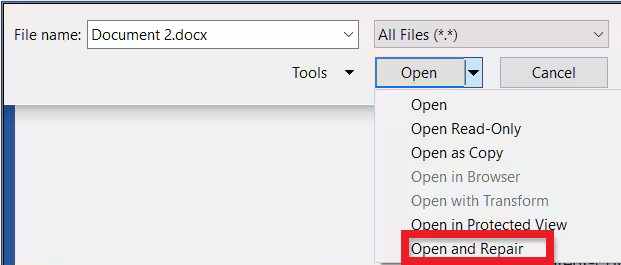
Fix 1. Open and Repair Tool
Most office programs have a built-in repair option. It helps rebuild damaged files by fixing broken structures automatically.
Step 1. Open your application and go to File, Open, and Browse to find your damaged file.
Step 2. Select the file, then click the arrow next to Open and choose Open and Repair.
Fix 2. Previous Versions Recovery
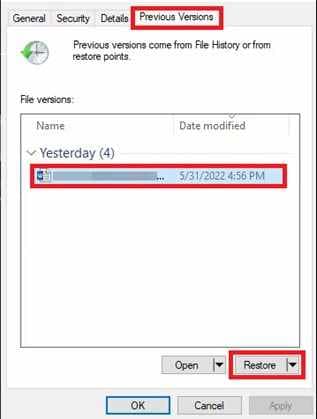
If backups or file history are enabled, you can restore an older working copy of the file saved before the power outage.
Step 1. Right-click the corrupted file and choose Properties, then go to the Previous Versions tab.
Step 2. Select the latest version saved before the outage and click Restore to replace the damaged file with a working copy.
Fix 3. Template or New File Recovery
Sometimes only the file structure is damaged. Copying the content into a new blank document can help recover usable text.
Step 1. Create a new blank document, then navigate to the Insert tab.

Step 2. Click the arrow next to Object, choose Text from File, then select the corrupted document to try recovering its text into a new file.

Fix 4. Convert to RTF Format
Changing the file to .rtf format removes complex formatting and may allow you to open and recover the readable content.
Step 1. Change the file extension from its original format (like .docx) to .rtf to remove broken formatting.
Step 2. Open the file using WordPad or Notepad to check if the text can still be recovered.
Advance Fix to Restore Severely Corrupted Documents
When manual fixes do not work, the file may have deeper damage in its structure or saved data. Advanced repair tools scan the damaged document, detect broken file information, and rebuild the file so it can open properly again.
It CAN:
- Repair important file information needed for the system to read the document.
- Search for file content that was interrupted or partially saved during the power outage.
- Fix multiple corrupted files at the same time after a system crash or power surge.
- Scan and repair in a safe mode to avoid causing more damage to the original file.
If you confirm the file is corrupted beyond basic recovery, a professional repair tool can safely restore its functionality. One example is Repairit File Repair, which works with common file types like .docx, .xlsx, .pptx, and even complex PDF structures.
Step-by-Step (Optional)
Step 1. Upload the corrupted file.

Step 2. Start the Repair process.

Step 3. Preview and save the restored file to a new location.

How to Prevent Corrupted Document
Recovery tools can help, but preventing file damage is always better. Following a few simple habits can reduce the risk of a document corrupted after a power outage happening again.
- Use a UPS - A backup power supply gives you extra time to save files and safely shut down your computer during a blackout.
- Enable Auto-Save - Set auto-save or auto-recovery to save your work every 1--2 minutes.
- Save to Cloud Storage - Services with backup history can help restore older file versions if corruption happens.
- Use Surge Protectors - Protect your device from voltage spikes when power returns.
- Save Multiple Versions - Regularly create separate file versions so you can recover recent work if a file becomes damaged.
Conclusion
A document corrupted after a power outage can be frustrating, but your file may still be recoverable. Start with built-in repair options first, then use professional tools if needed to repair document after power outage issues and restore your work. To avoid future file damage, use backup power, cloud storage, and regular file backups.
FAQs
-
Can a power outage damage my hard drive?
In some cases, power surges can affect storage devices, but most problems are file corruption caused by interrupted saving. -
Why does my document show random symbols after a blackout?
This usually happens when the file becomes damaged and can no longer display text properly. -
Does Open and Repair always work?
It can fix minor file issues, but severely damaged files may need advanced recovery software. -
How does a UPS help prevent corruption?
A UPS gives temporary backup power, allowing you to save your work and shut down safely. -
Can I recover a 0 KB file?
A 0 KB file is often difficult to recover, but you can try restoring previous versions or cloud backups.




