
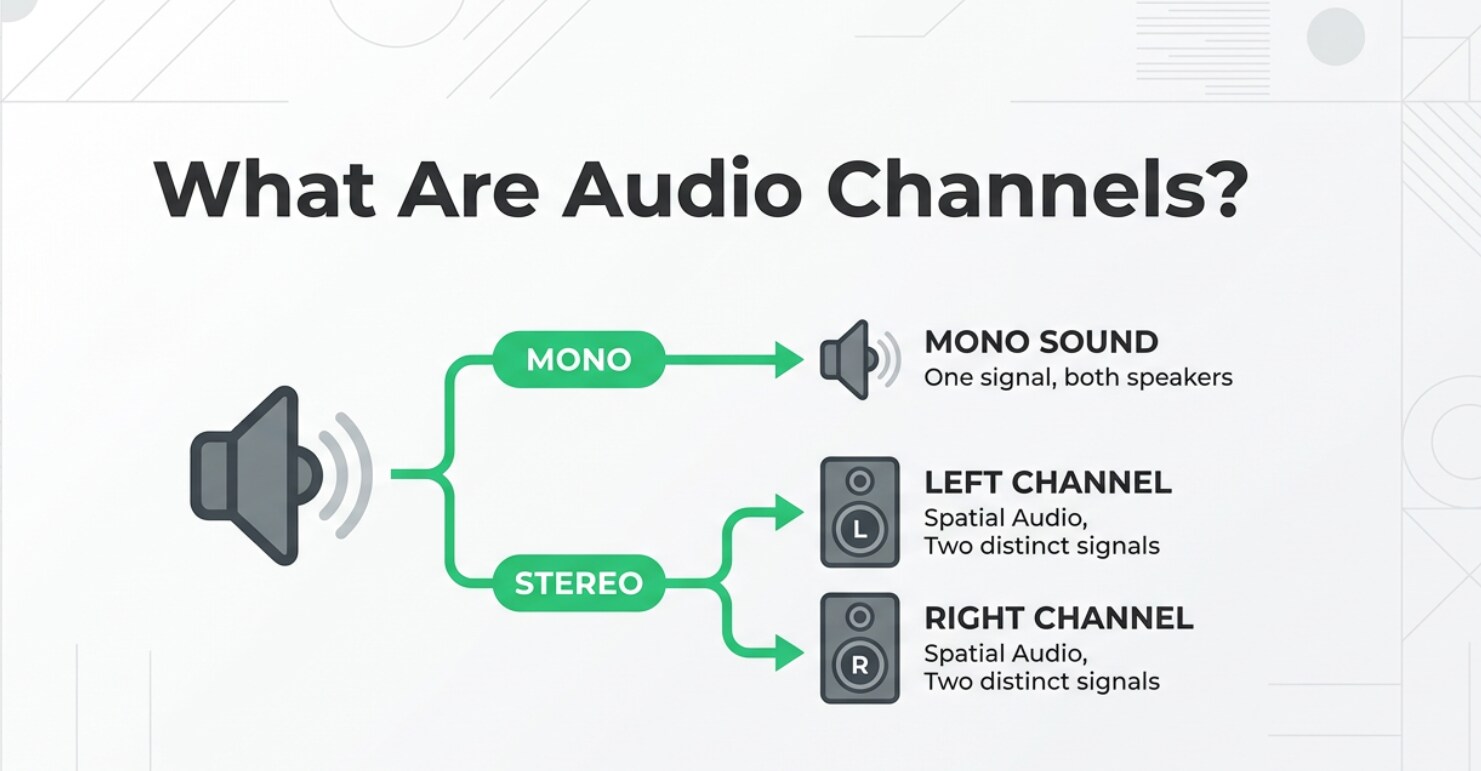
Audio channels shape how you hear sound in videos, games, music, and livestreams. You will see terms like mono, stereo, 5.1, or 7.1 when recording with a camera, editing in an NLE, exporting for YouTube, or setting up speakers. Knowing how stereo channels and other layouts work helps you avoid problems like missing dialogue, sound only on one side, or dull, flat audio in your finished files.
Repair Corrupted Files To Save Your Data
 Security Verified. Over 7,302,189 people have downloaded it.
In this article
What are Audio Channels?
Audio channels are individual paths that carry separate audio signals in a recording or playback system. They are an audio parameter that defines how many distinct streams of sound a file or device uses and where those streams are sent (left speaker, right speaker, center, surround, subwoofer, and so on). In simple terms, channels describe whether your sound is mono (one channel), stereo (two channels), or surround formats such as 5.1 audio or 7.1 audio.
In video production and streaming, channels are part of how audio is recorded, mixed, encoded, exported, and played back on different platforms and speaker setups. Getting channel configuration right ensures your dialogue, music, and effects appear in the correct place in the sound field.
What Do Audio Channels Affect?
Listening experience and immersion
The number and layout of sound channels directly influence how immersive and clear your video sounds.
- Mono vs stereo feel: With mono vs stereo, mono sends the same sound to every speaker, while stereo splits audio into left and right audio channels. Stereo lets you place instruments, voices, or effects across the left-right space, making content feel wider and more natural.
- Surround sound positioning: Formats such as surround sound 5.1 audio or 7.1 audio add rear and side speakers plus a subwoofer. This helps you create directional effects (like cars passing behind you) and more cinematic experiences for movies and games.
- Clarity of dialogue and effects: In multi-channel mixes, dialogue is usually routed to the center channel, ambient sound to surrounds, and bass to the LFE (subwoofer). When channels are set up correctly, speech is easier to understand, and effects are more controlled.
Editing, mixing, and compatibility
Channel choices also affect workflow, file behavior, and playback compatibility.
- Audio mixing control: More audio channels give editors finer control over balancing music, voice, and effects. You can adjust or mute one channel without disturbing others.
- File size and performance: Extra channels usually mean more data. Multi-channel exports can create larger files and require more bandwidth in streaming and more CPU in decoding, especially with high audio bitrate.
- Platform and device compatibility: Some platforms downmix surround to stereo or mono for phones and laptops. If your audio track is not encoded correctly, viewers might get missing channels, low dialogue, or sound only in one ear.
- Playback routing: Incorrect mapping of stereo channels or surround channels can cause issues like center dialogue being lost or surround effects playing too loud on stereo systems.
How Do Audio Channels Work in Real Use?
In real workflows, audio channels appear at almost every stage of video and audio production.
- Recording: Cameras, audio recorders, screen recorders, and phones may capture mono or stereo by default. External recorders and mixers can capture multiple channels at once (for example, separate mics for host and guest).
- Editing and mixing: In NLEs like Adobe Premiere Pro, Final Cut Pro, or DaVinci Resolve, you will see channel layouts in clip properties and sequence settings. You might work with dual mono tracks, stereo pairs, or surround timelines, then route each source to the proper channel.
- Encoding and exporting: When you export for YouTube, social media, or broadcast, you pick an audio channels setting such as Mono, Stereo, or 5.1. Choosing the wrong option can collapse your mix or duplicate channels incorrectly.
- Streaming and playback: Streaming services often store both stereo and surround versions. A TV with a soundbar might play the 5.1 version, while a phone gets a stereo downmix. If the original file has broken channel metadata, the platform may mis-handle routing, resulting in quiet dialogue or missing effects.
- Platform compatibility: Some social platforms only support stereo, so multi-channel mixes are automatically converted. Ensuring your audio mixing anticipates this downmix helps your content sound good everywhere.
| Channel layout | Typical use in video |
|---|---|
| Mono (1.0) | Voice-over, phone recordings, basic podcast or interview exports |
| Stereo (2.0) | Most online videos, vlogs, tutorials, music videos, livestreams |
| 5.1 surround | Films, streaming series, Blu-ray, games, home theater content |
Common Mistakes and Quick Tips
- Mixing mono as stereo by accident: A single mic recorded on the left channel only can make headphones sound lopsided. Convert it to mono or duplicate to both channels to fix the balance.
- Wrong export channel setting: Exporting a stereo mix as 5.1, or the opposite, can mute dialogue or spread signals incorrectly. Always match the export channel layout to your timeline and target platform.
- Ignoring downmix behavior: A great 5.1 mix can sound strange when converted to stereo if levels and panning were not planned for it. Test your mix in both stereo and surround.
- Not checking playback devices: What sounds fine on studio monitors might reveal channel issues on phones, TVs, or earbuds. Always test on at least two different devices.
Quick takeaways:
- For most web videos, stereo is the safest and most compatible choice.
- Use mono for clean, centered speech when you only have one mic.
- Reserve 5.1 or 7.1 for cinematic, gaming, or home-theater-focused content.
- Always verify your channel mapping in the editor and again after export.
How to Use Repairit to Fix a Corrupted Video File
Repairit introduction
When audio channels get corrupted, you may hear silence on one side, broken surround layouts, or files that refuse to play at all. Repairit official website provides a dedicated media repair solution that restores damaged video and audio files without complex technical steps. It is especially useful when your editor or player shows errors, desync, or missing audio track information after recording, transfer, or export.
Key features of Repairit
- Repair corrupted or unplayable videos from cameras, phones, screen recorders, and computers while preserving audio channel layout whenever possible.
- Supports multiple formats and severe corruption cases, offering a high success rate even when files have broken headers or damaged audio streams.
- Intuitive interface with preview, so you can check whether stereo or surround playback sounds normal before saving repaired files.
Step-by-step guide
- Add corrupted video files
Click the Add or plus button to browse your folders and select the damaged clips that have issues such as sound on only one side, missing channels, or complete playback failure.

- Repair video files
Hit the Repair button to start the automatic process.

- Save the repaired video files
If the preview looks and sounds right, click Save or Save All.

Conclusion
Audio channels define how sound is distributed across speakers and headphones, from simple mono voice tracks to immersive surround sound in home theaters. Choosing the right layout and managing mono vs stereo or multi-channel mixes correctly is essential for clear dialogue, accurate effects, and a satisfying listening experience on any device.
When video or audio files become corrupted, channel mapping and playback can fail even if the recording was perfect. Using tools like Repairit helps restore damaged structures so your audio track plays back reliably across platforms. With a basic understanding of channels and a solid repair workflow, you can protect both sound quality and viewer satisfaction.
Next: What is Audio Bitrate?
FAQ
-
1. What are audio channels in simple terms?
Audio channels are separate paths for sound, like left and right in stereo. Each path carries its own signal, and combining them lets you position audio across headphones or speakers so it feels wider, deeper, or more immersive. -
2. What is the difference between mono and stereo channels?
Mono uses a single channel, so the exact same sound goes to every speaker. Stereo uses two channels (left and right), allowing you to place sounds to one side, the other, or anywhere between, giving music and videos a more natural, spacious feel. -
3. Why do some videos only play sound on one side?
This often happens when a mono mic is recorded only on one channel, or when channels are configured incorrectly during editing or export. Converting the clip to mono, duplicating the signal to both sides, or fixing channel mapping usually solves the issue. -
4. Do I really need surround sound formats like 5.1 or 7.1?
Not always. For most online content, stereo is sufficient and more compatible. 5.1 audio or 7.1 audio is mainly useful for films, streaming series, and games designed for multi-speaker home theater or high-end headphone setups. -
5. Can corrupted files break audio channel playback?
Yes. File corruption can damage channel metadata, mute individual channels, cause distorted audio mixing, or prevent the file from opening. A repair tool like Repairit can often rebuild the file structure so your audio track and channel layout play correctly again.




