
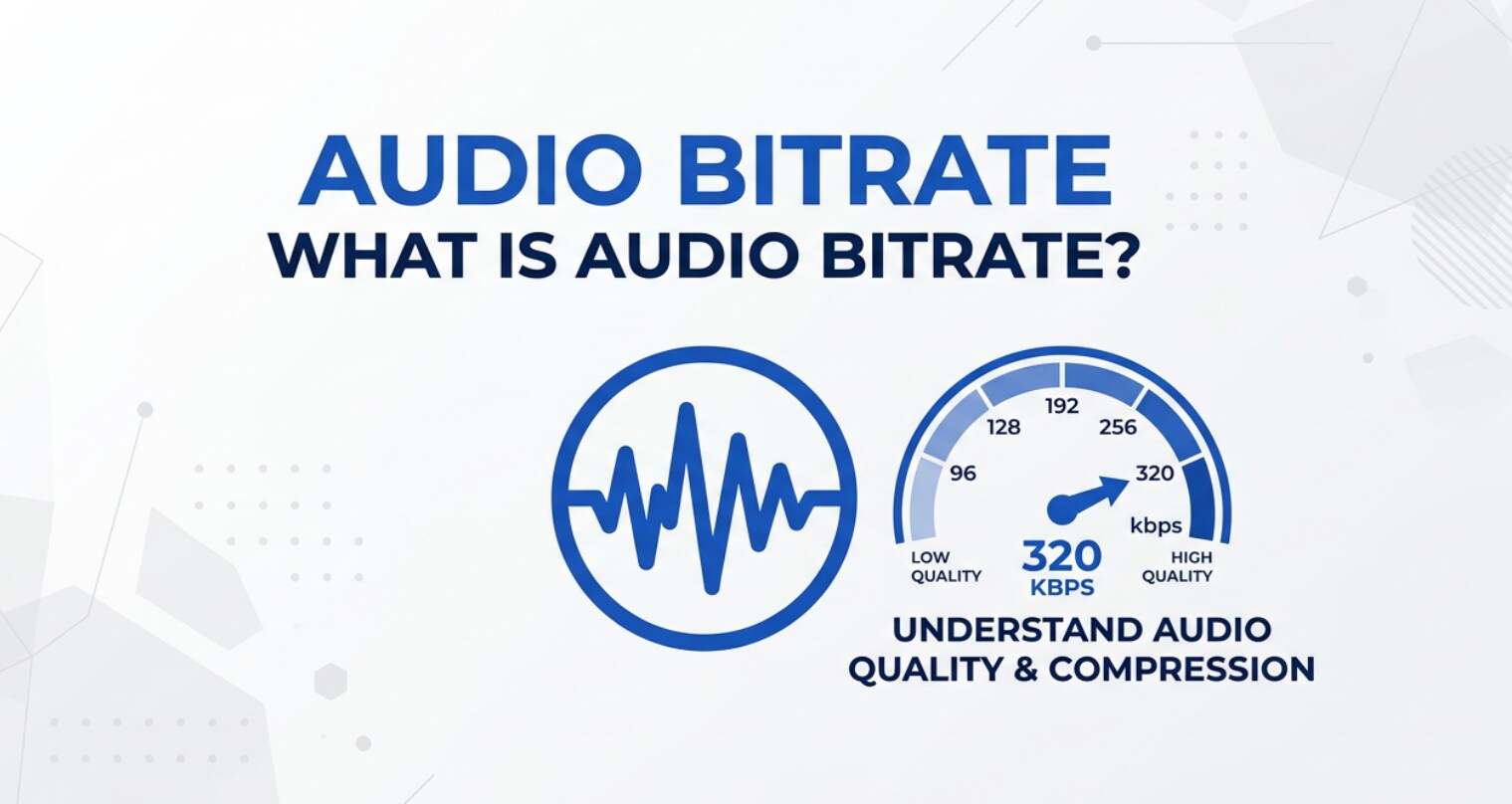
You see the term audio bitrate in music streaming apps, podcast platforms, video editors, and export menus, but it is rarely explained. Yet this technical setting quietly determines how clean your dialogue sounds, how detailed your music feels, and how big your media files become. Understanding bitrate helps you choose the right quality for recording, editing, exporting, and streaming so your audio sounds good without wasting storage or bandwidth.
Repair Corrupted Files To Save Your Data
 Security Verified. Over 7,302,189 people have downloaded it.
In this article
What Is Audio Bitrate?
Audio bitrate is the amount of data used to represent one second of audio, usually measured in kbps (kilobits per second) or Mbps (megabits per second). It is an audio parameter that describes how much information is packed into the stream when you record, compress, encode, export, or stream sound.
In practical terms, bitrate is a quality and compression setting. A higher bitrate generally means more audio detail and less compression, while a lower bitrate means heavier compression and a higher risk of distortion, noise, and other artifacts. You will see bitrate options whenever you pick export settings in a video editor, choose quality in a streaming app, or configure audio for live streaming and podcast recording.
What Does Audio Bitrate Affect?
Sound quality and artifacts
The first thing bitrate affects is how your audio actually sounds.
- At low kbps audio values (for example 64–96 kbps for stereo music), you may hear:
- Hissy or watery high frequencies
- "Swirling" compression artifacts in cymbals and reverb tails
- Muddier vocals and instruments
- At moderate bitrates (128–192 kbps for MP3 or AAC), quality is usually acceptable for casual listening, YouTube videos, and podcasts.
- At higher bitrates (256–320 kbps for MP3/AAC, or uncompressed/lossless formats), the audio can sound transparent to most listeners, meaning you cannot easily tell it was compressed.
The relationship between bitrate vs quality is not perfectly linear. After a certain point, increasing bitrate produces very small audible improvements, especially in a noisy environment or on average headphones.
File size, bandwidth, and performance
Bitrate also directly controls file size and streaming performance.
- Higher bitrate = larger files. Doubling the bitrate roughly doubles the file size for the same duration and format.
- Higher bitrate = more bandwidth. Streaming 320 kbps audio uses more data per hour than 128 kbps, which impacts mobile data usage and buffering.
- Lower bitrate = easier streaming on slow connections, but with reduced quality.
This trade-off affects workflows for content creators:
- Editors must choose best audio bitrate settings that match the target platform (YouTube, TikTok, podcasts, OTT services).
- Live streamers balance audio quality against the risk of dropped frames and buffering for viewers.
- Archivers may keep uncompressed or high-bitrate masters, then export lower-bitrate copies for web delivery.
How Does Audio Bitrate Work in Real Use?
In real-world tools and devices, bitrate shows up in several stages of a project: recording, encoding, exporting, streaming, and playback. Here are common scenarios.
Recording and capture
When you record audio in a camera, audio recorder, or streaming encoder, you often choose:
- Format: WAV, AAC, MP3, etc.
- Audio bitrate: for compressed formats (AAC/MP3), e.g., 128 kbps, 192 kbps, 256 kbps.
- Sample rate and bit depth: e.g., 48 kHz, 24-bit.
Many cameras and screen recorders automatically use a fixed bitrate for the embedded audio track in your video file. Professional gear may offer a choice so you can align audio quality with your video bitrate and storage capacity.
Encoding and export in video editors
In editors like Premiere Pro, Final Cut Pro, DaVinci Resolve, or online tools, export dialogs typically include an audio bitrate or "data rate" field for formats like AAC or MP3. Typical choices for bitrate for video exports are:
- 128 kbps stereo: common baseline for web and social videos.
- 160–192 kbps stereo: a good balance for YouTube content, tutorials, and vlogs.
- 256–320 kbps stereo: for higher-end music videos, promo reels, and content with rich soundtracks.
When exporting video, remember that platforms often re-encode your file. YouTube, for example, compresses both video and audio again, so your goal is to deliver clean, reasonably high-quality audio without excessive overkill.
Streaming services and platforms
Music and video platforms use different streaming bitrate tiers depending on user settings and network conditions:
- Music streaming: 96 kbps (low), 128–160 kbps (standard), 256–320 kbps (high), and lossless tiers on some services.
- Video streaming: audio is often 128–192 kbps AAC for most content; premium or 4K tiers may use higher bitrates or more efficient codecs.
- Live streaming: creators may pick 96–160 kbps for voice-heavy streams, and 160–256 kbps for streams with music.
The platform automatically adjusts bitrate to match network speed, which is why quality drops when your connection is weak.
Playback and compatibility
For playback, most modern devices easily handle common bitrates. However, compatibility still matters:
- Older or low-power devices may struggle with extremely high overall bitrates (audio + video combined).
- Different formats with the same bitrate can sound different: 160 kbps AAC can outperform 160 kbps MP3 because AAC is a more efficient audio compression codec.
- Some editing systems and online tools work better with constant bitrate (CBR) instead of variable bitrate (VBR) for smoother scrubbing and fewer sync issues.
Common Mistakes and Quick Tips
Common misunderstandings
- Thinking "higher bitrate is always better": after a certain point, you will not hear a difference, but file sizes keep growing.
- Assuming changing bitrate can fix bad audio: raising bitrate cannot restore lost detail from a low-quality recording.
- Ignoring format choice: 192 kbps in a modern codec (AAC/Opus) often beats 192 kbps in an older codec (MP3).
- Using very low bitrates for music: 64 kbps stereo often sounds thin and artifact-heavy.
- Not matching bitrate for music and dialogue to the content: music needs more data than simple speech.
Practical tips for beginners
- For music streaming or local listening, aim for 256–320 kbps in AAC/MP3 if storage and bandwidth allow.
- For podcasts and voice-only content, 96–128 kbps mono AAC or MP3 is usually sufficient.
- For YouTube and social videos, choose AAC 128–192 kbps; focus on clean recording and mix balance.
- Keep a high-quality master (lossless or high bitrate) for editing and archiving, then export lower-bitrate copies for delivery.
- When unsure, choose a middle value (like 160–192 kbps AAC) to balance bitrate vs quality and file size.
Simple takeaways
- Low bitrate = smaller files but lower quality.
- High bitrate = better quality but larger files.
- Codec choice matters as much as the number itself.
- Always record and export from the best possible source instead of upscaling a low-bitrate file.
How to Use Repairit to Fix a Corrupted Video File
If a recording, export, or transfer goes wrong, you might end up with a video that will not play, freezes, or has audio issues, regardless of the best audio bitrate you chose. In those cases, a specialized repair tool is more useful than re-encoding. Repairit from Wondershare is designed exactly for this kind of problem. It analyzes the structure of damaged photo, video, and audio files and fixes common errors so you can get your content back quickly. You can learn more and try it from the Repairit official website.
Key features of Repairit
- Repair corrupted video clips from cameras, phones, memory cards, and computers that refuse to open or play correctly.
- Support for many popular formats and damage scenarios, including crash during recording, transfer errors, and failed exports from editing software.
- Guided repair process with a clean interface and built-in preview so you can check the fixed file before saving it.
Steps to repair corrupted video files
- Add corrupted video files
Click the add button to browse your drives or external media and select the damaged videos that will not play or report errors.

- Repair video files
Once your corrupted clips are loaded, start the repair process with a single click.

- Save the repaired video files
Click the save button to export your repaired videos to this new location.

Conclusion
Audio bitrate is a core setting that shapes how your projects sound and how heavy your files are. By understanding how bitrate interacts with formats, compression, file size, and streaming performance, you can choose values that match your content and platforms instead of relying on guesswork.
Use higher bitrates and better codecs for critical listening, music-heavy content, and mastering, and more efficient or moderate bitrates for streaming and everyday playback. When you run into corrupted or unplayable video files, even if your bitrate for video was set correctly, a dedicated repair tool like Repairit can help you recover your footage and avoid reshoots.
Next: What is Variable Frame Rate (Vfr)?
FAQ
-
1. What is a good audio bitrate for music streaming?
For most listeners, 256–320 kbps in AAC or MP3 delivers near-transparent quality on typical headphones and speakers. If your service offers a "high" or "very high" quality option, that usually corresponds to this range. -
2. Is higher audio bitrate always better?
Not always. Very low bitrates clearly degrade quality, but after a certain point, increasing bitrate gives minimal audible improvement while file size and data usage keep rising. Aim for a bitrate that fits your content and listening environment instead of simply maxing it out. -
3. What bitrate should I use for YouTube videos?
For most YouTube content, AAC at 128–192 kbps stereo is enough. YouTube re-encodes your upload, so clean recording and good mixing matter more than pushing the bitrate extremely high. -
4. What is the difference between bitrate and sample rate?
Sample rate is how many times per second the audio is captured or played back (measured in Hz or kHz). Bitrate is how much data per second is used to represent that audio (measured in kbps or Mbps). They describe different aspects of the signal. -
5. Can changing bitrate fix bad audio quality?
No. Increasing the bitrate of an already compressed or poorly recorded file does not restore missing detail. To truly improve quality, you need a better original recording or a fresh export from the uncompressed source.




