
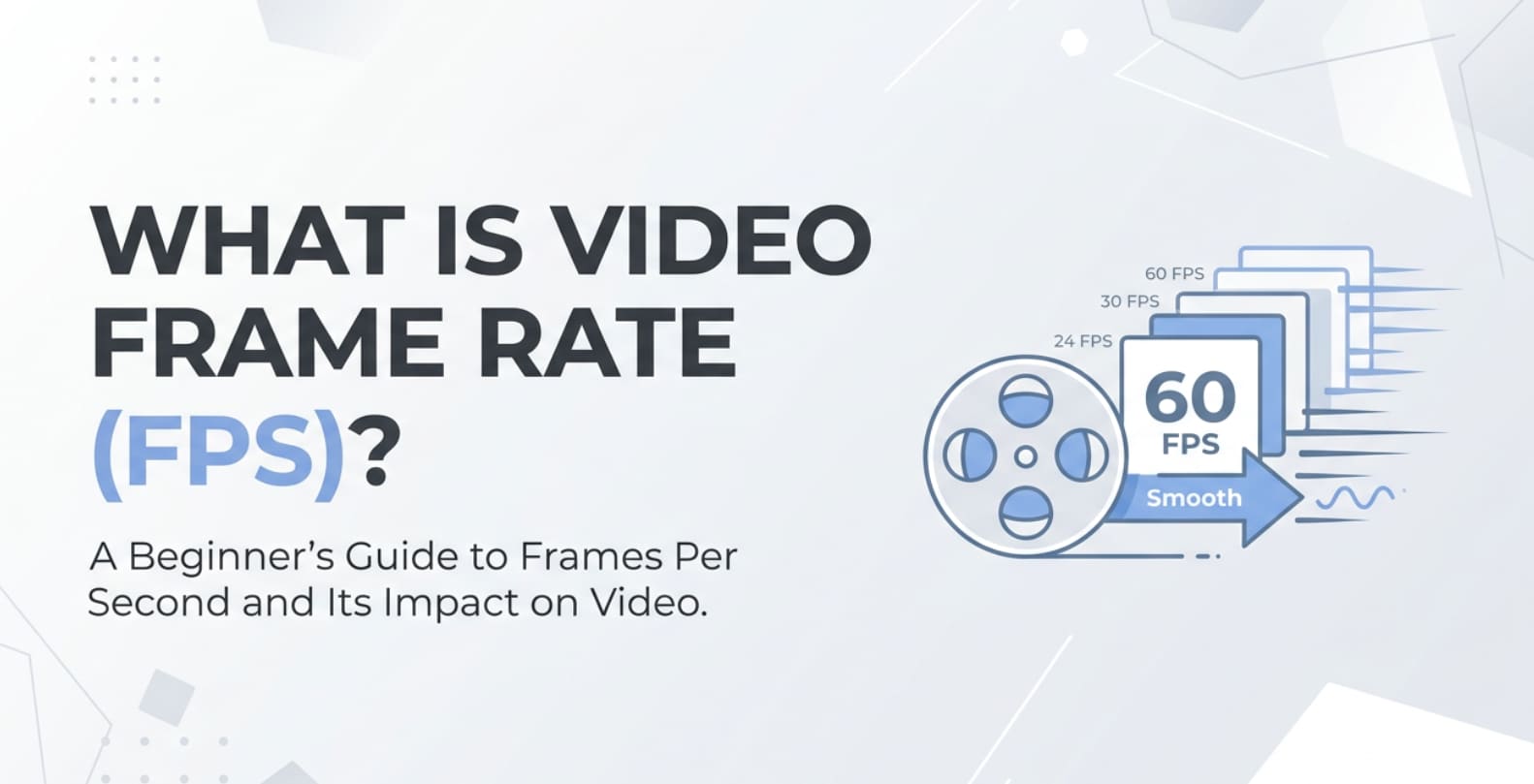
Video frame rate, usually written as FPS (frames per second), appears everywhere: on camera settings, YouTube exports, streaming platforms, and game capture tools. It controls how smooth motion looks and how natural your video feels. If you choose the wrong FPS, your clips can look choppy, too sharp, or strangely jittery. Understanding video frame rate (FPS) helps you record, edit, and export videos that match your style, whether you want cinematic 24 fps films or ultra-smooth 60 fps gameplay.
Repair Corrupted Files To Save Your Data
 Security Verified. Over 7,302,189 people have downloaded it.
In this article
What Is Video Frame Rate (FPS)?
Video frame rate, or FPS, is a video parameter that describes how many individual images (frames) your video shows every second. A 30 fps video displays 30 frames each second, while a 60 fps video shows 60 frames in that same time.
It is a core technical setting used in recording, editing, encoding, exporting, streaming, and playback. Cameras, phones, screen recorders, and editing software all let you choose an FPS value because it directly shapes how motion appears on screen, how much data your video contains, and how well it fits different platforms such as YouTube, Instagram, or TV.
Common FPS values include 24, 25, 30, 50, 60, and sometimes higher (120 fps or more) for slow motion and gaming. Lower frame rates feel more cinematic or stylized, while higher frame rates feel smoother and more responsive.
What Does Video Frame Rate (FPS) Affect?
Motion smoothness and realism
The first thing video frame rate (FPS) changes is how smooth movement appears:
- At 24 fps (classic cinematic frame rate), motion looks slightly soft and dreamy, which many people associate with movies.
- At 30 fps, motion looks a bit clearer and is common for online videos, TV, and general content.
- At 60 fps and above (high fps), motion looks very sharp and fluid, ideal for gaming, sports, and fast action.
If the best fps for video you choose does not match your subject, your footage may feel off. For example, a slow 24 fps for esports footage can look blurry, while 60 fps for a dramatic film might feel too "live" or like a soap opera.
File size, performance, and compatibility
Frame rate vs quality also has a big impact on file size and system load:
- Higher FPS records more frames per second, which usually means larger files and more bandwidth when streaming.
- Editing and exporting at 60 fps or 120 fps requires more CPU/GPU power and storage than 24 or 30 fps.
- Some platforms and devices limit their recommended FPS for YouTube or social media; using unusual values can cause extra encoding or playback issues.
In real workflows, using the highest FPS is not always best. You need to balance smoothness with manageable file sizes, stable performance, and compatibility with your viewers' devices.
How Does Video Frame Rate (FPS) Work in Real Use?
You will see FPS options throughout your video pipeline, from recording to final playback:
- Recording on cameras and phones: Most smartphones and DSLR/mirrorless cameras offer 24, 30, and 60 fps, with some allowing 120 or 240 fps for slow motion. Choosing 24 fps gives a film look; 30 fps or 60 fps is better for everyday clips or sports.
- Screen recording and gameplay capture: Screen capture tools often default to 30 or 60 fps. Gamers usually choose 60 fps or higher for responsive and clear motion, especially in fast-paced titles.
- Editing software: In tools like Premiere Pro, Final Cut Pro, or DaVinci Resolve, each project has a timeline frame rate. If you mix clips with different video frame rate values, the software may add or drop frames, creating motion artifacts.
- Encoding and exporting: When exporting, you typically match the project frame rate. Converting 60 fps footage to a 24 fps export can cause stuttering if not handled carefully, and upconverting 24 fps to 60 fps cannot truly recreate missing frames.
- Streaming and playback: Platforms such as YouTube and Twitch support 24, 25, 30, 50, and 60 fps. For live content, streaming at 60 fps needs more upload bandwidth than 30 fps, but delivers smoother motion, especially in gaming or sports.
Choosing and keeping a consistent FPS from capture through export makes your workflow simpler and helps avoid glitches, dropped frames, or weird playback behavior on different players and devices.
Common Mistakes and Quick Tips
Frequent mistakes with video frame rate (FPS)
- Mismatching recording and timeline FPS, which causes stutter or strange motion.
- Using unnecessarily high high fps for simple talking-head videos, creating huge files with no visible benefit.
- Changing frame rate repeatedly between editing and export, increasing the chance of motion artifacts.
- Ignoring regional standards (25/50 fps in PAL regions vs 30/60 fps in NTSC regions), which can cause flicker under certain lighting.
- Assuming choppy playback always means low FPS, when it could be slow hardware, dropped frames, or corrupted video files.
Quick tips for beginners
- For basic YouTube content and tutorials, stick to 24, 25, or 30 fps.
- For gaming, sports, or fast action, 50 or 60 fps is usually the best balance.
- Set your camera and project to the same FPS before you start recording.
- Do not upconvert low FPS content to very high fps unless you have a clear reason and know the trade-offs.
- When in doubt, follow the platform's recommended best fps for video settings.
Keep your frame rate stable, plan for your platform, and always test short clips before committing to a full shoot.
How to Use Repairit to Fix a Corrupted Video File
If your video looks fine on paper (correct FPS, resolution, and format) but still refuses to play, skips frames, or freezes, the file itself may be corrupted. Wondershare Repairit offers a practical way to repair such videos without needing deep technical skills. It works with footage recorded at different video frame rate values and from various cameras, phones, drones, and screen recorders. You can learn more and access both desktop and online tools from the Repairit official website.
Key features of Repairit
- Repairs videos from various cameras, phones, and formats in one place.
- Fixes issues such as playback errors, freezing, stuttering, or missing frames.
- Supports batch repair and lets you preview the fixed video before saving.
Step-by-step: repair corrupted video files
- Add corrupted video files

Open Wondershare Repairit on your computer and choose the Video Repair feature. Click the option to add files, then browse to the folder where your damaged or unplayable clips are stored. Select one or more videos, including those with frame rate or playback issues, and import them into the repair list.
- Repair video files

After you add your clips, start the repair process. Repairit scans the structure of each file, including headers, frames, and audio-video sync, and automatically fixes common problems such as stuttering playback, freezing frames, or videos that refuse to open. When the repair finishes, use the built-in preview window to review the results and confirm that motion, audio, and FPS-related playback look normal.
- Save the repaired video files

If the preview looks good, choose a safe destination folder that is different from the original location to avoid overwriting your source files. Click to save the repaired videos, and Repairit will export clean, playable copies that you can watch, edit, or upload to your favorite platforms without corruption issues.
Conclusion
Video frame rate (FPS) is a central setting that shapes how motion appears, how big your files are, and how smoothly your videos play on different devices and platforms. From cinematic 24 fps to ultra-smooth 60 fps and beyond, the right number depends on what you are filming, how you want it to feel, and where it will be viewed.
By avoiding common mistakes like mismatching frame rates, pushing high fps when it is not needed, or changing FPS repeatedly during export, you can prevent many motion and playback problems. When technical glitches still lead to damaged or unplayable clips, using Wondershare Repairit gives you a reliable way to repair corrupted videos and protect the time and effort behind every frame.
Next: What is Video Resolution?
FAQ
-
1. What is a good FPS for YouTube videos?
For YouTube, 24, 25, or 30 fps usually works best for vlogs, tutorials, and talking-head content because it balances smooth motion with reasonable file sizes. For fast action, gaming, and sports, 50 or 60 fps gives much smoother motion and a more responsive feel for viewers. -
2. Is higher FPS always better for video?
No. Higher FPS increases motion smoothness but also raises file size, hardware demands, and bandwidth requirements. It can also reduce the traditional cinematic look that many people expect at 24 fps. The ideal frame rate depends on your subject, style, and publishing platform. -
3. Why does my footage look choppy even at high FPS?
Footage can still look choppy at high FPS if your shutter speed is too low, your editing timeline uses a different frame rate, your computer drops frames during playback, or the video file itself is partially corrupted. Matching frame rates and using a reliable player or repair tool can often resolve the issue. -
4. Can I change FPS after filming without problems?
You can change FPS in editing, but extreme changes (for example, 24 to 60 fps or 60 to 24 fps) can cause stutter, ghosting, or repeated frames. For clean results, try to record as close as possible to your final delivery frame rate and use frame interpolation only when necessary. -
5. How can I fix a corrupted video file with FPS issues?
If a video will not play, freezes, or skips frames, use a repair tool such as Wondershare Repairit. It scans the structure of the file, fixes damaged headers and frames, and exports a new, playable copy while keeping your original video frame rate and other key settings intact.




