
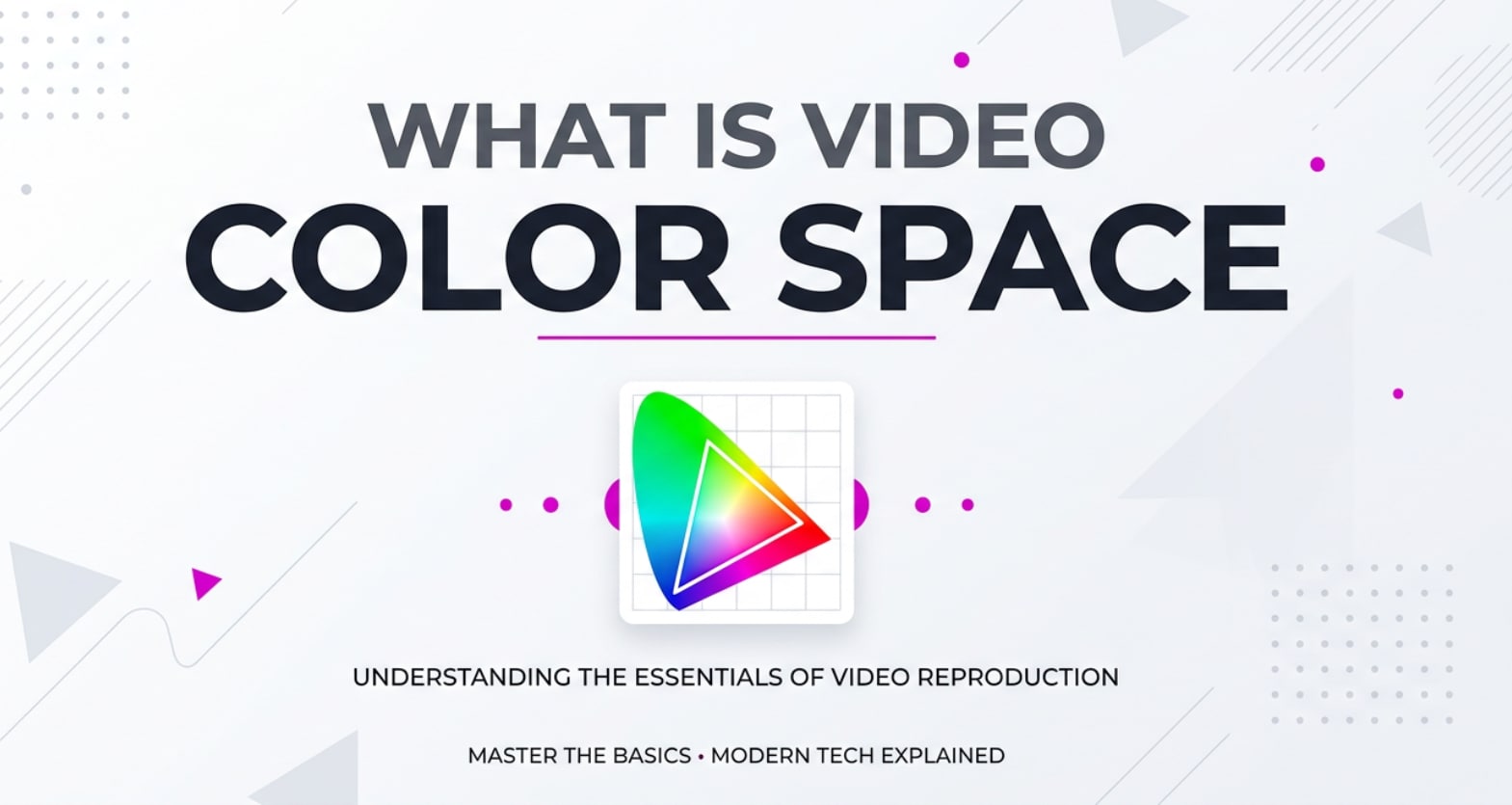
Video color space quietly controls how your footage looks from capture to playback. You will see it when choosing camera profiles, setting up a timeline in a video editor, exporting for YouTube, or preparing HDR video for TVs. Understanding color space helps you avoid flat, washed out, or neon-looking clips and keeps your colors consistent across devices, platforms, and formats.
Repair Corrupted Files To Save Your Data
 Security Verified. Over 7,302,189 people have downloaded it.
In this article
What Is Video Color Space?
Video color space is a technical description of which colors and brightness levels a video signal can use and how those values are encoded. It is a video parameter and a core part of color management, sitting alongside terms like color gamut, gamma, and color profile.
Each color space, such as Rec 709 or Rec 2020, defines:
- Which exact shades of red, green, and blue form the base of the system
- How many steps of brightness and color there are (bit depth)
- How those values are mapped to actual colors on a screen
In beginner-friendly terms, a color space is a rulebook that tells cameras, editors, encoders, TVs, and streaming platforms how to speak the same "color language" so your footage looks as intended.
What Does Video Color Space Affect?
The chosen video color space has a direct impact on how your footage appears, how compatible it is across devices, and how easy it is to grade and export without surprises.
Color range and color gamut
Every color space has a defined color gamut, which is the range of colors it can represent.
- Rec 709: Standard for HD SDR video; covers a relatively small but safe gamut that works well on most monitors, TVs, and web platforms.
- Rec 2020: Used for UHD and HDR video; supports a much wider gamut, especially very saturated greens and reds.
- Other camera or display gamuts: DCI-P3, Adobe RGB, and custom camera spaces often land between Rec 709 and Rec 2020.
When you cram wide-gamut footage into a small-gamut space without proper conversion, rich colors can look flat or clipped. When you over-expand small-gamut footage into a wide-gamut output, you can get ugly oversaturation.
Brightness, contrast, and dynamic range
Color space also influences how brightness and contrast are handled, especially when combined with SDR vs HDR.
- SDR spaces like Rec 709 assume a limited brightness range and specific gamma curve.
- HDR systems (often using Rec 2020) support higher peak brightness and deeper shadows with different transfer functions (like PQ or HLG).
- Mismatch between HDR and SDR setups can cause washed out, gray-looking images or overly contrasty, crushed footage.
On top of that, color space settings interact with limited vs full range (video levels vs data levels), which can change whether your footage looks properly contrasted or milky.
How Does Video Color Space Work in Real Use?
Color space shows up at every stage of the video pipeline: camera recording, editing, encoding, exporting, streaming, and playback.
On cameras and phones
Most modern cameras and phones let you pick a picture profile or color mode that implies a color space:
- Consumer devices often record in Rec 709 by default for maximum compatibility.
- Higher-end cameras may let you shoot Rec 709, DCI-P3, Rec 2020, or log profiles with specific gamuts.
- Using log gamma (like S-Log, V-Log, C-Log) often assumes a particular color space, which should be respected in post.
If you shoot in a wide-gamut or log mode but treat the footage as Rec 709 later, you may see low contrast, strange saturation, or incorrect colors.
In video editing and color grading
Editing software such as Premiere Pro, Final Cut Pro, and DaVinci Resolve includes project color space settings and color management options.
- You set a working or timeline color space (commonly Rec 709 for SDR projects or Rec 2020 / HDR for HDR projects).
- Clips can have their own input color spaces; editors may auto-detect or let you assign them manually.
- Color management transforms footage from its source color space into the timeline color space for consistent grading.
Without correct setup, your timeline might assume the wrong color space. That can cause:
- Skin tones too orange or too green
- Desaturated or overly punchy colors
- Unexpected shifts when sending clips to other apps or platforms
During exporting, streaming, and playback
Export settings also include color space or profile options:
- Standard SDR exports for the web generally use Rec 709.
- HDR deliveries for platforms like YouTube or streaming services may use Rec 2020 plus HDR metadata.
- Some codecs and containers embed tags that tell players which color space to use.
If the export color space or tag does not match your project, your footage can look wrong on:
- Streaming platforms that expect Rec 709 SDR but receive wide-gamut or HDR flags
- TVs or monitors that misinterpret the range or transfer function
- Software players that ignore or misread color metadata
Sometimes color issues are not from incorrect color space at all, but from video file damage. Corrupted video files can produce bizarre shifts, banding, or blocked colors that do not respond to normal grading. In those cases, repairing the file first is essential.
Common Mistakes and Quick Tips
Typical mistakes with video color space
- Assuming all video is Rec 709. Modern cameras and phones increasingly use wide-gamut or HDR modes, especially when "HDR" or "Vivid" is enabled.
- Ignoring project color management. Leaving your NLE at default settings when mixing different sources can cause inconsistent colors.
- Tagging without transforming. Simply telling software that a clip is Rec 709 or Rec 2020 without applying the right transform can distort colors.
- Exporting in the wrong space for the platform. For example, sending HDR or Rec 2020 exports to a workflow that expects Rec 709 SDR.
- Blaming grading for corruption artifacts. Glitches, blocked areas, or sudden color breaks may be from file corruption instead of color settings.
Quick tips for beginners
- Check your camera or phone color settings and note whether they mention Rec 709, HDR, or log.
- Match your editing timeline color space to your delivery: Rec 709 for standard web/TV, Rec 2020 + HDR for true HDR projects.
- Use proper LUTs or color management transforms when converting between spaces (for example, log to Rec 709).
- Test a short clip workflow from camera to export and play it on the final destination device or platform before a full project.
- If you see random color blocks, heavy banding, or frames with wildly wrong colors, consider video repair before investing time in grading.
Key takeaways: Know what color space you are shooting, edit in a managed timeline, export in the correct space for your platform, and fix corrupted video files before serious color work.
How to Use Repairit to Fix a Corrupted Video File
Repairit introduction
When your footage shows strange color blocks, missing frames, or playback errors that do not respond to color adjustments, the problem may be file corruption, not your color profile or settings. Wondershare Repairit is designed to fix damaged or unplayable videos so you can get back to clean grading and color management. You can learn more on the Repairit official website.
Key features of Wondershare Repairit
- Video repair for corrupted or unplayable files from cameras, phones, drones, and action cams.
- Support for many video formats and resolutions, including HD and 4K footage used in modern video editing workflows.
- Guided, preview-first repair process so you can confirm that image, sound, and color are restored before saving.
Step-by-step: Repair a corrupted video file
- Add corrupted video files

- Repair video files

- Save the repaired video files

Conclusion
The video color space you choose defines which colors and brightness levels your footage can represent, and how those values travel from camera to editor to screen. Aligning camera settings, project color management, and export options around the correct color space is the foundation of natural skin tones and consistent results across devices.
When colors still look wrong despite careful settings, do not overlook the possibility of corrupted video files. A specialized repair tool like Wondershare Repairit can restore damaged clips, remove color artifacts caused by corruption, and let your carefully chosen color space show its full potential.
Next: What is Hdr Video?
FAQ
FAQ
-
1. What is video color space in simple terms?
Video color space is the agreed set of rules that tells cameras, editors, and screens which colors and brightness levels are available and how to interpret them. It is like a shared dictionary so every device understands your footage the same way.
-
2. What is the difference between Rec 709 and Rec 2020?
Rec 709 is the standard color space for HD SDR video with a relatively small color gamut and fixed gamma, designed for traditional TVs and web video. Rec 2020 is used for UHD and HDR video and supports a far wider gamut and higher dynamic range, which allows more vivid colors and brighter highlights when used with HDR workflows.
-
3. Why do my colors look washed out after exporting?
Washed-out exports usually come from mismatched color spaces, gamma, or range settings. For example, your timeline might be Rec 709 but you export with HDR flags, or the player expects limited (video) range while the file is tagged as full range. Check your project color management, export profile, and player assumptions.
-
4. Can I convert video from one color space to another?
Yes. You can convert between color spaces using color management tools or LUTs in your NLE or grading software. For best results, apply proper transforms (for example, log+wide gamut to Rec 709) instead of just re-tagging the footage with a different color space, which can distort colors.
-
5. Could corrupted video files cause strange color shifts?
They can. If a video file is partially corrupted, the decoder might misread color and brightness data, causing severe banding, blocks of wrong color, or random shifts that do not respond to grading. In these cases, use a repair tool like Wondershare Repairit to restore the file before adjusting your color grading or export settings.




