
Lossless compression shows up everywhere, from zipping photo folders and archiving RAW files to exporting PNGs from Photoshop or syncing images to cloud storage. It shrinks data while keeping every pixel, frame, or character intact. If you take photos, edit images, back up media, or share files online, understanding how lossless compression works helps you protect quality, save space, and avoid problems when recording, editing, exporting, streaming, and playback across different platforms and devices.
Repair Corrupted Files To Save Your Data
 Security Verified. Over 7,302,189 people have downloaded it.
In this article
What Is Lossless Compression?
Lossless compression is a data compression method that reduces file size without discarding any information. After compression and decompression, you get back the exact original bits, so nothing in the photo, video frame, or document is altered or blurred. It belongs to the broader category of file compression techniques used for images, audio, video, and archives. Formats such as PNG, ZIP, some RAW photo formats, and FLAC audio all use lossless algorithms so editors, photographers, and archivists can maintain perfect quality throughout recording, editing, and exporting workflows.
What Does Lossless Compression Affect?
Quality and visual appearance
Because lossless compression does not delete data, it does not change the visual appearance of your photos or frames at all. A PNG exported with lossless settings will look identical to the original layer in your editor, and a RAW file compressed losslessly by a camera stays pixel-perfect for later color grading.
In contrast to lossless vs lossy approaches, lossy codecs like JPEG or many video formats remove detail to shrink files, which can introduce artifacts, banding, or softness. With lossless methods, you avoid those side effects and keep the option to push edits harder, re-encode, or crop without worrying about quality degradation.
File size, speed, and compatibility
The main impact of data compression in lossless form is on file size and speed:
- Text, simple graphics, and line art often compress extremely well with formats like ZIP or PNG.
- Highly detailed photos or already compressed videos may shrink only a little, because there is much less redundancy left to remove.
- Smaller files transfer faster over networks and load more quickly in galleries, cloud previews, or streaming buffers.
Lossless formats can be heavier than lossy ones for the same image, so they may not always be ideal for web galleries or streaming. For example, a PNG screenshot is perfect for pixel-crisp UI, but JPEG is usually better for sharing a casual photo album. Compatibility is generally good: ZIP archives open almost everywhere, and PNG images work across browsers and platforms. However, some lossless video codecs or camera RAW formats may require specific software or codecs to play back or edit.
How Does Lossless Compression Work in Real Use?
In daily workflows, lossless compression appears in many tools and devices you already use.
- Recording and capture: Many cameras offer compressed RAW options that use lossless algorithms. You get smaller files on your card, but the sensor data remains fully intact for editing.
- Image editing and exporting: Graphics editors like Photoshop, GIMP, or Affinity let you export assets as PNG or TIFF with lossless settings. This is common for logos, icons, screenshots, and overlays where every pixel must remain clean.
- Archiving and backup: You might bundle old project folders, Lightroom catalogs, or photo shoots into zip files or RAR archives. These lossless containers shrink storage use and keep the full original directory structure for future recovery.
- Delivery and distribution: For professional retouching or print work, you may send clients losslessly compressed TIFF or PNG proofs so they can inspect fine details before final output.
- Streaming and playback: Some workflows use lossless image sequences (like PNG or TIFF frames) during intermediate editing or VFX, while final videos for streaming are exported to lossy formats for better bandwidth efficiency.
Under the hood, lossless algorithms find and encode patterns, repeated values, and redundant data more efficiently. But as a photographer or editor, you mainly experience it through format choices, export dialogs, and how quickly files copy, upload, or render.
| Scenario | Recommended compression approach |
|---|---|
| Archiving RAW photos for long-term storage | Use lossless compression (compressed RAW, ZIP archives) to keep full editability and quality. |
| Publishing a photo gallery on the web | Use lossy JPEG or WebP for main images, reserve lossless PNG for UI screenshots or graphics. |
| Sending layered assets to a designer | Export PNG or TIFF with lossless settings to avoid any generational quality loss. |
Common Mistakes and Quick Tips
- Assuming lossless always makes files tiny: Already compressed or highly detailed photos may barely shrink. Do not be surprised if a ZIP of JPEG images is almost the same size.
- Using lossless for every web image: PNG and other lossless formats are great for flat graphics and text, but may be overkill for large photographic backgrounds where lossy compression looks identical to the eye.
- Confusing "not losing quality" with "not losing data": Lossy formats can look visually fine while still dropping data. Only lossless compression guarantees bit-for-bit recovery.
- Recompressing lossy files expecting improvement: Zipping or converting a JPEG to PNG does not restore the discarded data; it only preserves the current state.
- Ignoring compatibility of specialized lossless codecs: Some camera or intermediate video codecs need specific players or NLEs. Always confirm your recipients can open them.
Quick takeaways for beginners:
- Use lossless formats for archiving, editing masters, graphics, and anything you may heavily re-edit later.
- Use lossy formats for final distribution where size and speed matter more than perfect data preservation.
- Keep at least one lossless master copy of important photos before exporting smaller lossy versions for sharing.
How to Use Repairit to Fix a Corrupted Photo File
If your losslessly compressed photos become corrupted during export, transfer, or backup, Wondershare Repairit can help. It is a dedicated file repair solution that focuses on recovering damaged or unreadable media so you do not lose important memories or client work. Visit the Repairit official website to download the tool and access both online and desktop repair options for images, videos, and more.
Key features of Repairit for photo repair
- Repairs a wide range of image formats, including photos that were damaged during file compression, transfer, or storage.
- Provides automatic and advanced repair modes to tackle stubborn corruption issues that basic viewers or editors cannot open.
- Offers a straightforward, guided workflow suitable for beginners and professionals handling large photo libraries.
Step-by-step: Repair a corrupted photo file
- Add corrupted photo files
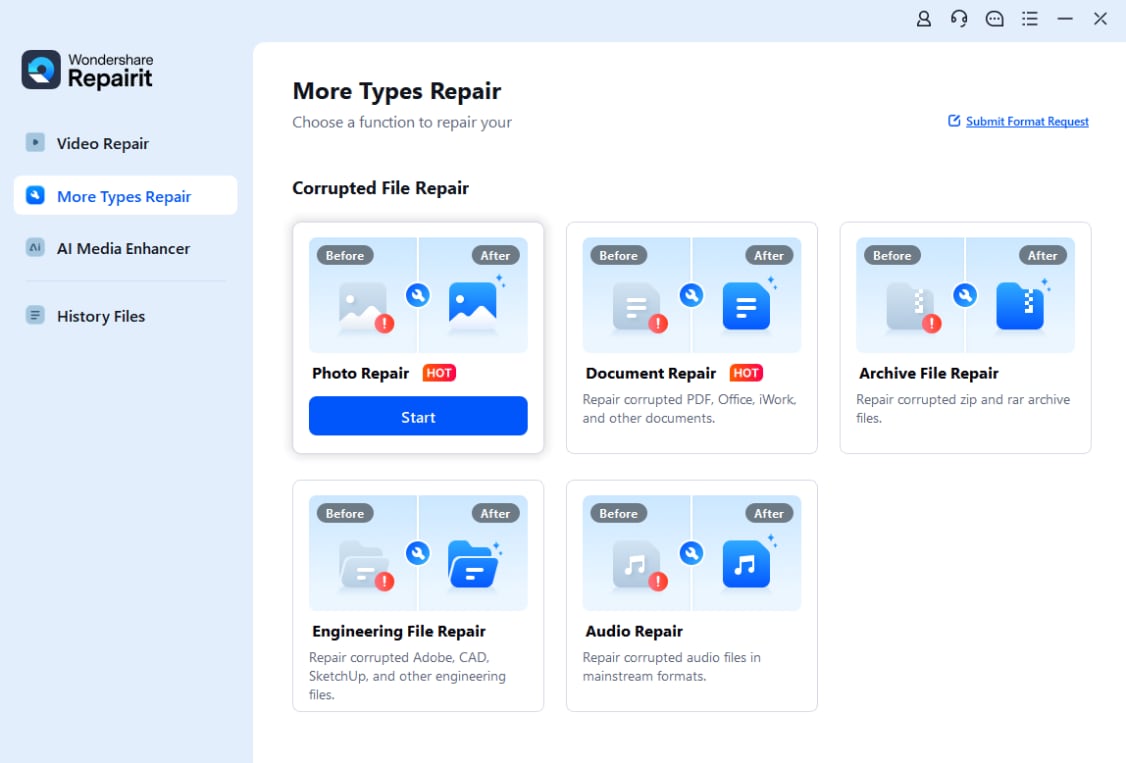
Install and launch Repairit on your computer, then choose the Photo Repair feature from the main interface. Click the Add button and browse to the corrupted photos that will not open or show broken previews. Select all the affected images and import them into the repair list so Repairit can scan them together.
- Repair photo files
Once your photos are listed, click the Repair button to start the automatic repair process. Repairit analyzes each image, fixes structural issues, and rebuilds viewable data where possible. If some files are severely damaged, switch to Advanced Repair and follow the prompt to provide a similar sample photo from the same device or shoot for better reconstruction results.

- Save the repaired photo files
After the repair completes, preview the fixed photos directly in Repairit to confirm they open correctly and details look normal. When you are satisfied, choose a safe destination folder on your computer or external drive, then click Save to export all repaired images. Store these files in a reliable location and consider backing them up before applying further image compression or editing.

Conclusion
Lossless compression lets you reduce file sizes while preserving every bit of original data. It is ideal for photos, graphics, archives, and professional media workflows where you might re-edit files multiple times or need exact recovery later. Used wisely, it balances storage savings with absolute quality, from camera capture and editing to exporting and archiving.
By understanding how lossless methods differ from lossy approaches, where they fit into real tools, and which common mistakes to avoid, you can design a workflow that protects your best images and projects. If something goes wrong during compression, transfer, or storage and your photos become corrupted, Repairit offers a practical path to restoring them and keeping your visual work accessible over the long term.
Next: What is Lossy Compression?
FAQ
-
1. Is lossless compression better than lossy compression for photos?
Neither is universally better; they serve different purposes. Lossless compression is best for masters, archives, and graphics where perfect detail matters, while lossy formats like JPEG are better for final sharing and online galleries where smaller file sizes and faster loading are more important. -
2. Will zipping my photo folder reduce the image quality?
No. ZIP is a file compression method that is lossless. It only reduces file size for storage and transfer. When you unzip the folder, all photos are restored exactly as they were with no quality loss. -
3. Why do some images barely shrink with lossless compression?
Highly detailed or already compressed images, like JPEG photos, contain less redundant data for data compression algorithms to exploit. As a result, formats such as ZIP or PNG cannot reduce their size very much compared to text files or simple graphics. -
4. Can lossless compression fix a blurry or low-resolution photo?
No. Image compression methods, even lossless ones, only change how data is stored, not the content itself. They cannot invent extra detail. To improve a blurry or low-resolution photo, you need dedicated enhancement or upscaling tools rather than compression alone. -
5. What should I do if my compressed photo files will not open?
If photos inside a ZIP, archive, or backup become corrupted and will not open, first extract everything to a safe location and try another viewer. If they still fail, use a repair tool such as Repairit to scan and rebuild the damaged images so they become viewable again.




