
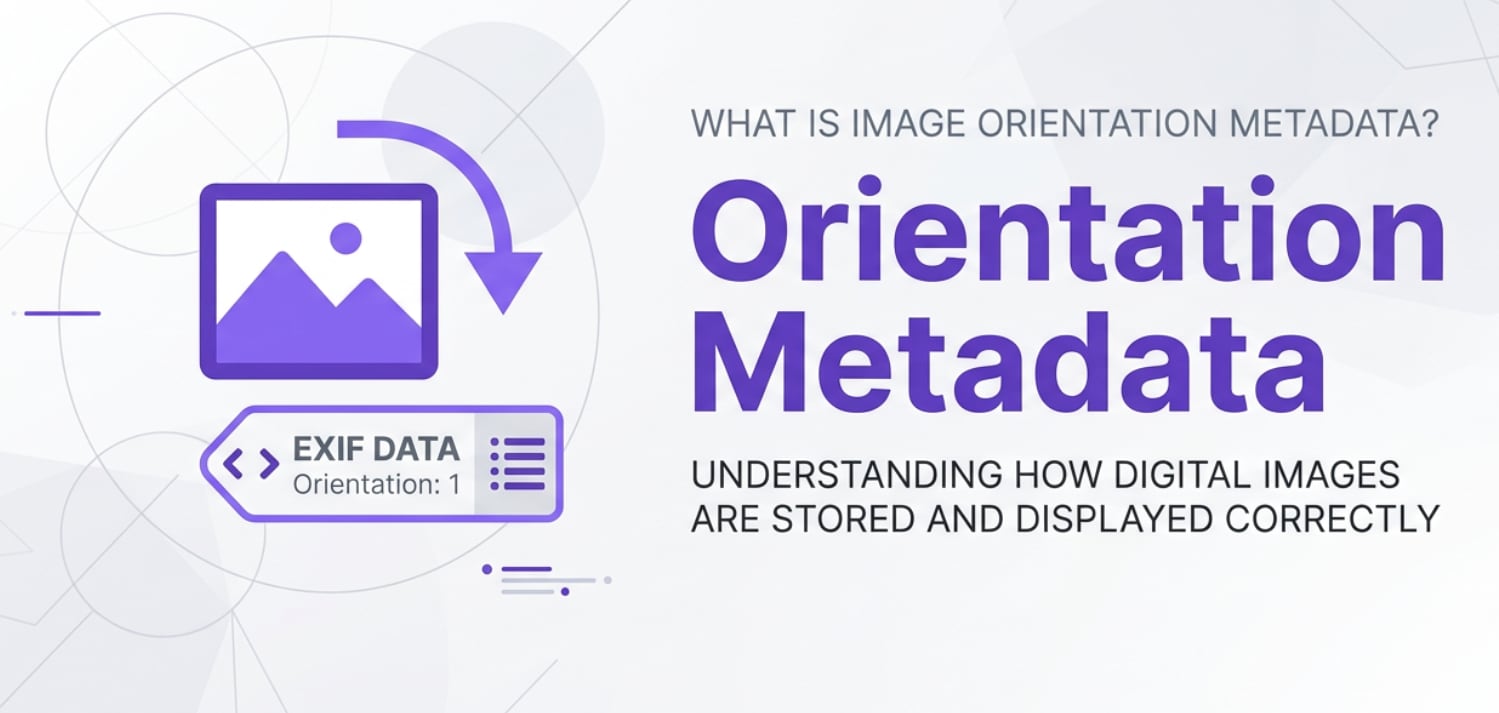
Have you ever moved photos from your phone to a computer and found some of them sideways or upside down? That behavior is usually controlled by image orientation metadata. You will run into this setting when shooting on phones or cameras, importing into editors, exporting images, or uploading to social media. Understanding it helps you avoid rotated prints, awkward online galleries, and time-consuming manual fixes.
Repair Corrupted Files To Save Your Data
 Security Verified. Over 7,302,189 people have downloaded it.
In this article
What Is Image Orientation Metadata?
Image orientation metadata is a small piece of information stored inside a photo file that tells software which way the image should be displayed. It belongs to the EXIF (Exchangeable Image File Format) metadata type, which records camera settings and other details.
Instead of rewriting the pixels, the camera or phone records an orientation flag such as "normal," "rotate 90 degrees," or "flip vertically." Viewers, editors, and web platforms read this flag and rotate the picture on the fly, so a portrait shot with your phone still looks upright on different screens.
What Does Image Orientation Metadata Affect?
The state of image orientation metadata has a direct impact on how your photos appear and behave across devices and workflows.
- On-screen appearance: Correct orientation data means your shots display upright in galleries, slideshows, and social feeds. Wrong or missing data causes sideways or upside-down previews.
- Editing workflow: Editors that respect EXIF orientation will auto-rotate photos, saving you from manual rotation. If the editor ignores it, you may repeatedly fix the same images.
- Export and sharing: When exporting JPEGs or PNGs, software can either preserve the orientation flag or "bake in" a rotation. Inconsistent handling leads to images that look fine locally but rotate after upload.
- Printing and albums: Print labs and home printers may auto-rotate images based on image metadata. Incorrect flags can result in rotated prints, off-center cropping, or misaligned photo books.
- Cross-platform compatibility: Different operating systems, browsers, and apps interpret orientation differently. A photo may look correct on your phone but wrong in an older viewer or on a TV slideshow.
How Does Image Orientation Metadata Work in Real Use?
How orientation metadata is stored
Most digital cameras and smartphones contain a rotation sensor. When you press the shutter, the device records the scene and writes an orientation tag into the EXIF block of the file.
| Orientation tag | How the photo should display |
|---|---|
| 1 - Normal | No rotation, top of the sensor is top of the image. |
| 6 - Rotate 90 CW | Rotate 90 degrees clockwise (typical portrait mode). |
| 8 - Rotate 270 CW | Rotate 270 degrees clockwise (or 90 degrees CCW). |
These numeric values are part of the image orientation metadata and do not change the underlying pixel grid. That is why you can often fix sideways photos just by updating the EXIF orientation instead of re-saving the image.
How apps and platforms use orientation metadata
In day-to-day work, you will see photo rotation handled slightly differently depending on software and platforms:
- Operating systems: Modern Windows, macOS, Android, and iOS photo viewers generally read EXIF orientation and show photos correctly. Older or basic viewers may ignore it, revealing the "raw" rotation.
- Photo editors: Tools like Lightroom, Photoshop, and many mobile editors use the orientation tag when importing. Some allow "lossless rotation," which updates metadata and rotates the pixel data without re-encoding.
- Web browsers and sites: Newer browsers respect EXIF orientation for JPEGs, but some websites strip metadata during upload to reduce file size, which can remove the rotation information.
- Cloud galleries and social media: Platforms often re-encode images and may keep or discard image orientation metadata. A file that is correct locally might become sideways in an online album if the site drops EXIF data.
- Smart TVs and digital frames: Slideshows and casting apps might not fully support EXIF orientation, exposing wrong rotations or fix sideways photos issues on a big screen.
Common Mistakes and Quick Tips
Common mistakes with image orientation metadata
- Assuming rotation looks the same everywhere: Just because a photo is correct on your phone does not guarantee it will display correctly on every viewer or platform.
- Rotating only in one app: Rotating a file in a viewer that does not save changes to EXIF or pixels means the orientation fix is temporary and not applied to the file itself.
- Stripping metadata during export: Some export presets remove EXIF data for privacy or size reasons. This can wipe out image orientation metadata and cause sideways results elsewhere.
- Confusing EXIF rotation with cropping: Users sometimes crop images to "fix" orientation, which unnecessarily loses image area instead of simply correcting the orientation tag.
- Ignoring corruption signs: If images show broken thumbnails, fail to open, or show garbled previews, there may be damage beyond orientation, such as corrupted image files.
Quick tips to get orientation right
- Shoot steadily in one direction: Avoid constantly rotating your device mid-shot when possible, to keep EXIF orientation consistent.
- Use trusted viewers and editors: Rely on software known to honor exif orientation and save changes back into the file.
- Check export settings: When exporting or compressing images, confirm that metadata is preserved if you rely on automatic rotation.
- Perform lossless rotation: Where available, choose options labeled "lossless rotate" or "rotate without re-encoding" to correct orientation without reducing image quality.
- Test on target platforms: If you are preparing images for a client, website, or print service, test a small batch to verify orientation before sending a full project.
How to Use Repairit to Fix a Corrupted Photo File
Why use Repairit for broken or unreadable photos
When orientation data is damaged or the entire file structure becomes corrupted, basic rotation tools are not enough. Wondershare Repairit is a dedicated media repair solution that fixes damaged photos and videos so they can open and display correctly again. You can explore all its capabilities and download the latest version from the Repairit official website.
Key features of Repairit for photo repair
- Repairs corrupted photos and videos from cameras, phones, and memory cards.
- Supports batch repair to fix multiple damaged media files at once.
- Offers a simple preview and save process to verify results before exporting.
Step-by-step: repair a corrupted photo file
- Add corrupted photo files
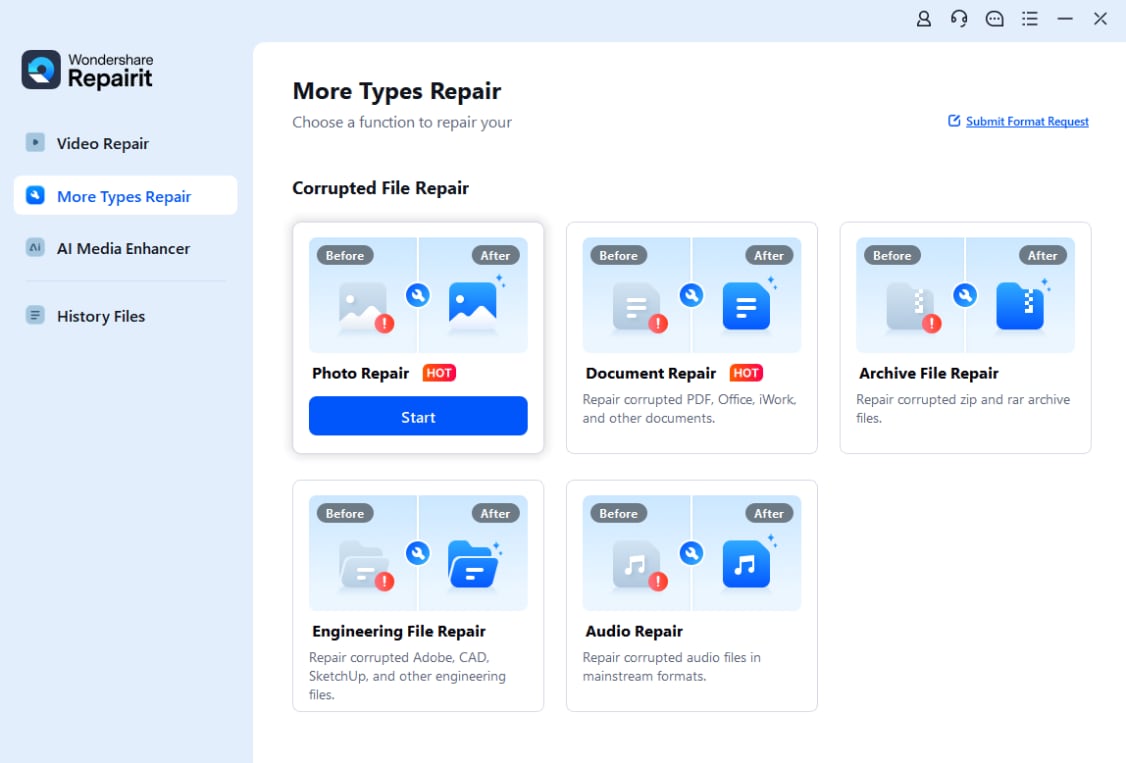
Open Wondershare Repairit on your computer and choose the Photo Repair module. Click the add button in the center of the interface, then browse to the folder, memory card, or external drive that contains your damaged images. Select one or more faulty files that will not open or display incorrectly and load them into the repair list.
- Repair photo files
After the problematic images appear in the list, start the repair process with a single click. Repairit analyzes each file, detects structural problems in headers, thumbnails, and data blocks, and then reconstructs the photo so it becomes viewable again. During this stage, issues related to broken previews or incorrect image metadata can be corrected automatically.

- Save the repaired photo files
When Repairit finishes processing, you will see a status result for each photo. Use the preview option to confirm that images open properly and show in the correct direction. Once you are satisfied, choose a safe destination folder and save your repaired photos there, keeping them separate from the original corrupted copies.

Conclusion
Image orientation metadata quietly controls how your photos appear across phones, computers, printers, and online platforms. When it is accurate and preserved during editing and export, your workflow stays smooth and your images consistently display in the right direction.
When orientation flags go wrong or corrupted image files prevent photos from opening at all, a specialized repair tool can save valuable shots. By understanding how image metadata works and using Wondershare Repairit when damage occurs, you can keep your photo library clean, consistent, and ready to share anywhere.
Next: What is Image Resolution?
FAQ
-
1. What is image orientation metadata in simple terms?
Image orientation metadata is EXIF information stored inside a photo file that tells software which way the picture should be shown, such as normal, rotated left or right, or flipped. It allows devices to display your photo upright without permanently rotating the pixels. -
2. Why do some of my photos appear sideways on my computer?
Photos often look sideways when the image orientation metadata is missing, wrong, or ignored by the viewer you are using. The actual image data may be fine, but the app is not reading or applying the orientation flag correctly. -
3. Can I change image orientation metadata without losing quality?
Yes. Many editors and organizers can rotate photos by updating the EXIF orientation tag or performing lossless rotation. This keeps the pixel data intact, so there is no visible quality loss compared with re-saving at lower compression. -
4. Does image orientation metadata affect printing or photo books?
It can. If your printer driver or online print service uses EXIF orientation, it may auto-rotate images to match that data. Incorrect or stripped metadata can cause printed photos or album pages to come out rotated or awkwardly cropped. -
5. How can I fix a corrupted image that will not open at all?
First, try opening the file in different viewers or on another device to rule out a software issue. If it still fails, the file may be damaged. In that case, use a specialized repair tool like Wondershare Repairit, which scans the corrupted image and attempts to rebuild the photo so it opens and displays normally.




