
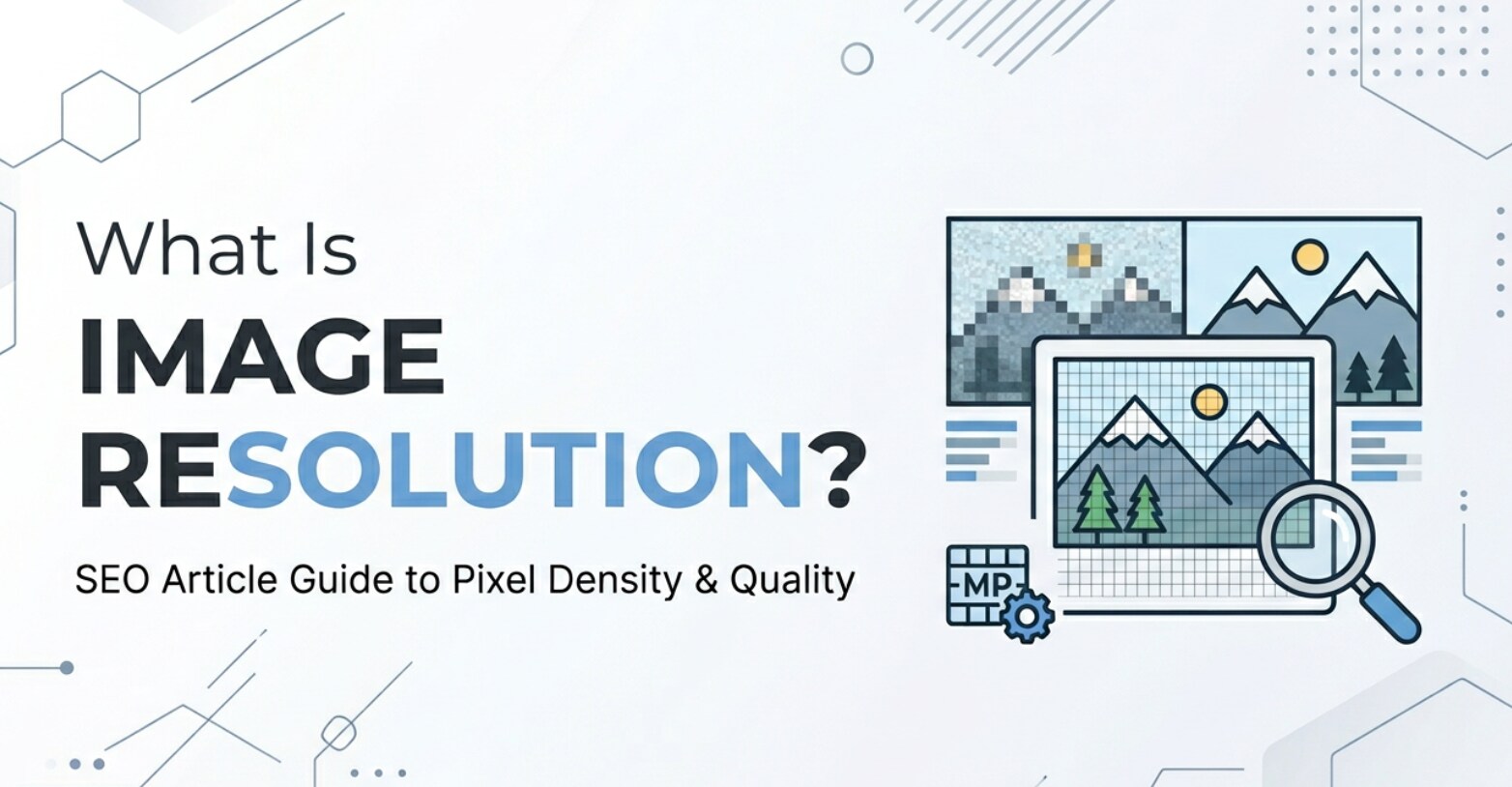
Image resolution shows up everywhere: in your phone camera specs, Photoshop export settings, printing dialogs, and even social media uploads. It describes how detailed your photos and graphics can look when recorded, edited, shared, or printed. Understanding resolution helps you avoid blurry results, oversized files, and disappointing prints, so your images stay sharp on every screen and page.
Repair Corrupted Files To Save Your Data
 Security Verified. Over 7,302,189 people have downloaded it.
In this article
What Is Image Resolution?
Image resolution is an image parameter that describes how many pixels are used to represent a picture. In plain English, it tells you how much detail an image can hold.
There are two closely related ideas:
- Pixel dimensions (for example, 4000 × 3000) show the total number of pixels in width and height.
- Resolution density (for example, 72 PPI or 300 PPI) shows how many pixels are packed into each inch when the image is displayed or printed.
In photography, design, and retouching software, resolution in photography defines how much detail your camera captures and how large you can show or print a photo without it looking soft or blocky. It is a technical setting that matters in recording, editing, exporting, and printing workflows.
What Does Image Resolution Affect?
Resolution and visual quality
In real use, photo quality depends heavily on pixel count and how those pixels are used:
- On screens: A higher-resolution file can look sharper on high-density displays, but only if you view it large enough to reveal that extra detail. Tiny thumbnails do not benefit from huge resolutions.
- In prints: Print resolution is critical. At around 300 PPI, photos usually look crisp at arm's length. If the same image is stretched to a larger print without enough pixels, you will see softness, jagged edges, or visible pixels.
- In cropping and editing: Higher-resolution captures allow heavier cropping and retouching while keeping enough detail for big prints or high-res exports.
However, more pixels do not fix issues like bad focus, motion blur, or low lens quality. That is why image resolution and overall capture quality must work together.
Resolution, file size, and performance
Resolution directly influences file size, performance, and compatibility:
- File size: More pixels mean larger image files, especially in lossless formats. This affects storage, upload times, and backup costs.
- Workflow speed: Very high resolutions can slow down editing, rendering, and exporting, particularly on less powerful hardware.
- Screen and platform limits: Social platforms, websites, and messaging apps often downscale images. Excessively high image resolution may be wasted if the platform compresses or resizes uploads.
- Streaming and playback: In slideshows, galleries, and web apps, overly large images can cause slow loading and lag, especially on mobile or slower networks.
Choosing a sensible resolution helps balance sharpness, speed, and usability across devices and platforms.
How Does Image Resolution Work in Real Use?
You will see image resolution referenced at nearly every stage of a visual workflow: recording, editing, encoding, exporting, and display.
Resolution in cameras and capture devices
Digital cameras and phones describe resolution in megapixels, such as 12 MP or 48 MP. This is just the total number of pixels captured (for example, 4000 × 3000 ≈ 12 MP). Higher megapixel counts give you more flexibility for large prints and aggressive cropping, but also increase storage needs.
In video, resolution names like 1080p, 4K, or 8K indicate the frame's pixel dimensions. Stills extracted from high-resolution video can sometimes substitute for photos, but their photo quality also depends on bitrate, compression, and shutter speed.
Resolution in editing and exporting
In editors like Photoshop, Lightroom, GIMP, or Capture One, image resolution affects how you resize and export:
- Resampling: When you change pixel dimensions, the software has to add or remove pixels. Upscaling can make an image larger, but it guesses new pixel values, so it cannot create real detail.
- PPI settings: The PPI field (for example, 72, 240, 300) mostly matters for print. Changing PPI without resampling only changes how large the image will print, not how detailed it is.
- Export for web: For websites and social media, you choose reasonable pixel dimensions according to layout (for example, 1920 px wide for a full-width banner) and let the screen handle density.
Many tools also display screen resolution options or presets (HD, 4K, etc.) so exported images or thumbnails align with typical display sizes or platform requirements.
Resolution in printing and output devices
When you send files to a printer, print resolution is critical. Labs and print shops often recommend 300 PPI. The formula is simple:
Print size (inches) = pixel dimension ÷ PPI
For example, a 3000 × 2400 pixel image printed at 300 PPI gives a 10 × 8 inch print. If you drop to 150 PPI, the same file can print at 20 × 16 inches, but quality will look softer up close.
| Pixel dimensions | Approximate max print size at 300 PPI |
|---|---|
| 2400 × 1600 | 8 × 5.3 inches |
| 3600 × 2400 | 12 × 8 inches |
| 6000 × 4000 | 20 × 13.3 inches |
Understanding this relationship helps you choose the right capture and export settings for posters, photo books, or fine art prints.
PPI vs DPI in real workflows
PPI vs DPI is a common point of confusion:
- PPI (Pixels Per Inch): An image parameter describing pixel density on a screen or in a file.
- DPI (Dots Per Inch): A printer and hardware parameter describing how many ink or toner dots a printer lays down per inch.
In many apps, the words are used loosely or even interchangeably, but for digital imaging, image resolution in terms of PPI is the value you usually control when preparing files.
Common Mistakes and Quick Tips
Frequent misunderstandings about image resolution
- Thinking more resolution always equals better images: A poorly focused 48 MP photo will still look worse than a sharp 12 MP shot. Resolution is only one factor in photo quality.
- Confusing PPI and pixel dimensions: Changing PPI alone does not magically add detail; only increasing pixel dimensions (resampling) can do that, and it has limits.
- Using print-level resolution for web: Exporting huge 6000 px images for a small web banner slows down loading without visible benefit.
- Over-enlarging small originals: Aggressively upscaling a low-resolution file often leads to plastic, artificial results, even with advanced AI tools.
Quick tips for better results
- Capture at the highest sensible resolution your camera offers if you plan to crop or print large.
- For web use, match pixel dimensions to your layout and compress moderately to keep file sizes manageable.
- For prints, aim for around 300 PPI at the final size; for big wall art viewed from afar, 150–200 PPI may be acceptable.
- Do not rely on upscaling to rescue very small files; it is better to re-shoot or recapture if possible.
- Keep a high-resolution master file, and create smaller copies for web, social media, and email.
How to Use Repairit to Fix a Corrupted Photo File
Why choose Repairit for damaged images
Even perfectly prepared high-resolution images can become unreadable after card errors, transfer issues, or storage failures. Wondershare Repairit is built to fix corrupted photos so that your carefully captured detail is not lost. You can learn more and get started from the Repairit official website, where the tool guides you through repair in just a few clicks.
Key features of Repairit for photos
- Repairs corrupted or unplayable image and video files from cameras, phones, memory cards, and computers.
- Supports batch repair so you can fix many damaged photos in a single process.
- Provides a clear preview window that lets you check repaired images before saving them.
Step-by-step: Repair a corrupted photo file
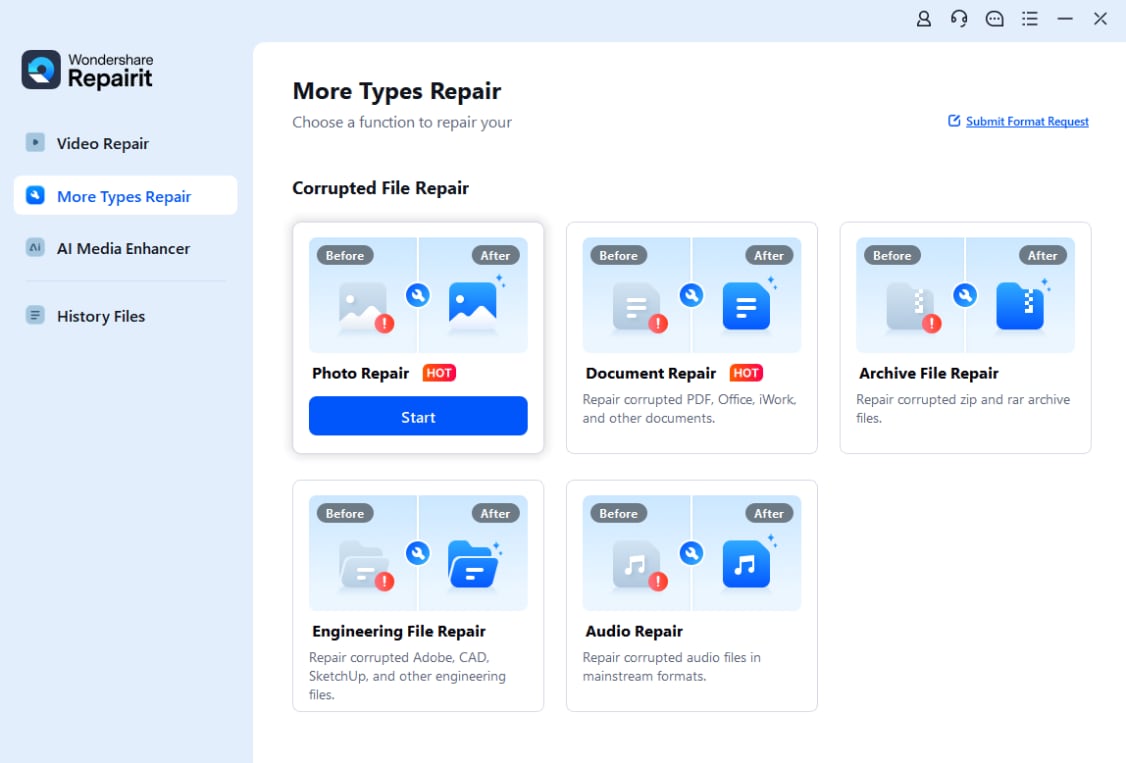
- Add corrupted photo files
Launch Repairit on your computer and choose the Photo Repair feature from the main screen. Click the add button or drag and drop your corrupted images into the window. You can load multiple photos from different cameras, phones, or folders at the same time for a more efficient workflow.
- Repair photo files
After the images are listed, start the repair with one click. Repairit will scan each file, analyze corruption in headers, data, or encoding, and then rebuild a viewable version of the picture. If you are dealing with severely damaged photos, you can enable advanced repair and provide a sample file from the same device to help the tool reconstruct missing information more accurately.

- Save the repaired photo files
When the repair finishes, preview your photos directly in Repairit to confirm that details, colors, and image resolution look acceptable. Select the images you want to keep, choose a safe destination folder that is different from the original damaged location, and click Save. Your repaired photos are now ready for editing, printing, or backup.

Conclusion
Image resolution is the backbone of how sharp and detailed your photos and graphics appear on screens and in print. By understanding how pixel dimensions, PPI settings, and output size relate, you can avoid soft, blocky, or oversized files and get the most from your camera or design tools.
When you choose suitable resolution settings for capture, editing, and export, you achieve cleaner results and more efficient file sizes across devices and platforms. If corrupted files still threaten your images or videos, a repair solution like Wondershare Repairit can help you recover important media instead of losing it for good.
Next: What is Pixels Per Inch (Ppi)?
FAQ
-
1. What is image resolution in simple terms?
Image resolution describes how many pixels make up a photo or graphic. More pixels usually mean more potential detail and sharper results, especially when you view or print the image at a larger size. -
2. Does higher image resolution always mean better quality?
Not always. Higher resolution increases potential detail, but focus, lens quality, lighting, noise, and compression settings all strongly affect how good an image looks. A sharp lower-resolution photo can look better than a poorly captured high-resolution one. -
3. What is a good resolution for printing photos?
For high-quality prints, aiming for about 300 PPI at the final print size is a common standard. Larger posters that are viewed from farther away can sometimes look fine at 150–200 PPI. -
4. Can I increase image resolution without losing quality?
You can upscale an image to a higher resolution, but you are not creating true new detail. Modern resampling and AI tools can make enlargements look better, yet they cannot fully replace information that was never captured in the original. -
5. Why do my images look blurry after resizing?
Images often look blurry after resizing if they are stretched beyond their original pixel dimensions, exported at too low a resolution, or saved with heavy compression. To avoid this, keep an eye on pixel dimensions, use suitable PPI for prints, and avoid over-compressing your files.




