
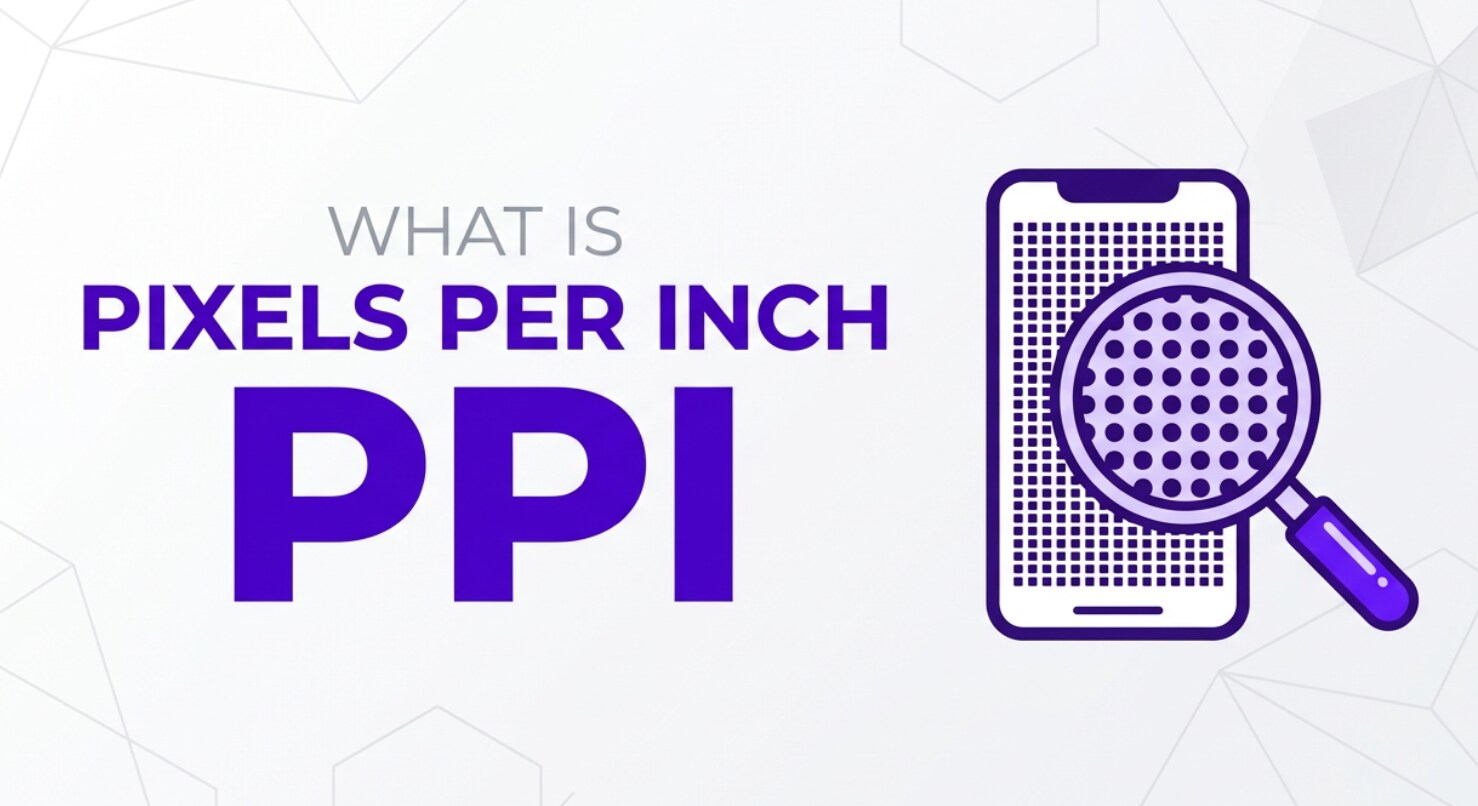
Pixels per inch (PPI) shows up whenever you resize photos, export graphics, choose a monitor, or prepare files for printing. It tells you how tightly pixels are packed in a physical space, which directly affects how sharp your images look on screens and paper. Understanding image resolution in PPI helps you avoid blurry exports, wrong print sizes, and confusion between PPI vs DPI when sharing or publishing digital images.
Repair Corrupted Files To Save Your Data
 Security Verified. Over 7,302,189 people have downloaded it.
In this article
What Is Pixels Per Inch (PPI)?
Pixels Per Inch (PPI) is an image resolution parameter that measures how many pixels fit into one linear inch of a screen or printed image. It is a way to describe pixel density.
In technical terms, PPI belongs to the category of image parameters used in photography, graphic design, video production thumbnails, and UI design. When you see a display advertised as 300 PPI or an image preset called 72 PPI, it is telling you how tightly the pixels are packed.
Higher PPI means more pixels in the same physical space, which usually gives smoother edges and more detailed photos at normal viewing distances. Lower PPI spreads the same pixels over a larger area, which can make images appear softer or even blocky if viewed up close.
What Does Pixels Per Inch (PPI) Affect?
PPI has a strong influence on how your digital images and designs look in day-to-day work across recording, editing, exporting, and playback.
| Aspect | How PPI Affects It |
|---|---|
| Perceived sharpness | Higher PPI makes edges look smoother and text easier to read at the same viewing distance. |
| Physical size of prints | With fixed pixel dimensions, higher PPI produces smaller, sharper prints; lower PPI gives larger but softer prints. |
| On-screen clarity | On phones, tablets, and monitors, high PPI can hide pixel structure and improve photo quality. |
Visual quality and detail
For a given image, PPI defines how tightly those pixels are placed when mapped to a display or page. A 3000 x 2000 pixel photo:
- At 300 PPI prints as roughly 10 x 6.7 inches, looking crisp for magazines or photo books.
- At 150 PPI prints as roughly 20 x 13.3 inches, larger but with less fine detail at close range.
Text and UI element readability
On high-PPI screens (like modern smartphones or "retina" laptops), small text, icons, and thumbnails look cleaner and less jagged. This improves user experience when viewing photos in galleries, video previews, or editing timelines.
Editing, cropping, and export decisions
Although most editing software works primarily in pixels, the PPI value influences how big the canvas appears in print layouts and some design tools. When you set a target PPI for export, you are really combining pixel counts with intended physical size.
Perceived quality vs file size
PPI by itself does not increase file size; total pixel dimensions do. However, aiming for a very high PPI at large print sizes forces you to work with more pixels, which means:
- Larger files to store and transfer.
- Heavier loads when editing or sending to clients.
- More bandwidth is needed for online galleries.
How Does Pixels Per Inch (PPI) Work in Real Use?
PPI in screens and displays
Device makers list screen resolution using both pixel dimensions and PPI. For example:
- A 27-inch 4K monitor (3840 x 2160 pixels) has a higher PPI than a 27-inch Full HD monitor (1920 x 1080 pixels).
- Smartphones often exceed 400 PPI, which is why photos and videos look very smooth even when you zoom in slightly.
In real workflows, this means:
- High-PPI screens give a more accurate preview of fine detail when you retouch portraits or color grade stills for video covers.
- Low-PPI displays may show jagged edges that will not actually appear in print or on better screens, which can mislead editing decisions.
PPI in editing, exporting, and printing
Photo editing and design software
Programs like Photoshop, GIMP, and other editors let you view or set a PPI value in the image properties. In most digital-only workflows:
- The pixel width and height define how big the image appears on websites and social media.
- The PPI tag is mainly metadata that printing or layout apps may use later.
Exporting for web and social media
When exporting images for web or streaming thumbnails, priority should be:
- Choose appropriate pixel dimensions (e.g., 1920 x 1080 for a hero banner, 1080 x 1080 for a square post).
- Use reasonable compression to balance image quality and file size.
- Understand that the browser largely ignores the PPI value, focusing on pixel size.
So changing PPI from 72 to 300 without altering pixel dimensions does not change how large it appears on a standard webpage.
Exporting and printing stills from video
When you grab frames from digital images or videos to use as covers, posters, or contact sheets:
- A 1920 x 1080 frame at 300 PPI gives a small but sharp print (about 6.4 x 3.6 inches).
- For larger posters, you may accept lower PPI (150 or even 100) because viewers stand farther away.
Print resolution and lab requirements
Photo labs and printers often recommend specific PPI values, such as:
- 300 PPI for high-quality photo books or magazine images.
- 240 PPI for typical home or office prints.
- 150 PPI or lower for large wall art viewed from across a room.
This is also where confusion between ppi vs dpi appears. PPI refers to your image file and how big it will print, while DPI refers to the printer hardware and how many ink dots it sprays per inch. You control PPI in software; the printer handles DPI internally.
Common Mistakes and Quick Tips
Frequent misunderstandings about PPI
- Thinking that simply raising PPI will improve photo quality without changing pixel dimensions. In reality, you only change how those pixels are mapped to size, not how much real detail exists.
- Believing that web browsers care about PPI. For web, the number of pixels (width x height) matters, not the PPI tag.
- Confusing ppi vs dpi and using them interchangeably when talking to print services, which can cause wrong print sizes.
- Assuming that ultra-high PPI always looks better, even when the viewing distance and use case do not require it.
Practical quick tips for beginners
- For web and social: focus on pixel dimensions and compression; leave PPI at a default like 72–150.
- For high-quality prints: aim for 240–300 PPI at the final print size.
- For large posters: you can often go down to 100–150 PPI because people stand farther away.
- Before resizing, duplicate your original files to avoid overwriting high-resolution masters.
- If a file looks damaged or will not open, do not just resave it; use a repair tool designed for repair corrupted photos or repair corrupted videos.
Key takeaways
- PPI is an image parameter describing pixel density, not total detail.
- Use PPI to match image resolution to print size and viewing distance.
- For screens, pixel dimensions matter more than the PPI number itself.
How to Use Repairit to Fix a Corrupted Photo File
What is Repairit and why use it?
Even with the perfect image resolution and PPI, your photos can become unreadable due to transfer errors, memory card failures, or unexpected shutdowns. Wondershare Repairit is a dedicated media repair solution that helps you fix repair corrupted photos, broken thumbnails, and damaged previews so you do not lose important shots. You can learn more and download it from the Repairit official website.
Key features of Repairit for photo repair
- Repairs multiple corrupted photo formats from cameras, phones, drones, and storage devices in one place.
- Supports batch repair so you can restore a whole shoot or album instead of fixing files one by one.
- Lets you preview repaired images before saving, so you can confirm that detail, color, and framing look correct.
Step-by-step: Fix corrupted photo files with Repairit
- Add corrupted photo files
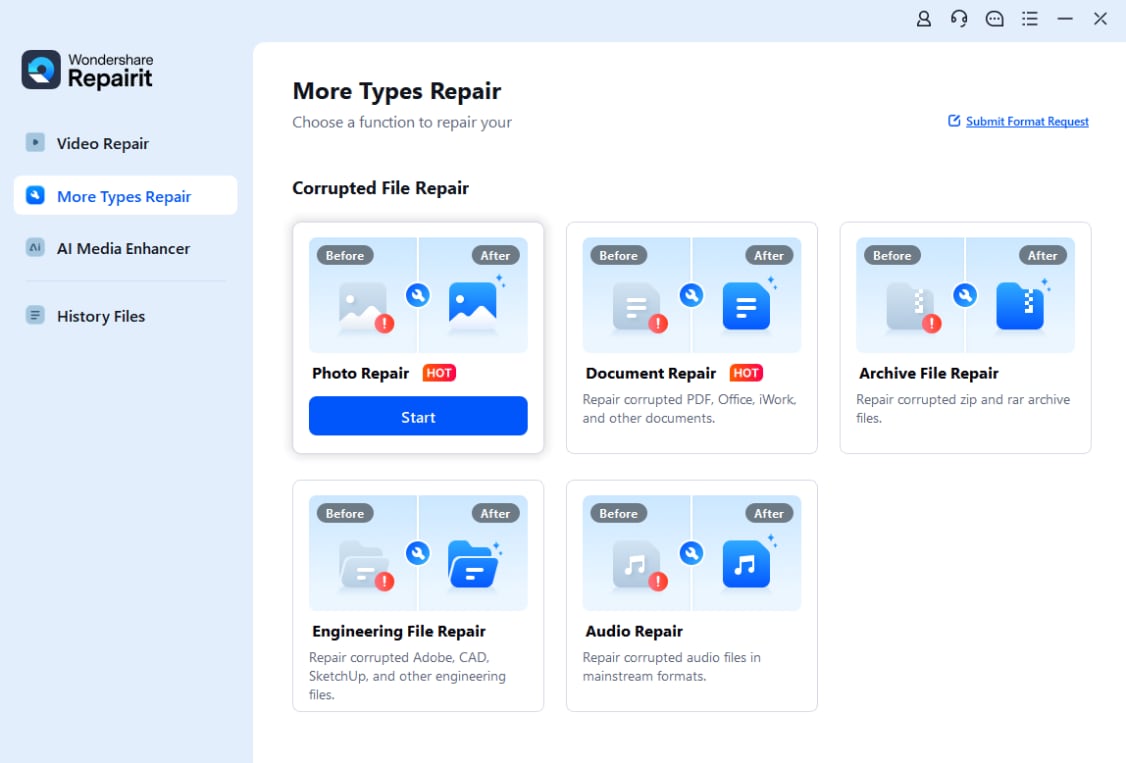
Install and open Wondershare Repairit on your computer. From the main interface, switch to the Photo Repair module and click the add button to import your damaged images. You can select photos from a local folder, external drive, or memory card and see them listed with basic information.
- Repair photo files
After loading the images, start the repair process with a single click. Repairit analyzes each file, reconstructs broken headers and data, and attempts to restore viewable photos. During this stage, you can track the status of each file and, when a repair completes, open the preview to check sharpness, colors, and framing.

- Save the repaired photo files
Once you are satisfied with the previews, choose a safe output folder where the recovered photos will be stored. It is best to save them to a different location than the originals so you keep an untouched backup. Click Save, and Repairit will export the repaired images, ready for editing, printing, or sharing at the correct pixels per inch for your project.

Conclusion
Pixels per inch is a practical way to describe how densely pixels are packed in an image or display, which strongly influences how sharp and detailed your visuals appear. By relating pixel dimensions to physical size, PPI helps you plan how large photos will look on screens and prints, and at what distance viewers will start to notice pixelation.
Once you understand how PPI differs from printer-focused dpi, it becomes much easier to choose the right settings for web graphics, social media posts, exported stills from video, and high-quality prints. Combined with a reliable repair solution like Wondershare Repairit for when files get damaged, you can protect both the technical quality and visual impact of your images and videos across devices and platforms.
Next: What is Dots Per Inch (Dpi)?
FAQ
-
1. What is Pixels Per Inch (PPI)?
Pixels per inch (PPI) is a measure of pixel density that tells you how many pixels appear in each linear inch of a screen or printed image. Higher PPI means more pixels in the same space, which generally produces smoother edges and more detailed photos at normal viewing distances.
-
2. Is PPI the same as DPI?
No. PPI describes the pixel density of your digital images and displays, while DPI (dots per inch) usually refers to how many ink dots a printer places per inch on paper. You set PPI in your files; the printer handles DPI as part of its hardware and driver settings.
-
3. Does increasing PPI always improve image quality?
Increasing PPI only helps if your image already has enough pixels. Changing a file from 72 PPI to 300 PPI without changing pixel dimensions does not add real detail; it just changes how large it will print. True quality improvements come from capturing, editing, or upscaling more real pixel information.
-
4. What PPI should I use for web images?
For the web, browsers care about pixel dimensions, not PPI. A common practice is to export at 72–150 PPI, but the crucial choice is the width and height in pixels that match your layout (for example, 1920 x 1080 or 1080 x 1350). The PPI tag does not change the displayed size in most browsers.
-
5. Can I fix a blurry or corrupted photo by changing PPI?
No. Adjusting PPI simply remaps existing pixels to a different physical size; it cannot repair blur, noise, or file corruption. If your photo is damaged, will not open, or displays artifacts, use a dedicated tool like Wondershare Repairit to repair corrupted photos instead of just resaving or resizing the file.




