
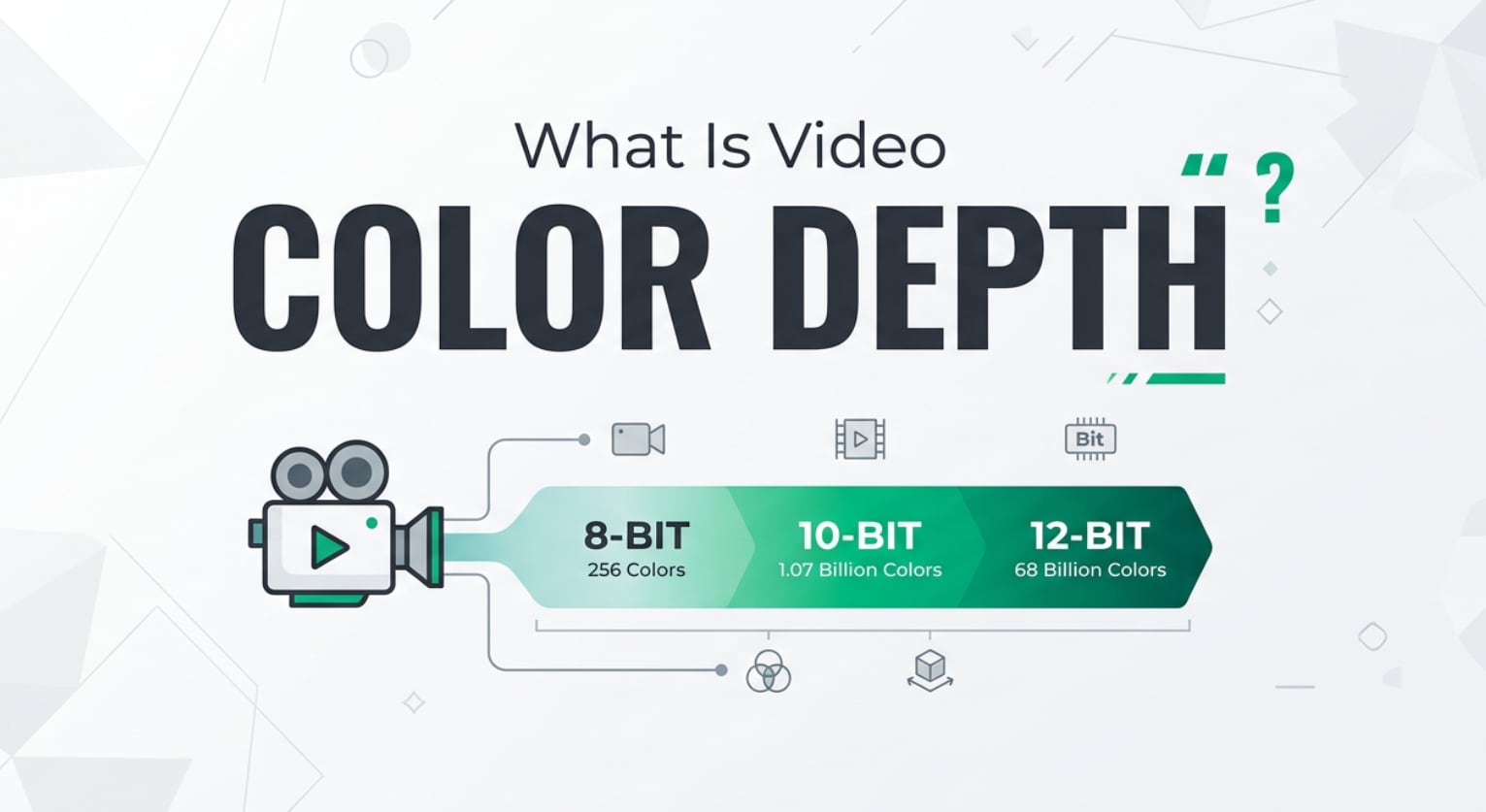
Video color depth, often called bit depth, shows up everywhere from camera menus to YouTube export presets and TV specs. It decides how many tiny steps of color and brightness each pixel can show, which directly affects gradients, skin tones, and HDR highlights. Understanding it helps you choose between 8 bit vs 10 bit, avoid ugly banding, and keep your footage looking clean during editing, exporting, and streaming.
Repair Corrupted Files To Save Your Data
 Security Verified. Over 7,302,189 people have downloaded it.
In this article
What Is Video Color Depth?
Video color depth, or bit depth, is a video parameter that tells you how many bits are used to describe the color of each pixel in a frame.
Most modern video uses three color channels (Red, Green, Blue). The bit depth value, such as 8 bit or 10 bit, is usually per channel. For example:
- 8 bit: 256 possible values per channel
- 10 bit: 1024 possible values per channel
The higher the bit depth, the more unique shades of color and brightness the video can store. That means smoother gradients, more precise color grading, and fewer visible steps between tones. In practical terms, video color depth is a core setting in cameras, codecs, and export presets that directly shapes how realistic your footage looks.
What Does Video Color Depth Affect?
Gradients, banding, and fine detail
One of the clearest side effects of low video color depth is video banding in skies, shadows, and soft light.
- With 8 bit video, smooth gradients may break into visible steps, especially after color correction or compression.
- With 10 bit video, there are four times more levels per channel, so transitions between colors and brightness look much smoother.
This matters for:
- Skies, sunsets, and fog
- Skin tones and makeup work
- Soft studio lighting and vignettes
Higher bit depth keeps subtle variations intact, which makes footage look more natural and more resistant to heavy editing.
HDR, file size, and workflow
HDR color and high dynamic range delivery depend heavily on video color depth.
- HDR standards like HDR10 essentially assume at least 10 bit video, because the extra brightness range needs more tonal steps.
- Using 8 bit for HDR often leads to harsh banding in bright highlights and deep shadows.
On the other hand, higher bit depth has trade-offs:
- File size and bitrate: 10 bit and above usually mean larger files or higher bitrates to preserve quality.
- Performance: Editing 10 bit and 12 bit footage can be heavier on your CPU/GPU, especially with high resolutions.
- Compatibility: Some older players, TVs, or mobile devices may struggle with certain 10 bit codecs or profiles.
Choosing between 8 bit vs 10 bit is a balance between image quality, storage, and how demanding you want your workflow to be.
How Does Video Color Depth Work in Real Use?
In real production, video color depth shows up across the entire chain: recording, editing, encoding, exporting, and streaming.
In cameras and capture devices
Most consumer cameras, phones, and action cams shoot 8 bit by default, while many mirrorless, cinema cameras, and external recorders offer 10 bit or higher.
- 8 bit capture: Common in MP4/H.264 modes for quick sharing and light edits.
- 10 bit capture: Popular in log profiles (S-Log, V-Log, C-Log) and ProRes, giving more room for color grading and noise reduction.
- Higher than 10 bit: Used in high-end RAW workflows where maximum flexibility is needed.
If you plan heavy color grading, shooting 10 bit or higher preserves more detail in shadows and highlights so grades do not break the image.
In editing software and export settings
Editors such as Premiere Pro, DaVinci Resolve, and Final Cut Pro show bit depth options in sequence, render, and export settings.
- Timeline bit depth: Controls how the software processes colors internally (often 8, 16, or 32-bit float).
- Export bit depth: Lets you choose 8 bit vs 10 bit output in codecs like H.264, HEVC/H.265, or ProRes.
- Scopes and monitoring: Higher depth helps keep subtle color grades smooth, especially in log or HDR workflows.
Even if your original camera material is 10 bit, a final 8 bit export can reintroduce banding when combined with strong compression. For demanding work, exporting 10 bit HEVC or a higher-bit codec keeps more information for delivery platforms that support it.
Streaming, playback, and platform compatibility
Streaming platforms and playback devices treat video color depth differently:
- Some online platforms accept 10 bit uploads but may convert them to 8 bit SDR for most viewers.
- Dedicated HDR streams on TVs and streaming sticks usually stay 10 bit, paired with specific HDR formats like HDR10 or Dolby Vision.
- Older browsers or GPUs might decode 10 bit HEVC poorly, leading to glitches or washed-out colors.
When planning delivery, always check what your target platform and audience devices actually support. Delivering 10 bit where only 8 bit SDR is shown can waste bandwidth without much visual gain, while delivering 8 bit to HDR displays can limit quality.
Relationship with chroma subsampling
Chroma subsampling (such as 4:2:0, 4:2:2, 4:4:4) works alongside video color depth.
- Bit depth controls how many levels each sample can represent.
- Chroma subsampling controls how many color samples are stored compared to brightness samples.
A common production combo is 10 bit 4:2:2 for flexible grading with manageable file sizes. Many consumer formats use 8 bit 4:2:0, which is fine for casual viewing but more fragile when you push colors in post.
Common Mistakes and Quick Tips
Frequent misunderstandings
- "10 bit always looks better, no matter what": If your monitor, TV, or platform is limited to 8 bit, you may barely see a difference, especially on simple content.
- "You can turn 8 bit into true 10 bit in post": Converting 8 bit footage into a 10 bit container does not recreate lost color data or fully remove banding.
- "Banding is only a bit depth issue": Over-compression, bad display panels, or poor gradient rendering in players can all cause banding, even with high bit depth.
- "Higher bit depth always means huge files": Modern codecs like HEVC can store 10 bit efficiently; your bitrate and resolution matter more than bit depth alone.
Practical quick tips
- If you do serious color grading, prefer 10 bit or higher at capture and export when possible.
- For simple vlogs or social clips, well-encoded 8 bit can be enough, especially if you keep grading gentle.
- Use slight noise or dithering in problem areas (like skies) to hide banding when you must deliver 8 bit.
- Test short clips with your full chain: camera, editor, export, platform, and display, to see how video color depth actually behaves.
- Back up camera originals; if your final exports suffer corruption, you can re-export instead of repairing.
How to Use Repairit to Fix a Corrupted Video File
Why use Repairit for corrupted high-quality video?
Even perfectly chosen video color depth, careful exposure, and clean exports cannot prevent corruption from bad storage, sudden power loss, or interrupted transfers. Wondershare Repairit is a dedicated video repair tool that can bring damaged or unplayable clips back to life, regardless of whether they were recorded in 8 bit, 10 bit, or higher. You can explore all features on the Repairit official website and use it on everything from casual phone videos to professional shoots.
Key features of Repairit for video
- Repairs corrupted or unplayable videos from various cameras, phones, and formats.
- Supports multiple files, high resolutions, and different color depths in one session.
- Provides an intuitive workflow with preview before saving the repaired result.
Step-by-step: Fix damaged video files in Repairit
- Add corrupted video files
Install and open Wondershare Repairit on your computer, then choose the Video Repair option from the main screen. Click the add button and navigate to the folder where your broken or unplayable clips are stored. Select one or more files; Repairit will list them with details like format, resolution, and duration so you know exactly what you are about to repair.

- Repair video files
After your clips are loaded, start the repair with a single click. Repairit scans each file, detects structural problems in the container and video/audio streams, and then rebuilds the damaged parts so the file can play smoothly again. When the process completes, use the built-in preview window to check that pictures, colors, motion, and sound all look normal before committing to save.

- Save the repaired video files
If the preview looks good, click Save to choose an output folder that is different from the original file location. Repairit will write new, healthy copies of your videos while leaving the damaged sources untouched. Once saving finishes, you can open the repaired clips in your usual media player or import them into your editing software to continue working, with your chosen video color depth and quality preserved.

Conclusion
Video color depth defines how many shades and tones your footage can show, which has a huge impact on gradients, skin tones, HDR performance, and overall realism. Knowing when to use 8 bit vs 10 bit, how it interacts with compression and color grading, and what your delivery platforms support lets you keep your videos clean and professional from capture to playback.
Even so, valuable footage can still be lost to corruption. When a clip refuses to play, shows severe artifacts, or crashes your player, a specialized tool like Wondershare Repairit gives you a practical way to restore it. That way, the time and care you invest into color depth and quality are not wasted by a damaged file.
Next: What is Video Chroma Subsampling?
FAQ
-
1. What is video color depth in simple terms?
Video color depth, or bit depth, is the number of bits used to describe the color of each pixel. Higher color depth means more possible shades, smoother gradients, and fewer visible steps or banding in skies, shadows, and skin tones.
-
2. Is 10 bit color really better than 8 bit?
Yes. Compared with 8 bit, 10 bit video can represent many more shades per channel, which greatly reduces banding and preserves detail during heavy color grading or HDR delivery. The trade-offs are larger files, higher bitrate, and the need for compatible devices and software.
-
3. Does video color depth affect HDR?
Absolutely. HDR color relies on expanded brightness and color information, so it strongly benefits from higher video color depth. Most practical HDR formats expect at least 10 bit video to avoid banding in bright highlights and deep shadows when the dynamic range is stretched.
-
4. Can I change color depth from 8 bit to 10 bit in post?
You can export an 8 bit file into a 10 bit container, but you cannot recreate color information that the camera never recorded. Upconverting helps reduce further rounding errors during processing, yet it will not magically remove banding or restore lost detail from a heavily compressed 8 bit source.
-
5. Why does my high bit depth video still look bad or fail to play?
Several factors can ruin the look of high bit depth footage: aggressive compression, poor display quality, wrong color management, or players that do not fully support 10 bit or HDR. If your file will not open, crashes, or shows severe artifacts, it may be corrupted; in that case you can try repairing it with Wondershare Repairit to recover normal playback.




