

Image color space is one of those hidden settings that quietly shapes how your photos look everywhere: in your camera, editing software, social media, and prints. You will see it mentioned as sRGB, Adobe RGB, or ProPhoto in menus and export dialogs. Understanding what it means, and when to pick each option, helps you avoid washed-out colors, dull prints, and inconsistent results across screens.
Repair Corrupted Files To Save Your Data
 Security Verified. Over 7,302,189 people have downloaded it.
In this article
What Is Image Color Space?
Image color space is an image parameter that defines which colors an image can contain and how those colors are described with numbers. It is part of color management for digital photos and graphics.
Common image color space options are sRGB, Adobe RGB, and ProPhoto RGB. Each one is like a different-sized box of crayons (also called a color gamut): sRGB is smaller but universally supported, Adobe RGB is wider and favored for print, and ProPhoto RGB is very large and often used in high-end photo editing workflows.
Color spaces work together with color profiles embedded in files so cameras, monitors, software, and printers can agree on what a particular set of RGB numbers should look like in the real world.
What Does Image Color Space Affect?
Color range and saturation
The biggest impact of image color space is the range of colors (gamut) your image can hold and how saturated those colors can be.
- sRGB: Covers a modest gamut that matches most typical screens and web browsers. It is ideal for web images, social media, and sharing because it is safe and predictable.
- Adobe RGB: Has a wider gamut, especially in greens and cyans. This is helpful when preparing images for high-quality printing on devices that can use this extra color range.
- ProPhoto RGB: Extremely wide gamut, larger than what any device can fully display. It is useful in advanced photo editing where you want to avoid clipping colors during heavy adjustments.
Choose a narrower color space like sRGB and intense colors may be compressed; choose a wider space like Adobe RGB without proper support and colors may look dull or wrong.
Consistency, compatibility, and workflow
Your image color space also affects how consistently images appear on different devices and how smooth your workflow feels.
- Display consistency: If a device or app ignores color profiles, an Adobe RGB JPEG may look washed out compared with the same image exported in sRGB.
- Print accuracy: Printers and labs that expect sRGB may produce strange colors from Adobe RGB or ProPhoto files if they are not handled correctly.
- Editing headroom: Working in a wide-gamut space (like ProPhoto RGB in a 16-bit workflow) gives more latitude for strong color and exposure changes before banding or clipped colors appear.
- Platform compatibility: Some websites, mobile apps, and older software assume sRGB. Supplying non-sRGB images can lead to inconsistent results.
How Does Image Color Space Work in Real Use?
You will encounter image color space at multiple stages: capture, editing, exporting, sharing, and printing.
In cameras and phones
Digital cameras often let you choose between sRGB and Adobe RGB for JPEGs. Phones typically default to sRGB or a similar profile.
- If you shoot JPEG for direct use online, sRGB is usually the best choice.
- If you shoot JPEG for professional print and your workflow is color-managed, Adobe RGB can hold more printable color nuance.
- If you shoot RAW, the in-camera color space setting mainly affects the preview JPEG; the final space is chosen later during RAW conversion.
In editing software
Programs like Adobe Lightroom, Photoshop, Capture One, and others use a working color space under the hood.
- Working space: This is the color space where your edits are calculated (for example, ProPhoto RGB or Adobe RGB).
- Soft proofing: You can simulate how a file will look in another space (like a lab's print profile or sRGB for web) before exporting.
- Export settings: You must choose an output color space (for example, sRGB JPEG for web, Adobe RGB TIFF for a print shop).
On the web and social media
Most browsers and social platforms assume or favor sRGB. Even when a platform is technically color-managed, it may strip or mishandle embedded profiles.
- Export for web in sRGB to maximize compatibility and keep colors looking as intended.
- Always embed the correct profile so color-aware software knows how to interpret your RGB values.
In printing and labs
Photo labs and professional printers often publish guidelines for preferred file types and color spaces.
- Consumer labs: Usually want sRGB JPEGs, which are easy to handle and predictable.
- Pro labs and in-house inkjet: May accept Adobe RGB or even custom printer profiles for more accurate color reproduction.
- Without proper profiles, prints can become too dark, too saturated, or shifted toward a color cast.
Common Mistakes and Quick Tips
Frequent misunderstandings
- "Adobe RGB always looks better than sRGB." Not true. It only looks better if every part of your workflow is color-managed and can use the wider gamut.
- "RAW files have a fixed color space." RAW data is not yet in a final color space. You choose the output space when you convert or export the file.
- "Color space and color depth are the same." Gamut (color space) is about which colors you can represent, while bit depth is about how finely you can divide and store them.
- "Wrong color space corrupts images." A mismatched space makes colors appear wrong, but does not actually corrupt or damage the file structure.
Quick tips you can follow today
- Use sRGB for general sharing, websites, and social media unless you have a specific reason not to.
- Use Adobe RGB when working with a calibrated monitor and printers or labs that explicitly support it.
- Use ProPhoto RGB only in advanced workflows with 16-bit files and fully color-managed software.
- Always embed your color profiles when exporting so devices that support color management can display your images correctly.
- Check images on more than one screen to catch obvious color problems before sending work to clients or print.
How to Use Repairit to Fix a Corrupted Photo File
Why Repairit helps when photos fail to open
Even with perfect image color space settings, your photos can still be damaged by bad memory cards, interrupted transfers, or file system errors. Repairit official website offers a dedicated media repair solution that targets this kind of structural corruption. It focuses on making unreadable or broken files viewable again, regardless of whether they were saved in sRGB, Adobe RGB, or another space.
Key features of Repairit for photo recovery
- Repairs corrupted or unplayable photo and video files from cameras, phones, memory cards, and computers without requiring complex technical skills.
- Offers advanced repair mode for badly damaged media that standard viewers or editors refuse to open, giving you a second chance to recover important shots.
- Provides built in preview so you can visually confirm which repaired images look correct before saving them back to safe storage.
Step-by-step: Fix corrupted photo files with Repairit
- Add corrupted photo files
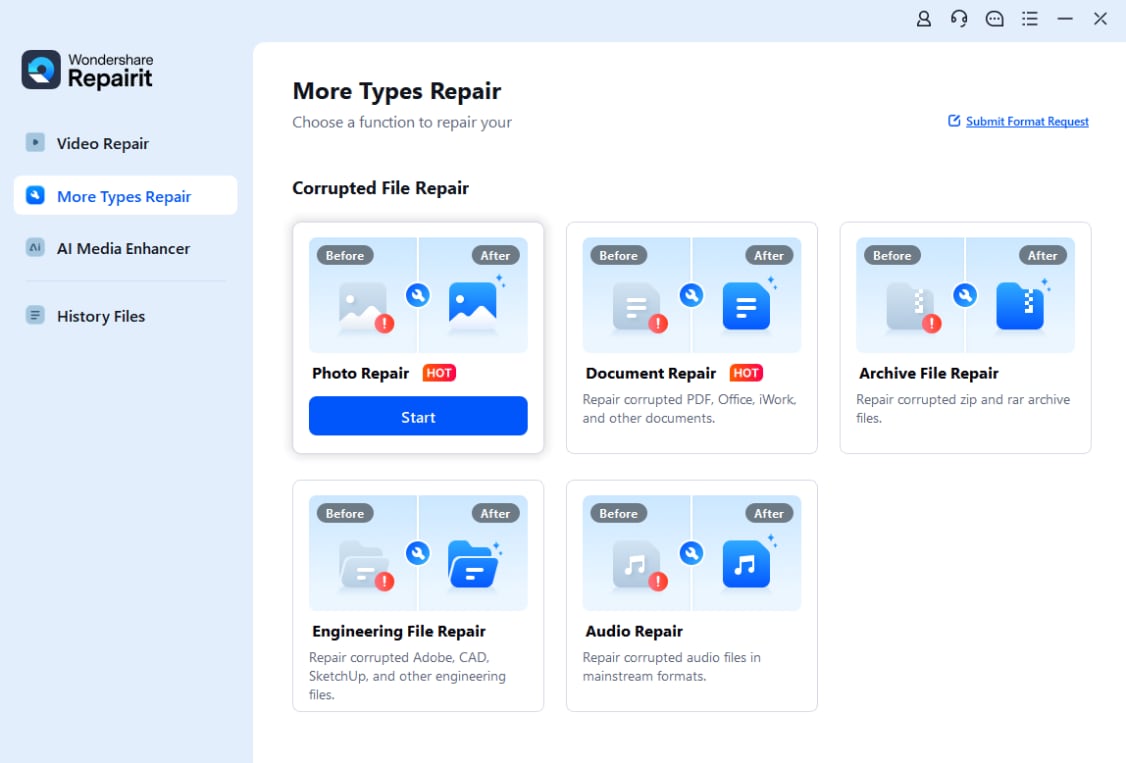
Install and open Repairit on your computer, then go to the Photo Repair module. Click the add button or drag and drop your damaged images into the main window. You can import several corrupted photos at once if you need to repair a whole shoot in one run.
- Repair photo files
Start the repair process and let Repairit scan each file for structural errors, missing data, or header problems that stop it from opening. When the quick repair finishes, preview the recovered images to see how they look. If some photos are still heavily distorted, switch to the advanced repair mode and follow the prompts to achieve a deeper reconstruction.

- Save the repaired photo files
Once you are satisfied with the repaired previews, choose a safe output folder that is different from the source location and click Save. Repairit writes clean copies of your photos there, leaving the original corrupted files untouched so you do not risk overwriting or further damaging them.

Conclusion
Image color space defines how many colors your photos can contain and how those colors are interpreted by cameras, displays, and printers. Choosing between sRGB, Adobe RGB, and ProPhoto RGB is less about which is "best" and more about which fits your target: web, print, or deep editing.
By matching your capture, editing, and export settings, you can keep colors consistent and avoid unpleasant surprises. If problems arise from file corruption rather than color choices, tools like Repairit can repair damaged photos so you can get back to refining your images instead of trying to rescue them manually.
Next: What is Image Dynamic Range?
FAQ
-
1. What is an image color space in simple terms?
An image color space is a mapping that tells devices which exact colors correspond to specific RGB numbers. It defines the range of colors an image can contain and keeps cameras, monitors, and printers speaking the same "color language." -
2. Which color space should I use, sRGB or Adobe RGB?
Use sRGB for web, social media, and general sharing because it is widely supported and reliable. Use Adobe RGB when you are working with a calibrated, color-managed setup and want the extra gamut for high-quality prints. -
3. Why do my photos look different on my phone and computer?
Different devices can use different color spaces, brightness levels, and calibration. Some apps also ignore embedded profiles. These differences cause shifts in saturation and contrast. Using consistent settings and color-managed software reduces these mismatches. -
4. Does shooting RAW bypass color space limitations?
RAW files store sensor data without fixing a final color space, giving you flexibility later. However, once you export to JPEG, TIFF, or PNG you must choose a space (such as sRGB or Adobe RGB), and that choice determines the final gamut of your delivered image. -
5. Can a wrong color space setting damage my photo files?
No. A wrong color space makes images appear flat, oversaturated, or oddly tinted, but it does not corrupt the file structure. True corruption usually comes from storage or transfer problems, and tools like Repairit are designed to repair that kind of damage.




