
When you edit, share, or print photos, you constantly rely on something called image color depth, even if you have never heard the term. It shows up in camera menus, RAW converters, export dialogs, and display specs as 8‑bit, 10‑bit, or 16‑bit. Understanding how bit depth works helps you avoid banding, keep gradients smooth, and choose the right formats so your photos look their best everywhere from social media to large prints.
Repair Corrupted Files To Save Your Data
 Security Verified. Over 7,302,189 people have downloaded it.
In this article
What Is Image Color Depth?
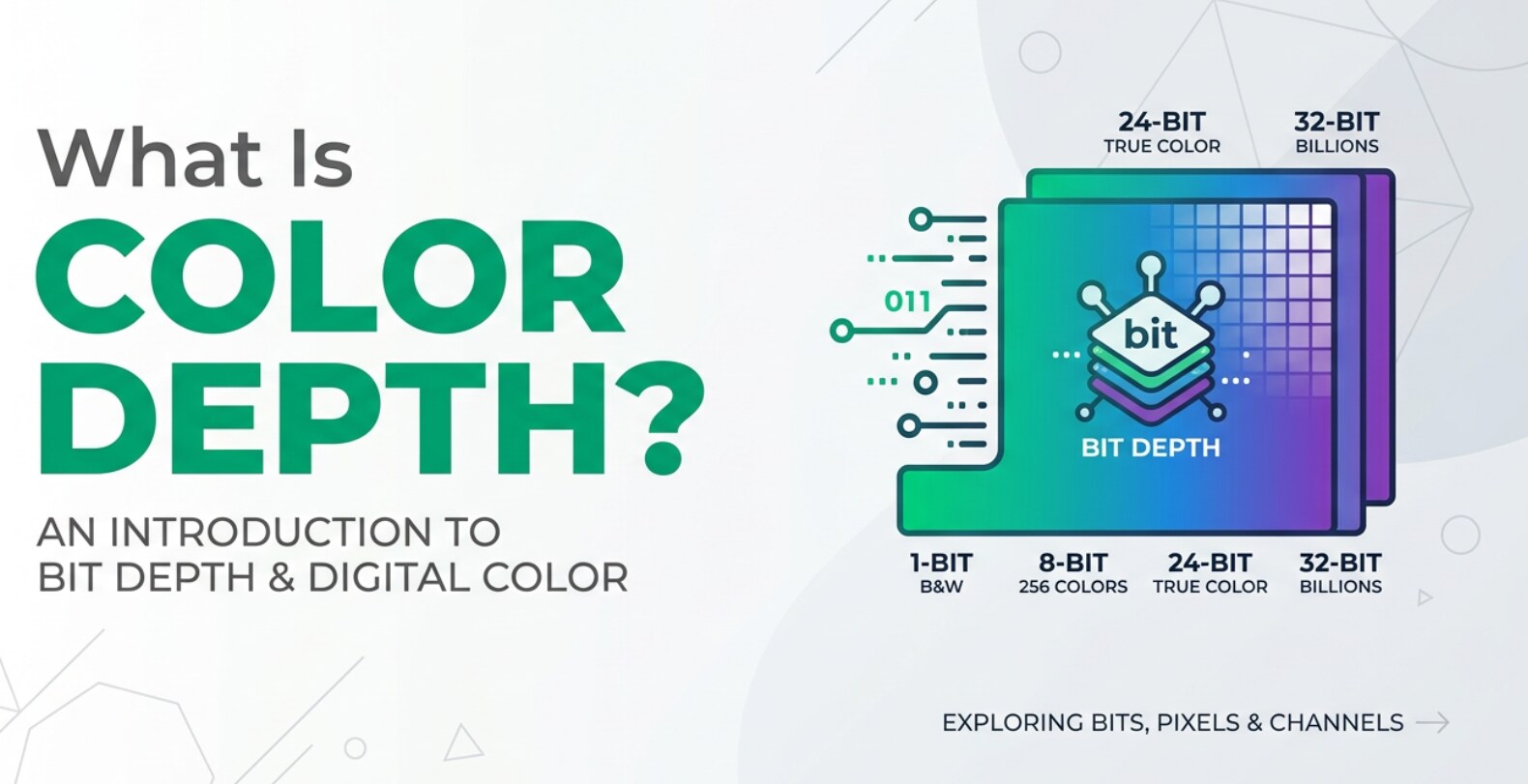
Image color depth, also called bit depth, is an image parameter that describes how many bits are used to store the color of each pixel. In plain English, it tells you how many distinct colors and brightness steps an image file can contain.
Each pixel in a digital photo is built from separate color channels (usually red, green, and blue). Bit depth defines how many levels each channel can record. For example, 8 bits per channel means 256 levels of red, 256 of green, and 256 of blue, which combine into about 16.7 million possible colors. Higher bit depths (like 10‑bit or 16‑bit) allow far more steps, which means smoother gradients and more precise tonal information throughout recording, editing, encoding, exporting, and playback.
What Does Image Color Depth Affect?
The color depth in images has a direct impact on how your photos look and how far you can push them in editing.
Smoothness of gradients and skies
Bit depth controls how finely tones can change from one pixel to the next. At low depth, subtle gradients (like blue sky or studio backdrops) may show visible steps of color, known as banding or posterization. Higher depth gives more in-between levels, so skies and soft shadows appear smooth.
Editing latitude and color correction
When you brighten shadows, shift white balance, or apply heavy curves, you stretch the data stored in the file. An 8‑bit image has fewer levels to begin with, so aggressive edits can reveal gaps and banding. A 16‑bit file offers far more levels, so tonal transitions usually stay clean even after strong adjustments.
Digital image quality and artifacts
Low digital image quality often shows up as ugly artifacts, especially in gradients: banding, patchy tones in skin, and abrupt steps between highlight and shadow. While noise, compression, and exposure also play roles, insufficient bit depth makes these problems more likely and harder to hide.
File size and performance
Higher bit depths store more information per pixel, so files get larger. A 16‑bit TIFF or PSD can be many times bigger than an 8‑bit JPEG. On older or modest hardware, large high‑bit files may load more slowly and make editing less responsive, so balancing quality and performance is important.
Output and platform compatibility
Not all devices and platforms fully support high image color depth. Some displays are limited to 8‑bit, and many social networks recompress and convert uploads, effectively reducing color precision. When exporting for web, you often end up in 8‑bit formats, even if you edited in 16‑bit, so it is wise to keep a high‑bit master file and a lighter, compatible copy for sharing.
How Does Image Color Depth Work in Real Use?
In daily work, you encounter bit depth in your camera settings, RAW converters, image editors, encoding options, and even streaming or presentation tools. Here is how it plays out from capture to final output.
Common bit depth settings in cameras and software
Most cameras and editing apps expose bit depth in a few familiar ways:
- DSLRs and mirrorless cameras: RAW often stores 12‑bit or 14‑bit data, while in‑camera JPEGs are 8‑bit per channel.
- Photo editing software (Photoshop, Affinity, GIMP, etc.): You can choose 8‑bit or 16‑bit per channel for documents and export files.
- Monitors and phones: Many mainstream displays effectively show 8‑bit color, while higher‑end panels and some HDR screens support 10‑bit for smoother gradients.
- Codecs and formats: JPEG, PNG, and WebP for the web are usually 8‑bit; TIFF and PSD support high bit depths used in professional workflows.
For photographers, the practical choice is often whether to keep editing in 16‑bit and only convert to 8‑bit at the export stage for delivery.
How color depth fits into a real photo workflow
Here is how image color depth affects different stages of a typical still-photo workflow.
1. Recording and capture
When you press the shutter, your camera sensor measures light and stores values with a certain precision (for example, 14‑bit RAW). Greater precision means more steps between darkest and brightest tones, which helps preserve shadow detail and highlight transitions. Even if your final image is 8‑bit, starting from a higher bit depth sensor file gives your editor more data to work with.
2. Editing and retouching
Inside your editor, working in 16‑bit per channel preserves tonal detail as you stack adjustments: exposure compensation, contrast, dodging and burning, local color corrections, and gradients. Fewer bits (8‑bit) can be enough for gentle retouches, but the risk of banding grows as you make stronger edits or re‑save compressed files multiple times.
3. Encoding, exporting, and sharing
When you export a final file, you often convert high‑bit working images into 8‑bit JPEG or PNG. This is fine for most social platforms, websites, and email, but you might see visible banding in large, smooth areas if the file is heavily compressed. For printing, or for archiving important work, saving a high‑bit TIFF or PSD gives you a robust master you can re‑edit safely later.
4. Streaming, display, and playback
On the playback side, your display and viewing environment set the upper limit of what you can actually see. A 10‑bit HDR monitor can show more subtle gradients than an 8‑bit office screen. Some presentation and gallery apps also downsample or recompress images behind the scenes, which can introduce banding even if your source files are high bit depth.
5. Platform compatibility considerations
Some platforms or older software cannot open certain high‑bit formats or may convert them on import. To avoid surprises, it is often best to:
- Keep a high‑bit master file in TIFF or PSD for your own archive.
- Export 8‑bit JPEG or PNG derivatives specifically tuned for web, email, or slides.
- Test key platforms (portfolio sites, client proofing tools, print labs) with sample files to see how they handle gradients and compression.
Common Mistakes and Quick Tips
Misunderstanding image color depth often leads to avoidable quality problems. Here are frequent pitfalls and how to dodge them.
Mistake 1: Assuming 8‑bit is always enough
8‑bit images can look fine for casual use, but if you push exposure, apply strong curves, or make large prints, banding and posterization can creep in. Whenever possible, edit from RAW and keep files in 16‑bit until the final export.
Mistake 2: Blaming the camera for banding
Banding often appears because of low bit depth, heavy JPEG compression, or gradient-based edits, not because the camera sensor is bad. Check your workflow for steps that convert from high‑bit RAW to 8‑bit too early.
Mistake 3: Mixing color depth with color space
Color depth (8‑bit vs 16‑bit) and color space (sRGB vs Adobe RGB vs ProPhoto) are different. Bit depth equals the number of steps; color space equals the range of colors. Both matter, but they solve different problems.
Mistake 4: Ignoring display limitations
You may have a beautiful 16‑bit master, but if your monitor is low quality or poorly calibrated, you might still see banding or uneven tones. A decent display and calibration are essential to judge color accurately.
Quick tips for beginners
- Shoot RAW when quality matters, and keep the workflow in high bit depth as long as possible.
- For heavy retouching, use 16‑bit per channel documents in your editor.
- Only convert to 8‑bit JPEG or PNG when exporting final versions for web, mail, or clients.
- Avoid re‑saving the same JPEG repeatedly; go back to your high‑bit master when re‑exporting.
- If you see sudden banding or weird colors, check both your bit depth settings and whether the file might be damaged.
How to Use Repairit to Fix a Corrupted Photo File
A. Brief introduction to Repairit
Sometimes color problems and banding are not caused by low image color depth, but by actual file corruption: broken headers, incomplete downloads, storage errors, or failed saves. In those cases, editing settings alone cannot fix the issue. Wondershare Repairit is designed specifically to repair damaged photo and video files so they can open and display correctly again. You can learn more and download it from the Repairit official website.
B. Key features of Repairit
- Repairs corrupted or unplayable video files in various formats.
- Supports batch repair to fix multiple damaged files at once.
- Offers an intuitive preview before you export repaired media.
C. Step-by-step guide to repair corrupted photo files
Here is how you can use Repairit when your photo files show strange colors, missing areas, or refuse to open.
- Add corrupted photo files
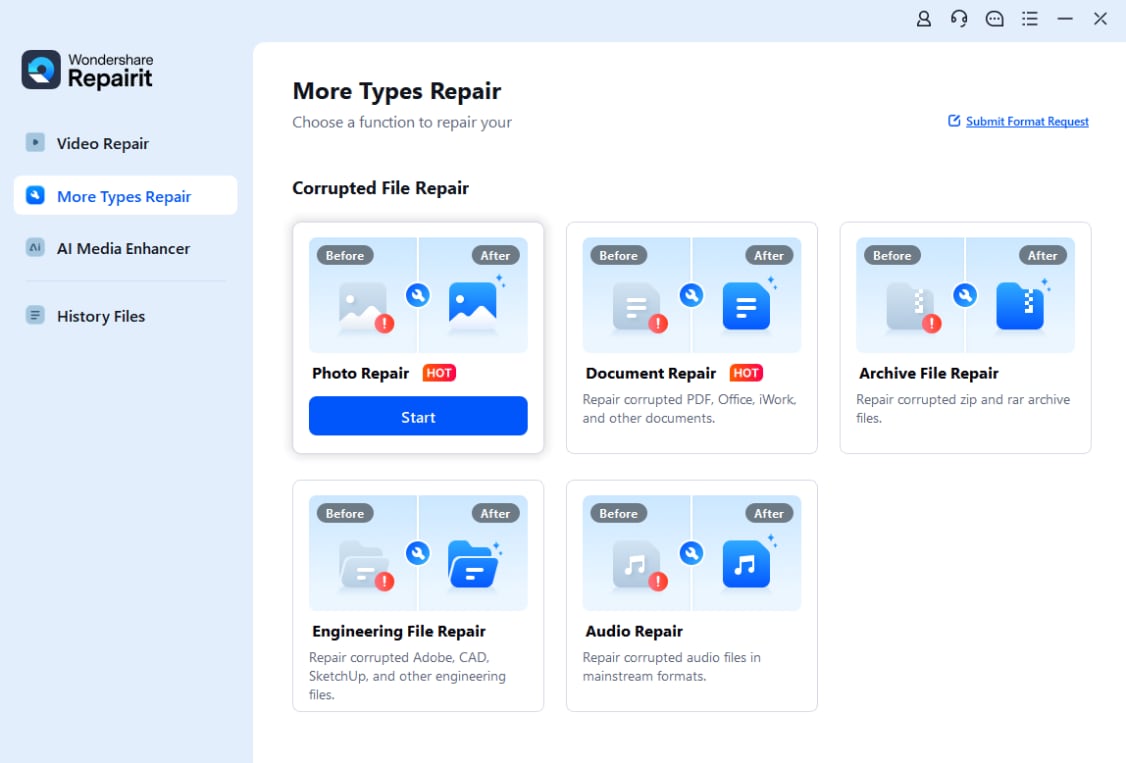
Install and launch Repairit, then go to the Photo Repair section. Click the Add button and browse to the folder that contains your damaged images. Select one or multiple corrupted photo files and confirm so they appear in the file list ready for repair.
- Repair photo files
With your broken photos loaded in the list, click the Repair button. Repairit will analyze each file structure, try to rebuild missing or damaged data, and correct errors that cause banding, color glitches, or opening failures. Wait until the progress bar reaches 100% and the status indicates that the process is complete.

- Save the repaired photo files
After the repair finishes, use the Preview option to inspect the restored images. If the colors, gradients, and details look normal again, click Save and choose a secure destination folder on your computer or external drive. Repairit will export the fixed files there, leaving you with usable photos you can safely edit, print, or share.

Conclusion
Image color depth is the backbone of how rich, smooth, and realistic your photos and graphics appear. Higher bit depths give you more tonal steps, better gradients, and greater safety when applying strong edits or working in wide color spaces. By choosing sensible bit depth settings at capture, editing, and export, you can dramatically reduce banding and keep detail where you need it most.
When color issues come from file corruption instead of simple settings, a dedicated repair tool such as Wondershare Repairit can restore damaged photos and videos to a usable state. Combining smart choices about bit depth with a reliable repair workflow helps you maintain image quality from camera to final output, across devices and platforms.
Next: What is Image Color Space?
FAQ
-
1. What is image color depth in simple terms?
Image color depth, also known as bit depth, is the number of bits used to describe the color of each pixel in a digital image. More bits mean more possible colors and finer steps between tones, which leads to smoother gradients and fewer visible banding artifacts. -
2. What is the difference between 8‑bit and 16‑bit images?
An 8‑bit per channel image has 256 levels for each of the red, green, and blue channels, giving about 16.7 million possible colors. A 16‑bit per channel image can store up to 65,536 levels per channel, providing far more tonal detail and allowing you to edit more aggressively with less risk of banding or posterization. -
3. Does higher color depth always mean better image quality?
Higher image color depth increases tonal precision and editing latitude, but it does not automatically fix problems like bad exposure, high noise, poor focus, or heavy compression. Overall quality depends on many factors: lighting, lens, sensor, processing, and how you export and share the file. -
4. Why do I still see banding even when I work with high bit depth?
Banding can come from several sources: converting to 8‑bit too early, saving high compression JPEGs, limited 8‑bit displays, or gradient-heavy edits. Some apps and platforms also recompress or downsample images. Always check your export settings, monitor capabilities, and whether the file has been processed or compressed by a third-party service. -
5. Can I repair corrupted image files that show weird colors or will not open?
Yes. If strange colors, missing areas, or opening errors are caused by corruption rather than simple bit depth limits, specialized software like Wondershare Repairit can often rebuild file structure and restore normal display, allowing you to edit and export the images again.




