
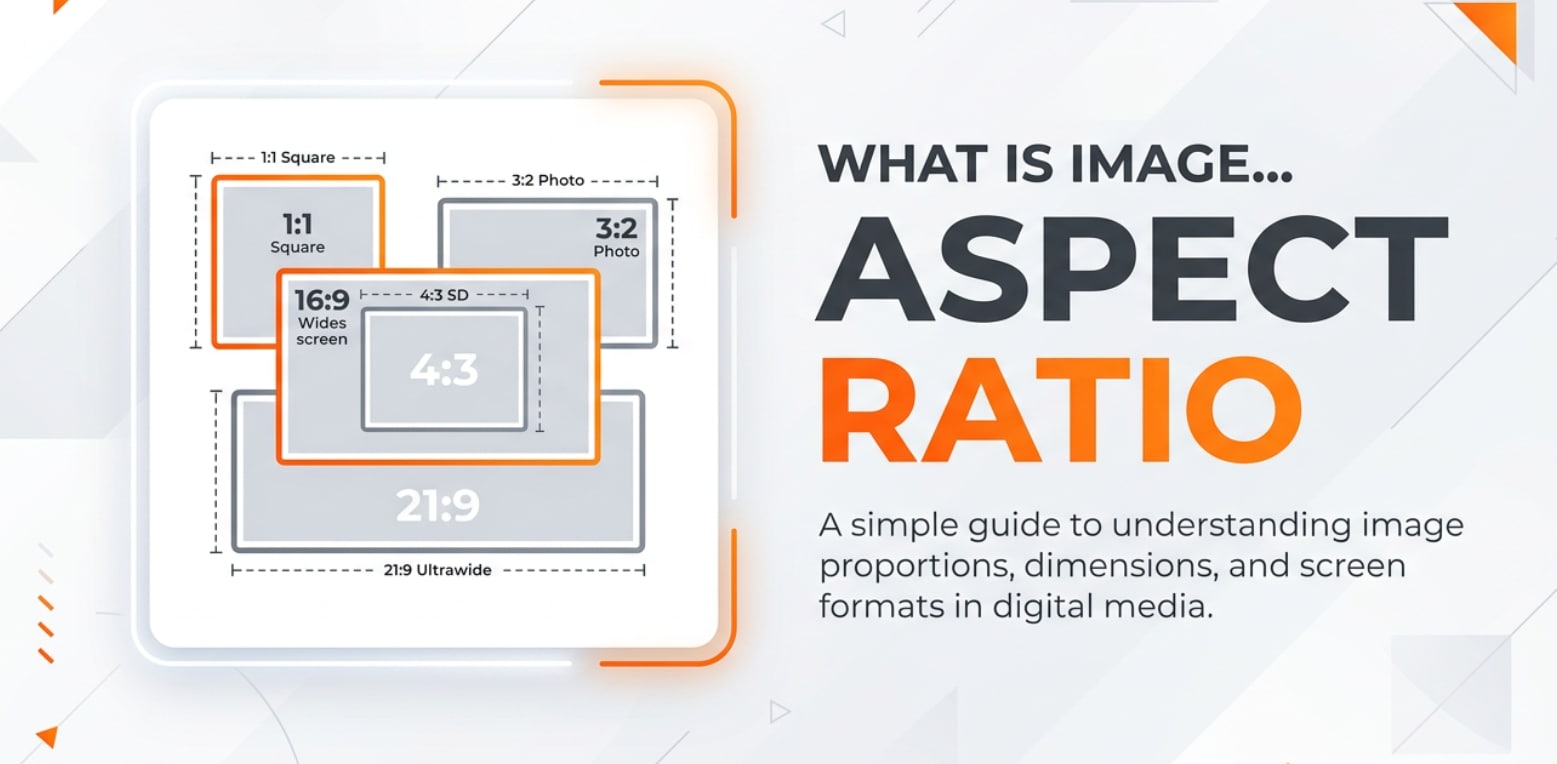
From the camera on your phone to social media feeds and TV screens, image aspect ratio quietly controls how every picture and video fits the frame. You will see it whenever you pick 16:9, 1:1, or 4:3 in your camera or editing software. Knowing how aspect ratio works helps you avoid awkward cropping, black bars, and stretched subjects so your visuals look clean and professional everywhere.
Repair Corrupted Files To Save Your Data
 Security Verified. Over 7,302,189 people have downloaded it.
In this article
What Is Image Aspect Ratio?
Image aspect ratio is the proportional relationship between the width and height of a photo or video frame, written as two numbers like 4:3, 16:9, or 9:16. It is an image parameter (and also a video frame parameter) that describes shape, not pixel count. For example, 1920×1080 and 1280×720 are different resolutions but share the same 16:9 aspect ratio. Understanding aspect ratio helps you predict how much of a scene fits into a frame and how it will appear on different screens.
What Does Image Aspect Ratio Affect?
Aspect ratio has a direct impact on how your images and videos look, feel, and display across devices and platforms.
| Aspect ratio | Typical use and visual effect |
|---|---|
| 4:3 | Common photo aspect ratio on cameras and phones; slightly boxy frame that suits prints, documents, and many web layouts. |
| 16:9 | Standard widescreen ratio for TVs, YouTube, and most online video; feels cinematic and spacious in landscape. |
| 1:1 | Perfect square; widely used for social media grids and profile images, keeps focus centered. |
| 9:16 | Vertical/video portrait ratio used for Stories, Reels, Shorts, and TikTok; fills a phone screen held upright. |
Here is what image aspect ratio mainly influences in real use:
- Composition and subject framing – A tall 9:16 frame emphasizes vertical subjects (buildings, people), while wide 21:9 highlights landscapes. Choosing the wrong ratio can chop off heads, hands, or text when platforms auto-crop.
- On-screen fit and black bars – When the frame ratio does not match the display or player, you see black bars at the sides or top and bottom. A 4:3 video on a 16:9 TV will show side bars unless it is cropped or stretched.
- Perceived quality and resolution – Changing from one ratio to another usually means cropping away pixels. You keep sharpness in the remaining area, but the total resolution and detail are reduced.
- Platform compatibility – Social apps often promote content shot in their preferred ratios. Vertical 9:16 clips are favored on mobile feeds, while horizontal 16:9 looks best embedded on websites or TV.
- Workflow and export choices – The project or sequence ratio you choose in editing software dictates how media is scaled, cropped, or letterboxed on export.
How Does Image Aspect Ratio Work in Real Use?
In daily workflows, aspect ratio appears at every stage: recording, editing, encoding, exporting, and playback.
Aspect ratio in cameras and phones
Most cameras and smartphones let you pick between several photo aspect ratio and video frame options in the settings.
- Smartphone photography – 4:3 is often the default still-photo ratio because it uses the full sensor area. Many phones also offer 1:1, 3:2, and 9:16 options so you can match your final use (prints vs. social media).
- Smartphone video – Video modes usually default to 16:9 for landscape recording. For social media Stories or Reels, you flip the phone vertically to capture 9:16 footage natively instead of cropping later.
- Dedicated cameras – DSLRs and mirrorless cameras typically shoot native 3:2 or 4:3 but can overlay aspect-ratio guides (like 16:9) in the viewfinder to help you compose for video or web formats.
Choosing the right widescreen ratio or portrait format at capture time reduces the need for heavy cropping and keeps important details safely in frame.
Aspect ratio in editing, exporting, and platforms
Once files reach your computer or editing app, aspect ratio becomes a core project setting that controls how everything lines up.
- In photo editors – Apps like Photoshop, Lightroom, and mobile editors offer preset crop overlays such as 1:1, 4:5, 4:3, 3:2, and 16:9. You choose a target image dimensions ratio, then drag the crop box to keep the subject centered.
- In video editors – Programs like Premiere Pro, Final Cut, DaVinci Resolve, and mobile video apps let you set a timeline frame size (for example, 1920×1080 for 16:9 or 1080×1920 for 9:16). Clips shot in different ratios are:
- letterboxed (black bars added),
- cropped to fill the frame, or
- fit with blurred or colored side backgrounds.
- Encoding and exporting – When you export, the resolution you pick (for example, 1280×720, 1080×1080, 1080×1920) locks in the final ratio. Changing to a new ratio at export can trim edges or add bars.
- Streaming and playback – Streaming platforms try to preserve your original ratio. Video players adjust by scaling the frame until one dimension fits, then padding the rest, which is why mismatched ratio content shows black bars.
- Platform-specific formats – Different social networks recommend particular aspect ratios:
- Instagram feed: 1:1 or 4:5 portraits work best.
- Instagram Stories, Reels, TikTok, YouTube Shorts: 9:16.
- YouTube standard video: 16:9 landscape.
- Web banners or cover photos: often wide ratios like 16:9 or even 21:9.
By planning your landscape ratio or portrait framing for the final destination, you avoid guesswork later and ensure consistent results across exports and devices.
Common Mistakes and Quick Tips
Aspect ratio issues are easy to miss until you notice awkward crops or black bars. Here are frequent problems and how to avoid them.
- Mistake: Assuming all screens are 16:9
Many slideshows, embedded players, and social feeds use different shapes. Designing everything in 16:9 without checking the target can cause unexpected cropping. - Mistake: Stretching instead of cropping
Pulling a side of the frame to "fill" a layout distorts faces and objects. Always resize uniformly and crop rather than stretching the image in one direction. - Mistake: Ignoring safe areas
Putting text or logos too close to the edge means they can be cut off on some platforms. Use on-screen guides or leave breathing room around critical details. - Mistake: Cropping too late
If you shoot tight compositions and decide later to change ratios, you may lose important parts of the subject. It is better to compose a bit wider when you know you will repurpose content.
Quick tips for working with image aspect ratio
- Decide your main output (print, website, YouTube, Reels) before you shoot or design.
- Use built-in aspect ratio guides in your camera or editor to frame accurately.
- For multi-platform use, capture slightly wider and crop copies for each channel.
- Always maintain uniform scaling; avoid non-proportional stretching.
- Export test versions and preview them on the actual platform or device when possible.
Takeaway: Think of aspect ratio as the "shape" of your story. Plan it early, keep subjects away from extreme edges, and use cropping deliberately rather than as a last-minute fix.
How to Use Repairit to Fix a Corrupted Photo File
Why Repairit is helpful when photo files go wrong
Even when you manage your image aspect ratio perfectly, file corruption can still ruin photos so they will not open, preview, or export correctly. Wondershare Repairit is a dedicated repair tool that focuses on getting damaged photo and video files back into a usable state. With a clean interface, automatic analysis, and flexible output options, it is designed for both everyday users and professionals who need reliable repairs. You can learn more and download it from the Repairit official website.
Key features of Repairit for photos
- Repairs corrupted or unplayable photos and videos in multiple formats.
- Provides advanced repair mode for severely damaged media files.
- Offers a simple interface with preview options before saving results.
Step-by-step: repair corrupted photo files with Repairit
- Add corrupted photo files
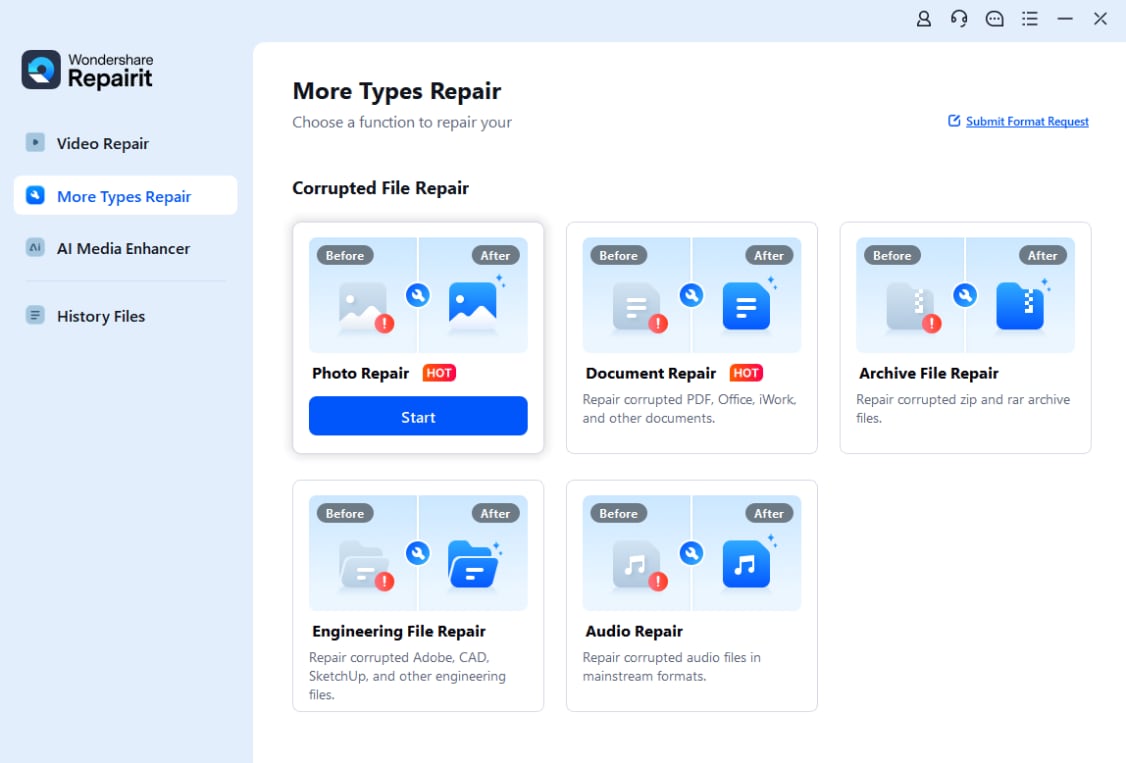
Install and launch Wondershare Repairit on your computer, then choose the Photo Repair module. Click the add button or drag and drop your corrupted photo files into the window. Repairit will quickly load the images and get them ready for analysis.
- Repair photo files
After your pictures are listed, select the ones you want to fix and start the repair process. Repairit scans each file structure, looks for issues that prevent normal opening or display, and automatically applies the appropriate repair strategy. If a file is badly damaged, you can switch to advanced repair for deeper recovery.

- Save the repaired photo files
When the repair finishes, preview your restored photos inside Repairit to confirm they open correctly and look normal. If you are satisfied with the results, click Save, choose a secure destination folder (preferably different from the original location), and export all repaired images for safe keeping and further editing.

Conclusion
Image aspect ratio is simply the ratio of width to height, but it shapes how every photo and video appears on screens, in prints, and across social feeds. By choosing the right ratio for your final destination, you can keep important subjects in frame, prevent black bars, and present a consistent, professional look.
Plan your framing with the target platform in mind, use cropping deliberately during editing, and avoid stretching images to fit. If technical issues damage your files along the way, a specialized tool like Wondershare Repairit can help you repair corrupted photos so all your carefully composed visuals stay usable and ready to share.
Next: What is Image Color Depth?
FAQ
-
1. What is the most common image aspect ratio for smartphones?
Many smartphones capture photos at a default 4:3 ratio to use most of the sensor area, while video is often recorded at 16:9 for widescreen viewing. Some camera apps also offer 1:1 and 9:16 options specifically tailored to social media formats. -
2. Does changing aspect ratio reduce image quality?
Changing aspect ratio usually means cropping, which removes pixels from the edges of the frame. The remaining pixels keep their quality, but the overall resolution and maximum printable or display size are reduced, so extreme crops can make images look softer. -
3. Why do I see black bars around my video or photo?
Black bars appear when the aspect ratio of your content does not match the display or player. To avoid bars, you can crop the image to match the screen ratio or create separate exports for different platforms, but cropping may cut off parts of the frame. -
4. Is 16:9 always better than 4:3 for photos?
No. 16:9 works very well for widescreen video, slides, and web banners, but 4:3 and 3:2 can be more flexible for prints, documents, and general photography. The best ratio depends on where and how the image will be viewed or shared. -
5. How can I change aspect ratio without distortion?
Use cropping tools in your photo or video editor to set a new aspect ratio, then resize the content proportionally. Avoid stretching the frame in only one direction. For video, you can also add background or letterboxing instead of forcing the picture to fill the entire screen.




