
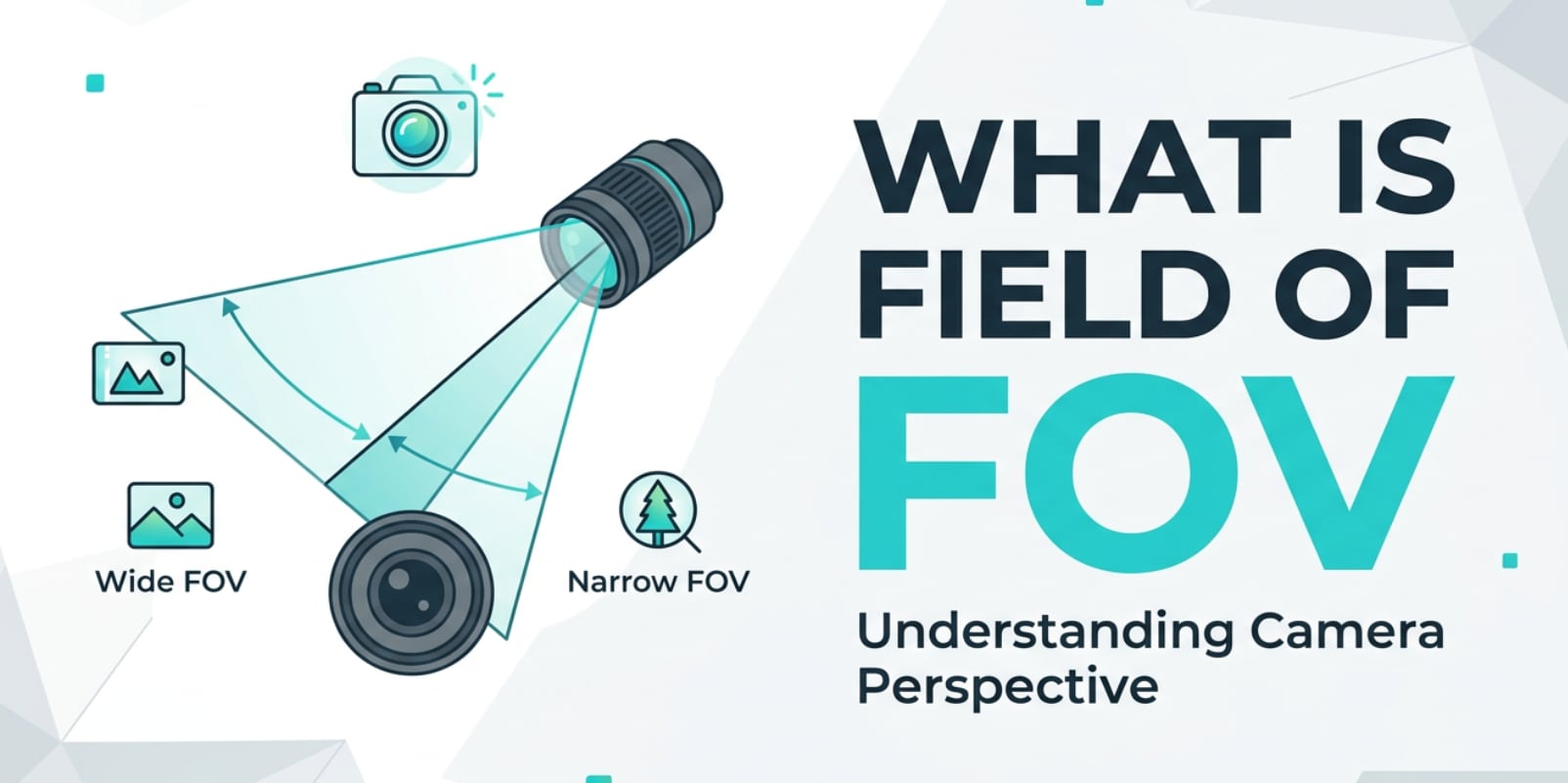
Field of View (often shown as FOV) is a core idea in video cameras, action cams, drones, webcams, and even smartphone shooting apps. You will see it when choosing wide, linear, or narrow modes, or when editing and cropping footage for YouTube, TikTok, and streaming. Understanding how camera FOV shapes what viewers see helps you avoid warped edges, tiny subjects, and awkward framing in your finished videos.
Repair Corrupted Files To Save Your Data
 Security Verified. Over 7,302,189 people have downloaded it.
In this article
What Is Field of View (FOV)?
Field of View (FOV) is the angle or width of the scene that your camera captures in a single frame. It is a visual framing and composition setting that belongs to the category of video and image parameters. In practical terms, FOV describes whether your shot looks wide and open, like a landscape, or tight and zoomed-in, like a close-up interview.
Most cameras do not show FOV as degrees; instead, they offer labels such as wide, ultra wide, linear, standard, or narrow. Technically, FOV is determined by the lens focal length and the size of the camera sensor, but as a creator, you mainly feel it as "how much fits in the shot" and "how distorted or natural the perspective looks."
What Does Field of View (FOV) Affect?
FOV and image look
Your chosen video FOV has a direct impact on how your footage looks and feels:
- Amount of scene visible: A wider FOV shows more of the surroundings, which is great for landscapes, POV sports, and vlogs where environment matters. A narrow FOV zooms into a smaller area, ideal for faces, products, and distant details.
- Distortion and straight lines: Very wide or "fisheye" FOVs often bend straight lines near the edges of the frame. Buildings, roads, or horizons can curve outward, which can be fun for action shots but distracting in professional or architectural videos.
- Subject size and distance: With a wide FOV, subjects appear further away and smaller, even when you are close. A narrow FOV makes subjects look larger and closer, helping them dominate the frame without physically moving the camera.
- Depth and perspective: A wide FOV exaggerates the sense of depth and motion, making forward movement look faster. A narrower FOV compresses distance, making background elements appear closer to the subject.
FOV and viewer experience
FOV also changes how people feel when they watch your video, from mobile screens to TV and streaming:
- Immersion and motion feel: Wide FOV footage from action cameras or FPV drones can feel very immersive and fast, but for some viewers it may also increase motion sickness, especially when streaming in VR or on large screens.
- Framing for social platforms: When you crop a wide FOV clip from 16:9 into vertical 9:16 for Shorts or Reels, your subjects can shrink or move off-center. Planning FOV while shooting makes reframing for multiple aspect ratios much easier.
- Editing flexibility: Recording with a slightly wider camera FOV gives you room to crop, stabilize, and straighten horizons during editing without losing important parts of the scene.
- Perceived quality: Extreme wide angles can highlight lens blur, noise at the edges, or stretching of faces. A more moderate FOV often looks sharper and more flattering on faces and products.
How Does Field of View (FOV) Work in Real Use?
You will encounter FOV almost everywhere you work with video: when recording, editing, exporting, and even during playback.
- Action cameras and drones: GoPro, DJI, and similar devices offer FOV modes like SuperView, Wide, Linear, and Narrow. SuperView and Wide capture more scene with noticeable distortion; Linear and Narrow crop or correct the image for straighter lines and a more natural look.
- Smartphones: Phone camera apps use several lenses (ultra wide, main, telephoto). Tapping different lens icons effectively changes your Field of View without you needing to think in focal lengths or sensor sizes.
- Webcams and streaming: Many webcams let you pick between wide and narrow FOV in their settings or in streaming tools like OBS. Wide FOV is handy for group calls or showing a full gaming setup, while a narrower FOV focuses more tightly on your face.
- Editing and cropping: In editors like Premiere Pro, Final Cut Pro, or DaVinci Resolve, you can simulate a narrower FOV by cropping or zooming into a wide shot. Conversely, distortion correction and lens profiles can "straighten" a wide FOV clip so it looks more natural.
- Exporting and platform delivery: When exporting, you do not select FOV directly, but your chosen aspect ratio (16:9, 9:16, 1:1) and any cropping decisions effectively change how your original FOV is presented on platforms like YouTube, Instagram, and Twitch.
- Playback and screen size: On a phone, wide FOV footage can look compressed and make details hard to see. On a TV, the same FOV can feel immersive. Matching FOV to your primary viewing device helps keep videos comfortable and clear.
| FOV type | Typical use |
|---|---|
| Wide / Ultra wide | Action sports, travel vlogs, FPV drones, tight indoor spaces |
| Standard / Linear | General YouTube content, talking-head videos, daily vlogs |
| Narrow / Telephoto | Interviews, product close-ups, wildlife, events on a stage |
Common Mistakes and Quick Tips
Frequent misunderstandings about FOV
- Assuming a wider FOV is always better because it "shows more," even when it makes subjects too small or distorted.
- Thinking FOV is the same as focal length, without realizing that sensor size and digital cropping also change the effective Field of View.
- Forgetting that changing FOV can affect stabilization, some cameras crop in to stabilize, which narrows your recorded FOV.
- Shooting everything at ultra wide, then struggling in editing to get flattering close-ups for people or products.
Quick tips for better FOV choices
- Use wide FOV for landscapes, action sports, and tight rooms; switch to standard or narrow for faces, interviews, and detailed subjects.
- Check the edges of your frame for bending lines; if it is too strong, switch from ultra wide to a linear or standard mode.
- When planning to crop for multiple aspect ratios, record slightly wider to leave a safe space around your main subject.
- Test-record a few seconds at different FOV settings and review them on the same type of screen your audience will use.
- Remember that FOV does not change file size by itself; resolution, bitrate, and frame rate are the main factors for storage and upload time.
How to Use Repairit to Fix a Corrupted Video File
Repairit overview
Even when you nail the perfect Field of View, a corrupted video file can ruin your work. Wondershare Repairit is a dedicated media repair toolkit designed to restore broken or unplayable videos, photos, and audio files with just a few clicks. Whether your footage was captured in ultra-wide, standard, or narrow video FOV, it can handle a wide range of formats and corruption issues. Visit the Repairit official website to see how it recovers damaged recordings without requiring great technical skills.
Key features
- Video repair for corrupted or unplayable clips from cameras, drones, action cams, and smartphones.
- Support for multiple formats with the ability to repair several files at the same time for an efficient workflow.
- Clear, beginner-friendly interface with a preview window so you can verify playback before saving fixed files.
Step-by-step guide
- Add corrupted video files
Launch Wondershare Repairit and open the Video Repair module. Click the option to add files, then browse to the folder where your damaged clips are stored. You can import multiple videos recorded at different FOV settings in one batch so they appear together in the repair list.

- Repair video files
After loading your clips, start the repair process. Repairit scans the structure of each file, looking for issues that cause problems like freezing, refusal to play, or audio dropouts. When the repair completes, use the built-in player to preview the recovered videos and confirm that motion, colors, and sound are back to normal, no matter which camera FOV you used.

- Save the repaired video files
If the previews look good, choose a secure output folder on your computer. Save the repaired clips there to keep them separate from the originals. These new files can now be safely imported into your editing software, exported for different platforms, or archived as backups without worrying about corruption or playback errors.

Conclusion
Field of View (FOV) defines how much of a scene your camera records and how that scene feels to your audience. Choosing between wide, standard, and narrow settings lets you control distortion, subject size, and the sense of motion and depth in every shot, from action footage to calm talking-head videos.
When you combine smart FOV decisions with solid shooting technique and a reliable repair solution, you protect your work from both visual issues and file corruption. If a clip becomes unplayable after recording or editing, tools like Wondershare Repairit help you bring it back so your videos remain sharp, accurate, and ready to share across any platform.
Next: What is Audio Sample Rate?
FAQ
-
1. What is Field of View (FOV) in simple terms?
Field of View (FOV) is how much of the scene your camera can see and record in one frame. A wide FOV shows a lot of the surroundings, while a narrow FOV shows a smaller, more zoomed-in part of the scene.
-
2. Is FOV the same as focal length?
No. Focal length is a property of the lens, usually measured in millimeters, while FOV is the visible angle of the scene. FOV depends on both focal length and the size of the camera sensor, plus any cropping or digital processing.
-
3. Does a wider FOV always look better for video?
Not always. A wider video FOV can feel immersive and capture more context, but it can also distort straight lines, make faces look stretched, and keep your main subject too small. For interviews, tutorials, and product shots, a standard or narrow FOV usually looks more natural.
-
4. Why do my wide FOV shots look distorted at the edges?
Very wide or ultra wide FOV settings produce barrel distortion, where straight lines curve outward, especially at the sides of the frame. This is a normal optical effect of wide-angle lenses. You can reduce it by switching to a linear mode, moving the camera back, or correcting distortion in your editing software.
-
5. Can I repair corrupted videos recorded at any FOV?
Yes. Corruption usually damages the file structure or encoded data, not the Field of View itself. A repair tool like Wondershare Repairit can scan and fix damaged video files regardless of whether they were captured in wide, standard, or narrow FOV modes.




