
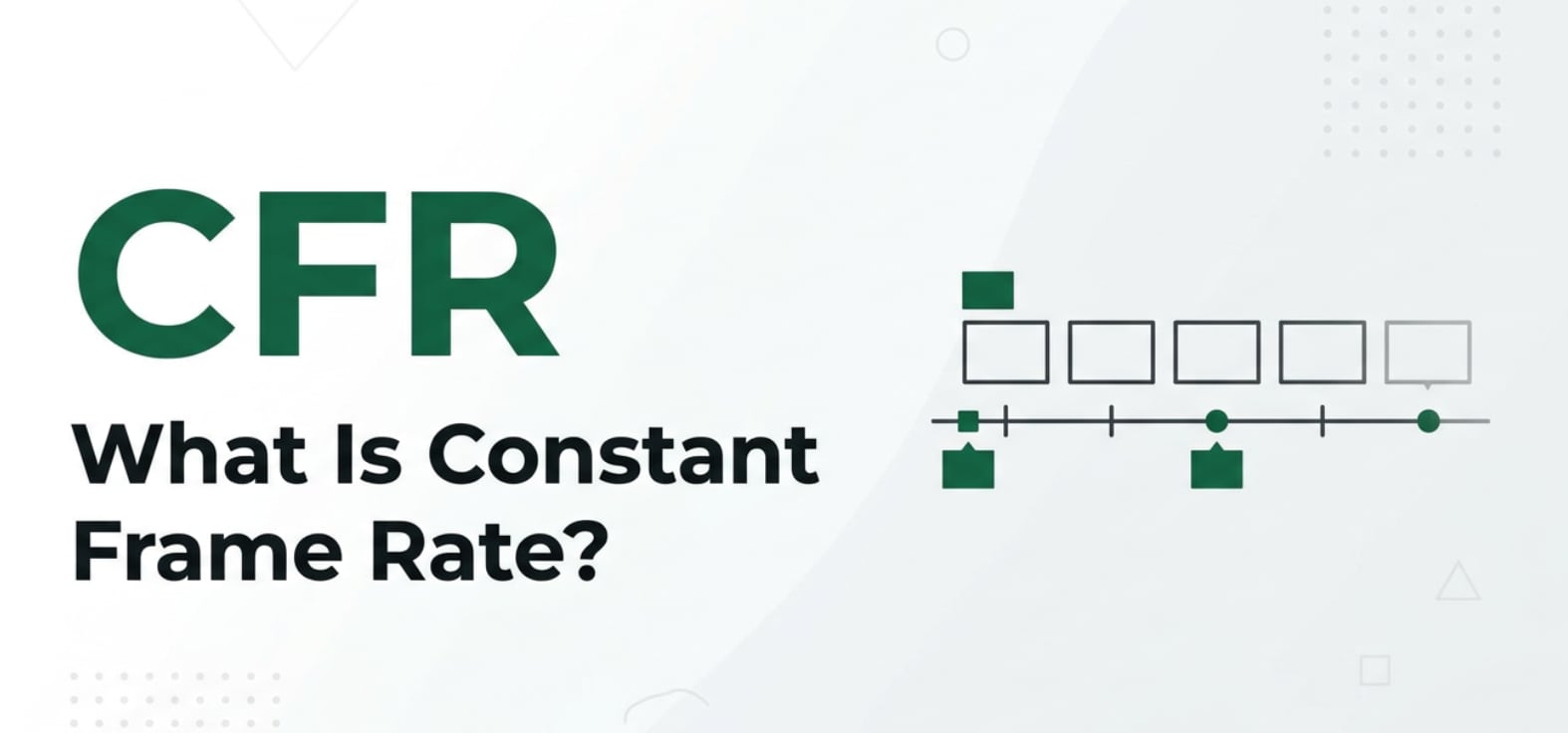
Constant Frame Rate (CFR) is a video setting you will see in camera menus, screen recorders, streaming tools, and export options in editors like Premiere Pro or DaVinci Resolve. It controls how evenly frames are spaced over time, which directly affects playback smoothness and audio sync. Understanding how a CFR video behaves helps you avoid choppy previews, timing glitches, and platform-specific issues when you upload, stream, or edit your footage.
Repair Corrupted Files To Save Your Data
 Security Verified. Over 7,302,189 people have downloaded it.
In this article
What Is Constant Frame Rate (CFR)?
Constant Frame Rate is a video timing setting that keeps the same number of frames per second (fps) from the start of a clip to the end. It is a video parameter that belongs to the group of timing and playback controls, alongside resolution, bitrate, and codec.
In a CFR video, every second contains an identical frame count, such as 23.976, 24, 25, 30, or 60 fps. The encoder spaces frames evenly on a fixed time grid, even during static or low-motion scenes. This predictable timing makes it easier for editing software, streaming players, and hardware devices to keep audio and video perfectly aligned.
By contrast, Variable Frame Rate (VFR) dynamically changes fps depending on scene complexity. CFR does not change fps on the fly; it locks your footage to one specific frame rate so that playback remains consistent across timelines, exports, and platforms.
What Does Constant Frame Rate (CFR) Affect?
Playback and visual smoothness
Because constant frame rate footage uses evenly spaced frames, it has a direct impact on how smooth your video looks and feels:
- Motion consistency: Pans, tilts, and fast action are rendered with a predictable cadence. Viewers see fewer micro-stutters when the player or device expects a fixed fps.
- Audio and video sync: With CFR, audio samples can be locked to a stable frame clock, which helps prevent dialogue drifting ahead of or behind lips during long videos.
- Frame blending and judder: When CFR clips are converted to other frame rates (for example, 30 fps to 60 fps), editors can more accurately interpolate frames or apply motion blur because the original timing is uniform.
Different CFR fps values also change the character of your footage:
- 24/23.976 fps: Classic cinematic feel, slightly more motion blur at the same shutter speed.
- 25 fps: Common in PAL broadcast regions and some European workflows.
- 30 fps: Standard for many online videos and US broadcast content.
- 50/60 fps: Very smooth movement, ideal for sports, gaming, or slow motion editing.
Editing workflow, exports, and platforms
Choosing CFR strongly affects how your video behaves in post-production and on different platforms:
- Editing reliability: Most NLEs (Premiere Pro, Final Cut Pro, DaVinci Resolve, Vegas, etc.) are optimized for CFR. Timelines based on a constant frame rate avoid random frame drops and audio drift when scrubbing or rendering.
- Export control: When exporting a project, selecting a constant frame rate ensures the output file preserves the frame timing you used in the timeline, which is important for precise cuts, transitions, and subtitles.
- Platform compatibility: Sites like YouTube, Vimeo, and social media apps handle CFR reliably because the video clock is predictable. Uploading CFR reduces the chance of sync issues on slower devices or browsers.
- File size and efficiency: In some cases, CFR can produce slightly larger files than VFR, because it still encodes frames at a fixed rate during low-motion scenes. However, with modern codecs (H.264, H.265, AV1), the difference is often small compared with the stability benefits.
- Streaming and recording: CFR is often required in workflows where strict timing is critical, such as live mixing, multi-camera recording, and capture cards feeding into broadcast systems.
How Does Constant Frame Rate (CFR) Work in Real Use?
In practice, you will encounter CFR video whenever you set or confirm fps in capture and export tools. Here is how it shows up in common scenarios.
Cameras, phones, and screen recorders
- DSLRs / mirrorless cameras: Frame rate options like 24, 25, 30, 50, and 60 fps usually produce CFR footage. The camera keeps a stable internal clock so every second has the same number of frames.
- Smartphones: Many phones default to VFR to save space and optimize performance, but some camera apps offer a "High efficiency" or "Lock frame rate" option that forces constant fps.
- Screen recording apps: Tools like OBS Studio or built-in OS screen recorders often have a setting labeled "FPS" or "Common FPS values." When you choose 30 or 60 fps with a "constant frame rate" or "CFR" option enabled, the app writes frames on a fixed schedule.
Editing, encoding, and exporting
- Editing timelines: When you create a new sequence in an NLE, you pick a timeline frame rate (for example, 25 or 30 fps). CFR source files match that frame grid cleanly, which simplifies cuts, frame-accurate effects, and subtitles.
- Encoding settings: Export dialogs often provide a toggle labeled "Constant frame rate," "Variable frame rate," or similar. Ticking CFR tells the encoder to write frames at the same fps throughout the file, even when there is little motion.
- Cross-platform playback: Media players on TVs, game consoles, and set-top boxes expect consistent timing. A CFR file with a standard fps (24/25/30/60) is more likely to play smoothly than a file with unexpected VFR behavior.
When to choose CFR vs VFR
- Choose CFR when: You plan to edit heavily, sync multiple audio sources, add subtitles, or deliver to broadcast or strict OTT platforms.
- VFR can be acceptable when: You are recording long gameplay or screen captures primarily for direct upload and do not need frame-accurate editing, though converting to CFR before editing is often recommended.
Common Mistakes and Quick Tips
Common mistakes with Constant Frame Rate:
- Assuming every exported MP4 is CFR by default and ignoring the frame rate mode in encoder settings.
- Mixing many different frame rates in one project without matching them to a CFR timeline, which can cause motion irregularities and sync issues.
- Importing mobile or screen recordings that are VFR into an NLE and trying to edit them like CFR footage, leading to subtle timing drift.
- Using unusual constant frame rates (for example, 27 fps) that some devices or platforms do not handle gracefully.
Quick tips for beginners:
- For most projects, set your camera or recorder to a standard video frame rate such as 24, 25, or 30 fps and keep it constant.
- If your source clips are VFR, transcode them to constant frame rate before serious editing, using a converter or your NLE's export options.
- Match your timeline fps to your main capture fps; do not rely on automatic interpretation for critical work.
- When exporting for YouTube or social media, choose CFR at the same fps as your timeline to avoid re-timing artifacts.
- If your CFR footage becomes glitchy or will not open, treat that as a potential corruption issue and repair the file before re-exporting.
How to Use Repairit to Fix a Corrupted Video File
When your CFR video refuses to play, stutters, loses audio sync, or triggers errors in your editor, the problem may be file corruption rather than just a frame rate mismatch. Wondershare Repairit is built to fix broken, unplayable, and corrupted videos, including clips recorded with a constant frame rate. It offers a guided workflow that analyzes structure, encoding, and timing issues, then rebuilds a playable file. You can learn more and get the latest version on the Repairit official website.
Key features of Repairit
- Repair corrupted video files from cameras, phones, drones, dashcams, and screen recorders while preserving original resolution, aspect ratio, and frame rate where possible.
- Handle multiple damage types, including playback failures, freezes, video playback issues such as out-of-sync audio, black screen, and missing or repeated frames.
- Use a straightforward, step-driven repair process with real-time preview so you can confirm that motion, audio, and timing in your CFR footage look correct before saving.
Step-by-step: repair a corrupted CFR video
- Add corrupted video files

- Repair video files

- Save the repaired video files

Conclusion
A constant frame rate keeps every second of your footage locked to a fixed number of frames, which stabilizes playback, simplifies editing, and reduces audio sync problems. Whether you are shooting with a camera, capturing your screen, or encoding for platforms like YouTube or social media, understanding CFR helps you choose the right fps and avoid timing headaches later.
When a CFR video becomes corrupted and starts freezing, desyncing, or refusing to open, manual fixes can be complex and unreliable. Using a dedicated repair tool such as Wondershare Repairit lets you scan, repair, preview, and save your footage with minimal effort, so your workflow stays smooth from recording through final export.
Next: What is Video Frame Rate (Fps)?
FAQ
-
1. What is Constant Frame Rate (CFR) in simple terms?
Constant Frame Rate means your video uses the same, fixed number of frames every second from the very beginning to the end. For example, if you choose 30 fps, each second of the clip always contains 30 frames, which keeps motion and audio timing predictable.
-
2. How is CFR different from Variable Frame Rate (VFR)?
With CFR, the frame rate never changes once it is set, while VFR lets the encoder increase or decrease fps depending on how complex the scene is. VFR can reduce file size, but many editors and timelines handle CFR more reliably, especially for long edits or multi-track audio.
-
3. Why do editors recommend using CFR for video projects?
Editing programs are designed around a fixed time grid. Using a constant frame rate keeps frames aligned with that grid, which reduces audio drift, export glitches, subtitle timing problems, and random stutters on different devices and platforms.
-
4. Can I convert a VFR video to CFR before editing?
Yes. You can transcode VFR footage to CFR video using converters, dedicated transcoding tools, or your NLE's export options. Choose a standard fps (such as 24, 25, or 30) and enable constant frame rate in the encoder so the new file has stable timing.
-
5. How can I repair a corrupted CFR video file?
If your CFR clip is broken, does not play, or has severe sync issues, use a repair tool like Wondershare Repairit. Import the damaged file, run the repair process so the software can rebuild video and audio data, preview the fixed result, and then save a clean, playable version.




