
Chroma subsampling is a term you will see in camera menus, export presets, codec specs, and streaming settings. It describes how much color detail a video actually stores, and it directly affects file size, playback performance, and how clean your footage looks when edited, graded, or streamed. Understanding it helps you pick the right setting for your camera, recorder, or encoder without wasting storage or sacrificing quality.
Repair Corrupted Files To Save Your Data
 Security Verified. Over 7,302,189 people have downloaded it.
In this article
What Is Chroma Subsampling?
Chroma subsampling is a color sampling method used in digital video compression. It reduces how much color information is stored compared with brightness while trying to keep the image looking the same to the human eye.
Most modern video uses a YUV or YCbCr color model, where Y is brightness (luma) and U/V or Cb/Cr are color difference channels (chroma). Chroma subsampling tells the encoder how densely to sample those chroma channels relative to luma.
The common patterns are:
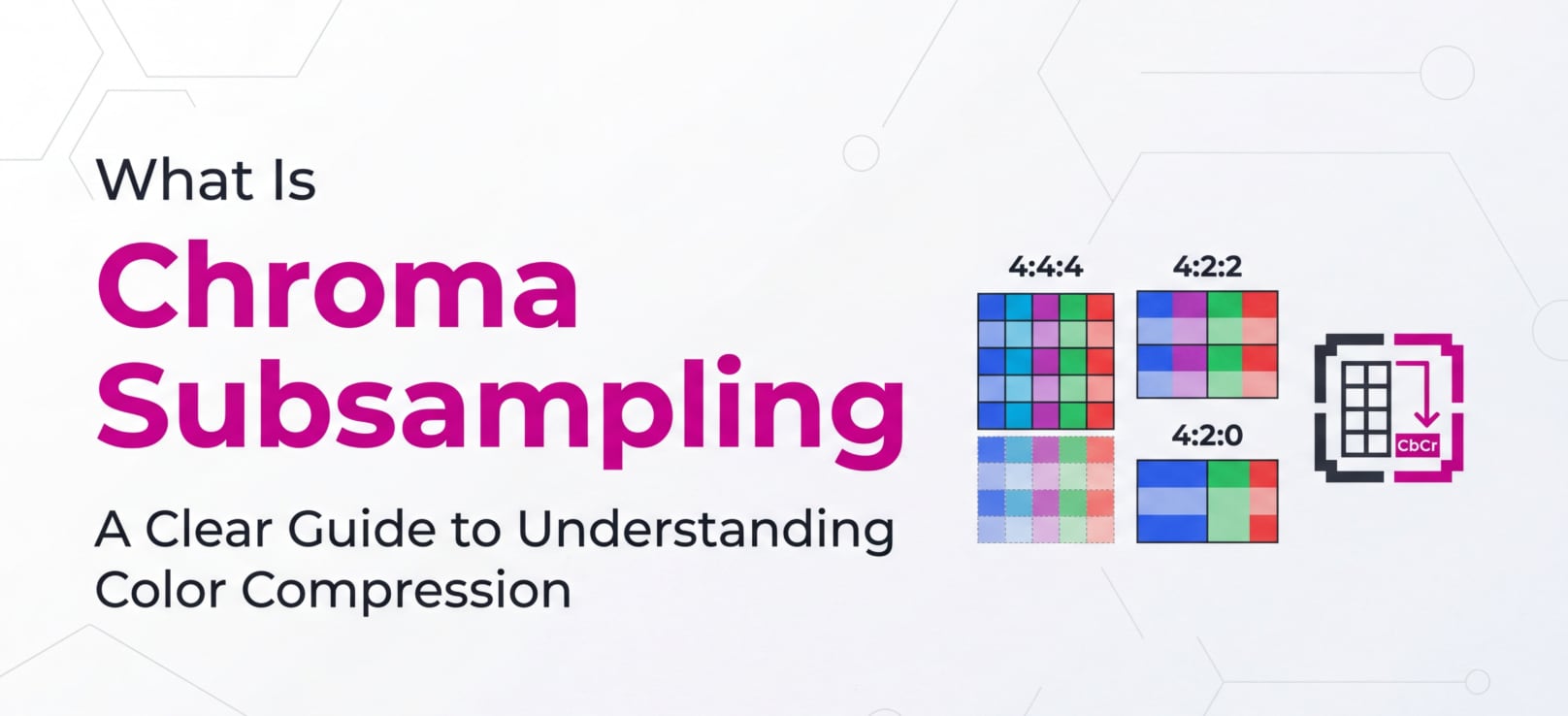
- 4:4:4 – full color resolution; every pixel has unique color and brightness.
- 4:2:2 – half horizontal color resolution; color is shared between neighboring pixels horizontally.
- 4:2:0 – half horizontal and half vertical color resolution; color is shared across 2x2 pixel blocks.
In the overall encoding pipeline, chroma subsampling is a core setting that defines how color data is represented before the rest of the compression steps (like prediction, transform, and entropy coding) are applied.
Why Is Chroma Subsampling Important in Video Compression?
Chroma subsampling exists because our eyes are more sensitive to brightness detail than to color detail. Video formats take advantage of this by keeping luma high quality and lowering chroma resolution to save data.
Here is how it impacts video compression and quality:
| Format | Main effect |
|---|---|
| 4:4:4 | Maximum color detail, larger bitrates and file sizes, best for demanding post-production. |
| 4:2:2 | Good balance of color detail and compression, common in professional cameras and recorders. |
| 4:2:0 | Most efficient for delivery and streaming, slightly softer color edges, widely used by platforms. |
Benefits of chroma subsampling include:
- Lower bitrate for the same resolution and frame rate.
- Smaller file sizes and reduced storage requirements.
- Easier streaming over limited bandwidth networks.
- Lower decode complexity on phones, TVs, and set-top boxes.
Limitations and trade-offs are:
- Reduced color precision, especially around edges of saturated graphics or text.
- Potential for color bleeding on chroma key (green screen) and sharp transitions.
- Less flexibility for heavy color grading compared with 4:4:4.
In practice, 4:2:0 is a sweet spot for consumer capture and online streaming, while 4:2:2 and 4:4:4 shine when you need high-quality editing, compositing, and mastering.
How Does Chroma Subsampling Work in the Encoding Workflow?
Within the encoding workflow, chroma subsampling sits between the initial color conversion and the later compression stages. It decides how chroma samples are arranged and shared before they are compressed by the codec.
Chroma subsampling in capture and editing
When you press record on a camera or capture card, the following simplified steps happen:
- The sensor records full RGB data per pixel.
- The signal is converted to a YUV/YCbCr format to separate brightness and color.
- The system applies a chroma sampling pattern (4:4:4, 4:2:2, or 4:2:0).
- The resulting Y and chroma channels are then compressed by the codec (H.264, HEVC, ProRes, etc.).
Different devices and cameras lock you to different patterns:
- Many mirrorless and DSLR cameras record internal video as 4:2:0 but output 4:2:2 over HDMI to external recorders.
- Broadcast and cinema cameras often support 4:2:2 or even 4:4:4 when using high-bitrate or intra-frame codecs.
- Screen capture tools and desktop recorders may offer 4:4:4 for ultra-clean UI graphics.
In editing tools like Adobe Premiere Pro, DaVinci Resolve, or Final Cut Pro, you will see chroma subsampling reflected in sequence info, clip properties, and export presets. Footage recorded in 4:2:0 carries less chroma detail into your grading and compositing than 4:2:2 or 4:4:4 footage.
Chroma subsampling in export, streaming, and playback
When you export or stream, the encoder again applies a specific chroma pattern as part of its settings:
- In FFmpeg, you can control chroma format via the
-pix_fmtoption (for example,yuv420pfor 4:2:0,yuv422pfor 4:2:2,yuv444pfor 4:4:4). - In x264/x265-based tools like HandBrake, the chosen profile and pixel format often default to 4:2:0 for compatibility with web players and TVs.
- In OBS Studio, you can select the color format and YUV color space for live streams and recordings (often 4:2:0 for efficiency).
- In Adobe Media Encoder or NLE export dialogs, certain formats (like H.264 for the web) are locked to 4:2:0, while others (such as ProRes 422 or 4444) correspond to specific chroma and bit-depth levels.
Playback devices and platforms also have expectations:
- Most online platforms (YouTube, Vimeo, social networks) transcode uploads to 4:2:0 for streaming.
- Consumer TVs, smartphones, and set-top boxes are optimized around 4:2:0 video.
- Professional monitoring solutions may support full 4:4:4 for grading and VFX work.
As your footage moves from recording, through editing, to delivery, its chroma subsampling level defines how much color information survives each stage, and which formats and devices it is compatible with.
When Should You Care About Chroma Subsampling? Common Mistakes and Quick Tips
Chroma subsampling does not matter equally to everyone. Its importance depends on what you shoot, how you edit, and where the video will be viewed.
Who should care the most?
- Colorists and editors doing heavy grades, look creation, and HDR finishing.
- VFX and motion graphics artists working with green/blue screen, overlays, and sharp text.
- Broadcast and commercial creators who must meet strict quality standards and do multiple rounds of post-processing.
- Screen capture and tutorial creators who want crisp UI text and graphics.
When it matters vs. when it does not
- It matters a lot for:
- Green screen work (chroma keying).
- Footage with strong saturated edges, logos, or vector graphics.
- Projects that will be re-encoded many times (archive, multiple deliverables).
- It matters less for:
- Casual vlogs, family videos, or social clips viewed on phones.
- Fast-paced content where motion blur hides subtle color softness.
- One-time delivery where footage is not heavily processed.
Common misunderstandings
- "4:4:4 always looks dramatically better" – For natural scenes at normal viewing distances, 4:2:0 or 4:2:2 can look almost identical while being much smaller.
- "You can convert 4:2:0 to 4:4:4 and gain quality" – Upsampling does not recreate color detail that was never captured; it only changes how data is stored.
- "4:2:0 is bad quality" – It is the standard for Blu-ray, streaming services, and most online platforms; when encoded well, it is excellent for delivery.
Quick practical tips
- For web uploads and streaming, record and export in 4:2:0 unless you have a clear reason not to.
- For chroma key, graphics, and serious color grading, prefer 4:2:2 or better if your camera and recorder support it.
- Check your export presets in Premiere, Media Encoder, or Resolve so you do not accidentally downsample to 4:2:0 before a heavy VFX workflow.
- When archiving important master footage, choose the highest practical chroma format your storage and workflow can handle.
The key takeaway: treat chroma subsampling as a dial between quality and efficiency. Pick the level that matches your project needs instead of assuming "higher is always necessary."
How to Use Repairit to Fix a Corrupted Video File
Repairit introduction
Even well-planned workflows can be ruined by corrupted video files after a bad transfer, card error, power loss, or aggressive compression. Wondershare Repairit is designed to repair such damaged clips so you can recover important footage, regardless of whether it was encoded in 4:4:4, 4:2:2, or 4:2:0. It understands a wide range of formats and encoding structures and focuses on rebuilding playable video and audio streams. You can download it from the Repairit official website.
Key features of Wondershare Repairit
- Repairs corrupted or unplayable videos from cameras, phones, drones, and other devices without requiring complex settings.
- Supports various formats, resolutions, and encoding settings, including different chroma subsampling schemes used in modern codecs.
- Offers an intuitive workflow with preview so you can check that picture, color, and audio are restored before saving.
Step-by-step guide to repair a corrupted video file
-
Add corrupted video files
Install and open Wondershare Repairit on your computer, then go to the Video Repair module. Click the add button in the main interface or drag and drop your damaged clips into the window. The files you select will appear in a list with basic information like name, size, resolution, and format so you know exactly what you are repairing.

-
Repair video files
Select the videos you want to fix and start the repair. Repairit scans each file, analyzes its container, video stream, audio stream, and metadata, and then attempts to rebuild broken or missing structures. Once the repair completes, you can preview the result inside the program to confirm that the image plays smoothly, colors look normal, and audio is in sync.

-
Save the repaired video files
If the preview looks correct, choose a safe output folder that is different from the original location of the corrupted clips. Click Save to export the repaired versions. Repairit will store new, playable copies that you can open, edit, grade, and share in your usual software, without the glitches or playback errors you had before.

Conclusion
Chroma subsampling is a fundamental part of how digital video balances color fidelity against compression efficiency. By storing color at a lower resolution than brightness, formats like 4:4:4, 4:2:2, and 4:2:0 allow cameras, encoders, and streaming platforms to control file size and bandwidth while still delivering visually pleasing results.
For everyday recording and online delivery, 4:2:0 is usually the most practical choice, while 4:2:2 and 4:4:4 come into play when you need extra headroom for grading, VFX, or graphics-heavy work. If something goes wrong and your video becomes corrupted, a dedicated repair tool like Wondershare Repairit can often restore those files so your footage and hard work are not lost.
Next: Rate-Distortion Optimization (Rdo)
FAQ
-
1. What is chroma subsampling in simple terms?
Chroma subsampling is a way of compressing video by storing color (chroma) at a lower resolution than brightness (luma). Because human vision is more sensitive to brightness detail, you can reduce color information, shrink the data rate, and still keep the image looking very similar to the original. -
2. What is the difference between 4:4:4, 4:2:2, and 4:2:0?
4:4:4 keeps full color detail for every pixel, 4:2:2 halves the horizontal color resolution so pairs of pixels share color, and 4:2:0 halves both horizontal and vertical color resolution so 2x2 blocks share color. As you move from 4:4:4 to 4:2:0, files get smaller but you also lose chroma precision. -
3. When should I use 4:4:4 or 4:2:2 instead of 4:2:0?
Choose 4:4:4 or 4:2:2 when you plan heavy color grading, chroma key, or graphics work where clean color edges matter. For general streaming, YouTube uploads, screen recordings for casual use, and everyday camera work, 4:2:0 is typically sufficient and far more storage-friendly. -
4. Does chroma subsampling always reduce video quality?
Technically it reduces color detail, but whether you notice depends on the content, bitrate, display size, and viewing distance. For many real-world scenes, a well-encoded 4:2:0 or 4:2:2 file can look extremely close to 4:4:4, especially on consumer screens. -
5. Can I fix artifacts caused by aggressive chroma subsampling?
You cannot fully restore missing color detail once video has been captured or encoded with low chroma resolution. However, you can reduce visible issues by using higher bitrates, better scaling filters, and less aggressive post-processing. If the file is actually corrupted or will not play, a repair tool like Wondershare Repairit can help fix structural damage so the video becomes viewable again.




