
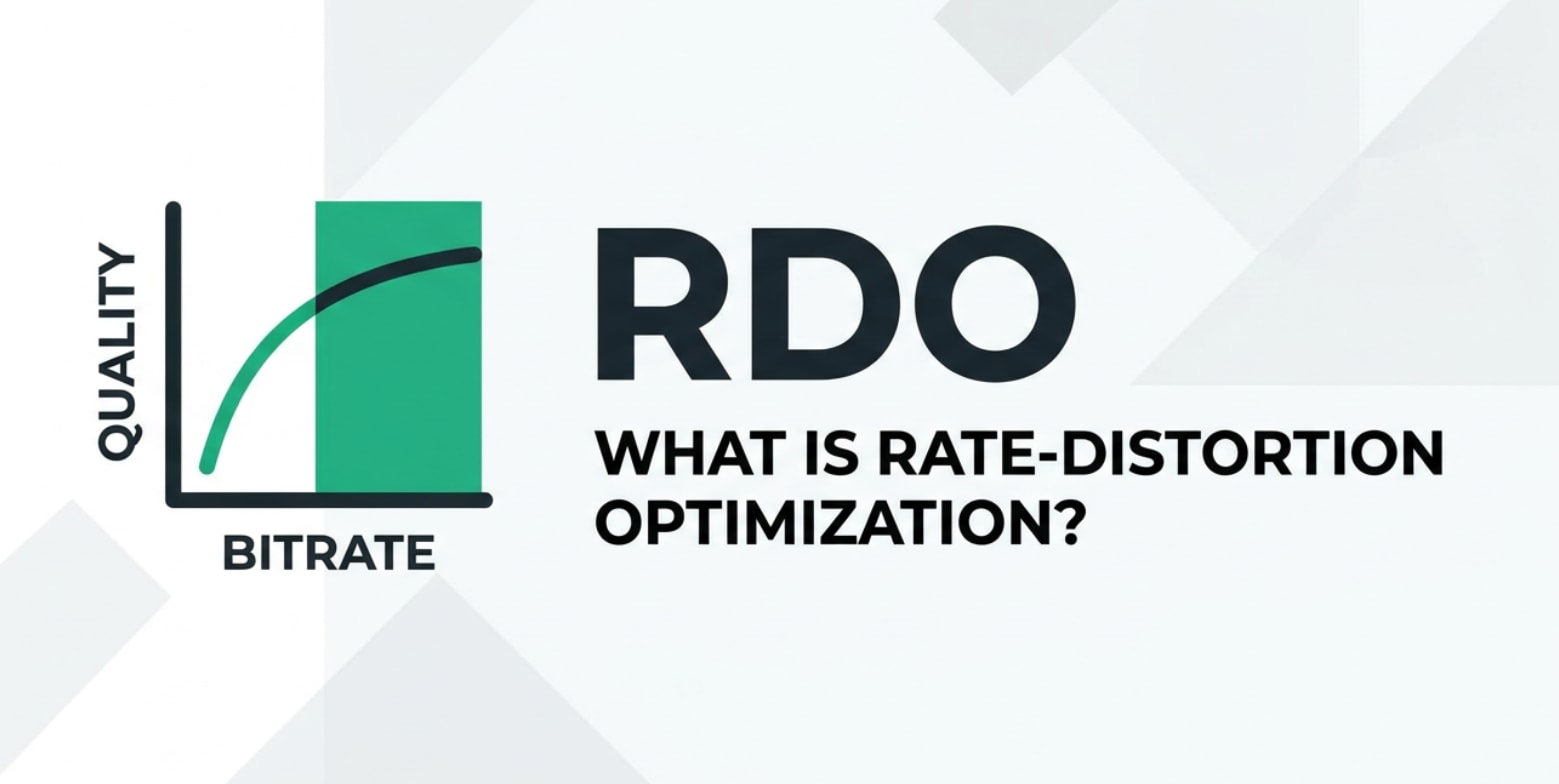
In video recording, editing, exporting, and streaming, you may see settings mentioning rate-distortion optimization or RDO in tools like FFmpeg, x264/x265, OBS, or Media Encoder. This concept describes how encoders trade off bitrate against visible quality. Understanding rate-distortion optimization (RDO) helps you choose presets and bitrates that keep your footage sharp without wasting storage, upload time, or streaming bandwidth.
Repair Corrupted Files To Save Your Data
 Security Verified. Over 7,302,189 people have downloaded it.
In this article
What Is Rate-Distortion Optimization (RDO)?
Rate-distortion optimization (RDO) is an encoding decision strategy used in modern video codecs. It belongs to the category of encoding workflow settings that control how the encoder chooses between different compression options.
In simple terms, RDO asks: "If I spend these bits here, how much visible quality do I gain, and is it worth it?" The encoder tests multiple options (block sizes, motion vectors, prediction modes, transforms, quantization levels) and picks the one that gives the best quality for the bitrate used.
This decision-making process is used when you record with advanced cameras, edit and export in tools like Premiere Pro or DaVinci Resolve, encode for streaming with OBS or FFmpeg, and prepare videos that must play smoothly across phones, TVs, and online platforms.
Why Is Rate-Distortion Optimization (RDO) Important in Video Compression?
Digital video compression always balances two things:
- Rate: how many bits per second you use (bitrate, file size, upload time).
- Distortion: how much visible difference there is from the original (artifacts, softness, banding).
RDO helps solve the core problem of deciding where to spend bits and where to save them. Instead of applying the same compression strength everywhere, RDO concentrates bits on visually important areas and moments.
That directly affects:
- Bitrate efficiency and file size – With good rate distortion decisions, you can keep the same quality at a lower bitrate or better quality at the same bitrate.
- Image quality and motion handling – RDO tends to preserve edges, textures, and complex motion while allowing more compression where the eye is less sensitive.
- Streaming and platform compatibility – Efficient RDO lets you meet strict bitrate limits for platforms while still passing quality checks and avoiding re-encoding by services.
- Encoding speed – Stronger RDO is computationally expensive; it can increase CPU load and encoding time, especially at high resolutions.
The main benefits of using strong rate-distortion optimization are:
- Cleaner footage at the same bitrate.
- Fewer visible artifacts in detailed or noisy scenes.
- More stable streaming quality when bandwidth fluctuates.
However, RDO has limitations:
- Heavier CPU/GPU usage – It can be too slow for live or low-power devices.
- Complex tuning – RDO-related options in professional encoders (like x264/x265) can be confusing for non-experts.
- Cannot fix source issues – It will not repair corrupted files, bad exposure, or motion blur; it only optimizes compression decisions.
How Does Rate-Distortion Optimization (RDO) Work in the Encoding Workflow?
RDO inside typical encoding steps
In a standard recording-to-playback pipeline (camera capture, editing, export, streaming, playback), rate-distortion optimization appears mostly during the export or encoding stage, after the frames are prepared but before the final bitstream is written.
A simplified view of where RDO fits:
- Frames are captured or rendered from your timeline.
- The encoder splits each frame into blocks or coding units.
- For each block, the encoder tests several choices:
- Intra vs. inter prediction (frame-to-frame reuse).
- Different motion vectors and reference frames.
- Alternative block sizes and shapes.
- Transform and quantization levels.
- RDO evaluates each choice with a cost function that combines:
- Rate: estimated bits needed.
- Distortion: how far the decoded block deviates from the original.
- The encoder selects the option with the best rate–distortion trade-off and moves to the next block.
As this repeats across all frames, RDO shapes the entire stream: where detail is kept, where it is smoothed, and how motion is modeled. The result is a more efficient compressed video that still decodes normally on players, TVs, and mobile devices.
Where you will see RDO in real tools
You may not always see the word RDO directly, but many encoder settings control its strength or behavior:
- x264/x265 (FFmpeg and GUIs) – Presets like "slow," "slower," and "placebo" mainly turn on more exhaustive RDO searches. Options like "psy-RD" adjust how rate-distortion favors perceptual detail.
- FFmpeg – Advanced flags (for example, "subme," "me-range," or "rd" levels in libx265) determine how deeply rate-distortion searches candidate modes.
- OBS Studio – Quality presets (e.g., "quality," "max quality") and profile/level choices indirectly select RDO strength for live streaming vs. local recording.
- Adobe Media Encoder, Premiere Pro, DaVinci Resolve – Export presets (high quality vs. faster) and options like "performance" vs. "quality" for H.264/H.265 hardware encoders hint at how aggressive RDO will be.
- Hardware encoders (NVENC, Quick Sync, AMF) – Tuning options such as "low-latency," "high quality," or "lossless" control how much time is allowed for RDO decisions.
In all these tools, choosing a slower, quality-oriented preset means the encoder spends more time on rate distortion decisions, which usually translates into better-looking exports or clearer live streams at the same bitrate.
When Should You Care About RDO? Common Mistakes and Quick Tips
Editors, streamers, content creators, and anyone preparing videos for platforms like YouTube, TikTok, or OTT services should care about rate-distortion optimization when file size, upload time, or bandwidth are limited but quality still matters.
RDO matters most when:
- You are exporting final masters with H.264/H.265/AV1 and want the best quality for a fixed bitrate.
- You need high-quality but efficient files for delivery to clients or streaming platforms.
- You work with 4K/8K, HDR, or high-frame-rate content where bandwidth is expensive.
- You run VOD or live streaming workflows where every extra megabit costs real money.
It matters less when:
- You are using mezzanine or intraframe codecs (like ProRes, DNxHR) for editing proxies.
- You have almost no compression (visually lossless exports, archival masters).
- You are only making a quick draft export for internal review.
Common misunderstandings about RDO include:
- "Turning RDO to max always improves quality." Extreme settings can cause huge encoding times for tiny visible gains.
- "RDO can fix noisy or blurry footage." It can only choose how to compress what is already there.
- "RDO equals bitrate control." Bitrate modes (CBR, VBR) set the overall budget; RDO decides how to spend it locally.
- "RDO affects playback performance." It mainly affects encoding complexity; decoding is usually similar for streams at the same resolution and profile.
Quick practical tips:
- For final exports, choose a "slow" or "high quality" preset that enables stronger RDO, as long as deadlines allow.
- For live streaming, pick a balanced preset that does some rate-distortion optimization without overloading your CPU.
- When targeting a strict bitrate, test a short representative clip with different presets to see how RDO affects quality.
- Keep RDO settings consistent within the same project to avoid visible shifts in quality between shots.
The takeaway: use RDO-aware presets whenever you care about quality per bit, but do not sacrifice practicality and stability for tiny, hard-to-see improvements.
How to Use Repairit to Fix a Corrupted Video File
Even when your video encoding is carefully tuned with rate-distortion optimization (RDO), files can still become damaged during recording, transfer, or export. In those cases, a repair tool is far more helpful than any compression setting. Wondershare Repairit is built for this exact situation and makes it straightforward to restore broken or unplayable videos. You can learn more and download it from the Repairit official website.
Key features of Wondershare Repairit
- Repairs multiple corrupted video formats from various devices and cameras.
- Offers an intuitive interface with a straightforward, guided workflow.
- Provides advanced repair modes for severely damaged or unplayable video files.
Step-by-step guide to repairing a corrupted video
- Add corrupted video files
Open Wondershare Repairit and switch to the Video Repair feature. Click the Add button and browse to the corrupted clips on your computer, memory card backup, or external drive. You can load several damaged files at once if you need to repair a batch in a single session.

- Repair video files
After your broken videos are listed in the panel, press the Repair button to start the automatic analysis. Repairit checks the structure of each file, fixes header and index issues, and rebuilds playable streams where possible. When the process completes, use the Preview option to watch the repaired versions and confirm that image and audio playback look correct.

- Save the repaired video files
Select the repaired clips that pass your preview check, then click Save. Choose a safe destination folder on a healthy drive that is different from the original source location. Repairit will export the fixed files there, allowing you to import them back into your editing, encoding, or streaming workflow without the previous corruption problems.

Conclusion
Rate-distortion optimization (RDO) is the decision engine inside modern codecs that balances bitrate and perceived image quality. By testing different encoding options and choosing the one with the best rate distortion trade-off, RDO helps you get more from every bit, leading to sharper exports and more efficient streams at the same file size.
When you pair sensible RDO-aware encoding presets with a reliable repair solution like Wondershare Repairit, you cover both sides of the workflow: efficient compression during export and dependable recovery if a file becomes corrupted. Keeping RDO in mind whenever you tune bitrate, resolution, or codec settings will help your videos look cleaner, stream more smoothly, and remain compatible across platforms and devices.
Next: Bit Allocation
FAQ
-
1. What is Rate-Distortion Optimization (RDO) in simple terms?
Rate-Distortion Optimization (RDO) is a method encoders use to choose settings that give the best visual quality for the number of bits used. It compares different encoding options and picks the one with the lowest quality loss for the same or lower bitrate. -
2. Which codecs use Rate-Distortion Optimization?
Most modern video codecs, such as H.264, H.265 or HEVC, VP9, and AV1, implement some form of rate-distortion optimization. Professional and open source encoders expose RDO-related parameters so that you can fine-tune performance and quality. -
3. Does enabling stronger RDO always improve video quality?
Stronger RDO usually improves quality at a given bitrate, but it also increases encoding time and CPU usage. In real workflows, you must balance RDO strength with available processing power and deadlines, especially for live or near real-time encoding. -
4. How does RDO relate to bitrate control methods like CBR and VBR?
Bitrate control (CBR, VBR, CRF) sets the overall bitrate budget, while rate-distortion optimization decides how to spend that budget inside each frame or block. Good RDO helps distribute bits where they matter most for perceived quality, regardless of which bitrate mode you use. -
5. Can RDO fix already corrupted or damaged video files?
No. RDO only affects how video is compressed during encoding. If a file is already corrupted or will not play, you need a dedicated repair tool such as Wondershare Repairit to analyze and reconstruct the damaged data.




