
When you click play on a video or audio file and see “this item was encoded in a format that’s not supported,” it can feel confusing, especially when the reason isn’t clear. However, the error usually appears when the file was created or saved in a format your device or app can’t read.
This might leave you worried, wondering if your file is broken or if you’ll ever be able to enjoy it. No more guessing or endless troubleshooting because reviewing this ultimate guide will give an understanding of the cause.
Table of Contents
Part 1. Understanding "This Item Was Encoded in a Format" Error 0xc00d5212
“This item was encoded in a format 0xc00d5212" means the media player cannot process the file's encoding configuration. The issue may involve the codec container structure or playback compatibility rather than Windows itself failing to decode the stream. In plain words, the file itself might be fine, but your system is missing the right translator to read it.
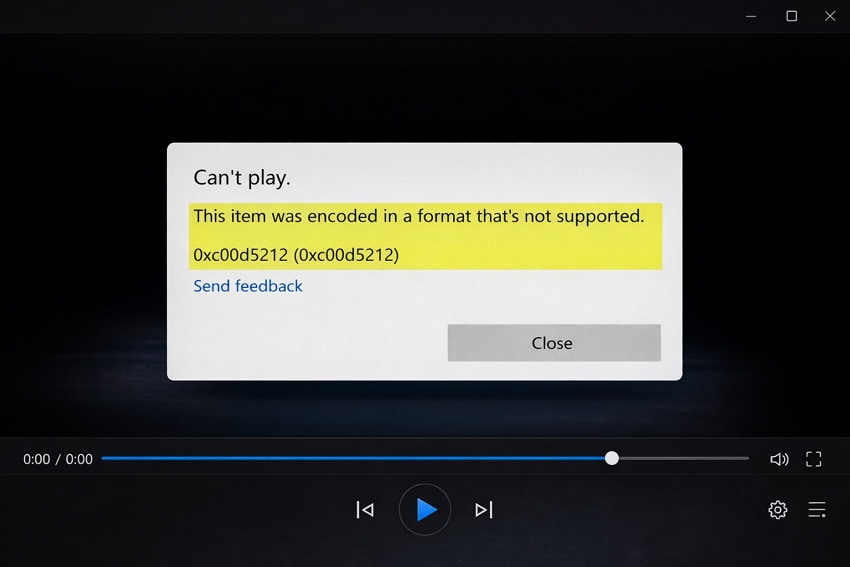
This message can appear when the file is damaged or only partially downloaded, leading the player to believe the format isn’t supported. The thinking originates because the key pieces of the video or audio data are broken or unreadable. Thus, even if you install codecs or try other players, the error can reappear until the corruption is addressed.
Part 2. Common Causes Behind "This Item Was Encoded in a Format" Issue
To fix the issue, it's important to understand why you might be seeing “this item was encoded in a format that's not supported”. For analysis, take a closer look at the most common reasons behind this recurring playback error:
Hidden Codecs: The Real Reason Videos Won’t Play
The error often appears because the video uses a codec your player doesn’t understand, even if the file extension looks normal. So, if your media player lacks decoding support, it cannot interpret the stream. As a result, the application reports “encoded in a format that’s not supported” or error 0xc00d5212.
HEVC Trouble: The Most Common Trigger
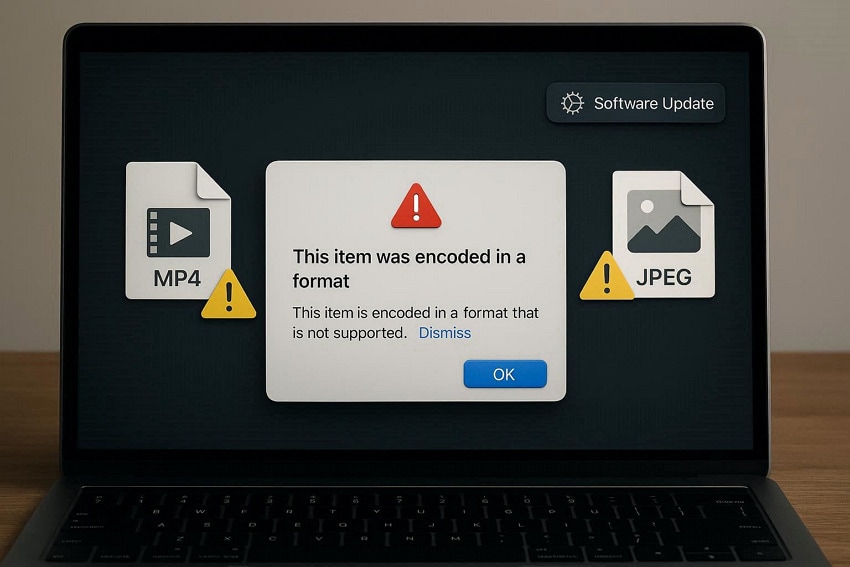
Another common trigger is HEVC/H.265 video, which newer phones and screen recorders use to save space. Windows 10 or 11 doesn’t always include HEVC support by default, so its pre-installed players might refuse to play those files. When that happens, Windows recognizes the HEVC stream, lacks a built-in decoder, and reports an unsupported format.
Player Problems: When Windows Media Player Falls Short
At times, the actual problem isn’t the file, but the specific player you’re using currently. Many older versions of Windows Media Player and basic apps support only limited codecs. This is why newer or less common formats fail, while advanced players may still work.
Graphics Drivers and Playback Conflicts
Latest, video playback relies on your graphics card to help decode high‑resolution or heavily compressed videos. If your graphics cards are obsolete or have a missing feature, the player might not use hardware decoding for certain formats. This eventually leads to stuttering, black screens, or the 0xc00d5212 error, even though the codec works normally.
Part 3. 5 Quick Fixes for ‘This Item Was Encoded in a Format’ Error
After reviewing the causes behind “this item was encoded in a format 0xc00d5212,” lets now tackle the problem. For this, every listed solution ensures that you can restore your media playback without having to worry about errors:
Fix 1. Repair All Types of Corrupt Videos with Repairit
As explained earlier, when a video repeatedly shows this error, it might alarm you about file damage. Considering this need, use Repairit to fix corruption from all major video formats at once. It helps users address corrupted MKV files and other formats that often trigger 0xc00d5212 when damaged. The program focuses on rebuilding the video and audio streams, enabling standard players and codecs to correctly detect the format.
When your videos are broken at the header, Repairit repairs those damaged headers, indexes, and frames, making the file structure valid again. This ultimately stops errors like "encoded in a format that's not supported", as Windows previously thought the codec was missing. Even if your video file was interrupted while downloading or copied with errors, the software will recover as much playable content as possible.
Key Features

-
Repairs HEVC/H.265 Videos: Numerous HEVC/H.265 videos can be repaired with original frames and structures for smooth playback again.
-
Bulk Repair for Multiple Broken Clips: Its batch repair functionality lets you add an entire set of files that fail with the same error.
-
Restores Partially Broken Files: If only a specific part of the video is corrupted, the program helps restore intact frames for consistent playback.
Detailed Tutorial on Repairing Corrupted Videos with Repairit
For the “this item was encoded in a format that's not supported” error, follow the guidelines to repair video corruption:
Step 1. Add Your Corrupted Video Files
After launching, open the Video Repair toolkit and press the “Start” button to insert your corrupted videos.

Step 2. Fix Your Corrupt Video Files
Once done adding, press the “Repair” button and get sorted with the video corruption issue.

Step 3. Preview & Download Fixed Videos
When the repair action completes, click the “Preview” button to analyze and save the final video files.

Repair Corrupted Video Files
 Security Verified. Over 7,302,189 people have downloaded it.
Fix 2. Install Required Codecs Safely
Various playback errors occur because your system lacks the necessary codecs, which are essential for decoding audio or video files. Without the correct ones, even a perfectly fine file might fail to play, showing similar errors. Here, installing a trusted codec pack guarantees that your media player can correctly interpret various file formats. To avoid unsupported codec error, follow the guidelines to install the required codecs:
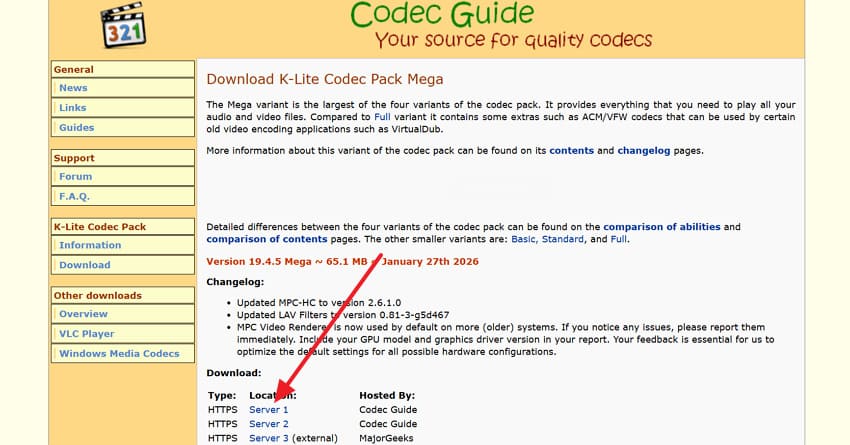
Step 1. In your browser, search for K-Lite Codec, then select the “Server 1” option to install the standard codec pack.
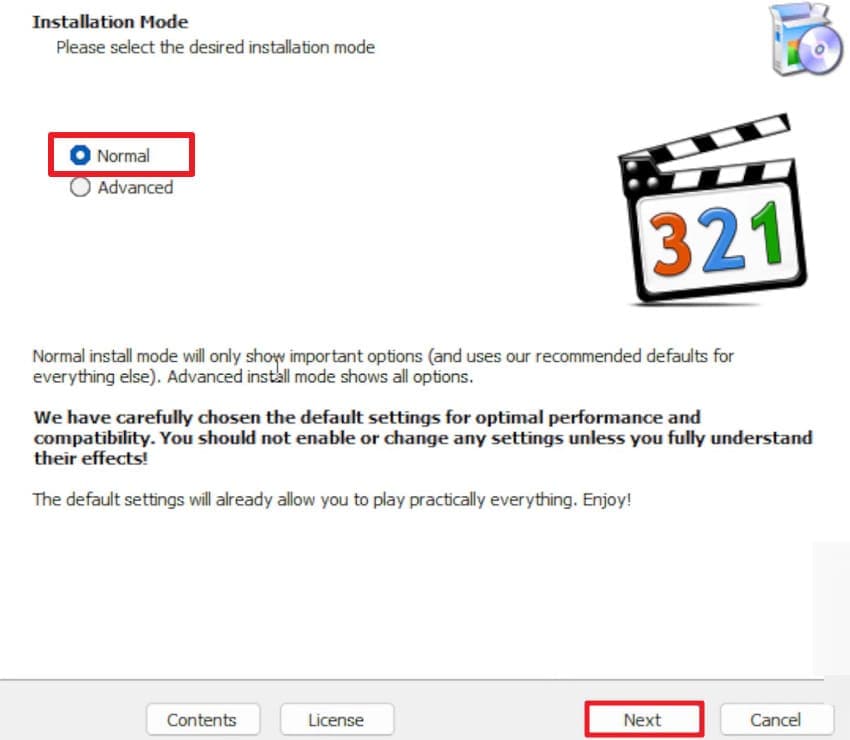
Step 2. From the Installation Mode window, choose “Normal” mode and click the “Next” button.
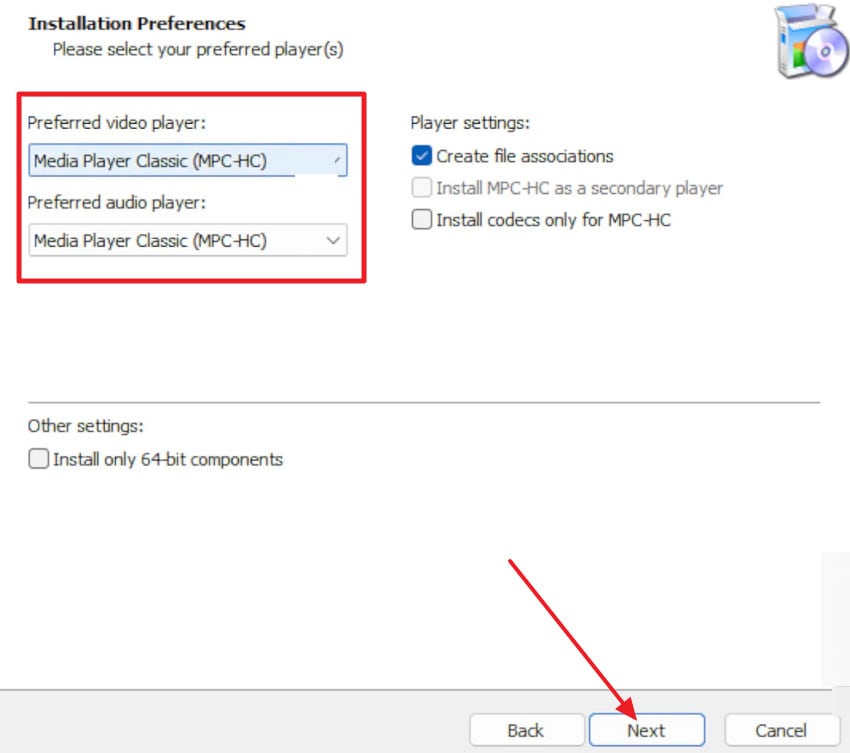
Step 3. Now, in the Installation Preferences window, specify your Preferred video and audio player. Once done, press the “Next” button to continue the installation.
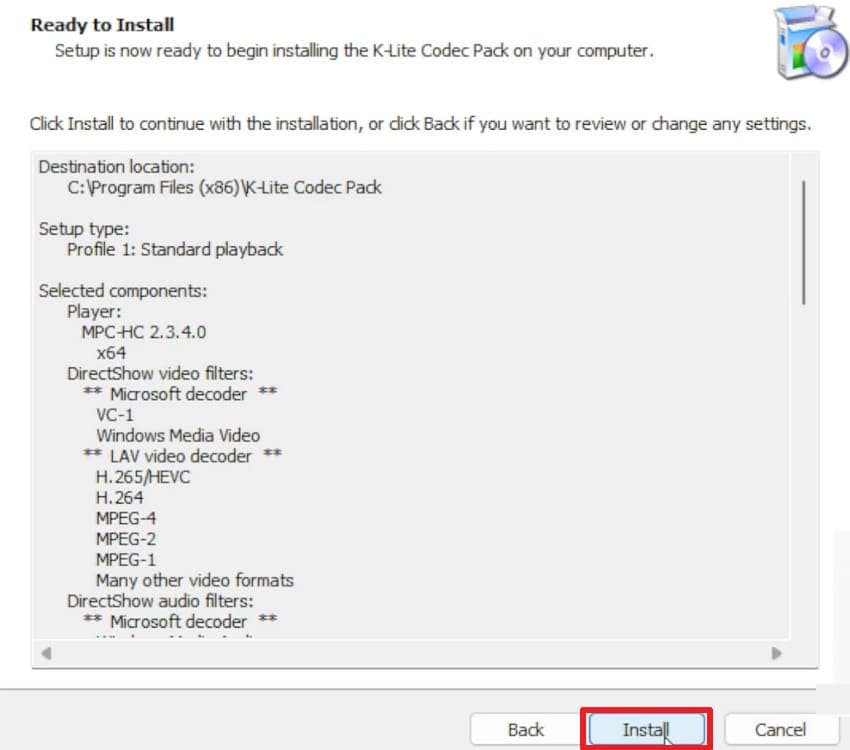
Step 4. Move forward, and keep pressing “Next” until you reach the Ready to Install window. After this, click the “Install” button to run the installer and integrate the codecs with your system or media players.
Fix 3. Uninstall Audio Drivers
Corrupted or incompatible audio drivers are a surprisingly common cause of “this item was encoded in a format that's not supported." Hence, uninstalling or letting Windows install fresh drivers restores proper functionality, ensuring your media player can access audio hardware without conflicts. This even eliminates hidden conflicts, improves audio decoding, and assures your media player can process files smoothly. Follow the tutorial and uninstall the audio driver to install the latest ones:
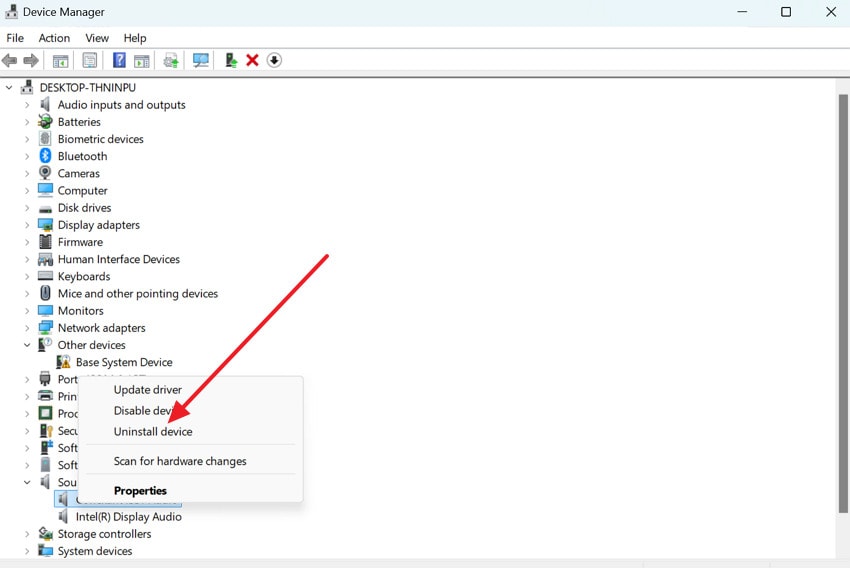
Step 1. Open Device Manager, expand the “Sound, Video and Game Controllers” section, and right-click the specific driver. After this, choose the “Uninstall Device” option to remove a specific audio driver from your system.
Step 2. From the confirmation window, click the “Uninstall” option to proceed with the elimination process.

Fix 4. Play the File in VLC Media Player
VLC Media Player is known for its versatility and wide format support, making it a lifesaver when default players fail. It can handle unusual codecs, damaged files, or uncommon formats that normally trigger such errors. Therefore, using VLC eliminates the need for complicated troubleshooting, allowing you to access your media almost instantly. Adhere to the tutorial and play an error showing file in VLC Media Player:
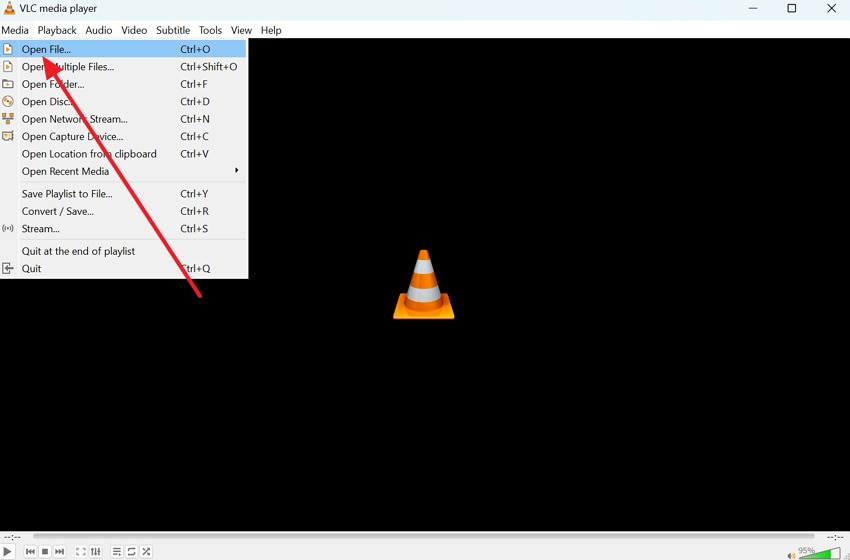
Instructions: First, open VLC Media Player, navigate to the “Media” tab, and select “Open File.” Here, browse a problematic video or audio file, select it, and play. If the file plays successfully, you’ve bypassed the error without modifying the original file.
Fix 5. Use the Input/Codecs of VLC
This media player allows you to manually adjust input and codec settings to handle problematic files. VLC is useful for files that have uncommon encoding or high bitrates, as it gives you control over decoding options. By doing so, you can bypass hardware/software limitations that often trigger this error and improve overall playback stability. Follow the tutorial and make use of the input/codecs of VLC to avoid repeated errors:
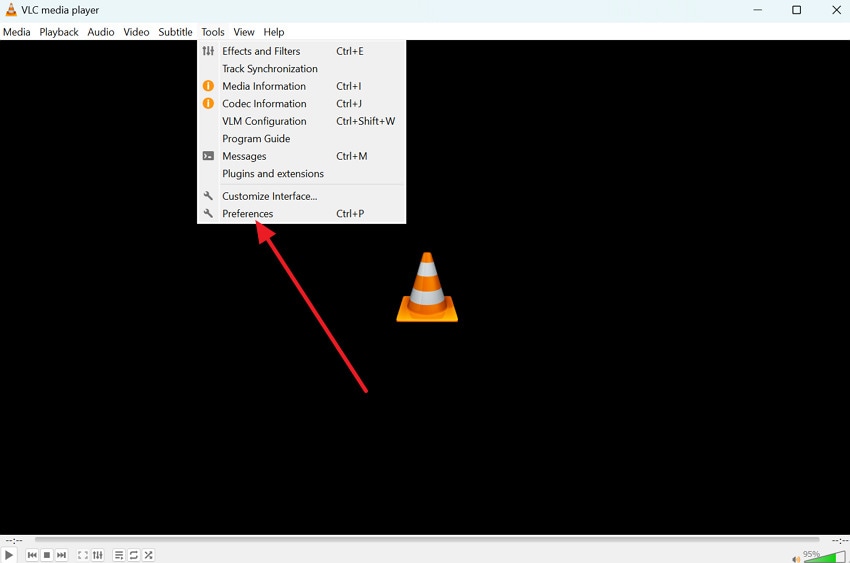
Step 1. Access VLC, press the “Tools” tab, and choose the "Preferences” option from the drop-down menu.
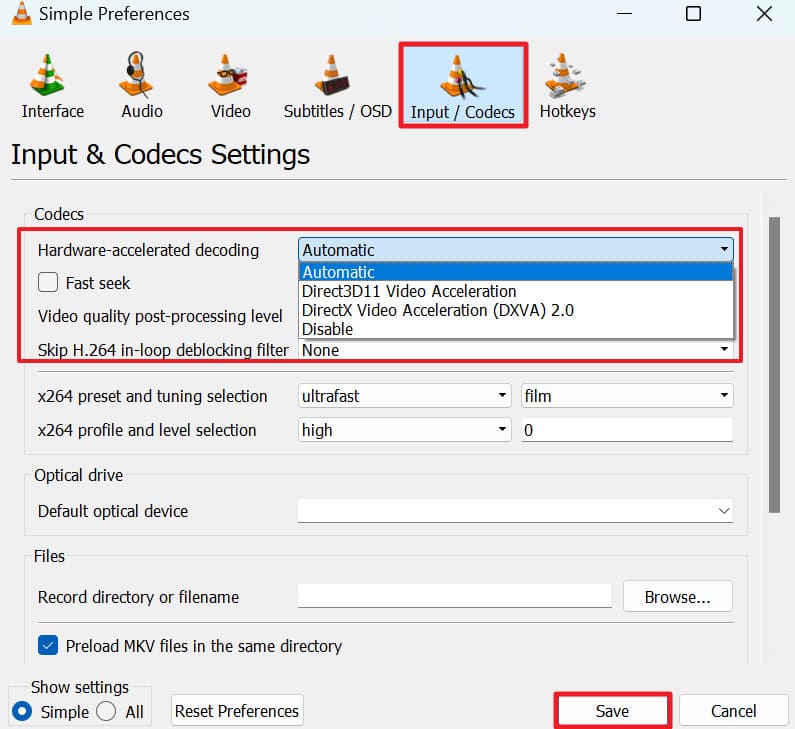
Step 2. Click the “Input/Codecs” tab and adjust decoding options such as hardware acceleration or caching. After making changes, click “Save” to apply the settings.
Conclusion
In conclusion, if the "this item was encoded in a format that's not supported" error isn't clear immediately, it might keep interrupting your playback. To handle this, you have to adjust codec settings, change your media player, or uninstall audio drivers, as explained above. However, everything might fall short if the file is itself corrupted, requiring a dependable program like Repairit at the end.
Frequently Asked Questions
-
1. Can this error appear even if the file extension is common?
Yes, even common formats can trigger this error if they are encoded with unsupported codecs or settings. The file may use advanced compression, a high bitrate, or a newer encoding standard that your media player doesn’t recognize. Moreover, the file might also be partially corrupted, causing playback to fail despite having a familiar extension. -
2. Is this error related to DRM-protected files?
In some cases, DRM-protected media may fail to play if authorization is missing or if the player doesn’t support the required protection standards. This often happens when the file is moved to a different device, user account, or media player that isn’t authorized to access it. -
3. Will updating graphics drivers help with this error?
Absolutely, since video playback relies on GPU decoding, outdated graphics drivers can contribute to playback errors. When drivers are not fully compatible with your operating system or media player, “this item was encoded in a format 0xc00d5212” might appear. Thus, updating graphics drivers improves hardware acceleration support and overall codec stability.




