
Windows users sometimes see text instead of app names after updates. This message looks confusing and makes people worry that something has broken. One common example is that “There is a Problem With ms-resource: AppName/Text” appears unexpectedly. It usually means Windows cannot load app text from system files.
The issue often starts after incomplete installs or damaged files. Most of the time, your apps still work, but the names display. This guide explains why it happens and shows safe steps to fix it. Thus, you do not need advanced skills, just patience and simple instructions.
Table of Contents
Part 1. What the ms‑resource: AppName/Text Error Really Means
This error appears when Windows cannot display proper app names inside menus and system areas. Instead of readable titles, users see confusing code text linked to apps across Windows screens. The system still works, but the text reference fails silently during loading processes sometimes. This problem points to missing or damaged language resources in Windows apps and package files.
What Causes the “ms‑resource: AppName/Text” Problem to Appear
To understand the “There is a problem with ms-resource: AppName/Text” issue, following is an overview of the potential causes related to it:
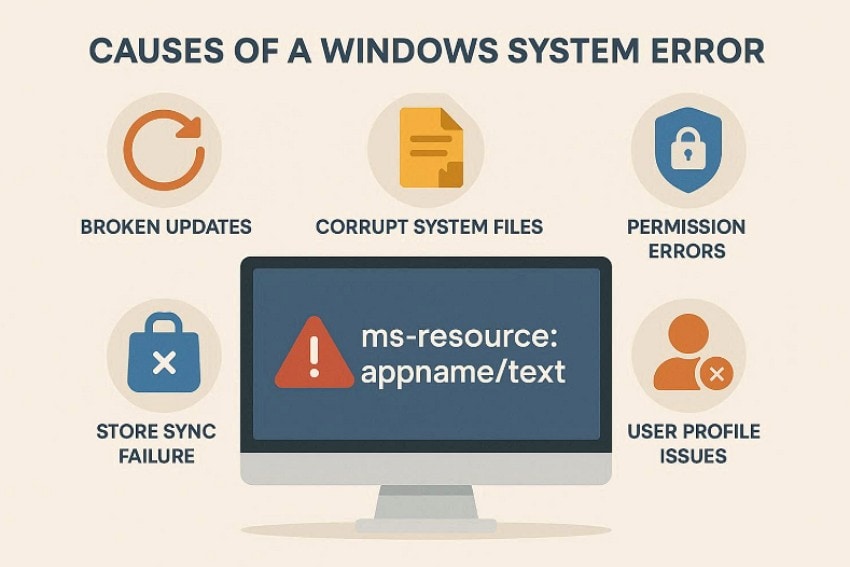
- Broken Updates: Interrupted Windows updates often leave app language files incomplete or mismatched. This prevents Windows from loading the correct text labels for apps properly.
- Corrupt Files: Damaged system files stop Windows from reading stored app text values. These files usually break after crashes, forced restarts, or disk errors.
- Store Sync: Microsoft Store apps rely on package registration to display names correctly. Sync failures disconnect app packages from their language resource entries databases.
- User Profile: Corrupted user profiles may block Windows from accessing localized app data. This affects display names without breaking the application functionality itself completely.
- Permission Errors: Incorrect permissions restrict Windows access to folders storing app language resources. When blocked, Windows cannot resolve readable names for installed applications properly.
Symptoms That Reveal the Hidden Problem
When these causes exist, clear warning signs usually appear during everyday Windows use. These signs and symptoms help you tackle the “There is a problem with the ms-resource: Appname/Text” issue:
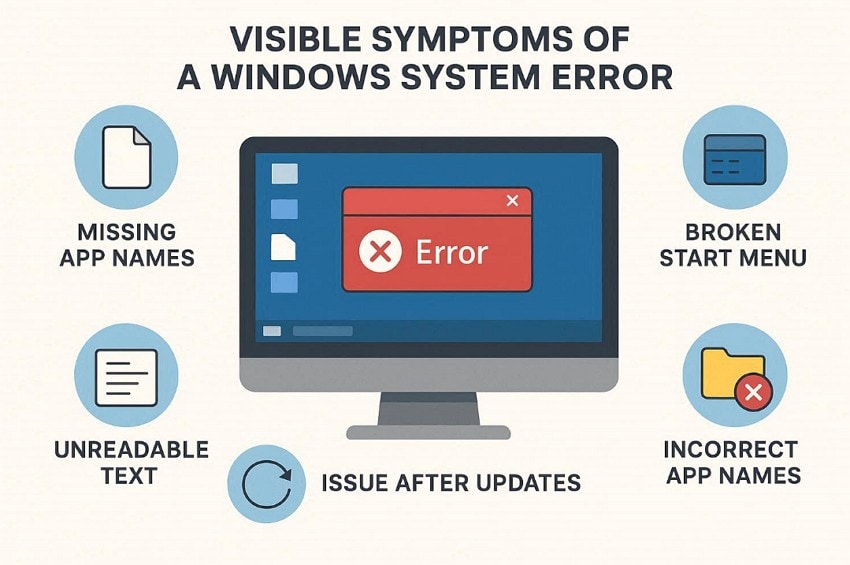
- Missing Names: Apps appear with strange code instead of normal, readable names in menus. This happens even though the apps open and function normally on Windows.
- Menu Errors: Start menu shows broken labels where app names should display correctly. Clicking these entries still launches apps despite the confusing text shown there.
- Search Issues: Windows search results list apps with unreadable resource text entries displayed often. This makes finding apps slower, especially for less experienced users' daily tasks.
- Settings View: System settings pages display broken app names across different sections sometimes unexpectedly. The issue appears visual but signals deeper system resource problems within Windows.
- Update Confusion: Users notice the problem shortly after installing Windows updates on their systems. The timing helps link the error to recent system changes clearly.
Part 2. Quick Fix for ms‑resource Error in the Start Menu
Once the cause is clear, you can resolve the “There is a Problem With ms-resource: AppName/Text” issue in the Start Menu. Using PowerShell targets a specific app package, which is causing the “ms-resource: AppName/Text” display error. It works by unregistering the corrupted Microsoft Store app without touching system files. This is useful because it fixes Start Menu text issues at the source. Follow the step-by-step guide below to apply this fix correctly:
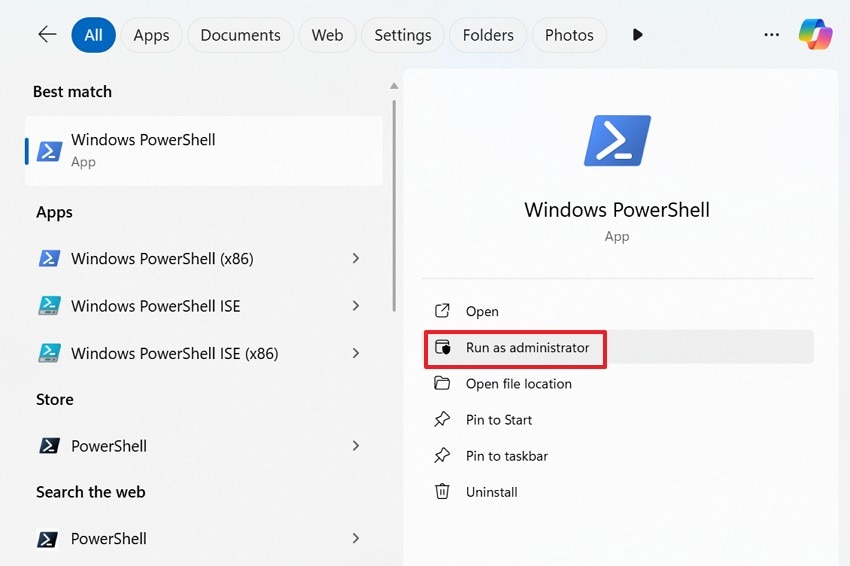
Step 1. First, press “Start” and type “PowerShell,” then right-click “WindowsPowerShell” and select “Runas Administrator.”
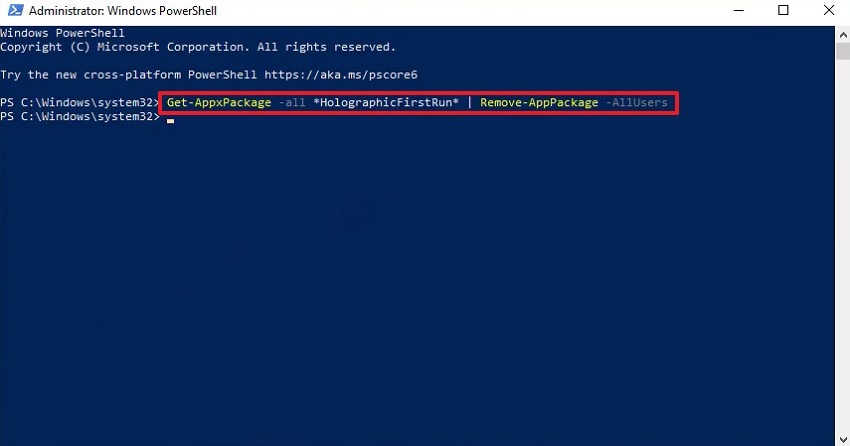
Step 2. In the PowerShell Administrator window, paste and run the command: “Get-AppxPackage -AllUsers *HolographicFirstRun* | Remove-AppxPackage -AllUsers” and hit “Enter”. This command finds the rogue app for all users and removes it completely. Next, restart Windows after completion to refresh the Start Menu.
Part 3. Advanced Troubleshooting: Persistent Errors That Don’t Resolve Easily
When quick fixes fail, deeper system-level problems are usually involved. These methods address the stubborn “There is a problem with the ms-resource: Appname/Text” error that continue appearing despite basic repairs. They focus on fixing damaged app data, restoring missing resources, and repairing Windows core files safely.
Solution 1. Repair the Problematic App Quickly Without Losing Data
This method fixes one app that shows broken names or missing text. Windows repairs the app without deleting files or personal settings. It refreshes how the app connects to its name and language data. This works best when only one or two apps show the error. Now, follow the steps below to repair the affected app safely:
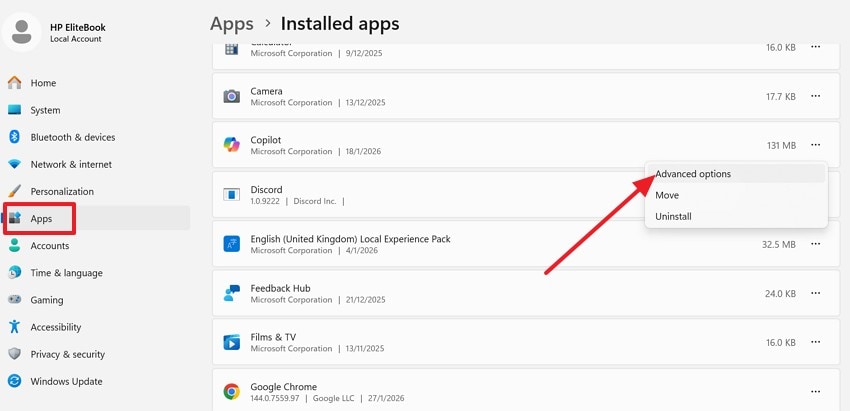
Step 1. Follow the navigation “Settings > Apps > Installed Apps” and find the affected apps. After that, click “ThreeDots” to select “AdvancedOptions.”
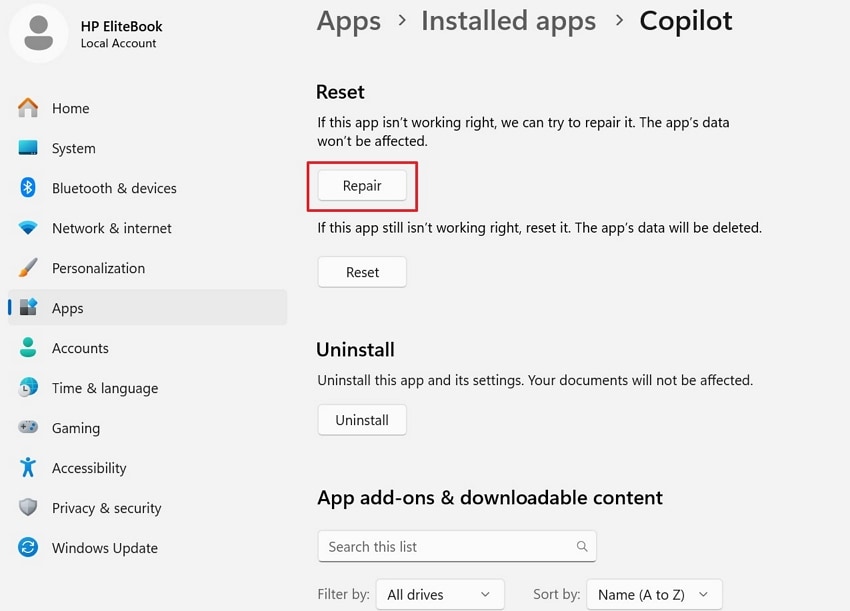
Step 2. Under the “Reset” section, choose the “Repair” option. Consequently, Windows will fix the app without deleting its data or settings.
Solution 2. Reinstall Core System Apps to Fix Missing or Corrupted Resources
When many apps show broken names, system apps may be damaged. Reinstalling them restores missing files that show app names correctly. This method helps fix “There Is a Problem With ms-resource:AppName/Text” issue by rebuilding app links without touching your personal files. So, stick to the instructions below to reinstall core system apps correctly:
Instructions. After accessing “Windows PowerShell” as an administrator, run the following command to execute the process directly.
Get-AppXPackage -AllUsers | Foreach { Add-AppxPackage -DisableDevelopmentMode -Register "$($_.InstallLocation)\AppXManifest.xml"}
Solution 3. Run SFC and DISM Scans to Repair Deep System File Corruption
SFC and DISM scans repair damaged Windows system files and image components. They scan protected system areas where language resources are stored. This method is effective when errors persist after app-level fixes. It restores system stability by replacing corrupted files with clean versions. Follow the steps below to try SFC and DISM scans:
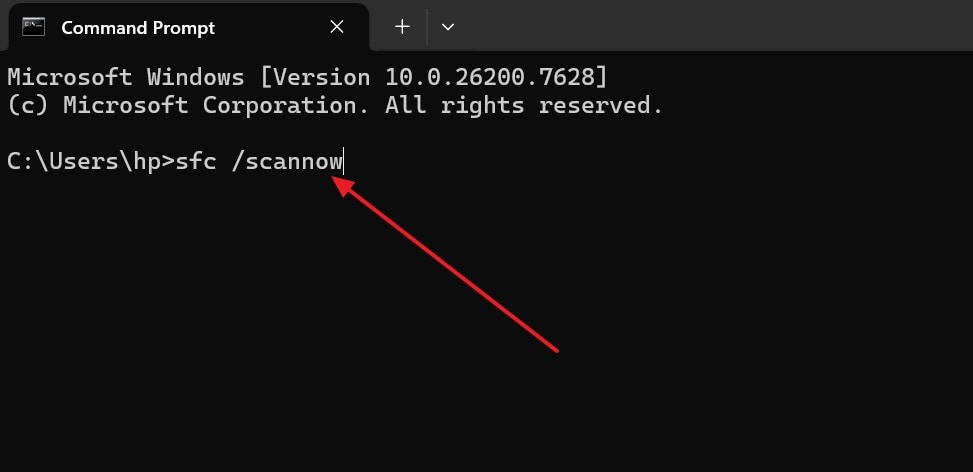
Step 1. To start navigate to “CommandPrompt” and select “Runas Administrator” to proceed further.
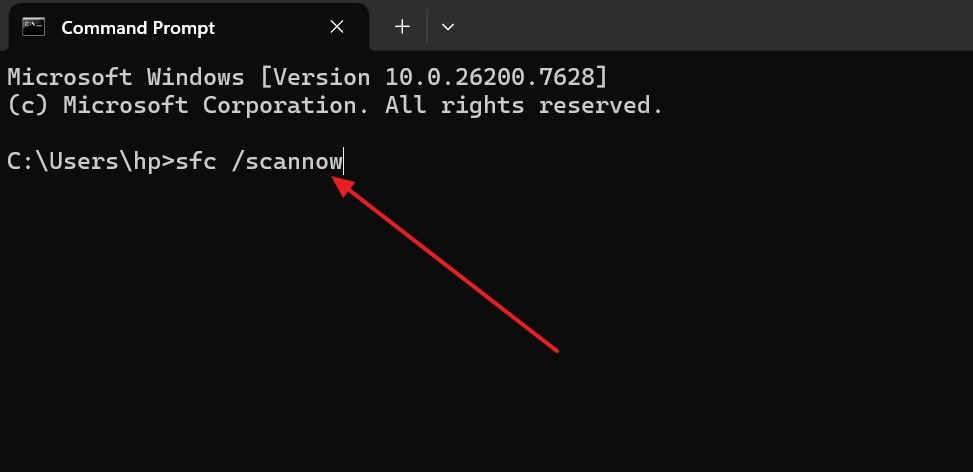
Step 2. In the Command Prompt window, type the command: “sfc /scannow” and press “Enter”.
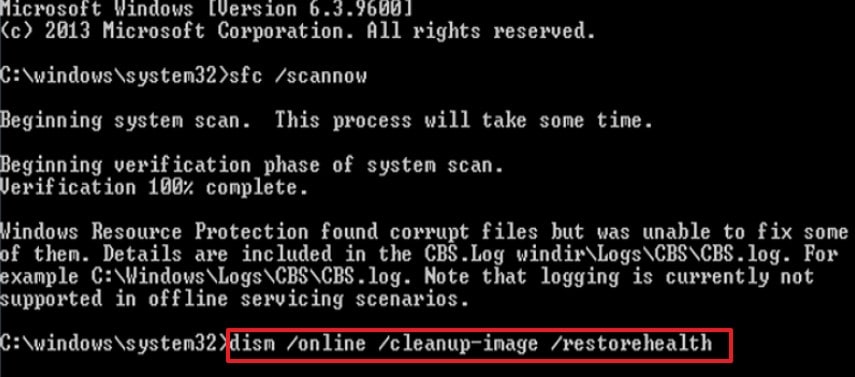
Step 3. After SFC scan completes, run the following command: “DISM /Online /Cleanup-Image /RestoreHealth” and hit “Enter.” This will repair the Windows system image used by SFC. This step fixes deeper corruption that SFC alone cannot repair, after which you need to simply “Restart” your PC.
Pro Tip: Use Repairit: Quick Solution for Corrupted System or App Files Causing Errors
Corrupted system files often cause missing app names inside the Windows menu. These issues confuse users because apps work normally but display unreadable text. One common example is the “There Is a Problem With ms-resource:AppName/Text” error. Repairit helps fix damaged files that control how Windows displays app information. It focuses on repairing corruption without changing system settings or installed applications.
Moreover, this tool works when updates or crashes damage important application related files. Instead of reinstalling Windows, it repairs affected files by restoring readable app text. This reduces risk while saving time during troubleshooting persistent display errors. Repairit is helpful after advanced fixes fail to resolve app corruption. It supports users who want safer recovery without complex commands.
Key Features

-
Advanced File Structure Repair: Repairs broken internal file structures that affect how Windows reads app-related resources.
-
Read-Only Repair Mode: Processes corrupted files without overwriting originals, reducing risk during troubleshooting.
-
High Success With Update-Damaged Files: Optimized to fix files corrupted during interrupted Windows or application updates.
Guide to Repair Corrupted System or App Files Causing Errors With Repairit
Adhere to the steps below to repair corrupted system or app files causing errors with Repairit:
Step 1. Import Corrupted Files in Repairit
First, launch Repairit and select “File Repair” from the home screen. Then click “+ Add” or drag and drop corrupted files into the import area.

Step 2. Review Unrepaired Files and Start Repair
After importing, all damaged files appear under “UnrepairedFiles” with names and sizes listed. Now, confirm the correct files are selected, then click “Repair” to begin the process.

Step 3. Preview and Save Repaired Files
Once repair completes, files move to “RepairedResults” with a success status. Next, click “Preview” to verify content integrity before saving. Then, select “Save” or “SaveAll” to export repaired files to a secure location.

Repair Corrupted Files Due to There is a Problem With ms-resource: Appname/Text Error Now
 Security Verified. Over 7,302,189 people have downloaded it.
Conclusion
To conclude, “There is a problem with the ms-resource: Appname/Text” error is a display issue caused by damaged system or app resource files. While apps usually still work, the error should not be ignored. By using safe fixes and advanced checks, most users can restore normal names. For stubborn file corruption, Repairit offers a reliable and controlled repair option.
Frequently Asked Questions
-
1. Does the ms-resource error stop apps from working normally?
No, the error affects app names only while applications usually continue working normally. It points to missing or corrupted resource files rather than complete application failure. -
2. Why does this error often appear after Windows updates?
Updates sometimes break language files causing Windows to display code instead of names. Interrupted installs, crashes, or permission issues can also trigger the same behavior often. -
3. When should PowerShell fixes be used for this error?
PowerShell fixes help when a specific app package registration becomes damaged during updates. They remove broken registrations without deleting apps or changing core Windows files safely.




