
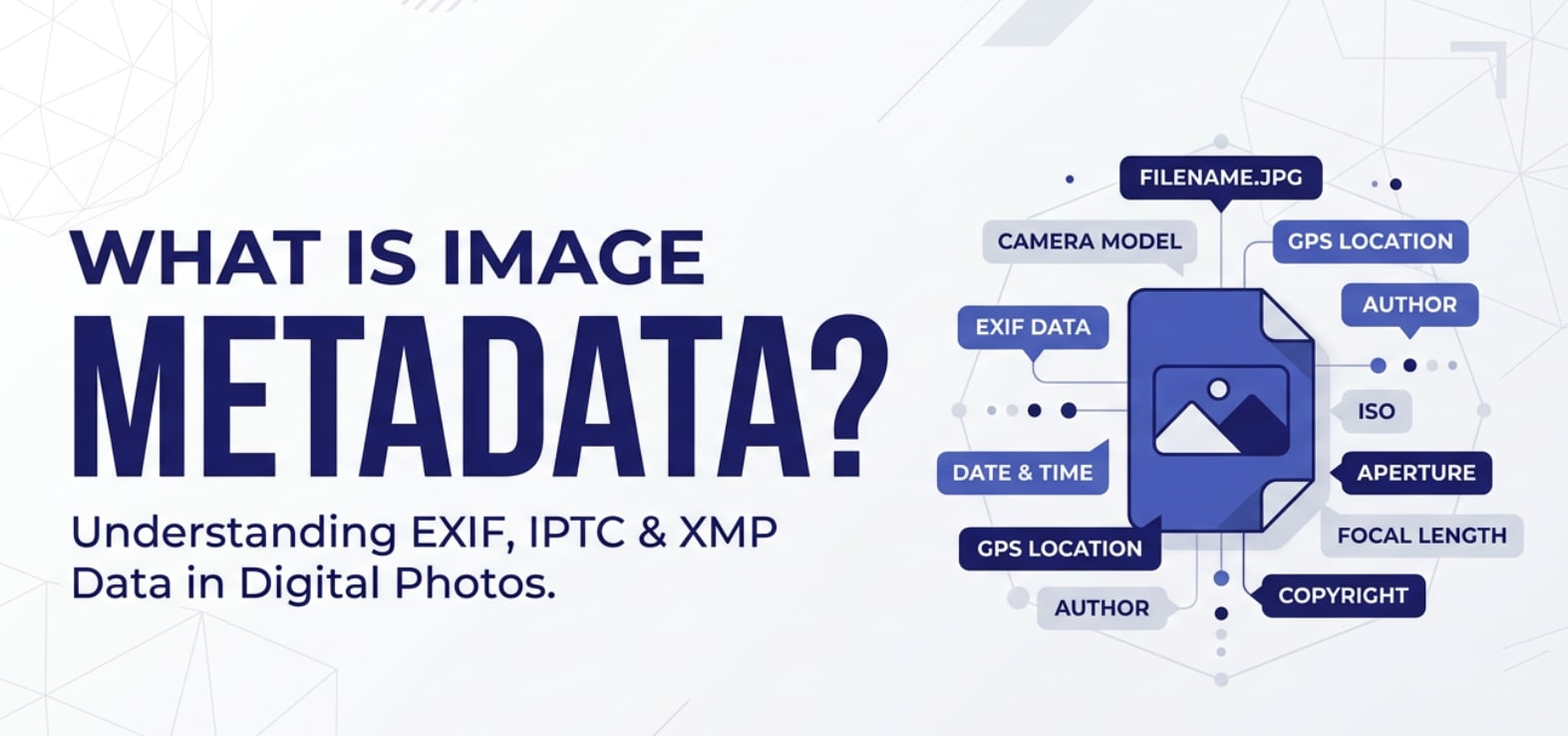
Image metadata quietly travels with almost every digital photo you shoot, edit, export, or share. You will see it when you check photo details on your phone, manage files in Lightroom, upload pictures to a website, or search a media library by date or location. Understanding how this hidden information works helps you organize photos faster, protect your rights, improve image search, and avoid leaking sensitive data such as GPS location when posting images online.
Repair Corrupted Files To Save Your Data
 Security Verified. Over 7,302,189 people have downloaded it.
In this article
What Is Image Metadata?
Image metadata is structured information stored inside a digital photo file that describes the picture and how it was created. It is a type of technical metadata parameter used across cameras, editing apps, and web platforms.
Typical photo metadata includes camera model, exposure settings, date and time, GPS coordinates, copyright and author details, keywords, and edit history. In most images you will see three major metadata formats:
- EXIF data (Exchangeable Image File Format): technical capture details from your camera or phone.
- IPTC data: descriptive and business fields such as captions, creator, and rights.
- XMP data: flexible XML-based metadata used by editing tools like Adobe Lightroom and Photoshop.
This information travels with your JPEG, PNG, TIFF, RAW, and other digital photos as you import, edit, export, upload, or archive them.
What Does Image Metadata Affect?
Image quality, appearance, and consistency
EXIF data and color-related metadata do not directly change the pixels, but they strongly influence how images are displayed and processed in different tools and platforms.
- Color profiles and gamma: Metadata about color space (sRGB, Adobe RGB, Display P3) tells software how to interpret colors. If this is missing or wrong, images can look washed out, too saturated, or with a color cast.
- Orientation: Camera orientation tags control whether an image appears vertical or horizontal. If ignored or stripped, photos can show up rotated or upside down on some devices.
- Dynamic adjustments in editing apps: Tools like Lightroom read ISO, shutter speed, and lens data from EXIF data to suggest noise reduction or lens corrections, which improves final image quality.
- Consistency across exports: When you export for web, social, or print, preserving or updating the right metadata helps maintain a predictable look across browsers and devices.
Different values in metadata (for example, choosing sRGB versus Adobe RGB) affect color compatibility, especially when uploading images to websites, social media, or streaming platforms that expect specific color spaces.
Search, organization, and rights management
A big part of what image metadata affects is how easily you can find, manage, and control your photos at scale.
- Search and filters: Date, time, location, lens, camera model, and keywords enable fast searching in large libraries (e.g., "sunset, 2023, Paris, 35mm"). Without these tags, you scroll and guess.
- Smart albums and automation: Photo managers use metadata to auto-build albums like "last month," "trips to Japan," or "shots with 50mm lens," streamlining your workflow.
- Copyright and usage rights: IPTC data and XMP data hold creator name, copyright notices, licenses, and contact info, which is crucial for professionals, agencies, and brands.
- SEO and image search: For websites, some metadata fields (title, description, and keywords) can aid image search and discoverability when combined with alt text and proper file naming.
- Privacy: GPS and device information can reveal where and when a picture was taken. Sharing original files with full metadata may expose home addresses, work locations, or travel habits.
How Does Image Metadata Work in Real Use?
Image metadata is embedded inside the file structure of formats like JPEG, TIFF, and many RAW types. Cameras, phones, editors, and web platforms read and write this data at each stage of your workflow.
Capture: cameras and smartphones
When you press the shutter, your device automatically records EXIF data, including:
- Camera or phone model and serial number.
- Lens, focal length, aperture, shutter speed, and ISO.
- Date, time, and sometimes timezone.
- Flash usage, white balance mode, shooting mode.
- GPS coordinates if location services are enabled.
Some phones and advanced cameras also add extra tags for scene modes, HDR, or computational photography settings used to produce the final image.
Editing, exporting, and sharing
When you import photos into tools like Lightroom, Capture One, or Photoshop, these apps read photo metadata to help you organize and adjust your images.
- Tagging and cataloging: You can add captions, ratings, color labels, keywords, and custom fields using IPTC data and XMP data. This is central to professional photo workflows.
- Non-destructive edits: In some apps, edits are stored as XMP instructions instead of rewriting the image pixels. That means the original stays intact while the software reads XMP to render the latest version on screen.
- Export settings: When exporting for web, print, or social media, you often see options like "Include copyright," "Remove location data," or "Strip all metadata." This determines how much of the original image metadata is kept.
- Platforms and streaming: Online galleries, CMSs, and social platforms may read limited metadata (for example, orientation, capture date, or copyright) and may compress or rewrite files, sometimes discarding metadata to reduce file size and speed up delivery.
Throughout this process, any corruption in the file header, container, or metadata blocks can cause images to become unreadable or display incorrectly, sometimes losing the attached photo metadata in the process.
Common Mistakes and Quick Tips
- Assuming metadata is always preserved: Many social networks and messaging apps strip most image metadata for privacy and performance. Do not rely on these copies as your archive.
- Ignoring privacy risks: Posting photos with GPS EXIF data can unintentionally expose home, school, or workplace locations. Turn off geotagging or remove location data before sharing sensitive images.
- Overlooking rights information: Professionals sometimes export images without IPTC data, losing credit and licensing details. Always embed creator and copyright info in your master files.
- Mixing color spaces: Exporting with Adobe RGB or ProPhoto RGB but viewing on web-only systems expecting sRGB can cause odd colors. For online use, sRGB is usually the safest choice.
- Not backing up originals: Repeated re-saving, converting, or compressing images can strip or alter photo metadata. Keep a backup of original files with full metadata intact.
Quick takeaways for beginners:
- Learn how to view metadata on your main devices (phone, desktop OS, and photo editor).
- Add basic keywords, captions, and copyright fields for important shoots.
- Use export presets that keep rights info but remove sensitive GPS data when needed.
- Maintain at least one archive of original files with complete image metadata.
How to Use Repairit to Fix a Corrupted Photo File
Repairit introduction
When image files get damaged, you may lose both the visible picture and the underlying photo metadata that powers your organization and rights management. Wondershare Repairit is a dedicated file repair tool that helps you restore broken or unreadable media so you can open your images again and, where possible, preserve remaining metadata. It works with many common photo and video formats and guides you through a simple, step-based repair process. You can learn more and download it from the Repairit official website.
Key features of Wondershare Repairit
- Repairs severely corrupted video and digital photos in various formats, including files that will not open or display correctly.
- Offers a clear, beginner-friendly workflow so you can fix damaged media without deep technical knowledge.
- Provides advanced repair options for heavily corrupted files, giving you another chance when basic repair is not enough.
Step-by-step: repair a corrupted photo file
- Add corrupted photo files
Install and launch Wondershare Repairit on your computer. From the main interface, choose the Photo Repair feature and click the option to add files. In the file browser window that appears, locate the corrupted images on your drive, external card, or camera backup, then confirm to import them into the repair list.
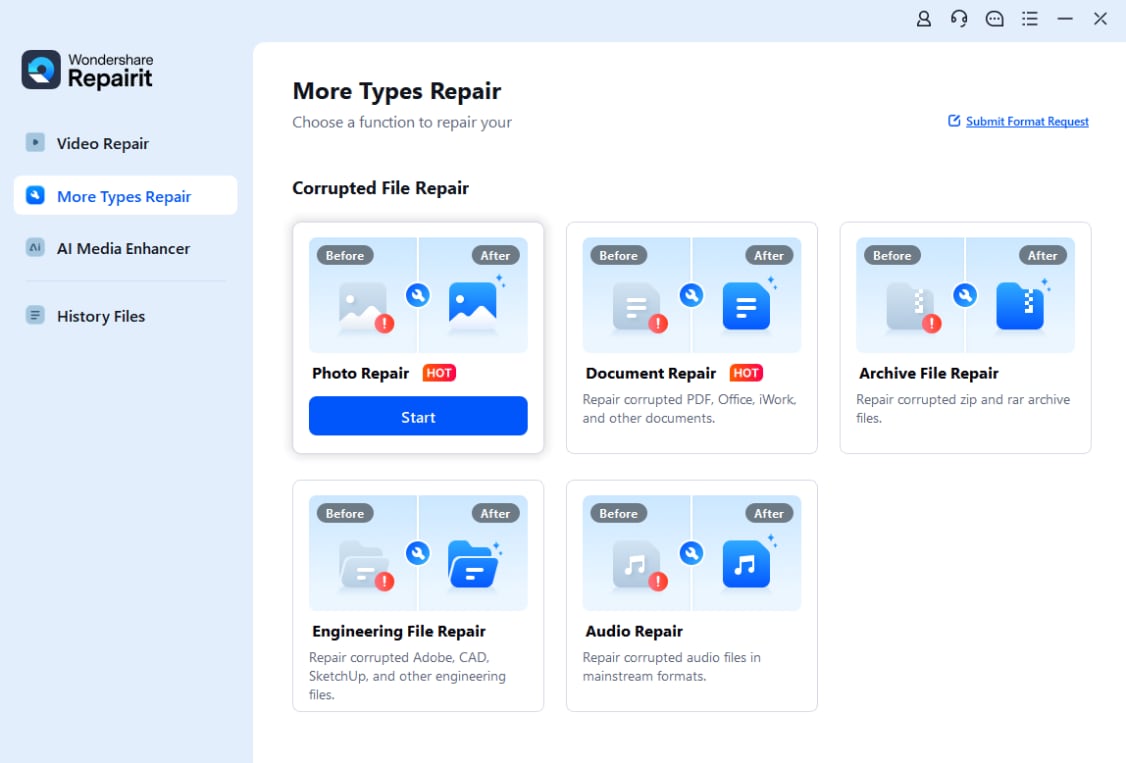
- Repair photo files
Once your damaged photos are listed, select the items you want to fix and start the repair. Repairit analyzes each file structure, attempts to rebuild the broken image data, and addresses issues that prevent normal viewing. When the process finishes, use the built-in preview to check whether the repaired photos display correctly and look usable.

- Save the repaired photo files
If the previewed results look good, click to save and choose a safe output folder. It is best practice to store the fixed files on a different drive or at least a different directory than the corrupted originals, so you always keep an untouched copy. After saving, you can open the repaired images in your usual photo viewer or editor and recheck any remaining image metadata.

Conclusion
Image metadata is the invisible backbone of your digital photo workflow. It describes how, when, and where pictures were captured; keeps your archives searchable; and carries crucial copyright and branding information across cameras, editors, export presets, websites, and platforms.
Treat your photo metadata as part of the asset, not an afterthought. Preserve it in your originals, use it to power smart organization, and manage privacy-sensitive tags like GPS carefully when sharing. If corruption ever makes images unreadable or strips important information, a specialized repair tool such as Wondershare Repairit can help you bring damaged photos back into a usable state and safeguard your visual library for the long term.
Next: What is Exif Metadata?
FAQ
-
1. What is image metadata in simple terms?
Image metadata is information stored inside a picture file that describes the photo, such as date and time taken, camera model, exposure settings, GPS location, author, and copyright or licensing details. -
2. Does editing or exporting a photo change its metadata?
Yes. Editing tools often add or update fields like software name, edit date, color profile, and sometimes ratings or keywords. Depending on your export settings, some apps may strip or rewrite EXIF, IPTC, or XMP blocks, which can remove or alter existing metadata. -
3. Can image metadata reveal my location?
If GPS tagging is enabled on your camera or smartphone, the file can include precise coordinates of where the photo was taken. To protect your privacy, disable geotagging in the camera settings or remove location data before sharing images publicly. -
4. How do I view image metadata on my computer?
On Windows, right-click the photo, choose Properties, and check the Details tab. On macOS, use Get Info or Preview and inspect the Info panel. For deeper insight into EXIF, IPTC, and XMP fields, use photo editors or dedicated metadata viewers. -
5. Can I recover metadata from corrupted photo files?
Sometimes. If only part of the file structure is damaged, some EXIF or other metadata blocks may still be intact. Tools like Wondershare Repairit can attempt to repair corrupted images, and when the file becomes readable again, any surviving metadata will usually be accessible.




