
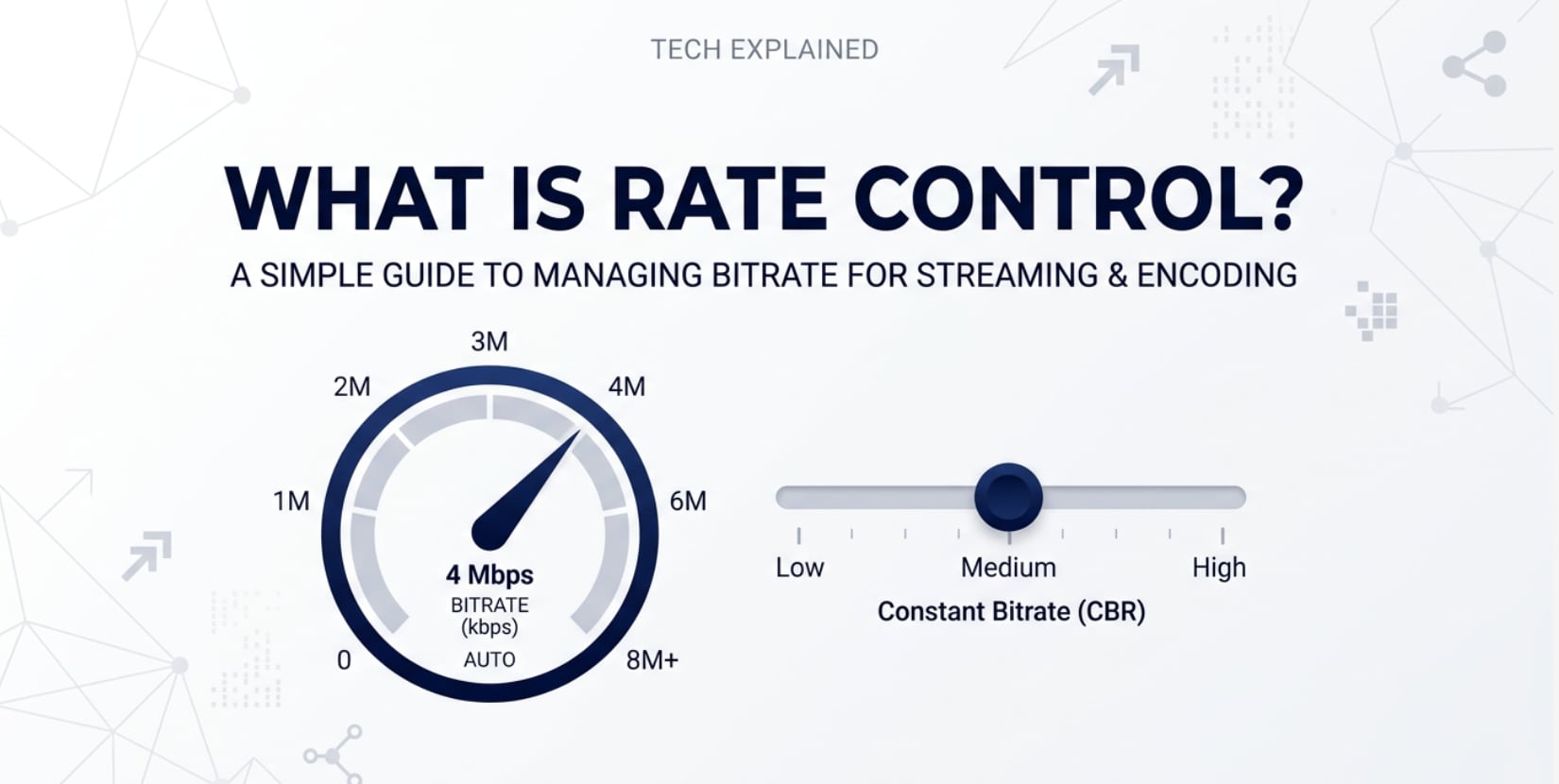
When you export, stream, or upload a video, one hidden setting influences everything from sharpness to buffering: rate control. You will see it in tools like Premiere Pro, Media Encoder, HandBrake, OBS, and FFmpeg as CBR, VBR, or CRF. Understanding how it works helps you balance video quality, file size, and smooth playback on platforms like YouTube, Twitch, or your own website.
Repair Corrupted Files To Save Your Data
 Security Verified. Over 7,302,189 people have downloaded it.
In this article
What Is Rate Control?
Rate control is a bitrate control strategy used in video encoding. It decides how many bits the encoder is allowed to spend on each frame or group of frames so that the final video meets a target bitrate, quality, or file size.
In practice, rate control is the logic behind options like CBR (constant bitrate), VBR (variable bitrate), and CRF (constant rate factor) that you see when exporting or streaming video. Its basic role is to distribute data across the video timeline so that scenes with lots of motion get enough detail without making the file or stream too large for storage, upload, or playback.
Why Is Rate Control Important in Video Compression?
Rate control solves a core compression problem: how to keep video sizes and bitrates predictable while still delivering acceptable image quality. Without it, encoders might create huge files for complex scenes or crush detail in fast motion to stay under a limit.
By controlling the bitrate, rate control directly affects:
- Bitrate efficiency and file size: better distribution of bits can produce smaller files for the same perceived quality.
- Image quality and motion handling: action scenes and noisy footage can receive more data, while static shots use less.
- Streaming performance: stable, well-managed bitrates reduce buffering and dropped frames on services and CDNs.
- Platform compatibility: staying within maximum bitrates required by platforms like YouTube, Facebook, or broadcast systems.
Its main benefits are predictable output sizes and smoother streaming, but there are trade-offs. Very strict rate control (like low-bitrate CBR) can introduce blockiness or banding, while more flexible modes (like aggressive VBR) might cause spikes that weaker networks or devices cannot handle well.
How Does Rate Control Work in the Encoding Workflow?
During encoding, video goes through several stages: color conversion, motion estimation, prediction, transform, quantization, entropy coding, and finally output. Rate control sits on top of these steps as a decision-making system that constantly adjusts how heavily each frame is compressed.
Internally, rate control typically:
- Looks at the current target (average bitrate, max bitrate, or target quality).
- Analyzes frame complexity (motion, texture, noise) and sometimes history of previous frames.
- Adjusts quantization strength (how much detail is discarded) to stay close to the desired rate over time.
It interacts with motion estimation and quantization, because raising or lowering the quantization parameter (QP) changes both the visual quality and the number of bits produced. For streaming, it also cooperates with buffering logic to avoid sudden spikes that overflow network capacity.
Rate control in common encoders and apps
You will encounter rate control under different names in popular tools:
- FFmpeg with x264/x265: options like
-crf,-b:v,-maxrate,-bufsize, and presets control quality and bitrate behavior. - OBS Studio: output modes like CBR, CBR+padding, VBR, and CQ decide how your livestream bitrate is managed.
- Adobe Premiere Pro / Media Encoder: export settings let you choose CBR or VBR 1-pass / 2-pass and specify target and maximum bitrates.
- HandBrake: lets you choose Constant Quality (CRF-style) or Average Bitrate modes.
- Hardware encoders: typically emphasize CBR or constrained VBR for broadcast and low-latency streaming.
All these interfaces are different ways of exposing the same core concept: how rate control distributes bits to achieve your desired balance between quality and size.
How rate control influences different use cases
Because it sits at the heart of compression, rate control impacts multiple stages of the video lifecycle:
- Recording and live streaming: Choosing a suitable bitrate strategy helps avoid dropped frames and keeps latency low, especially for platforms like Twitch or Zoom.
- Editing workflows: Higher, more stable bitrates are friendlier for scrubbing and color grading, while very aggressive compression can slow down editing.
- Exporting and delivery: Proper rate control ensures files meet client specs (for broadcast, OTT, or social media) and fit on physical media or shared drives.
- Playback and compatibility: Staying within recommended bitrate ranges reduces stutter on smart TVs, phones, and set-top boxes, and complies with upload guidelines of hosting platforms.
In short, rate control is the bridge between your creative expectations (how good it should look) and technical constraints (how big or how fast it can be delivered).
When Should You Care About Rate Control? Common Mistakes and Quick Tips
Editors, streamers, video creators, and anyone who exports video for clients or platforms should understand rate control. Casual users who rely on automatic presets may not need deep knowledge, but they still benefit from recognizing terms like CBR, VBR, and CRF.
Situations where it matters most include:
- Live streaming with limited upload bandwidth.
- Delivering files with strict bitrate caps (broadcast specs, OTT, or corporate networks).
- Compressing large projects for online sharing or cloud storage.
- Preparing masters and intermediates for further editing or color grading.
Common misunderstandings about rate control include:
- Assuming higher bitrate always means better quality (codecs and content complexity matter too).
- Using CBR for everything, even when VBR or quality-based modes would look better at the same average size.
- Ignoring platform bitrate recommendations and causing upload re-encoding or streaming issues.
- Setting extreme quality (very low CRF or very high bitrate) that wastes space without visible gain.
Quick tips:
- For uploads (YouTube, Vimeo): use quality-based or VBR modes near the platform's suggested bitrate ranges.
- For live streaming: prefer CBR or constrained VBR at a bitrate your connection can sustain with headroom.
- For archival or heavy post-production: use higher bitrates or lightly compressed intermediates instead of overly aggressive rate control.
- Always test short samples with different settings to see how motion and detail respond before encoding a full project.
Your main takeaway: pick a rate control mode that matches your delivery channel and content, then fine-tune bitrate or quality values instead of relying on defaults blindly.
How to Use Repairit to Fix a Corrupted Video File
A quick introduction to Repairit
Even with perfect rate control settings, videos can still become corrupted due to transfer errors, power loss, card failures, or buggy encoders. When your footage will not play, freezes, or shows artifacts, Repairit official website offers a dedicated repair solution. Repairit focuses on fixing damaged video structure and data so you can open, edit, or re-encode your files again without having to reshoot or redownload.
Key features of Repairit
- Repairs corrupted videos from many cameras, phones, and editing tools, covering popular formats like MP4, MOV, AVI, and more.
- Provides an intuitive interface with preview, letting you check the repaired result before saving.
- Supports batch processing so you can fix multiple damaged clips in one workflow.
Step-by-step guide: repair a corrupted video with Repairit
- Add corrupted video files
Launch Repairit and go to the Video Repair module. Click the add button or drag and drop your damaged clips into the window. The software will list each file with basic info like format, resolution, and duration so you can confirm you selected the right footage.

- Repair video files
After importing the clips, start the repair process with a single click. Repairit analyzes the broken headers, metadata, and frame data to rebuild a playable structure. For severely damaged videos, you can use advanced repair by providing a sample file from the same device or settings to guide the reconstruction.

- Save the repaired video files
When the repair completes, preview the fixed videos inside Repairit to ensure playback looks and sounds correct. Then choose an output folder and save the repaired clips. You can now edit, re-encode with your preferred rate control settings, or upload the restored files without corruption issues.

Conclusion
Rate control is the encoder's way of managing bitrate so your video meets size and bandwidth limits while still looking as good as possible. It shapes how detail and motion are preserved across recording, editing, exporting, streaming, and playback.
By choosing the right rate control mode for your use case and testing a few settings, you can avoid bloated files, blotchy motion, and unstable streams. And if something goes wrong and a file becomes corrupted, tools like Repairit can help you recover the footage so you can encode it again with confidence.
Next: What Is Residual Data and Why Does It Matter in Video Compression?
FAQ
-
1. Is rate control the same as bitrate?
No. Bitrate is the amount of data per second in your video, while rate control is the strategy the encoder uses to reach and manage that bitrate or an overall quality level. Rate control decides how bits are distributed across frames. -
2. Should I use CBR or VBR for live streaming?
Most streaming platforms recommend CBR or constrained VBR for stability. CBR keeps the bitrate steady, which is easier on streaming servers and viewers' connections. Constrained VBR can slightly improve quality while still staying within a defined maximum bitrate. -
3. What is CRF and when should I use it?
CRF (constant rate factor) is a quality-based rate control mode used in encoders like x264 and x265. You choose a quality level, and the encoder varies bitrate as needed. It is ideal for offline encoding where you care more about consistent visual quality than a fixed file size. -
4. Can wrong rate control settings corrupt my video?
Poor rate control choices usually cause quality or playback issues (like blockiness or buffering), not file corruption. Corruption is more often caused by interruptions, hardware errors, or software crashes. If your file becomes unplayable, you can try repairing it with Repairit. -
5. Do I need to change rate control for social media uploads?
It helps. Each platform has recommended bitrates and resolutions. Using suitable rate control settings (often VBR with a target around their guideline) can reduce unnecessary recompression and keep your uploads looking closer to your originals.




