
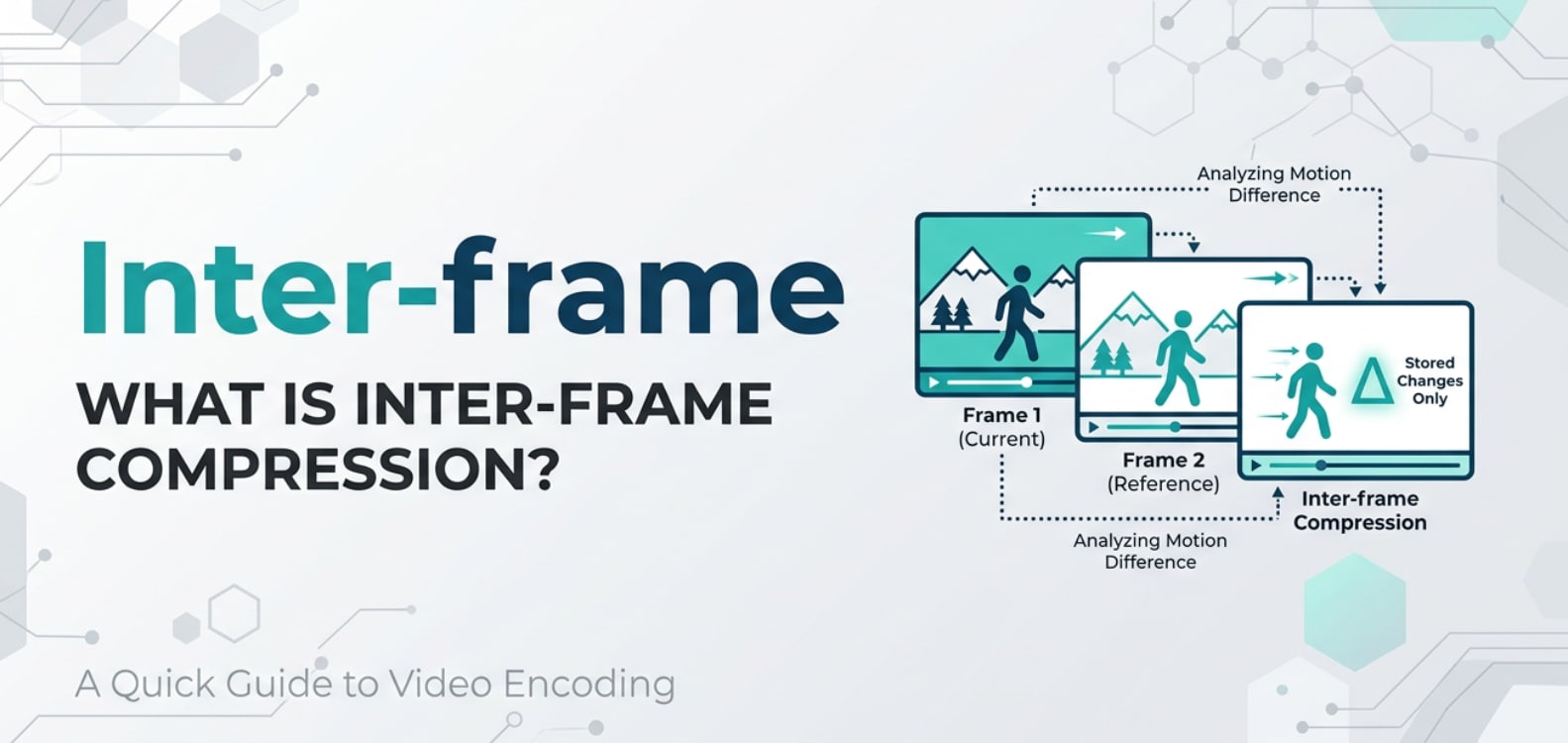
When you watch a YouTube clip, edit in Premiere, or stream through OBS, your video rarely stores every frame from scratch. Instead, it often relies on inter-frame compression to shrink file sizes and make streaming smoother. Understanding how this works explains why fast‑moving scenes can look smeared, why scrubbing some codecs feels sluggish, and how to choose the right settings when exporting or recording.
Repair Corrupted Files To Save Your Data
 Security Verified. Over 7,302,189 people have downloaded it.
In this article
What Is Inter-frame Compression?
Inter-frame compression is a video compression method that saves data by encoding only the differences between consecutive frames instead of storing every frame in full. It is also known as temporal compression because it works across time, comparing one frame with others around it.
In codecs like H.264, H.265/HEVC, VP9, and AV1, inter-frame compression is a core part of the video encoding process. It groups frames into a GOP (Group of Pictures) and uses reference frames (such as I-frames) plus predicted frames (like P-frames and B-frames) to represent motion efficiently. Its basic role is to cut bitrate and file size while trying to keep visual quality acceptable.
Why Is Inter-frame Compression Important in Video Compression?
Inter-frame compression solves the problem of storing and transmitting huge amounts of redundant visual information. In most videos, large parts of the scene stay similar from one frame to the next. By encoding only how objects move or change, temporal compression slashes the data needed per second.
This approach greatly improves bitrate efficiency and reduces file sizes, which is critical for streaming platforms, screen recordings, and camera storage. It enables high-resolution, high-frame-rate content (1080p60, 4K, even 8K) to be delivered over typical internet connections.
However, there are trade-offs:
- Image quality and motion handling: Fast motion, noisy footage, or handheld shots can stress the prediction model, causing blockiness, smearing, or ghosting.
- Editing friendliness: Highly compressed inter-frame formats can make scrubbing and frame-accurate cuts sluggish, especially on weaker hardware.
- Encoding speed and decoding complexity: More aggressive temporal compression (long GOPs, many B-frames) usually needs more processing power, both for encoding and playback.
- Streaming performance: When tuned correctly, it allows stable streaming at lower bitrates, but if set too aggressively, viewers may see artifacts during fast scenes.
In short, inter-frame compression is essential for modern video delivery, but it must be balanced against quality, latency, and editing needs.
How Does Inter-frame Compression Work in the Encoding Workflow?
Within a typical encoding workflow, inter-frame compression kicks in after frames are captured or decoded in their raw form and before the final bitstream is written to a file or sent over the network. The encoder analyzes sequences of frames, builds predictions, and stores only the necessary changes.
Common steps include:
- GOP structure creation: The encoder arranges frames into I, P, and B types. I-frames store complete images, while P-frames and B-frames rely on other frames as references.
- Motion estimation and compensation: The encoder searches for blocks in previous or future frames that match the current block and records the motion vectors plus small differences instead of raw pixels.
- Residual coding and entropy coding: The small leftover differences are compressed further using spatial transforms and entropy coding.
You see settings related to inter-frame compression in many tools:
- FFmpeg / x264 / x265: Options like GOP length (keyint), number of B-frames, and presets that change motion search depth and reference frames.
- OBS Studio: Output settings for H.264/H.265 encoders, keyframe interval, and performance presets for CPU or GPU encoders.
- HandBrake: Codec profiles, reference frames, and advanced options that govern temporal prediction strength.
- Premiere Pro / Media Encoder: Export settings such as profile, level, keyframe distance, and variable bitrate controls that indirectly shape inter-frame behavior.
- Hardware encoders in cameras, capture cards, and GPUs: Choices like Long GOP vs All-I, or low-latency modes for live streaming.
During playback, the decoder reverses the process, reconstructing each frame from I-frames plus the chains of predicted frames. If any reference frame is severely corrupted or missing, multiple following frames can appear broken, which is why corruption in inter-frame compressed files can be visually dramatic.
Inter-frame Compression in Recording, Editing, and Export
When recording on DSLRs, mirrorless cameras, action cams, or smartphones, manufacturers often use inter-frame compression to fit more footage onto memory cards. Long-GOP H.264 or H.265 saves storage but can be harder on the processor during editing.
In post-production, editors may face:
- Sluggish timelines: NLEs must decode chains of frames to display a single point in time.
- Generation loss: Re-exporting to another inter-frame codec with heavy compression can accumulate artifacts.
- Conforming to delivery specs: Platforms like YouTube or broadcast networks may recommend specific GOP lengths, bitrates, and profile levels.
To manage this, editors sometimes transcode camera originals to intra-frame (All-I) or mezzanine codecs for smoother editing, and then export a final inter-frame master for streaming or delivery.
Inter-frame Compression in Streaming and Playback
For streaming on platforms like YouTube, Twitch, or OTT services, inter-frame compression is key to delivering watchable video over limited bandwidth. Encoders use temporal prediction plus bitrate control (CBR or VBR) to keep streams stable.
Typical behaviors include:
- Keyframe intervals: Streamers set keyframes every 1–4 seconds to balance seekability, error recovery, and bitrate.
- Latency vs quality: Reducing B-frames or GOP length can reduce latency for live interactions but may slightly raise required bitrate for the same quality.
- Device compatibility: Older devices or low-power phones may struggle with very complex inter-frame encodes, leading services to offer multiple renditions.
For viewers, these choices show up as buffering behavior, artifacting during motion, and how quickly seeking or resolution changes respond.
When Should You Care About Inter-frame Compression? Common Mistakes and Quick Tips
Not everyone needs to tweak inter-frame compression daily, but certain users benefit from understanding it:
- Editors and colorists: Care when choosing recording formats and intermediates for smooth playback and grading.
- Streamers and gamers: Care when configuring OBS or hardware encoders for stable quality at a fixed upload speed.
- Content creators and social media managers: Care when exporting from NLEs to match platform recommendations.
It matters most when:
- You see blocky or smeared motion at low bitrates.
- Scrubbing the timeline feels choppy or delayed.
- You work with high frame rates (60 fps or more) or high resolutions (4K+).
- You are troubleshooting streaming quality or encoder overload.
Common misunderstandings include:
- "Higher compression is always better": Too much temporal compression can ruin motion detail and cause artifacts.
- "All-I is always superior": Intra-only codecs are easier to edit but may be overkill for simple projects and waste storage.
- "Keyframes do not matter": Keyframe spacing affects seeking, error recovery, and perceived quality jumps.
Quick tips:
- For editing-heavy projects, prefer intra-frame or lightly compressed inter-frame sources.
- For streaming, follow platform-recommended keyframe intervals (often 2 seconds) and do not overuse B-frames on weak CPUs.
- When exporting, test short clips at different GOP settings and bitrates to find the best quality–size balance.
- If a compressed file becomes corrupted, avoid re-encoding it repeatedly; use a repair tool first.
Takeaway: Inter-frame compression is a powerful tool, but using it wisely means balancing storage, quality, and performance for your specific workflow.
How to Use Repairit to Fix a Corrupted Video File
A. Brief Introduction to Repairit
When files that use inter-frame compression become corrupted, a damaged reference frame or header can make large parts of the video unplayable. Repairit official website offers specialized repair technology that can rebuild video structure, headers, and frame data so your footage becomes viewable again. It supports many common camera and streaming formats, making it a practical first stop before attempting complex manual fixes.
B. Key Features of Repairit
- Repairs corrupted or unplayable videos from cameras, phones, action cams, and screen recordings in popular formats like MP4, MOV, M2TS, and more.
- Provides both quick repair for common damage and advanced repair using sample files for severely broken videos.
- Offers an intuitive interface with preview options so you can check video integrity before saving the repaired version.
C. Step-by-step Guide to Repair a Corrupted Video
- Add corrupted video files

Launch Repairit and go to the Video Repair module. Click the add button or drag and drop your corrupted inter-frame video files (such as H.264 or H.265 MP4/MOV) into the window. You can load multiple clips at once if you have several damaged recordings.
- Repair video files

Select the videos you want to fix and click the Repair button. Repairit analyzes the structure of each file, works through issues like broken headers, index problems, or damaged GOPs, and then reconstructs playable frames. For badly corrupted content, switch to Advanced Repair and add a similar sample file from the same device or settings.
- Save the repaired video files

When the process finishes, preview the repaired output to ensure audio, motion, and sync are restored. If you are satisfied, choose a safe destination folder and click Save to export the fixed files. Keep repaired copies on a different drive from the originals to avoid overwriting and preserve a backup.
Conclusion
Inter-frame compression underpins almost every modern video you watch or create. By encoding only the changes between frames, it makes high-resolution, long-duration, and live-streamed content practical, from social clips to professional productions.
However, its complexity can introduce challenges in editing, motion quality, and file robustness. Understanding how temporal compression interacts with GOP structure, bitrates, and hardware helps you choose the right formats and settings. And if a compressed file becomes corrupted, using a dedicated repair tool like Repairit gives you a strong chance of recovering valuable footage without starting from scratch.
Next: What Is Compression Artifact and How It Affects Your Videos?
FAQ
-
1. Is inter-frame compression the same as intra-frame compression?
No. Inter-frame compression (temporal compression) works across multiple frames by encoding differences between them. Intra-frame compression works within a single frame only, compressing each frame as an independent image. Many codecs support both, but they serve different purposes in quality and editing performance. -
2. Why do highly compressed videos look blocky during fast motion?
With strong inter-frame compression and low bitrates, the encoder may not have enough data to describe rapid motion accurately. It relies on coarse motion vectors and aggressive quantization, which can cause blockiness, smearing, or ghost trails when scenes change quickly. -
3. What is a GOP, and how does it relate to inter-frame compression?
A GOP (Group of Pictures) is a sequence of frames that starts with an I-frame and includes several P-frames and possibly B-frames. Inter-frame compression happens mainly within the GOP, where predicted frames reference earlier or later frames to save data. GOP length and structure strongly influence compression efficiency and seekability. -
4. Are All-I (intra-only) recordings always better for editing?
All-I formats are usually smoother to edit and more robust to corruption because each frame is self-contained. However, they create much larger files. For many projects, a well-tuned inter-frame codec at moderate compression is sufficient, especially when storage and bandwidth are limited. -
5. Can Repairit fix artifacts caused purely by heavy compression?
Repairit is designed to fix structural corruption, playback errors, missing headers, and similar issues. It cannot fully restore detail that was permanently lost due to overly aggressive compression settings, but it can often make damaged files playable again and resolve glitches caused by file-level damage.




