
If you frequently download or share digital videos, you have likely seen files with an .mpg or .mpeg extension and wondered What is MPEG File. MPEG is a popular video standard that compresses audio and video to keep file sizes small while preserving acceptable picture and sound quality. Understanding this format makes it easier to open, convert, and repair MPEG clips across different devices.
Repair Corrupted Files To Save Your Data
 Security Verified. Over 7,302,189 people have downloaded it.
In this article
What Is MPEG File
An mpeg video format file is a digital audio-video file encoded using standards defined by the Moving Picture Experts Group (MPEG). Common types include MPEG-1 and MPEG-2, usually saved with .mpg or .mpeg extensions. These standards use lossy compression to shrink file size while maintaining watchable quality, making them suitable for DVDs, TV broadcasts, early web videos, and archived footage.
MPEG-1 was designed for Video CD and low-bitrate playback, while MPEG-2 became the backbone of digital TV and DVDs. Although newer formats like MP4/H.264 are now dominant, many legacy cameras, recorders, and archives still store content as MPEG, so knowing how to open mpeg file, convert, and repair it remains important.
| Aspect | Details |
|---|---|
| Typical extensions | .mpg, .mpeg, sometimes .mpe |
| Main standards | MPEG-1 (older), MPEG-2 (TV/DVD), based on the broader video file format family |
| Common uses | DVD movies, TV recordings, legacy camcorder clips, older online downloads |
How to Open MPEG File
Opening an MPEG clip is usually straightforward because most media players still support this legacy standard. Issues typically appear when codecs are missing, the file is partially downloaded, or the video is corrupted. Below are practical ways to open MPEG on different platforms.
Open MPEG on Windows and macOS
On desktop systems, you can rely on built-in tools or install more capable third-party players to handle a wider range of mpeg video format variants.
- Windows Media Player (Windows) – Plays many MPEG-1 and MPEG-2 files out of the box, especially on older systems.
- Movies & TV / Media Player (Windows 10/11) – Newer media apps that support common MPEG encodings.
- QuickTime Player (macOS) – Can open some MPEG streams when the right codecs are installed.
- VLC Media Player (Windows/macOS) – A free, open-source player from VideoLAN that supports almost every video file format, including problematic MPEG files.
To open an MPEG file:
- Right-click the .mpg or .mpeg file and select "Open with".
- Choose a compatible player, such as VLC or Windows Media Player.
- If the file does not play, update your player, install required codecs, or try another program.
Open MPEG on Mobile and in Browsers
Modern phones and browsers focus on MP4/H.264, but MPEG playback is still possible with the right apps or conversion.
- Android – Many OEM video apps play MPEG; if not, install VLC for Android from the Google Play Store.
- iOS/iPadOS – Use apps like VLC for Mobile or other third-party players that advertise MPEG/MPEG-2 support.
- Web browsers – Some browsers can stream MPEG if the video is wrapped in a compatible container or converted to MP4 first. For consistent playback, many sites transcode MPEG to MP4 on upload.
If you consistently have trouble opening MPEG on portable devices, converting the file to MP4 is usually the most reliable fix.
How to Convert MPEG File to MP4
Converting convert mpeg to mp4 helps you avoid compatibility issues and often gives better streaming behavior on phones, smart TVs, and web platforms. MP4, based on the MPEG-4 standard, uses more efficient codecs like H.264 or H.265, which can deliver similar quality at lower bitrates.
Convert MPEG to MP4 on Desktop
Desktop converters give you more control over resolution, bitrate, and audio settings. Two popular options are HandBrake and VLC.
- Install a converter like HandBrake or VLC.
- Launch the program and import your mpeg video format file via "Open File" or drag-and-drop.
- Select MP4 as the output container and choose a video codec such as H.264.
- Adjust quality settings:
- Keep the same resolution as the source for minimal quality loss.
- Use a moderate-to-high bitrate or quality slider setting if file size is not critical.
- Start the conversion and wait for the process to finish.
When done, test the resulting MP4 file in your preferred players to confirm that video and audio stay in sync.
Convert MPEG to MP4 Online
Online converters are convenient for small, non-sensitive clips and quick one-off conversions.
- Visit a trusted online converter, such as CloudConvert or similar tools.
- Upload your MPEG file from local storage, cloud drive, or a URL.
- Set MP4 as the target format and tweak optional parameters (resolution, bitrate) if available.
- Start the conversion, then download the MP4 file when the process completes.
Keep in mind that uploading large or private videos may not be ideal for privacy or bandwidth reasons. For frequent work, a desktop converter is usually more efficient.
How to Use Repairit to Fix a Corrupted What is MPEG File
Why Use Repairit for MPEG Repair
When an MPEG video refuses to play, stutters, or shows error messages, the file structure may be corrupted rather than simply incompatible. In such cases, a specialized repair utility is far more effective than repeatedly trying different players. Wondershare Repairit provides an approachable way to diagnose and restore damaged videos without technical expertise. You can learn more and download the tool from the Repairit official website.
Repairit is designed to process various video file format types, including repair mpeg file scenarios where videos were interrupted during recording, partially transferred, or affected by storage issues.
Key Features of Repairit for MPEG Videos
- Repairs corrupted or unplayable videos in multiple formats, including MPEG, without altering your original source file.
- Uses an automated scan-and-repair workflow that guides non-technical users through each step.
- Lets you preview fixed clips before saving them, so you only keep fully recovered versions.
Step-by-Step: Repair Corrupted MPEG Files with Repairit
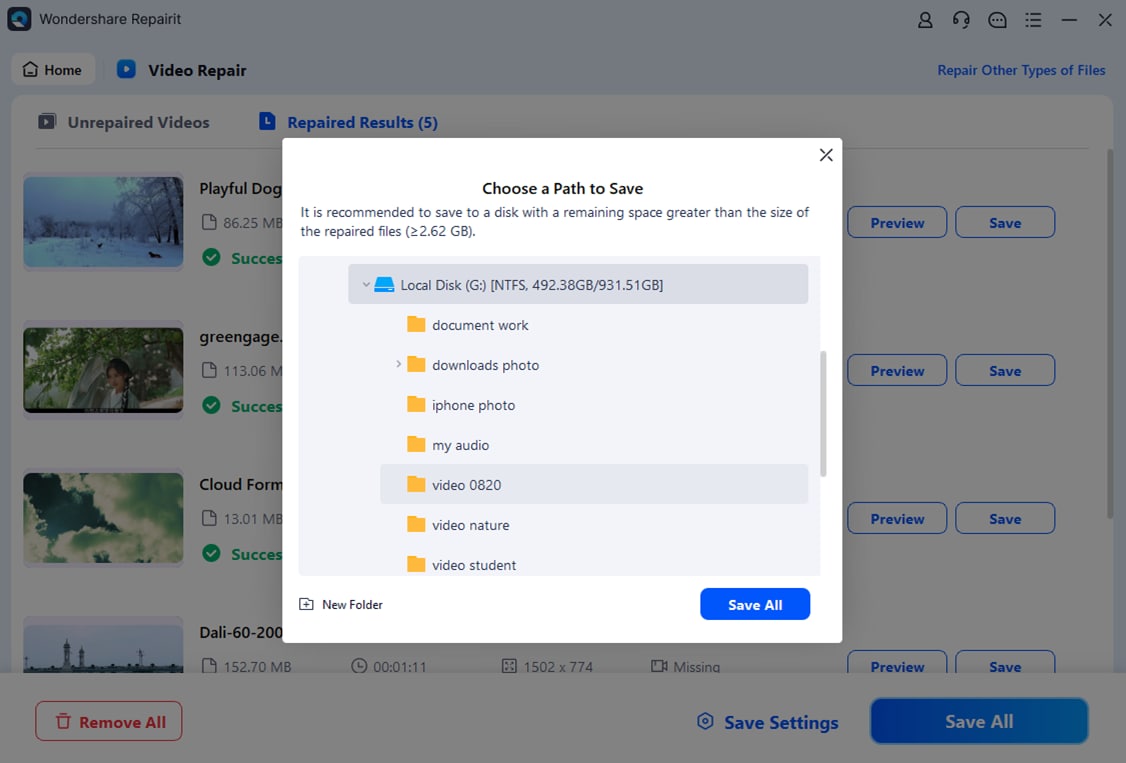
The workflow in Repairit is built to be straightforward, even when you are dealing with severe corruption. Follow these steps to fix corrupted mpeg videos safely.
- Choose a Location to Repair Data

- Deep Scan the Location

- Preview and Repair Your Desired Data
Conclusion
Understanding what is mpeg file helps you work more confidently with legacy recordings, DVDs, and older downloads. MPEG is a long-standing compression standard that offers a practical balance between quality and size, which is why it still appears in many personal and professional archives today.
When you need modern compatibility, converting from MPEG to MP4 is the easiest way to ensure smooth playback across computers, phones, and streaming platforms. And if your videos are damaged or refuse to open, Wondershare Repairit provides a guided way to repair mpeg file content so you can recover valuable footage instead of losing it to corruption.
Next: What Is Asf File
FAQ
-
1. What is an MPEG file used for?
An MPEG file is typically used to store compressed digital video and audio for movies, TV recordings, DVDs, and older web downloads. The format reduces file size while keeping acceptable quality, which made it ideal for limited storage media and early internet connections. -
2. Is MPEG the same as MP4?
No. MPEG is a broader family of coding standards and containers (such as MPEG-1 and MPEG-2), while MP4 is a newer container format built on the MPEG-4 standard. MP4 generally offers better compression efficiency and is more widely supported on modern devices and streaming platforms. -
3. How can I open MPEG files on my computer?
You can open MPEG files with players like VLC, Windows Media Player, or QuickTime (with appropriate codecs). VLC is often the most reliable choice because it includes its own codecs and can handle many problematic or partially corrupted MPEG videos. -
4. Can I convert MPEG to MP4 without losing quality?
Some quality loss is almost inevitable when re-encoding, but you can minimize it by using a high bitrate, a high-quality preset, and keeping the original resolution. Tools such as HandBrake and VLC allow you to fine-tune these settings when you convert MPEG to MP4. -
5. How do I fix a corrupted MPEG video file?
First, try playing the file in a robust player like VLC to rule out simple playback issues. If it still fails, use a dedicated repair tool such as Wondershare Repairit to scan the storage location, repair internal file structure problems, and export a new, playable MPEG or MP4 copy.




