

Many movies, TV episodes, and downloaded videos come in MKV format, so users often search for What is MKV File and how to make it play smoothly everywhere. MKV is a versatile container that can hold video, audio, subtitles, and more in a single file, but this flexibility sometimes leads to playback, compatibility, or corruption issues across devices and players.
Repair Corrupted Files To Save Your Data
 Security Verified. Over 7,302,189 people have downloaded it.
In this article
What Is MKV File
An MKV file is a Matroska Video container format that can store video, audio, subtitle tracks, menus, and chapter information in a single package. When people ask what is mkv file, they are really asking about this flexible container, not a specific codec. Inside an MKV, the video might be encoded with H.264, H.265/HEVC, or other codecs, while audio could be AAC, AC3, DTS, and more.
Because of this flexibility, the mkv file format is widely used for high quality movies, TV shows, and anime releases. It is excellent for archiving because you can keep multiple language tracks, commentary audio, and subtitle sets together. However, this same richness is why some devices struggle to play MKV smoothly without additional software or conversion.
| Format | Main Characteristics |
|---|---|
| MKV vs MP4 | MKV is more flexible and feature-rich, MP4 is more widely supported on devices and browsers. |
| MKV | Supports multiple audio/subtitle tracks, chapters, and advanced metadata; ideal for archiving. |
| MP4 | Highly compatible with phones, TVs, game consoles, and streaming platforms, with simpler structure. |
How to Open MKV File
To open mkv files, you need a media player that understands both the MKV container and the codecs used inside. Many older or basic players support MP4 but not MKV, which is why you might see "file not supported" or get audio-only playback.
Open MKV Files on Windows
On modern Windows versions, the built-in Movies & TV app has limited MKV support. For reliable playback, use a dedicated MKV-friendly player:
- Install VLC Media Player from the official site. VLC can handle most MKV files out of the box.
- Try PotPlayer or MPC-HC if you prefer a lightweight interface and advanced filters.
- As a last resort, install a reputable codec pack such as K-Lite Codec Pack from its official website so your existing player can decode MKV content.
If your MKV still does not play, the file might use an uncommon codec or be damaged. In that case, switching to another player or using a repair tool can help.
Open MKV Files on Mac and Other Platforms
macOS QuickTime struggles with many MKV files. To play mkv on mac or other systems, consider these options:
- Use VLC for Mac, which supports MKV, subtitles, and multiple audio tracks.
- Install IINA on macOS, a modern player based on mpv that offers excellent MKV support.
- On Linux, mpv or VLC are robust choices for MKV playback.
- For smart TVs and mobile devices, check whether your manufacturer offers an MKV-capable player app or use a third-party app like VLC for Android/iOS.
When playback fails on TVs or game consoles that prefer MP4, converting the file to MP4 while keeping the original streams is often the most seamless solution.
How to Convert MKV File to MP4
Because MP4 enjoys broader support, many users choose to convert mkv to mp4 for smooth playback on phones, tablets, and TVs. There are two general approaches: remuxing and re-encoding.
- Remuxing (no quality loss): The tool simply moves the video and audio streams from an MKV container into an MP4 container without changing the data. This is fast and preserves quality, but only works when codecs are MP4-compatible (such as H.264 video and AAC audio).
- Re-encoding (possible quality loss): The tool decodes and then re-encodes streams to ensure compatibility. This lets you change resolution or bitrate but takes longer and can reduce quality.
Many desktop converters, including open-source tools like HandBrake and FFmpeg-based utilities, allow you to choose whether to copy streams or re-encode them. If your goal is compatibility and you do not want a bigger file, try copying the video and audio first. Only re-encode if your device still cannot play the MP4.
| Method | When to Use |
|---|---|
| Remux MKV to MP4 | You want to keep the same quality and your codecs are already device-friendly (e.g., H.264 + AAC). |
| Re-encode MKV to MP4 | Your device still cannot play the remuxed file or you want to reduce file size or change resolution. |
How to Use Repairit to Fix a Corrupted MKV File
When an MKV video freezes, refuses to open, or shows only a black screen, it may be corrupted. Instead of deleting it, you can try a dedicated repair solution such as Wondershare Repairit. This desktop tool focuses on restoring damaged videos from computers, external drives, SD cards, and more. You can download it directly from the Repairit official website and use its guided workflow to bring broken MKV videos back to life.
Key Features of Repairit for MKV Repair
- Repairs corrupted or unplayable MKV and many other video formats with minimal manual configuration.
- Supports repairing videos stored on local disks, external hard drives, memory cards, USB flash drives, and more.
- Generates detailed repair results and lets you preview the repaired MKV file before saving it.
Step-by-Step: Repair Corrupted MKV with Repairit
- Choose a Location to Repair Data

- Deep Scan the Location

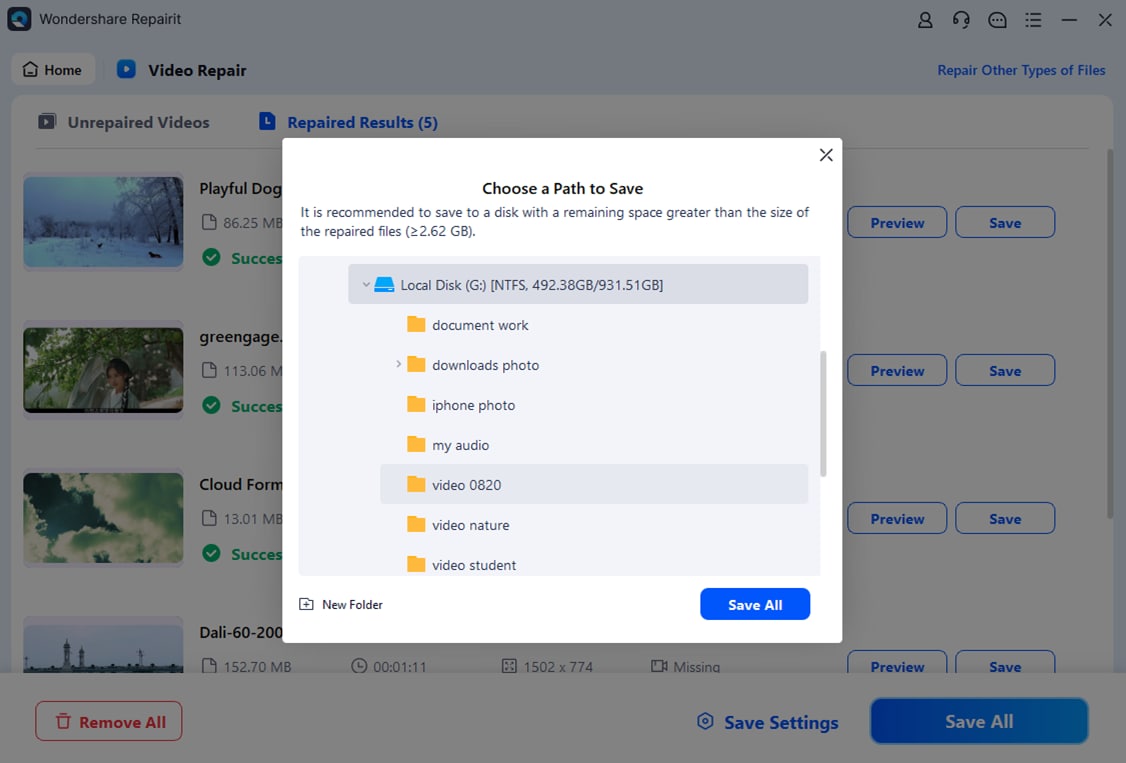
- Preview and Repair Your Desired Data
Conclusion
The mkv file format is a powerful, flexible container designed to bundle high quality video, multiple audio tracks, and rich subtitle data into one file. This makes MKV perfect for archiving and watching detailed media collections, but it can also introduce compatibility and playback challenges on less capable devices.
By understanding What is MKV File, using the right player to open it, converting MKV to MP4 when broader support is needed, and turning to Repairit when your files become corrupted, you can keep your video library accessible and enjoyable across platforms.
Next: What Is Mov File
FAQ
-
1. What is an MKV file used for?
An MKV file is mainly used to store high quality video together with multiple audio tracks, subtitles, and chapters inside one flexible container. This makes it especially popular for movies, TV series, and anime releases that need several languages or commentary tracks. -
2. Why will my MKV file not play on my device?
Many devices do not fully support the MKV container or the specific codecs inside the file. When that happens, you may see errors, no video, or no sound. Installing an MKV-capable media player or converting the video from MKV to MP4 usually resolves these playback problems. -
3. Can I convert MKV to MP4 without losing quality?
Yes. If you remux the file, meaning you copy the existing video and audio streams from MKV into an MP4 container without re-encoding, you keep the same quality. Some converters re-encode by default, so look for options labeled "copy," "passthrough," or "no re-encode" when you want lossless conversion. -
4. How do I open MKV files on Windows and Mac?
On both Windows and Mac, the easiest method is to install a versatile player such as VLC, IINA (Mac), or PotPlayer (Windows). These applications include built-in codecs for MKV, so you can typically double-click the file and play it without additional configuration or codec packs. -
5. Can a corrupted MKV file be repaired?
In many cases, yes. You can try re-downloading the file, playing it in a different player, or using repair software such as Wondershare Repairit. Repairit analyzes the damaged MKV structure, rebuilds headers, and attempts to restore playable video and audio so you can recover important or irreplaceable recordings.




