
An What is M4V File refers to a video file that typically comes from Apple services like iTunes or Apple TV. It looks very similar to an MP4, but may include Apple DRM protection and specific metadata. Knowing how this format works, how it differs from MP4, and how to open, convert, or repair it helps you avoid playback errors and compatibility issues on different devices.
Repair Corrupted Files To Save Your Data
 Security Verified. Over 7,302,189 people have downloaded it.
In this article
What Is M4V File
An M4V file is a video container format based on MPEG-4, similar to MP4, and commonly used by Apple for movies, TV episodes, and music videos. It can bundle video, multiple audio tracks, subtitles, and chapter markers in one file.
The key difference is that many M4V files purchased or rented from iTunes may use Apple FairPlay DRM. This protection limits how and where the video can play, often requiring an authorized Apple ID and compatible Apple software. Non-protected M4V videos, however, behave very much like standard MP4 files and can be played on a wide range of devices and media players.
| Format | Main characteristics |
|---|---|
| M4V | Apple-oriented container, may include FairPlay DRM, supports chapters and subtitles. |
| MP4 | Highly universal container, rarely uses vendor-specific DRM, widely supported across platforms. |
How to Open M4V File
You can open most M4V videos using common media players, but the exact method depends on whether the file is protected with DRM and which platform you are using.
Open M4V on Apple devices
On macOS, iOS, and iPadOS, M4V is handled natively. Apple devices automatically associate this extension with their built-in video apps.
- Use the TV app or Apple Music app to open M4V purchases and rentals linked to your Apple ID.
- Double-click the file in Finder (macOS), and it should open in the default Apple player.
- For non-DRM M4V clips, you can also use third-party players such as VLC or IINA on Mac.
- Ensure you are signed in with the correct Apple ID if the video is from iTunes and does not play.
Open M4V on Windows and Android
On Windows and Android, non-protected M4V videos are usually easy to open, but DRM-protected purchases are restricted.
- Install a versatile player like VLC media player to open non-DRM M4V files.
- On Windows, you can sometimes rename the file extension from .m4v to .mp4 to improve compatibility with built-in players.
- For DRM-protected M4V from iTunes, use iTunes on Windows and sign in with the authorized Apple ID.
- On Android, use apps like VLC or MX Player for unprotected M4V files; DRM-protected videos typically will not play.
How to Convert M4V File to MP4
Converting an M4V file to MP4 helps with compatibility when your TV, editing software, or mobile device struggles to recognize the original format.
Convert unprotected M4V files
Unprotected M4V files can usually be converted to MP4 using desktop converters or reliable online tools.
- Use a desktop video converter tool that supports M4V input and MP4 output, then load your files into the program.
- Select MP4 as the target format, choose the resolution or quality settings you want, and start the conversion process.
- After conversion, test the MP4 video on multiple devices or players to confirm audio, subtitles, and video quality are intact.
Some advanced editors and media managers also let you export or save an imported M4V project directly as MP4, which is often better for preserving quality and metadata.
Things to know about DRM-protected M4V
DRM-protected M4V files purchased or rented from iTunes are locked to the Apple ecosystem, which significantly restricts conversion options.
- FairPlay DRM prevents straightforward conversion of protected M4V videos to MP4.
- These files normally play only in authorized Apple software, such as the TV app or iTunes, using your Apple ID.
- Attempting to bypass DRM may violate service terms or local laws, so always follow applicable regulations.
- When you need broad compatibility, consider purchasing content in a DRM-free format where legally available.
How to Use Repairit to Fix a Corrupted M4V File
Why use Repairit for M4V repair
When an M4V video is damaged, it might freeze, refuse to open, lose audio, or show only a black screen. Trying another player or copying the file to a new drive sometimes helps, but deeper corruption needs dedicated repair software. Repairit by Wondershare provides a focused way to restore broken M4V videos with minimal effort, using guided steps and built-in preview options. You can learn more and download it from the Repairit official website.
Key features of Repairit for M4V
- Repairs corrupted or unplayable video files, including M4V, stored on computers, external drives, memory cards, and other devices.
- Uses different repair modes to handle both light glitches (stuttering, minor artifacts) and more serious structural damage.
- Offers a straightforward workflow with on-screen guidance and file preview, so you can check results before saving the repaired M4V video.
Step-by-step: Repair corrupted M4V
- Choose a Location to Repair Data
Launch Repairit and move to the section that scans for damaged videos. Pick the drive, folder, or removable device where your problematic M4V files are stored.

- Deep Scan the Location
Start the scan to let Repairit inspect the selected path for corrupted or partially unreadable M4V videos.

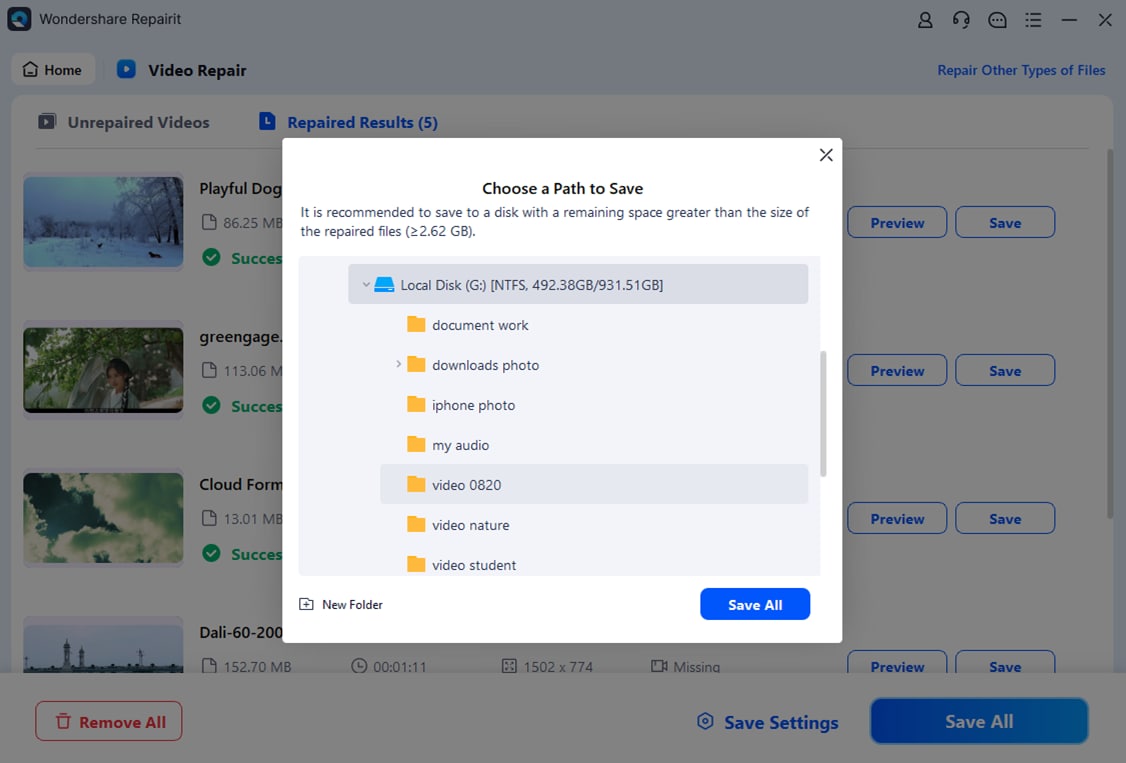
- Preview and Repair Your Desired Data
When scanning and repair processing are complete, select an M4V entry from the results list to open the preview window.
Conclusion
M4V is a video container format closely tied to Apple services, often used for movies and TV shows distributed through iTunes and Apple TV. While it is technically similar to MP4, DRM protection on some files limits where and how the video can play or be converted.
By identifying whether an M4V is protected, choosing compatible players, converting non-DRM videos to MP4 when needed, and using professional repair tools like Repairit when corruption occurs, you can keep your media library usable across devices and avoid frustrating playback errors.
Next: What Is Mpeg File
FAQ
-
1. What is an M4V file used for?
An M4V file is mainly used for distributing movies, TV shows, and other video content, particularly in Apple's ecosystem through iTunes and Apple TV. It can contain video, multiple audio tracks, subtitles, and chapter markers in a single container. -
2. How is M4V different from MP4?
M4V and MP4 share a similar technical foundation, but M4V is more closely associated with Apple and often includes FairPlay DRM. Protected M4V files can only be played on authorized devices and apps, while regular MP4 videos are typically supported on almost any modern media player. -
3. Can I play M4V files on Windows or Android?
Yes, you can play non-DRM M4V files on Windows or Android using players like VLC or other third-party apps. However, DRM-protected M4V videos from iTunes usually work only within Apple software, such as iTunes on Windows or the TV app on Apple hardware. -
4. How do I convert M4V to MP4?
For unprotected M4V videos, use a video converter that supports M4V input and export to MP4, or rely on editing software with MP4 export options. DRM-protected M4V files generally cannot be freely converted because of digital rights restrictions, so always check local laws and service terms. -
5. How can I fix a corrupted M4V file that will not play?
Start by trying a different media player and copying the file to another drive to rule out basic issues. If the video is still broken, use a dedicated repair tool like Repairit to scan the file, rebuild damaged structures, and preview the repaired M4V before saving it to a safe location.




