

M2TS File refers to a high-definition video container commonly used on Blu-ray discs and AVCHD camcorders. You will often see it when you copy footage from a camera or back up a Blu-ray structure to your computer. Understanding how this format works, how to open or convert it, and how to repair it when things go wrong is essential if you regularly handle HD recordings or disc-based movies.
Repair Corrupted Files To Save Your Data
 Security Verified. Over 7,302,189 people have downloaded it.
In this article
What Is M2TS File
M2TS files typically use the .m2ts extension and is based on the Blu-ray Disc Audio-Video (BDAV) MPEG-2 transport stream container. It is designed to carry high-bitrate HD video, multiple audio tracks, and subtitle streams in a single synchronized file.
You will usually encounter M2TS in two scenarios:
- Blu-ray movie folders, where each scene or chapter can be stored as an individual .m2ts file.
- AVCHD camcorders that record home videos using the M2TS structure to preserve detail and compression efficiency.
Because of the rich data inside, M2TS files can be very large and demanding on hardware, which explains why some older players may struggle or fail to open them without the right codecs.
How to Open M2TS File
Playing a What is M2TS File smoothly depends on choosing a capable media player and, in some cases, installing the right codecs. Below are the most practical options for Windows and macOS.
Open M2TS File on Windows
On Windows, not every built-in app can handle Blu-ray-style streams, so relying on third-party players is often the easiest route.
- VLC media player: Free, open source, and supports Blu-ray transport streams and AVCHD recordings out of the box.
- PotPlayer or MPC-HC: Lightweight players preferred by power users for high-bitrate video playback and advanced settings.
- Video editors (NLEs) like Adobe Premiere Pro or DaVinci Resolve, which can import M2TS clips for editing workflows.
To improve playback reliability, copy your M2TS files from memory cards or optical discs to a fast internal or external SSD first, then open them from that location.
Open M2TS File on Mac
macOS can work with many HD video formats, but native players might not always recognize Blu-ray transport streams directly.
- VLC for macOS: The simplest solution to open most M2TS files without extra codecs.
- IINA: A modern macOS player built on mpv, with solid support for M2TS and advanced playback controls.
- Professional editors such as Final Cut Pro, Premiere Pro, or DaVinci Resolve for importing recordings from AVCHD camcorders.
If a file fails to open in one application, try another player or editor. Consistent failure across multiple tools may indicate the M2TS file is corrupted or incomplete and may need repair.
How to Convert M2TS File to MP4
Although M2TS preserves high quality, it is not the most convenient format for sharing or streaming. Converting an What is M2TS File to MP4 makes your video easier to play on phones, TVs, and web platforms while still keeping good quality.
Convert M2TS File to MP4 with a Desktop Tool
Desktop converters give you more control over compression settings and offer batch conversion for large camera archives.
- Choose a reliable converter: Tools like HandBrake are free and cross-platform, while some commercial video suites add hardware-accelerated encoding and presets.
- Import your M2TS file: Add one or multiple M2TS clips to the conversion queue.
- Select MP4 as the output format: Pick H.264 or H.265 (HEVC) as the codec inside MP4, depending on your device compatibility.
- Adjust quality settings: Use a high bitrate or a quality-based mode (e.g., RF 18–20 in HandBrake) to minimize visible loss.
- Start the conversion: Save the new MP4 files to a fast drive and test them in your preferred media player.
| Setting | Recommendation for M2TS to MP4 |
|---|---|
| Codec | H.264 (best compatibility) or H.265 (smaller size, newer devices) |
| Resolution | Match source (e.g., 1920x1080) unless you need smaller files |
| Bitrate / Quality | Use high bitrate or "High" quality preset to reduce artifacts |
Convert M2TS File to MP4 with FFmpeg
FFmpeg is a command-line utility popular among advanced users for precise control over conversions.
- Install FFmpeg: Download it from the official site or via a package manager like Homebrew on macOS.
- Re-mux without re-encoding (when possible): If your M2TS video is already H.264, you can copy streams into MP4 with almost no quality loss using a command such as:
ffmpeg -i input.m2ts -c copy output.mp4 - Transcode when needed: If the source codec is not MP4-friendly, use:
ffmpeg -i input.m2ts -c:v libx264 -crf 18 -preset medium -c:a aac -b:a 192k output.mp4 - Verify the result: Play the MP4 on your target devices to confirm smooth playback and acceptable quality.
How to Use Repairit to Fix a Corrupted M2TS File
Repairit Introduction
When an What is M2TS File becomes unplayable, stutters heavily, or shows errors during import, a specialized repair tool can often recover it. Wondershare Repairit is purpose-built to deal with corrupted media, including HD camera recordings and Blu-ray-style streams. Through an intuitive interface available on the Repairit official website, you can scan problematic locations, repair damaged M2TS clips, and quickly restore them to a usable state.
Key Features of Repairit for M2TS Repair
- Repair M2TS videos alongside many other common HD and camera-recorded formats.
- Scan local disks, removable drives, and memory cards where your M2TS footage is stored.
- Preview repaired videos before saving them, so you only keep clips that are successfully fixed.
Step-by-step: Fix a Corrupted What is M2TS File with Repairit
1. Choose a Location to Repair Data

2. Deep Scan the Location

3. Preview and Repair Your Desired Data
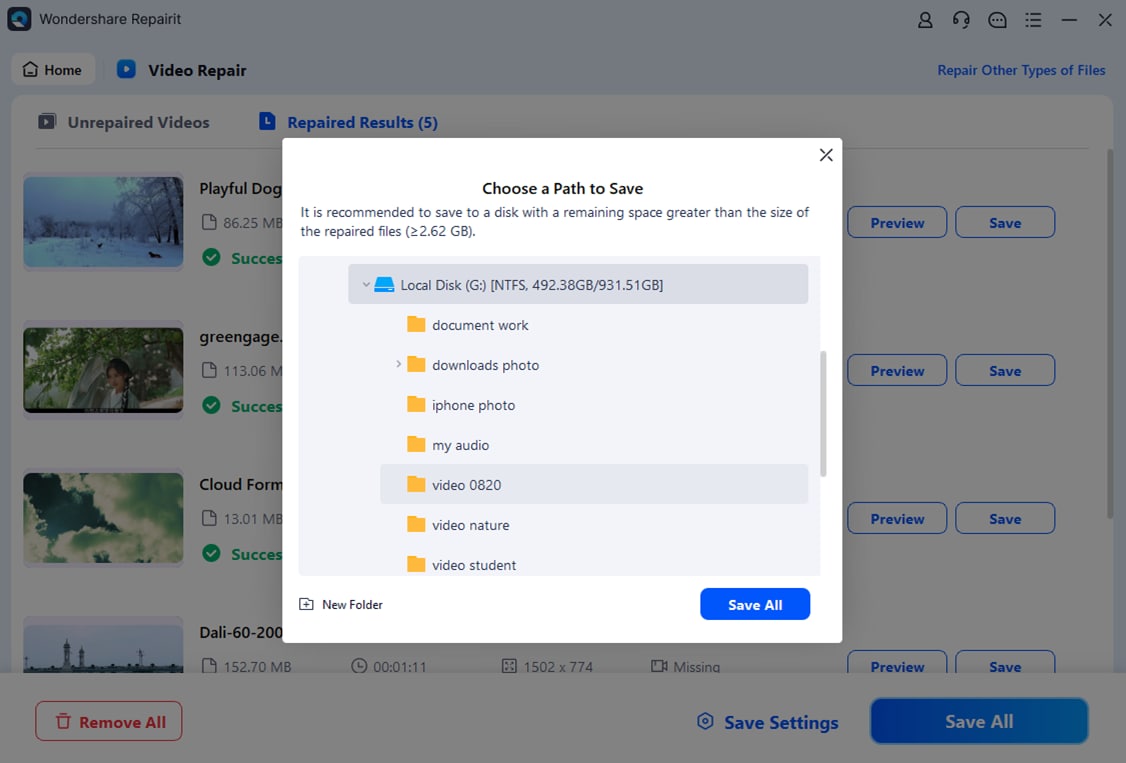
Conclusion
M2TS File is a robust HD video container used heavily on Blu-ray discs and AVCHD camcorders, capable of holding high-bitrate video, multiple audio tracks, and subtitles. While this structure delivers excellent quality, it can also lead to large file sizes, playback issues on underpowered devices, and occasional file corruption.
By choosing compatible players, converting M2TS to MP4 when you need broader device support, and using a dedicated repair solution like Wondershare Repairit to recover damaged footage, you can keep your HD recordings safe and accessible for the long term.
Next: What Is 3gp File
FAQ
-
1. What is an M2TS file mainly used for?
An M2TS file is primarily used to store high-definition video on Blu-ray discs and AVCHD camcorders. It supports multiple audio and subtitle tracks at high bitrates, which makes it suitable for full HD and higher-resolution content. -
2. How do I open an M2TS file on Windows or Mac?
Use players that understand Blu-ray transport streams, such as VLC, PotPlayer, or MPC-HC on Windows, and VLC or IINA on macOS. Many professional editing tools, including Adobe Premiere Pro and DaVinci Resolve, can also import M2TS clips directly. -
3. Can I convert M2TS to MP4 without noticeable quality loss?
You can convert M2TS to MP4 with minimal visible quality loss by using a high bitrate or quality-based preset in tools like HandBrake or FFmpeg. When possible, re-muxing (copying streams without re-encoding) preserves the original quality almost perfectly. -
4. Why does my M2TS file stutter or refuse to play?
Playback issues can be caused by missing codecs, weak hardware, slow storage (such as an aging external drive), or actual file corruption. Try another media player, move the file to a faster disk, and if problems persist, consider using Repairit to repair the M2TS. -
5. How can I repair a corrupted M2TS video file?
To repair a corrupted M2TS file, run Wondershare Repairit on the drive or folder containing the clip, let it deep-scan for damaged videos, and then preview the repaired result. If the playback looks correct, save the fixed file to a safe destination on a healthy drive.




