
A What is 3GP File question usually appears when you rediscover old mobile videos that no longer play smoothly on modern devices. 3GP is a lightweight mobile video format created for early phones and slow networks. Knowing how this format works, how to open it today, and what to do if a 3GP video is damaged will help you preserve and enjoy your older recordings without hassles.
Repair Corrupted Files To Save Your Data
 Security Verified. Over 7,302,189 people have downloaded it.
In this article
What Is a 3GP File and How Does This Mobile Video Format Work
A 3GP video file is a multimedia container format defined by the 3rd Generation Partnership Project (3GPP) for use on 3G mobile phones. It is based on the ISO base media file format, the same family that MP4 belongs to, but it is optimized to keep file sizes small for low-bandwidth networks and limited phone storage.
Typically, a 3GP file stores video compressed with codecs such as H.263 or H.264 and audio with AMR-NB, AMR-WB, or AAC. Bitrates, resolution, and frame rates are usually low, which reduces data usage and allows smoother playback on older devices. Many early feature phones and some smartphones recorded and saved clips as 3GP format by default.
Even though the format is aging, you may still encounter 3GP video file clips from old memory cards, MMS messages, or legacy backups. Modern devices can often decode these files, but compatibility is not guaranteed, and converting 3GP to a more universal container like MP4 is often the best long-term solution.
| Aspect | 3GP Format Details |
|---|---|
| Primary use | Mobile video on 3G networks and early smartphones |
| Typical codecs | H.263 / H.264 video, AMR or AAC audio |
| Main advantages | Small file size, low bandwidth usage, simple structure |
| Main limitations | Lower quality, reduced compatibility compared with MP4 |
How to Open 3GP Files on Modern Devices
Because 3GP was designed for older phones, not every default media app supports it well today. However, with the right player or app, you can still open 3GP video file clips on Windows, Mac, Android, and iOS.
Open 3GP files on Windows
On Windows, support for open 3GP files varies by version and installed codecs. If your default Movies & TV or Windows Media Player app fails, use a more flexible media player.
- VLC Media Player: A free, open source player that handles most 3GP codecs out of the box.
- PotPlayer or MPC-HC: Lightweight players with broad format support and custom codec options.
- Video editors and converters: Many tools let you import a 3GP file, preview it, then export to MP4.
If playback stutters or you only get audio with no video, it is usually a codec issue. Installing a robust player like VLC is often enough to solve it. When several players fail to read the clip, the file may be corrupted and require repair instead of just a new player.
Open 3GP files on Mac, Android, and iOS
macOS and mobile systems provide partial support for 3GP format, but you may still need dedicated apps for reliable playback.
- On Mac: QuickTime may open some 3GP files, but for the best results, install VLC or a similar universal player.
- On Android: Many preinstalled gallery or video apps still recognize 3GP, especially on older phones. If not, install VLC for Android or another third-party media player from Google Play.
- On iPhone/iPad: iOS does not always handle 3GP natively. A third-party player such as VLC for iOS, or converting the file to MP4 on a computer first, is often the easiest approach.
When videos are important or irreplaceable, avoid testing them repeatedly on random apps. Instead, confirm integrity in a reliable player, then back up working copies to safer formats and locations.
How to Convert 3GP to MP4 Safely
Because MP4 is more widely supported across TVs, phones, and web platforms, many people prefer to convert 3GP to MP4 for easier playback and editing. Converting does not magically increase quality, but it makes your files more future-proof and compatible.
Convert 3GP to MP4 with desktop software
Desktop video converters give you more control over quality, bitrate, resolution, and output location. They are ideal when you have many 3GP video file clips to process at once.
- Install a trusted converter: Use reputable software (for example, desktop media converters that support batch processing and hardware acceleration).
- Add your 3GP files: Drag-and-drop or click Add Files to import one or more 3GP clips.
- Select MP4 as the output format: Choose H.264/MP4 as the target profile and set resolution and bitrate close to the original values to avoid unnecessary quality loss.
- Adjust settings if needed: Keep frame rate and aspect ratio unchanged for best compatibility; only upscale resolution if you have a specific reason.
- Start the conversion: Choose an output folder and run the job. When it finishes, test the new MP4 files in a standard player like VLC.
Convert 3GP to MP4 online
If you only have a few small clips, an online converter can quickly change 3GP format videos to MP4 without installing software.
- Pick a reliable online tool: Select a site with clear file size limits and privacy information.
- Upload your 3GP file: Browse from local storage or drag the clip into the upload area.
- Choose MP4 as output: Some tools offer basic bitrate or resolution options; keep them close to the original.
- Download the converted file: After processing, save the MP4 to your device and verify it plays correctly.
Online tools are convenient, but avoid using them for very large files or sensitive personal videos. For those, a local desktop converter or editor is usually safer.
How to Use Repairit to Fix a Corrupted 3GP File
Sometimes a 3GP file refuses to play even in robust players, shows errors, or only plays partially. In such cases, the file structure itself may be damaged. Instead of giving up on valuable recordings, you can turn to dedicated repair software. Wondershare Repairit is designed exactly for these situations and can help restore broken 3GP video file clips to a playable state. You can learn more and download the tool from the Repairit official website.
Key features of Repairit for 3GP repair
- Repairs corrupted or unplayable 3GP and other video formats from various storage locations.
- Offers automatic and advanced repair modes to handle both minor glitches and severe damage.
- Provides intuitive previews of repaired files so you can confirm quality before saving.
Step-by-step: repair corrupted 3GP files
- Choose a Location to Repair Data
In the main window, browse to the drive, folder, memory card, or external device where your problematic 3GP files are stored. Confirm this source so Repairit knows exactly where to search for damaged clips and related data.

- Deep Scan the Location
Start the scan so Repairit can thoroughly analyze the chosen location. The program automatically hunts for corrupted 3GP videos and other supported formats, examining headers, metadata, and frame structure.

- Preview and Repair Your Desired Data
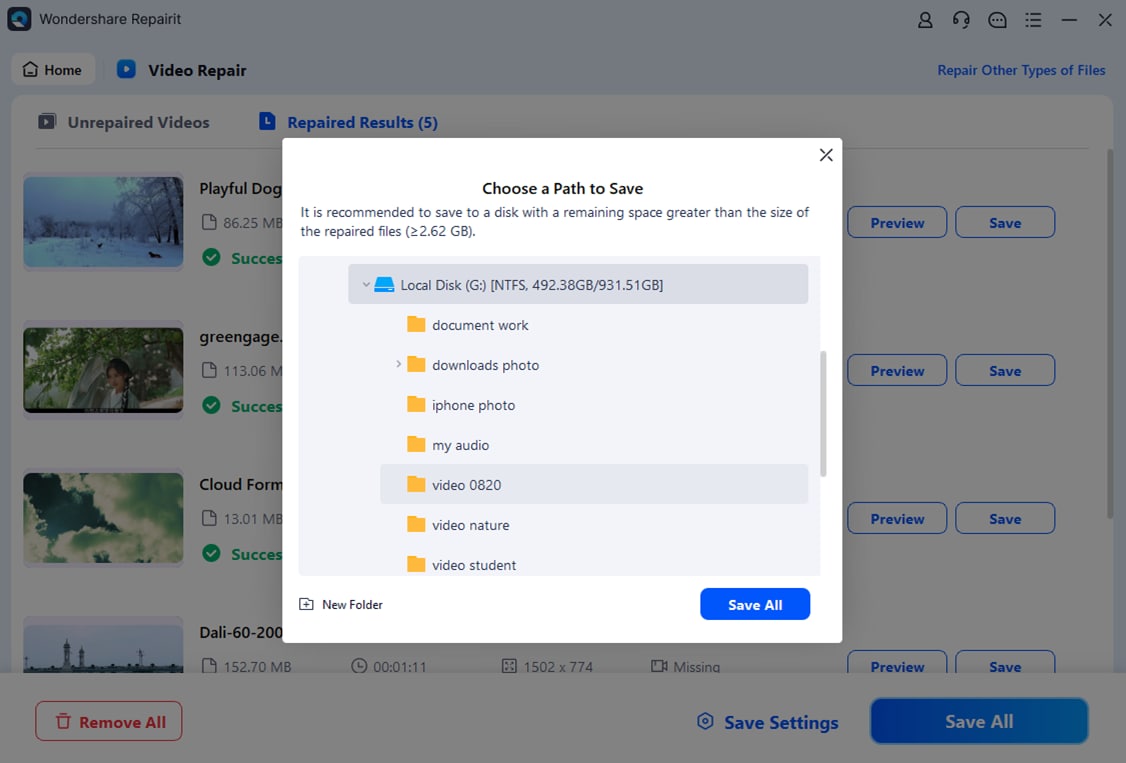
When the scan is finished, browse the results and tick the 3GP files you want to fix. Once satisfied, click the repair or save option and store the fixed files in a safe output folder, preferably on a different drive than the original to avoid overwriting data.
Conclusion
The 3GP format was created to make video practical on early 3G phones, trading quality for smaller file sizes and lower bandwidth demands. Although it has largely been replaced by MP4 and other modern formats, many memorable clips from older devices still exist as 3GP files.
By understanding 3GP File, how to open it on current systems, and how to convert 3GP to MP4, you can keep these legacy recordings accessible. When important 3GP files become corrupted, Wondershare Repairit offers a straightforward way to scan, repair, and recover videos that might otherwise be lost.
Next: What Is Flv File
FAQ
-
1. What is a 3GP file used for?
A 3GP file is primarily used to store compressed video and audio for playback, recording, and sharing on older mobile phones and 3G networks. Its small size makes it suitable for limited storage and low-bandwidth connections, especially for short clips captured by early camera phones. -
2. Is 3GP the same as MP4?
No. Both 3GP and MP4 are container formats based on similar standards, but MP4 is newer, more flexible, and more widely supported across modern devices and platforms. 3GP is optimized for mobile networks and usually offers lower resolution and bitrate, while MP4 can handle higher-quality video and audio. -
3. Can I convert a 3GP file to MP4 without losing quality?
You can convert 3GP to MP4 with minimal additional quality loss by keeping the same resolution, frame rate, and using a reasonable bitrate. However, 3GP is already heavily compressed, so conversion cannot restore detail that was never recorded in the original footage. -
4. Why will my 3GP file not play on my computer?
Playback problems usually come from missing codecs, outdated media players, or file corruption. Try opening the clip in a versatile player such as VLC. If several players fail, the 3GP file might be damaged and may need repair with a tool like Wondershare Repairit before it can be viewed. -
5. How do I repair a corrupted 3GP video from an old phone?
First, copy the 3GP file from the phone or memory card to a computer and test it in a robust player like VLC. If it still will not play, launch Wondershare Repairit, scan the location containing the file, and use the program to rebuild and save a repaired version that can be previewed and stored safely.




