
An What is FLV File refers to a Flash Video container format that was once the standard way to stream videos on many websites. You will still encounter FLV in older downloads, archived web content, or legacy project folders. Knowing what an FLV file is, how to open it, convert it to MP4, and repair it when playback fails makes it much easier to preserve and reuse these older clips on today’s devices and platforms.
Repair Corrupted Files To Save Your Data
 Security Verified. Over 7,302,189 people have downloaded it.
In this article
What Is FLV File Format
An FLV file (Flash Video) is a container format created by Adobe Systems to deliver video through the Adobe Flash Player plugin. It typically stores compressed video (often using H.264 or older codecs) and audio streams with minimal metadata. For years, major video sharing platforms relied on FLV because it streamed efficiently over limited bandwidth and could be embedded easily into web pages.
Although Flash Player is now discontinued and modern HTML5 video has replaced it, flv file content is still common in backups, older websites, and legacy training or marketing libraries. To keep this material usable, you usually need either a compatible FLV player or you must convert the flv video format to something more current, such as MP4.
From a technical standpoint, FLV uses a simple structure with headers, metadata tags, and audio/video data packets. This layout made streaming and seeking simple but also means that a partially downloaded or interrupted file can easily become corrupted, causing playback errors, freezes, or a black screen.
How to Open FLV Files
Since modern browsers no longer support Flash, you now depend on standalone software and apps to open flv files. The process is straightforward once you choose a compatible media player for your platform.
Open FLV Files on Windows and Mac
On desktop systems, you can open an flv file with any player that still supports the Flash Video container. Many popular third-party players include built-in codecs, so you do not have to install extra components.
Recommended FLV players for desktop
- VLC media player (Windows, macOS, Linux)
- PotPlayer (Windows)
- KMPlayer (Windows, macOS)
- 5KPlayer (Windows, macOS)
| Method | Steps to Open FLV Files |
|---|---|
| Using VLC (Windows/Mac) |
|
| Associating FLV with a player |
|
If you double-click and nothing happens, your system is likely missing a default player that understands the flv video format. Installing a modern media player that bundles its own codecs usually resolves this quickly.
Open FLV Files on Mobile Devices
Smartphones and tablets do not natively focus on FLV anymore, but you can still view these videos using third-party apps that support older containers.
Open FLV on Android
- Install a media player app like VLC for Android from the Google Play Store.
- Copy the FLV file to your device or cloud storage.
- Open the file from within the player or file manager and choose your FLV-compatible app.
Open FLV on iOS/iPadOS
- Use a media player such as VLC for iOS from the App Store.
- Transfer FLV files via iTunes, Finder, Wi-Fi upload, or cloud drives.
- Open the FLV inside the app or with the standard "Share/Open in" menu.
If your mobile device struggles with long or high-resolution FLV videos, converting them to MP4 first often gives smoother playback and better compatibility across all apps.
How to Convert FLV to MP4
Because MP4 is now the universal standard for web, mobile, and TV playback, many users prefer to convert flv to mp4 rather than keep working with Flash Video. Conversion does not have to be complicated: you can use either desktop software for large batches or online tools for occasional clips.
Convert FLV to MP4 on Desktop
Desktop converters are best when you need high-quality exports, more control over settings, or the ability to process many FLV files at the same time.
Typical steps to convert FLV with desktop software
- Add your FLV files
- Launch your chosen video converter.
- Click "Add Files" or drag and drop FLV videos into the program window.
- Confirm that each file loads correctly and displays duration and resolution.
- Select MP4 as the output format
- Open the output format or profile list and choose "MP4".
- Adjust resolution, bitrate, and codec settings if available.
- For minimal quality loss, keep parameters close to the source FLV file.
- Start the conversion
- Pick an output folder with enough free space.
- Click "Convert" or "Start" to begin transcoding.
- When finished, test your new MP4 files in a standard media player.
By matching the original FLV resolution and using reasonable bitrates, you can usually convert without visible degradation. If the FLV is very old or low quality, remember that no converter can restore detail that does not exist in the source.
Convert FLV to MP4 Online
Online converters are convenient for quick one-off tasks and for users who do not want to install new software, but they may limit file size or upload speed.
How to convert FLV to MP4 with an online tool
- Upload your FLV video
- Visit a reputable conversion website in your browser.
- Click "Choose File" or similar and upload the FLV from your computer or cloud storage.
- Wait for the upload to finish before moving on.
- Choose MP4 as the target format
- In the format options, select MP4 as the desired output.
- If the site allows, set the resolution and quality level.
- Some tools offer trimming or simple editing before conversion.
- Convert and download
- Click the "Convert" button and let the site process your file.
- Download the resulting MP4 to your device when it is ready.
- Play the MP4 locally to confirm that video and audio look and sound correct.
Avoid uploading confidential or sensitive videos to random services. For private footage, local desktop tools or trusted company platforms are usually safer.
How to Use Repairit to Fix a Corrupted FLV File
Why Use Repairit for FLV Repair
When an repair flv file attempt fails with standard players or converters, the underlying video data may be damaged or incomplete. In those situations, a specialized repair utility is far more effective than simply trying to open the file again. Wondershare Repairit is designed specifically to analyze and fix corrupted multimedia files, including legacy formats such as FLV. You can learn more and download the tool from the Repairit official website.
Instead of digging into complex codecs or command-line tools, Repairit guides you through a simple, visual process: choose the problem location, let the software scan and repair, then preview the results before you save anything back to disk.
Key Features of Repairit for FLV and Other Videos
- Repairs corrupted or unplayable videos from a wide range of formats, including legacy types such as FLV, so your older clips become viewable again.
- Supports repair from diverse storage devices and damaged locations, including local drives, memory cards, and external disks, with an intuitive workflow designed for non-technical users.
- Provides a preview of repaired files before saving, allowing you to confirm that the recovered videos look and sound right before committing them to storage.
Steps to Repair Corrupted FLV Files
The workflow in Repairit is streamlined, so you can fix corrupted flv clips even if you have never used repair software before. Follow these three practical steps.
- Choose a Location to Repair Data
- In the location list, select the exact drive, folder, memory card, or external device that contains your problematic FLV files.

- Deep Scan the Location
- Start the scan to let Repairit search for corrupted, inaccessible, or partially downloaded FLV videos.

- Preview and Repair Your Desired Data
- When the scan and repair analysis finishes, select any FLV entry to open a built-in preview.
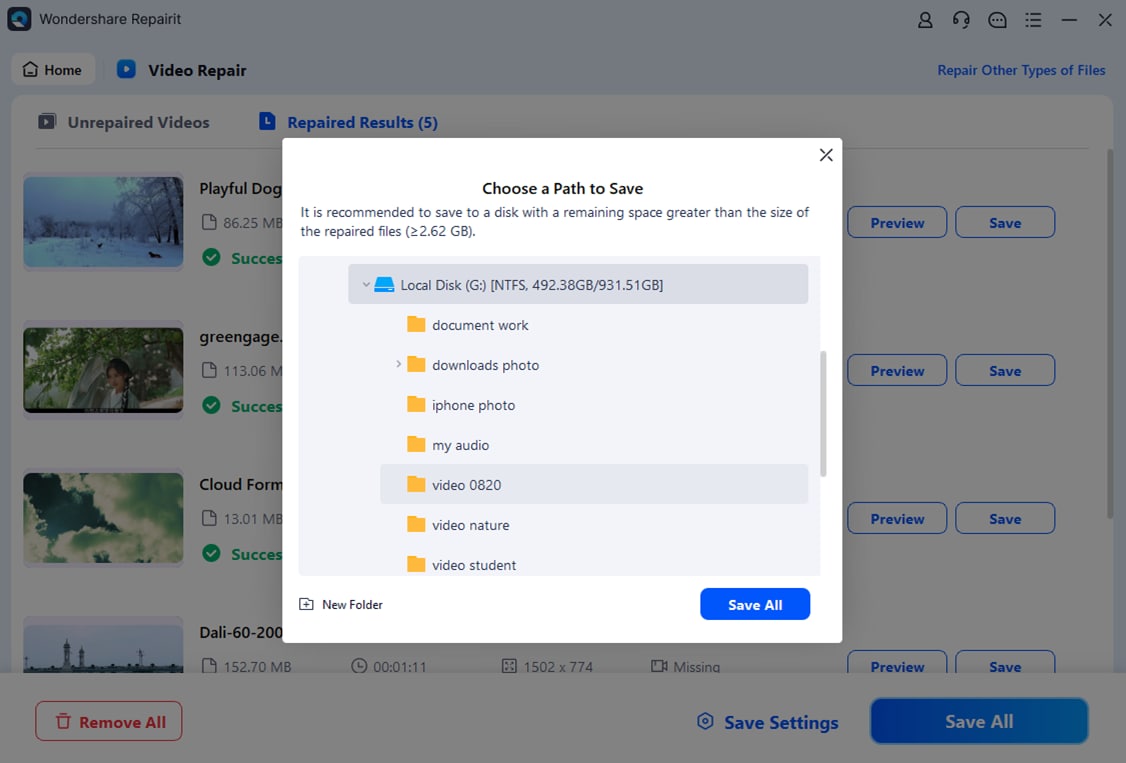
If the damage is severe, repeat the process with another copy of the file (if available) or try repairing from the original storage device instead of a secondary backup.
Conclusion
The What is FLV File format may belong to an earlier era of web video, but it still shows up in archives, course libraries, and legacy marketing assets. With the right tools, you can open FLV videos on today’s systems, convert them to widely supported MP4 files, and keep valuable footage available for editing or sharing.
When a Flash Video clip refuses to play or appears damaged, dedicated video repair software such as Wondershare Repairit can often restore the content. By understanding what an FLV file is, how to open and convert it, and how to repair playback issues, you protect your older media collections from becoming permanently inaccessible.
Next: What Is Wmv File
FAQ
-
1. What is an FLV file used for?
An FLV file is a Flash Video container primarily used in the past to stream video over the internet. It powered playback on older video sharing sites and embedded players before HTML5 video became the default standard. -
2. How can I open FLV files on Windows or Mac?
You can open FLV files with media players that still support the format, such as VLC, PotPlayer, or KMPlayer. After installing one of these players, set it as the default app for .flv files or use the "Open with" option when launching a video. -
3. Can I convert FLV to MP4 without losing quality?
Yes. By using a reliable converter and matching the original resolution, bitrate, and codec as closely as possible, you can transcode FLV to MP4 with minimal visible quality loss. However, heavily compressed or low-quality source videos may not improve after conversion. -
4. Why will my FLV file not play?
An FLV file might not play because your software does not support the format, the necessary codecs are missing, or the file is corrupted or incomplete. Trying a different FLV-compatible player and, if needed, running the file through Repairit can help identify and resolve the issue. -
5. How do I fix a corrupted FLV file?
To repair a corrupted FLV, open Wondershare Repairit, select the drive or folder containing the damaged file, and run a deep scan. The software will attempt to reconstruct the broken video structure so you can preview the recovered clip and save a working copy.




