
A What is WMV File topic usually refers to the Windows Media Video (WMV) format created by Microsoft for efficient video compression and smooth playback on Windows-based systems. WMV files are still common in software bundles, online downloads, and legacy archives. This guide explains what a WMV file is, how it works, how to open it on different devices, how to convert WMV to MP4, and what to do if your WMV videos become corrupted or refuse to play.
Repair Corrupted Files To Save Your Data
 Security Verified. Over 7,302,189 people have downloaded it.
In this article
What Is WMV File
A WMV file is a video file that uses the Windows Media Video codec and usually carries the .wmv extension. Created by Microsoft, the wmv file format is built around the Advanced Systems Format (ASF) container, allowing it to hold video, audio, subtitles, and metadata.
In practice, the wmv format is designed to deliver smaller file sizes while maintaining reasonable quality, making it useful for streaming, email attachments, and older download sites. WMV is tightly integrated with Windows, which is why it opens easily in built-in Microsoft players. However, its Windows-centric nature can cause compatibility issues on other platforms, where formats like MP4 are preferred.
| Aspect | Details |
|---|---|
| Full name | Windows Media Video (.wmv) |
| Developer | Microsoft |
| Main use | Compressed video for Windows playback and online delivery |
| Key benefit | Smaller file size with solid visual quality |
How to Open WMV File
Because WMV is native to Windows, you can usually double-click a wmv file and play it right away. On other platforms and devices, you may need a compatible player or to convert WMV to a more universal format like MP4.
Open WMV on Windows
On Windows 10 and 11, a windows media video file should open without extra steps. If you run into trouble, use these options:
- Windows Media Player: The classic built-in player for WMV, still available on many systems.
- Movies & TV (or Media Player app): The more modern default media player on newer Windows versions.
- VLC Media Player: A free, open-source player that includes its own codecs and handles WMV reliably.
If double-clicking a WMV launches the wrong app, right-click the file, choose "Open with," and select your preferred player. You can also change the default app for the wmv file type in Windows settings.
Open WMV on Mac, mobile, and web
macOS, iOS, and some browsers do not natively support WMV, so you will need third-party tools or conversions.
- macOS: Use VLC, IINA, or another player that supports WMV playback. QuickTime alone may not open every WMV.
- Android: Many preinstalled video apps play WMV, but VLC for Android offers better compatibility.
- iPhone and iPad: Install a capable media player (for example, VLC for iOS) that can decode WMV, or convert WMV to MP4 first.
- Web browsers: Modern websites favor MP4/H.264. To play WMV in the browser, you typically need a plugin, a compatible player extension, or a server-side conversion to MP4.
How to Convert WMV File to MP4
Converting a wmv file to MP4 improves compatibility with modern devices, editing software, and social platforms. MP4 with H.264 or H.265 is widely supported and usually streams smoothly in browsers and apps.
Convert WMV to MP4 on desktop
Desktop converters give you more control over quality, resolution, and bitrate than most online tools.
- VLC Media Player: Free and cross-platform, with built-in conversion features.
- HandBrake: An open-source transcoder that focuses on MP4/MKV and offers detailed settings.
- Dedicated video converter software: Many third-party converters provide preset profiles for phones, TVs, and social media.
Typical steps to convert WMV to MP4 with a desktop tool:
- Add or import your wmv file into the program.
- Select MP4 (H.264 or H.265) as the output format and adjust resolution/bitrate as needed.
- Choose the output folder and start the conversion, then test the new MP4 in your preferred player.
Convert WMV to MP4 online
Online converters are convenient when you only need to convert a few small wmv format clips and do not want to install software.
- Upload the WMV file to an online conversion service.
- Choose MP4 as the target format and tweak basic settings if offered.
- Convert and download the resulting MP4, then verify playback on your device.
Be cautious when uploading sensitive or large WMV videos to online tools. For privacy and stability, a desktop converter is often safer and more reliable.
How to Use Repairit to Fix a Corrupted WMV File
Why use Repairit for WMV repair
When a wmv file refuses to play, stutters, or shows errors, the video may be corrupted rather than simply incompatible. Repairit by Wondershare is a dedicated data and video repair tool that focuses on restoring damaged videos, including WMV, from a variety of storage devices. You can explore its full capabilities on the Repairit official website.
Instead of trying random players or risky manual hex edits, Repairit analyzes the internal structure of your wmv file, repairs headers and data streams where possible, and lets you preview the results before saving.
Key features of Repairit for WMV repair
- Repairs corrupted or unplayable WMV and other popular video formats from multiple storage devices.
- Provides advanced scanning modes to locate deeply damaged files and restore them as completely as possible.
- Offers an easy preview and selective recovery process so you only restore the videos you actually need.
Step-by-step: repair a corrupted WMV file
Follow this concise workflow to repair wmv file issues using Repairit.
- Choose a Location to Repair Data

- Deep Scan the Location

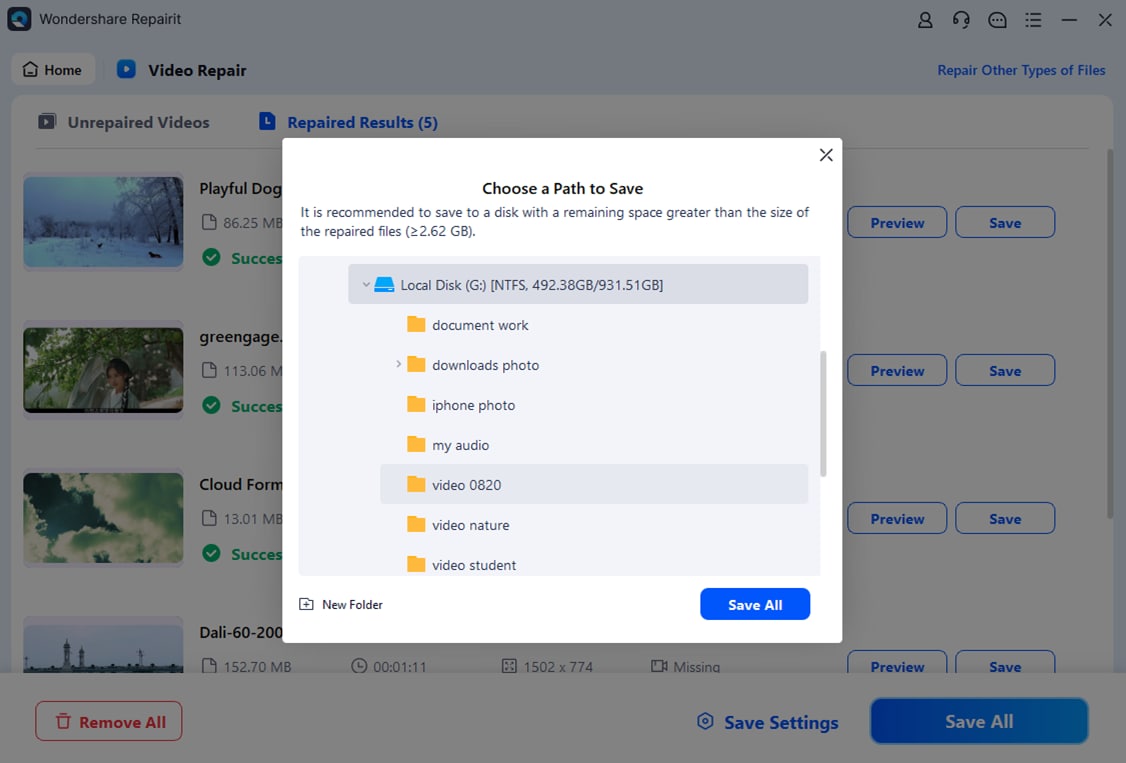
- Preview and Repair Your Desired Data
Conclusion
The wmv file remains a widely used windows media video format, especially in legacy archives, software packages, and older online downloads. While it is optimized for the Windows ecosystem, you can open it on almost any platform with the right player or by converting the wmv format to MP4.
If your WMV clips become corrupted or will not play, a professional video repair tool like Repairit can dramatically increase the odds of recovery. By scanning the storage location, fixing structural damage, and letting you preview results before saving, Repairit simplifies WMV repair even for non-technical users.
Next: What Is Insv File
FAQ
-
1. What is a WMV file used for?
A wmv file is mainly used to store compressed video for playback on Windows devices, streaming over the internet, and embedding into presentations or software installers. Its small size makes it suitable for downloads and email attachments. -
2. How do I open a WMV file on Windows and Mac?
On Windows, you can open WMV files with Windows Media Player, the Movies & TV/Media Player app, or VLC. On macOS, WMV is not native, so you generally need a third-party player such as VLC, IINA, or another app capable of decoding the wmv format. -
3. Can I convert WMV to MP4 without losing quality?
You can convert WMV to MP4 using VLC, HandBrake, or other converters. Using a high bitrate, a suitable resolution, and avoiding unnecessary re-encoding steps helps preserve quality, but some loss is almost always inevitable when recompressing video. -
4. Why will my WMV file not play?
A WMV file may not play because the required codecs are missing, the player does not support the specific WMV variant, file associations are misconfigured, or the video itself is corrupted due to incomplete downloads, transfer errors, or power loss during recording. -
5. How can I repair a corrupted WMV file?
First, test the WMV in a robust player such as VLC. If it still fails, use a specialized video repair tool like Repairit to scan the storage location, repair damaged structures inside the file, and recover a playable version of the clip.




