
If you handle broadcast, surveillance, or defense footage, you may eventually ask yourself: What is KLV File and why will no regular player open it? KLV is a professional container that tightly couples video frames with precision metadata such as GPS, timecodes, and sensor data. Understanding how this format works, how to open and convert it, and how to repair damaged KLV recordings is crucial if you need to preserve both the visual content and its embedded contextual information.
Repair Corrupted Files To Save Your Data
 Security Verified. Over 7,302,189 people have downloaded it.
In this article
What Is KLV File
A klv file is a container that stores video or image sequences together with metadata encoded in the Key-Length-Value (KLV) structure defined by SMPTE standards. In practice, this means each metadata item has a unique key, a specified length, and a value, allowing systems to parse and synchronize information precisely.
You will usually find klv metadata attached to footage from airborne cameras, satellite systems, drones, or tactical surveillance platforms. This metadata can include:
- Timestamps and frame-accurate timecodes
- GPS coordinates, altitude, and heading
- Sensor readings, platform identifiers, and mission tags
- Classification markings or chain-of-custody data
Because it targets mission-critical workflows, a klv player must interpret both the underlying video codec and the KLV overlay. Some implementations are open and standards-based, while others rely on proprietary layouts that only vendor software can fully decode.
| Aspect | Details |
|---|---|
| Full name | Key-Length-Value (KLV) stream or file |
| Typical use cases | Broadcast monitoring, military ISR, security and surveillance, drone video |
| Content | Encoded video plus synchronized metadata (GPS, time, sensors, annotations) |
| Compatibility | Requires specialized software and often a dedicated klv codec |
How to Open KLV File
Opening a what is klv file on a normal desktop player can be difficult because most consumer apps ignore or cannot parse KLV metadata. Depending on how the file was created, you may need a dedicated application or plugin to see both the video and its overlays.
Use professional and vendor tools
The most reliable way to open klv file content is to use software designed for mission and broadcast environments. Common options include:
- Vendor viewing tools: Many camera and recorder manufacturers provide KLV-aware players with their hardware. Check the installer or support site for a companion viewer.
- Broadcast and ISR analysis software: Specialized suites used in defense, aerial mapping, or surveillance often support KLV natively and present synchronized maps, timelines, and overlays.
- Professional NLEs with plugins: Some non-linear editors can ingest KLV streams via plugins or add-ons, letting you work with both imagery and metadata on a timeline.
When possible, consult your system documentation to determine which application was recommended to handle your specific KLV implementation. This is especially important if the file structure is partially proprietary.
Troubleshoot KLV playback problems
If your klv player will not open the file or only shows a black screen, use the following checks:
- Verify codecs: Ensure that the underlying video codec (for example, H.264 or MPEG-2) is installed and supported by your system or player.
- Copy to a local drive: Move the KLV file from network storage or removable media to a fast internal disk to rule out read errors.
- Try alternative viewers: Open the file in another specialist player or NLE that advertises KLV support to see whether the issue is software-specific.
- Check for corruption: If the file stops playing midway, freezes, or triggers errors, it may be damaged and require klv video repair using a dedicated tool.
How to Convert KLV File to MP4
Because KLV is not user-friendly for general sharing, many teams convert it to MP4 for quick preview or distribution. The challenge is to convert klv to mp4 while preserving as much useful information as possible.
Prepare KLV files before converting
Before converting your footage, follow these basic precautions:
- Work on a copy: Duplicate the original KLV and keep it stored safely as an archive master.
- Check for errors: If playback stutters or fails, repair the file first; converting a corrupted KLV will often produce an unplayable MP4.
- Confirm legal and policy requirements: In security or defense environments, verify that exporting to MP4 is allowed and that classification markings remain visible if required.
Convert KLV to MP4 with common tools
Exact steps vary by tool, but this is the general workflow used to convert klv to mp4 in a professional context:
- Open your KLV file in a compliant transcoder or NLE that can read the embedded video stream.
- Select MP4 (H.264 or H.265) as the output format and choose a bit rate and resolution aligned with your sharing needs.
- Decide how to handle klv metadata:
- Burn critical overlays (coordinates, timestamps) directly into the image.
- Export sidecar files such as CSV, XML, or JSON containing the metadata fields.
- Start the conversion and test the MP4 in several players to confirm both quality and completeness.
If the application refuses to open the source file or crashes during export, this may indicate structural damage, and you should repair the KLV first before attempting another conversion.
How to Use Repairit to Fix a Corrupted KLV File
Why use Repairit for KLV repair
When a KLV recording becomes unreadable or refuses to play, you risk losing both imagery and mission-critical metadata. Wondershare Repairit offers a practical way to restore damaged media without demanding advanced technical skills. By visiting the Repairit official website, you can download a desktop application that analyzes problematic video files, repairs structural errors, and recovers playable output while keeping the workflow straightforward.
Key features of Repairit
- Repairs corrupted videos, photos, and documents from various storage devices.
- Supports batch repair to handle multiple damaged files in one process.
- Offers preview before saving so you can verify repaired data safely.
Step-by-step: repair corrupted KLV video
The process of repairing a corrupted klv file with Repairit usually takes only a few clicks. Follow these steps to complete a typical repair session.
- Choose a Location to Repair Data
Install and launch Repairit on your computer and browse to the drive, memory card, or folder where your problematic KLV recordings are stored, and select that location as the scan target so the program knows exactly where to search.

- Deep Scan the Location
Start the deep scan to let Repairit analyze the chosen location thoroughly. The software will automatically detect corrupted, partially downloaded, or unreadable KLV videos along with other damaged files.

- Preview and Repair Your Desired Data
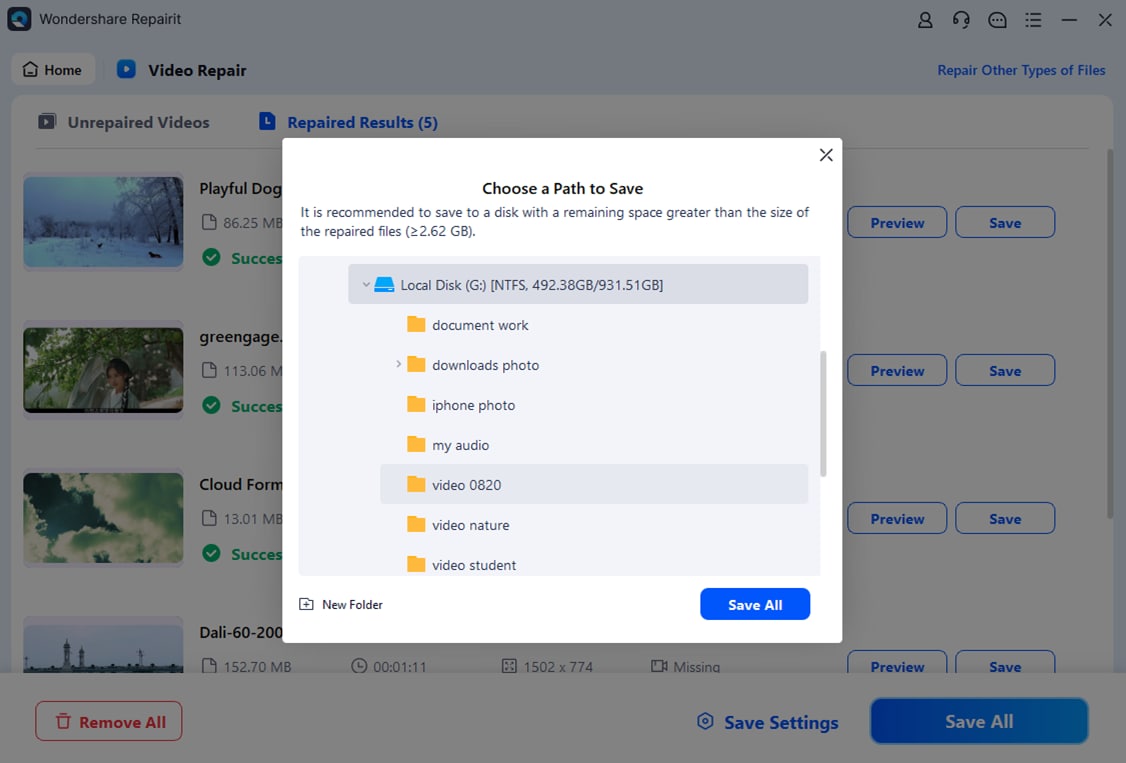
When the scan and repair process reaches completion, Repairit lists all recoverable items for review. You can filter or sort the results, then click any repaired KLV video to preview it directly in the application.
Conclusion
Understanding what is klv file format helps you work more confidently with professional surveillance and broadcast footage. KLV bundles video with time-stamped metadata, making it invaluable for analysis, evidence handling, and mission review, but it also demands specialized tools to open and convert it.
When a recording fails to play or becomes corrupted, dependable klv video repair is essential. By integrating best practices such as working from copies, validating codecs, and using dedicated tools like Wondershare Repairit, you greatly improve the chances of recovering critical imagery and metadata from damaged KLV files.
Next: What Is Rsv File
FAQ
-
1. What is a KLV file used for?
A KLV file is typically used in broadcast, defense, and surveillance workflows to store video frames together with synchronized metadata such as timestamps, GPS coordinates, platform identifiers, and sensor readings. This combination allows analysts to review imagery in context and reconstruct events precisely. -
2. How do I open a KLV file on my computer?
You generally need specialized software that understands KLV. Start with any vendor player supplied with your camera or recorder, then consider professional analysis tools or NLEs that advertise KLV and metadata support. Standard consumer players often cannot interpret the embedded metadata correctly. -
3. Can I convert a KLV file to MP4 without losing metadata?
In most cases, the video stream can be converted to MP4 while the metadata is either burned into the image as overlays or exported as a separate log file. Some tools support exporting KLV fields into CSV, XML, or JSON formats to accompany the resulting MP4 file. -
4. Why will my KLV file not play or stops midway?
Common reasons include missing codecs, an unsupported KLV implementation in your player, incomplete transfers, or actual file corruption from power loss, faulty storage, or improper ejection of removable media. Testing in multiple players and checking the storage device can help narrow down the cause. -
5. How can I repair a corrupted KLV file safely?
First, copy the damaged KLV to a stable drive and keep the original as a backup. Then attempt playback in another KLV-aware player. If issues persist, use specialized video repair software such as Wondershare Repairit to scan the file, fix structural errors, and export a playable version without manual hex editing.




