
If you have discovered an unfamiliar RSV video on your computer or DVR backup, you may be asking yourself: What is RSV File and how can you watch it? These recordings are often created by security cameras or specialized recorders and may not open in regular players. This guide explains what RSV files are, how to open and convert them, and what to do if the video becomes corrupted.
Repair Corrupted Files To Save Your Data
 Security Verified. Over 7,302,189 people have downloaded it.
In this article
What Is RSV File
Before you can handle an RSV video successfully, it helps to understand exactly what is RSV file and why it behaves differently from common formats like MP4 or AVI.
An RSV file is usually a proprietary video format generated by a specific device or surveillance system. Typical sources include:
- Standalone DVRs used with analog or IP security cameras
- Network video recorders (NVRs) from brand-specific CCTV systems
- Special monitoring equipment that saves evidence clips or time-lapse recordings
Instead of using a standard codec, an RSV video file often relies on a custom encoding method built into the manufacturer software. This allows the vendor to include features such as:
- Watermarks, camera IDs, or timestamp overlays
- Encrypted or locked video to protect evidence integrity
- Multi-channel video streams from several cameras in one file
Because of these customizations, the RSV file format is not widely supported in everyday media players. To watch or edit the footage, you typically need the original viewing application, a compatible player, or a way to convert RSV to a more standard format like MP4.
| Property | Details |
|---|---|
| File extension | .rsv |
| Typical creator | DVRs, NVRs, and surveillance camera systems |
| Primary use | Storing security or monitoring video recordings |
| Playback software | Vendor-specific RSV player, sometimes third-party tools |
| Common issue | Not playable in default Windows or Mac media players |
How to Open RSV File
Opening an RSV file is usually about matching the file with the right playback environment. Below are two practical approaches you can try.
Method 1: Use the original DVR or camera software
The most reliable way to open an RSV video file is to use the viewing tool that comes from the same manufacturer as the device that recorded it.
- Check the DVR or NVR label for the brand and model number.
- Visit the manufacturer support page and look for a PC or Mac player.
- Install the official viewer, then import or drag your RSV files into it.
This method offers the best chance of correct playback, including synchronized audio, timestamps, and multi-camera layouts. Many vendor programs also include export tools, which you can later use to convert the RSV file format into MP4 or AVI.
Method 2: Try a universal media player or codec pack
If you cannot access the original software, you can test a universal media player that supports a wide range of codecs.
- Install a reputable third-party media player that is known for extensive codec support.
- Ensure it is updated to the latest version.
- Open the RSV file directly to see if it can be decoded successfully.
In some cases, these players may recognize the stream inside the RSV video file, especially if the device is based on standard H.264 or H.265 encoding with a custom wrapper. If playback fails or only partially works, your best option may be to obtain the original player or convert RSV to MP4 using a workaround.
How to Convert RSV File to MP4
Because the RSV file format is not widely compatible, converting it to MP4 makes the footage easier to share, edit, and archive. Here are two common workflows.
Option 1: Export to MP4 from vendor software
Many DVR or NVR applications provide built-in export tools that can save RSV recordings as MP4 or another common container.
- Open the RSV file in the official player or management software.
- Look for options named Export, Save As, or Backup in the menu.
- Select MP4 (or AVI) as the output format if available.
- Choose your destination folder and start the export process.
This direct export keeps the original quality and is usually the fastest way to convert RSV to MP4 without additional tools.
Option 2: Record the playback to a new MP4 file
If the software can play the RSV video file but does not offer an export function, you can create an MP4 copy by capturing the playback screen.
- Install a trusted screen recording or capture program.
- Set MP4 as the recording format and choose appropriate quality settings.
- Open the RSV file in its original player and maximize the video window.
- Start recording and then play the entire clip from beginning to end.
- Stop recording when the video finishes and save the MP4 output.
This method takes real-time, but it allows you to preserve critical footage when no direct conversion function is available. You can later edit or compress the exported MP4 using standard video tools.
How to Use Repairit to Fix a Corrupted RSV File
When an RSV file refuses to open, stops suddenly, or displays error messages, the recording may be partially damaged or corrupted. Instead of giving up on important security footage, you can turn to a dedicated repair solution. Wondershare Repairit is designed to fix broken media so you can play or export it again. You can learn more and download it from the Repairit official website.
Key features of Repairit
- Repairs corrupted or unplayable video files from different cameras, DVRs, and storage devices.
- Handles multiple files in a single repair session, which is ideal when several RSV recordings are affected.
- Lets you preview repaired videos before saving, so you confirm the result and recover only what you need.
Steps to repair corrupted RSV video files
The workflow in Repairit is straightforward, even if you are not an expert. Follow the steps below to scan and restore damaged recordings converted from or related to the RSV file format.
-
Choose a Location to Repair Data
Launch Repairit on your computer and go to the data or video repair module, depending on the version you use. In the drive and folder list, select the storage location where your problematic RSV or converted RSV-to-MP4 files are saved.

-
Deep Scan the Location
Click the scan button to let Repairit analyze the chosen path thoroughly. When the scan finishes, Repairit lists all recoverable videos, including those originally recorded as RSV video files and later copied or converted.

-
Preview and Repair Your Desired Data
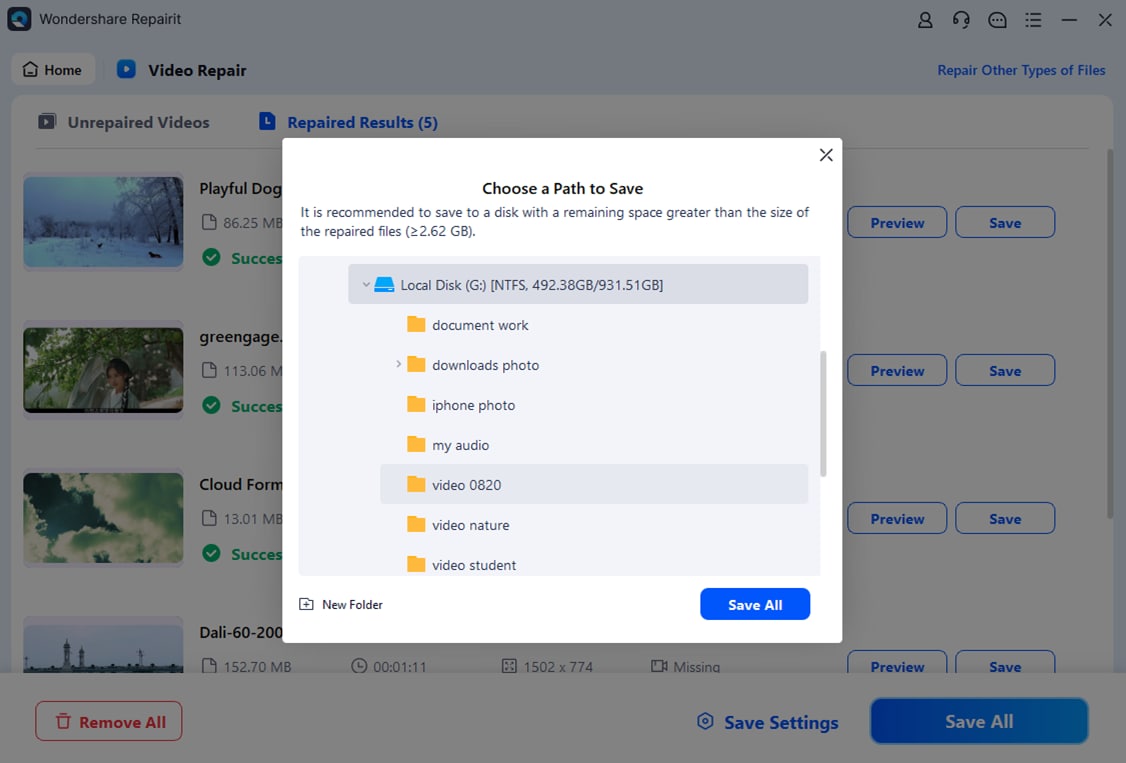
Select the clips you want to fix from the results panel and start the repair process. Finally, save the repaired files to a different, safe storage location rather than overwriting the original RSV source.
Conclusion
RSV files are normally proprietary recordings generated by DVRs, NVRs, or specialized surveillance systems. Because they rely on vendor-specific encoding, they may not open in standard media players and often require dedicated viewing software or conversion to a common format.
By identifying which device created the RSV file, installing the correct viewer, and exporting or capturing the video as MP4, you can make your footage much easier to use. If your RSV video file becomes corrupted or refuses to play, Wondershare Repairit offers a practical way to scan, repair, and recover valuable recordings before they are lost.
Next: What Is Dat File
FAQ
-
1. What is an RSV file used for?
An RSV file is most often a proprietary security or surveillance recording created by DVRs, NVRs, or camera systems. It stores encoded video footage, timestamps, and sometimes multiple channels in a format designed for the manufacturer's own player. -
2. How do I open an RSV file on Windows or Mac?
Identify which DVR or camera system created the file, then download its official viewer from the vendor's support site. Install the player and open the RSV file directly through it. If that fails, you can try a universal media player or convert the stream to MP4 using export or screen capture methods. -
3. Can I convert an RSV file to MP4 without losing quality?
Yes. The best way is to use the original DVR or camera software and export the RSV footage as MP4 or AVI, which preserves most or all of the quality. If export is not available, recording the playback window to MP4 is a workable alternative, though it takes real time. -
4. Why does my RSV file show errors or not play at all?
Playback failures can be caused by missing codecs, using the wrong player, incomplete file transfers, sudden power loss during recording, or storage issues. First confirm that you are using the correct manufacturer viewer. If the file still will not open, it may be corrupted and require repair. -
5. How can I repair a corrupted RSV file?
Copy the RSV file to a safe drive, avoid further writes to the original disk, and use a dedicated repair tool such as Wondershare Repairit. Let it scan the location, repair the broken video structure, then preview and save the recovered footage to a new storage path.




