
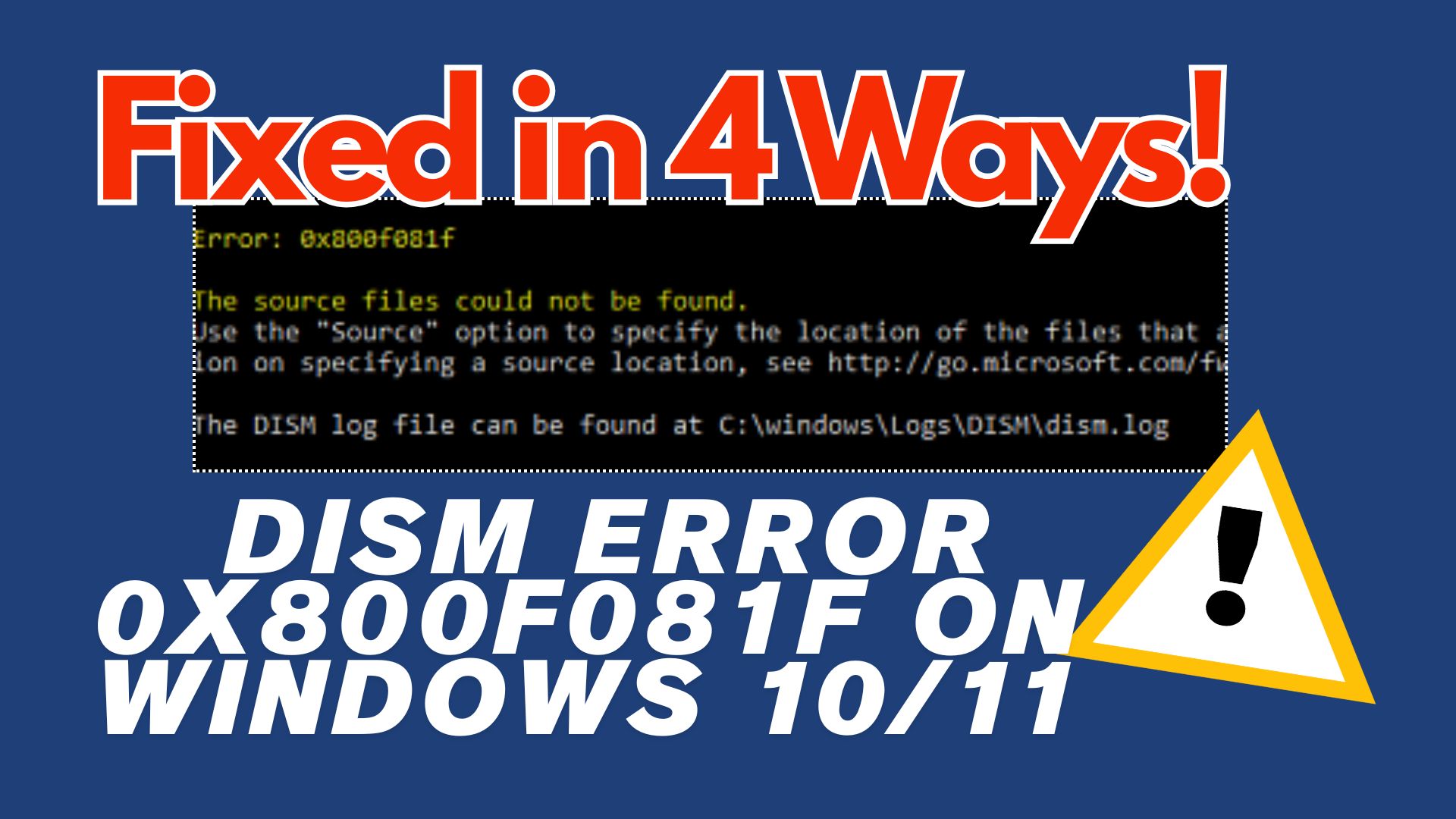
“The source files could not be found.” If this message appears, it usually indicates DISM Error 0x800f081f on Windows 10 or Windows 11. This error occurs when the Deployment Imaging Service and Management Tool (DISM) cannot locate the source files it needs to repair system corruption.
DISM is one of Windows’ most critical utilities, responsible for restoring system health, fixing damaged images, and helping Windows updates complete successfully. In this guide, you’ll learn what the error means, how to quickly identify your scenario, and how to apply safe fixes from simplest to more advanced.
Table of Contents
Part 1. What is a DISM Error 0x800f081f?
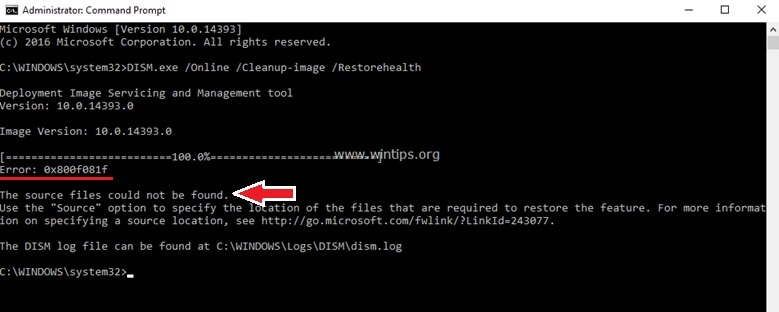
DISM error 0x800f081f is a Windows servicing failure that happens when DISM can’t locate the required source files to repair corrupted system components.
Windows typically shows: “The source files could not be found.” This usually means Windows can’t retrieve replacement files from:
- Windows Update, or
- the local component store (WinSxS)
When repair sources are missing, inaccessible, or damaged, DISM can’t rebuild the corrupted components.
Common effects
- DISM /RestoreHealth fails
- Windows updates (cumulative/feature) may fail
- System instability (crashes, slowdowns) may increase
Part 2. Quick Preparations Before Fixing The Error
Before attempting fixes, prepare your system carefully to avoid complications:
- Backup important files: System repairs usually don’t delete personal data, but disk errors or deeper repairs can still put files at risk. Copy key documents to an external drive or cloud storage.
- Prepare Windows installation media: A Windows ISO or bootable USB may be required if DISM cannot find the necessary source files locally. Having this ready ensures you can point DISM to a clean, reliable source without interruption.
- Check internet connection: Some repairs rely on Microsoft servers. A stable connection helps avoid incomplete component downloads.
- Run as Administrator: DISM and SFC need elevated permissions. Use Command Prompt (Admin) or PowerShell (Admin).
- Ensure sufficient disk space: System repairs often require temporary storage to unpack and replace files. If your drive is nearly full, DISM may fail to complete its operations. Freeing up space before running r
These steps ensure you won’t lose data and have the tools ready if deeper repairs are required.
Part 3. Quick Diagnosis: Why Your DISM Error 0x800f081f Occurs
To understand the root cause, check:
- If the error message explicitly mentions missing source files, installation media, or a valid ISO will likely be required. This is the most direct clue that DISM cannot locate the components it needs to repair the system image.
- If the error appears after a Windows update failure, the issue is often linked to incomplete or damaged update files. When the update repository becomes corrupted, DISM may fail to retrieve replacement components.
- If the error occurs when installing optional Windows features such as .NET Framework 3.5, dependency conflicts are often responsible. Some Windows applications require older framework components, and missing dependencies may trigger the error.
- If DISM attempts to locate repair files in an invalid directory or an inaccessible network location, the repair process will fail. Local system file corruption can also prevent DISM from reading existing component store data correctly.
- If updates consistently fail to install, this suggests that core system files are missing or corrupted. Since updates rely on a healthy system image, persistent failures usually mean DISM repairs are insufficient without external source files.
Part 4: 4 Practical Ways to Fix DISM Error 0x800f081f
The following solutions target the most common causes of DISM repair failure. These methods should be applied sequentially for the best results.
Way 1. Perform a Component Cleanup to Resolve Corrupted System Components
Best for: update-related corruption or a bloated component store.
The Windows component store may contain outdated or corrupted packages that interfere with DISM repair operations
⚠️ Do not interrupt the cleanup process because incomplete servicing operations can worsen system corruption.
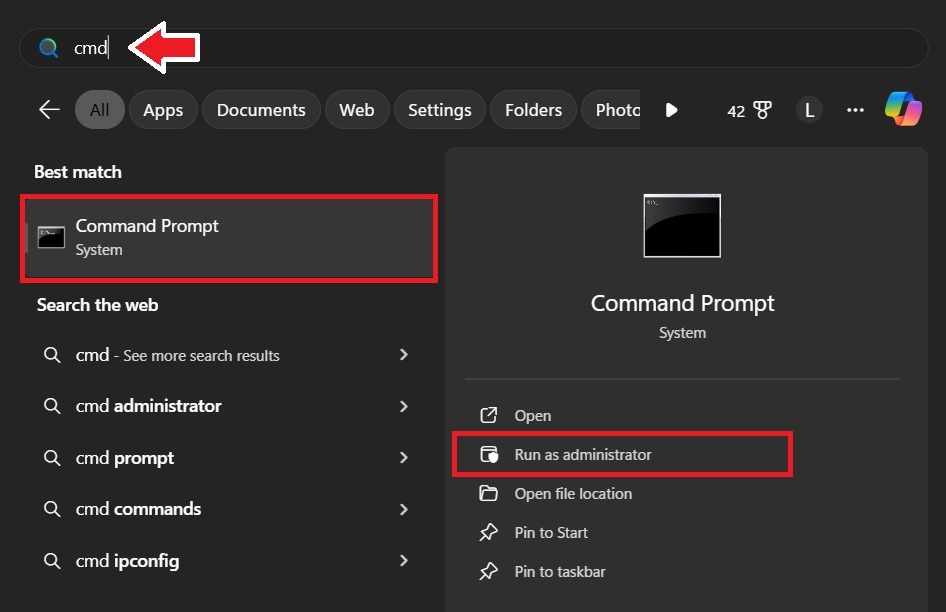
Step 1. Type cmdon your computer’s search bar. Run it as administrator.
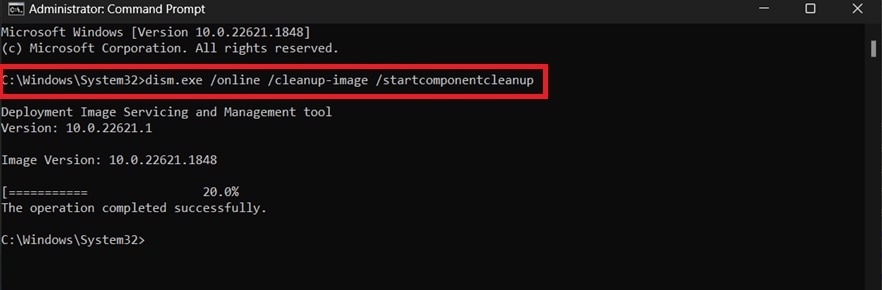
Step 2. Type dism.exe /online /cleanup-image /startcomponentcleanup in the command window.
Way 2. Run the Windows Update Troubleshooter to Fix Update-Related Issues
Best for: the error appeared after a Windows update failure.
Windows Update service errors frequently trigger DISM error 0x800f081f because DISM relies on update repositories for repair files.
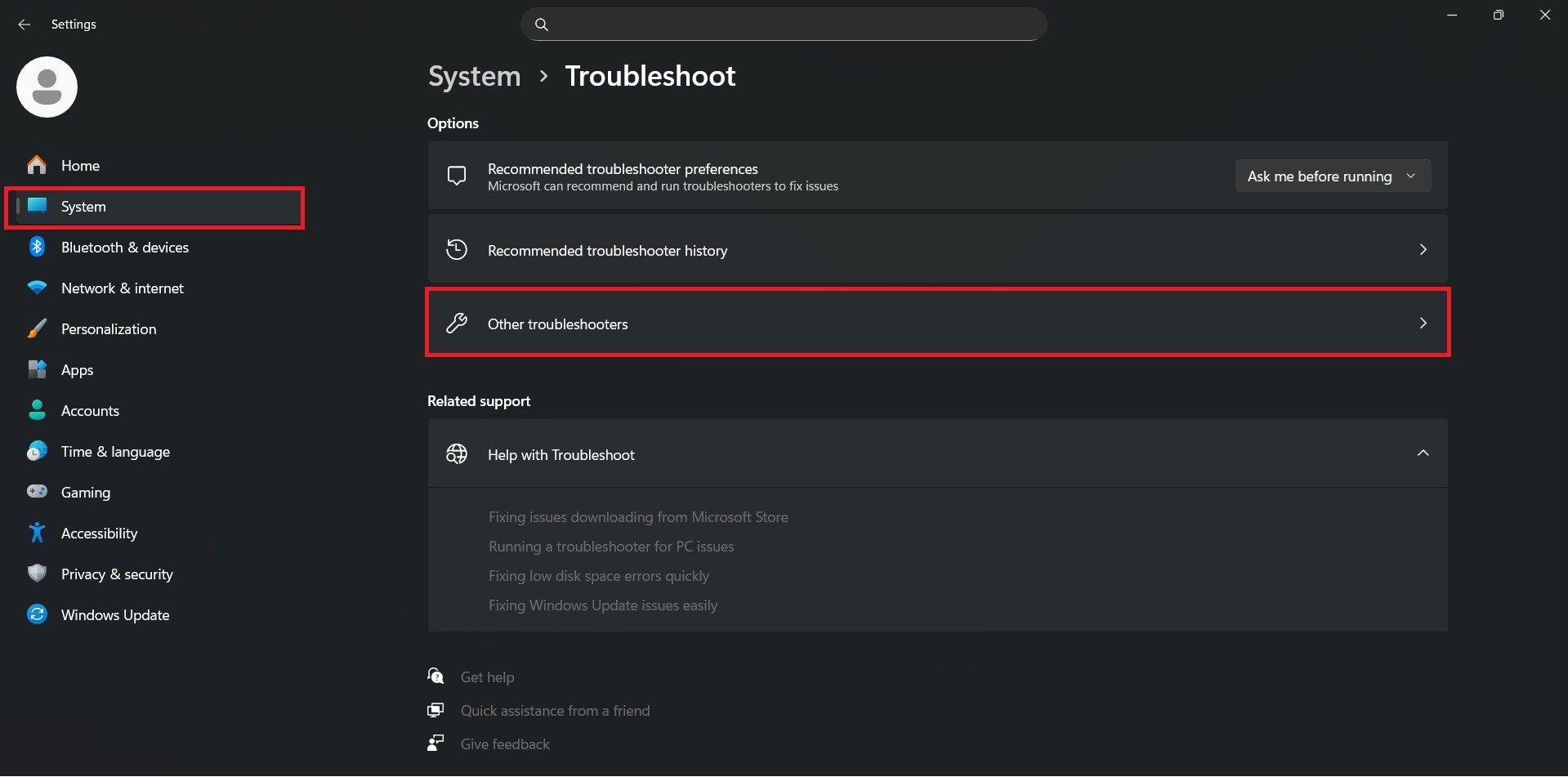
Step 1. Open Settings. Under System, choose Troubleshoot. Select Other troubleshooters.
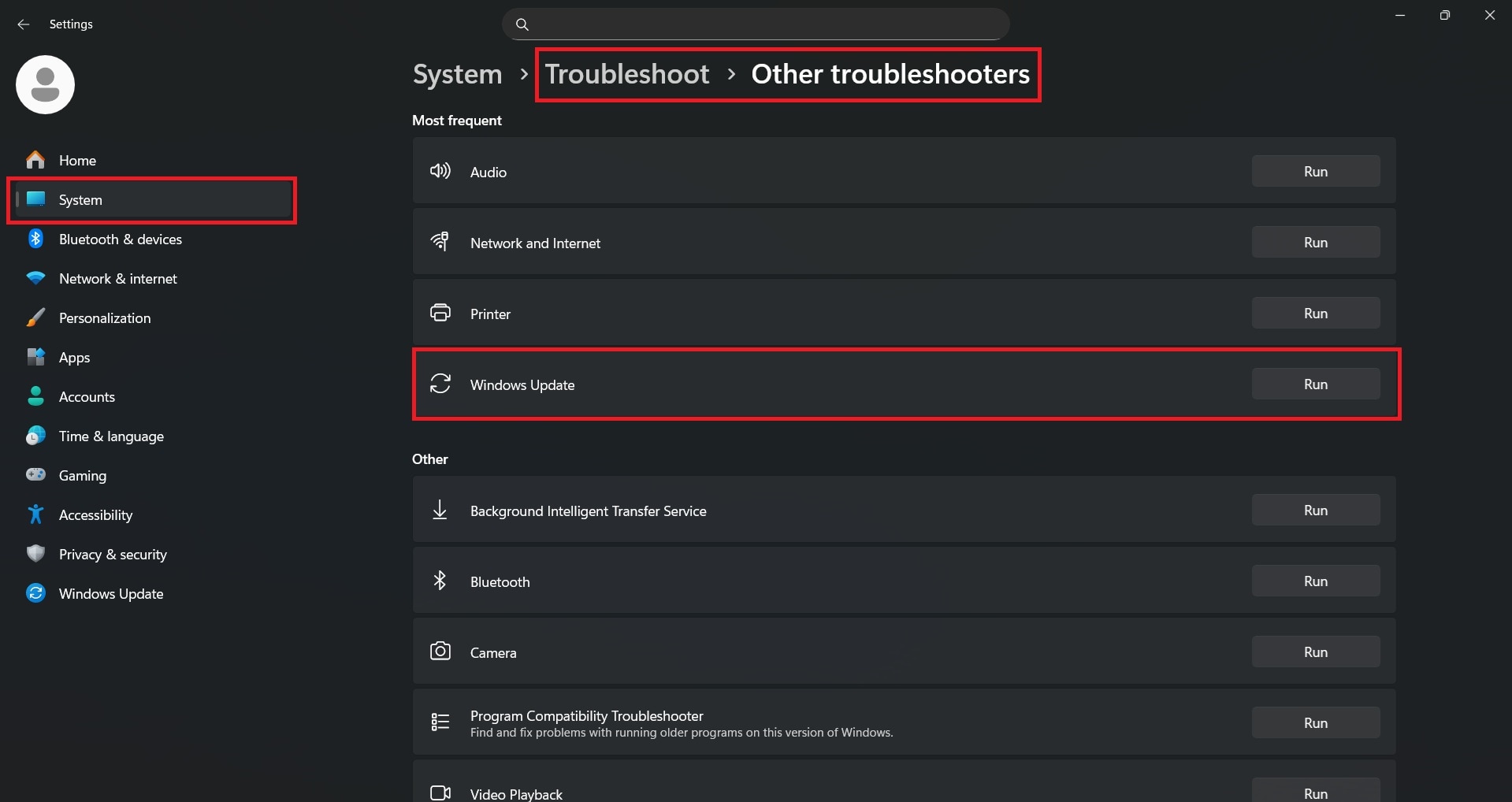
Step 2. Select Windows Update and click Run, then follow the prompts.
Way 3. Reinstall Microsoft .NET Framework 3.5 to Resolve Dependency Errors
Best for: error occurs while enabling .NET Framework 3.5 or related optional features.
Some Windows servicing tasks rely on .NET Framework 3.5. Missing or damaged framework components can prevent DISM from locating required repair files.
⚠️ Installing or reinstalling this feature may require an internet connection or installation media.
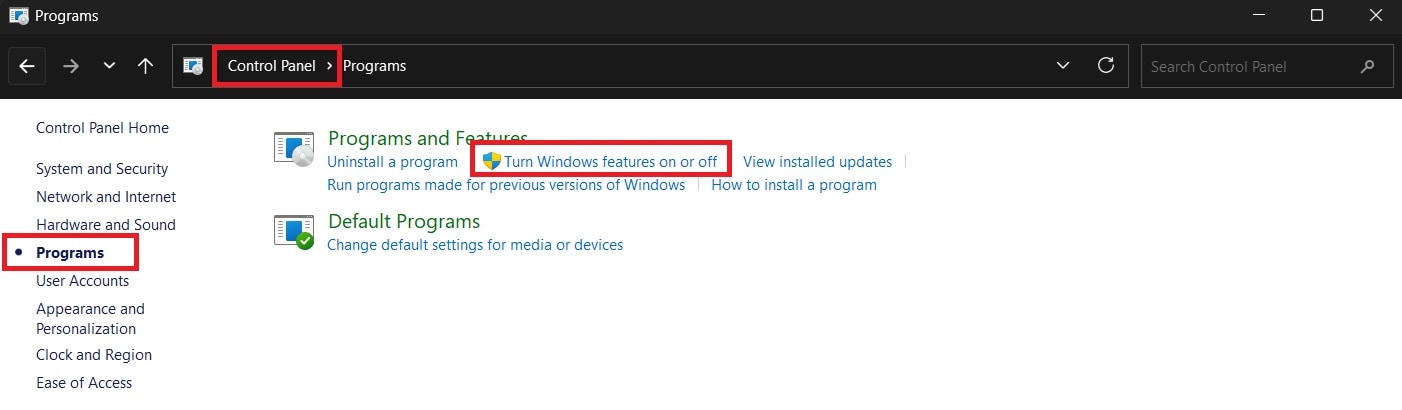
Step 1. Open Control Panel, click on Programs and Features. Choose Turn Windows features on or off.
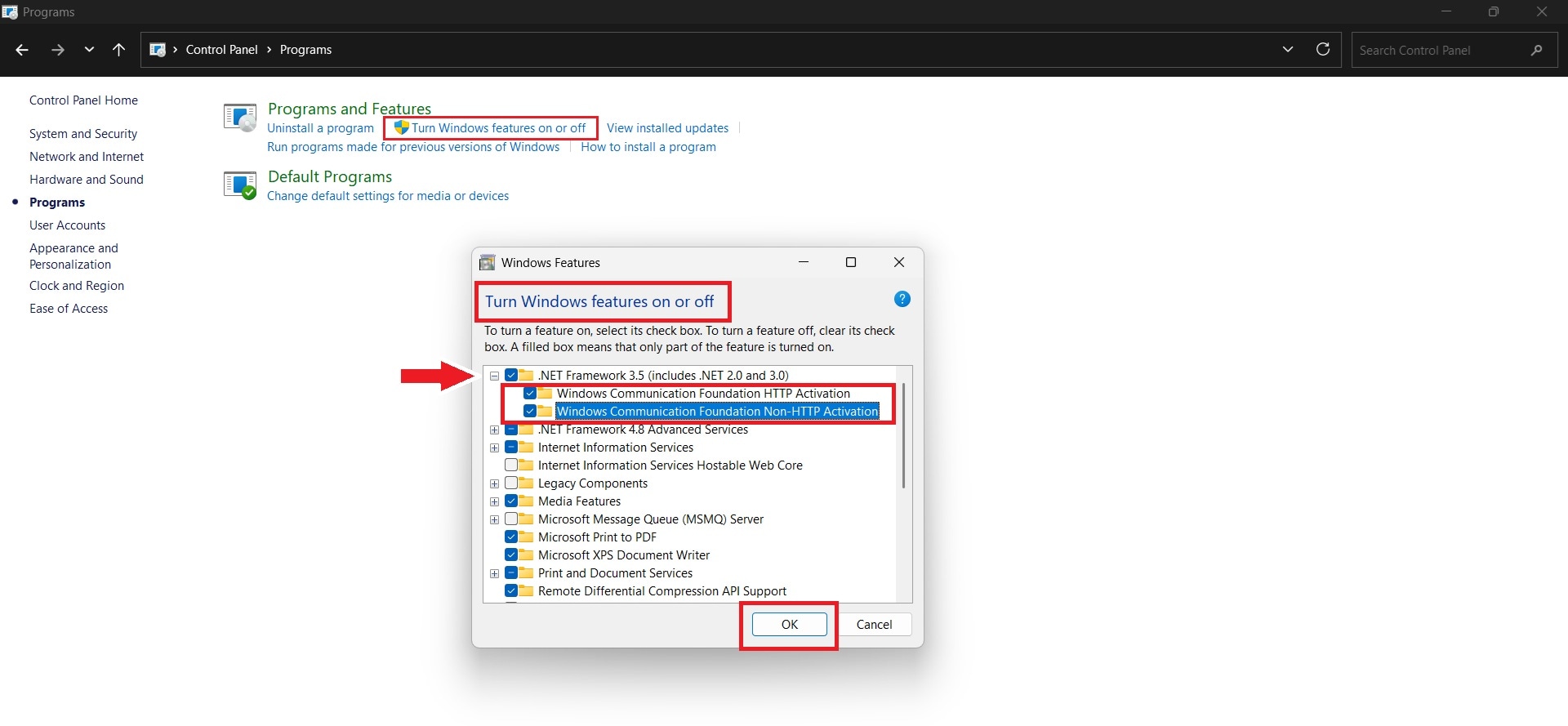
Step 2. Enable .NET Framework 3.5, click OK, and allow Windows to complete the installation.
Way 4. Use a Valid Windows Source File When DISM Cannot Locate Files
Best for: DISM explicitly says “source files could not be found.”
If Windows Update cannot supply repair files, specifying a Windows installation source allows DISM to retrieve the required system components manually.
⚠️ The installation source must match your current Windows version and edition to avoid repair failure.
Step 1. Mount a Windows ISO file and note the drive letter of the mounted installation media.
Step 2. Open Command Prompt as administrator and run: DISM /Online /Cleanup-Image /RestoreHealth /Source:WIM:X:\Sources\Install.wim:1 /LimitAccess. (Replace X with the mounted ISO drive letter.)
More related articles to Windows error:
How Do I Fix Error 0x80070780: The File Cannot be Accessed by the System?
How Do I Fix 0xc10100aa Error in Windows?
How to Fix Windows Error 0x80070306
Part 5: What Causes DISM Error 0x800f081f on Windows
Each of the following issues can independently trigger the error, and in some cases, multiple factors combine to make troubleshooting more complex.
- Missing or corrupted system files: Windows relies on a large set of core files to maintain stability and perform updates. If these files are deleted, damaged by malware, or corrupted due to disk errors, DISM cannot locate the necessary components to repair the system image. This is one of the most common triggers for error 0x800f081f.
- Problems with Microsoft .NET Framework 3.5: DISM often depends on the .NET Framework 3.5 to function correctly. If this framework is disabled, partially installed, or corrupted, DISM may fail to execute repair commands. Many users report that reinstalling or enabling .NET 3.5 resolves the error entirely.
- Failed or incomplete Windows updates: Updates are designed to patch vulnerabilities and improve system performance, but when they fail or remain incomplete, they can leave the system in a corrupted state. This often results in DISM being unable to find valid source files, especially if the update process interrupts critical components.
- Incorrect or unavailable source files during repair: DISM requires a valid source to restore missing files, typically from the local component store or a mounted Windows ISO. If the source path is incorrect, inaccessible, or points to a corrupted image, DISM will return error 0x800f081f. This is why specifying a clean Windows installation media often resolves the issue.
Part 6. How to Recognize When DISM Fixes Are Insufficient
Even after applying the recommended fixes, there are situations where DISM and SFC simply cannot resolve the underlying corruption. Recognizing these signs early helps avoid wasted effort and points you toward more advanced solutions.
Signs DISM repairs are insufficient include:
- Persistent system crashes
- Repeated SFC and DISM failures
- Continuous Windows update errors
- Corrupted personal or application files
- Unrecoverable file format damage
6.1 What File Repair Tools Can and Cannot Do
File repair tools specialize in repairing corrupted internal file structures. They are particularly effective when corruption stems from disk errors, incomplete updates, or logical system issues. However, they have limitations when it comes to missing components or hardware failures.
IT CAN:
- A Word/Excel/PDF/ZIP file is damaged after an incomplete update or disk error
- The file opens with errors, missing content, or broken structure
- You’ve confirmed Windows itself is stable, but specific files remain corrupted
IT CANNOT:
- Restore missing Windows system components tied to licensing
- Fix hardware-related failures
- Resolve network or update service issues
6.2 Fix Damaged Files with Repairit File Repair
If your issue is specific files (not Windows components), a file repair tool like Repairit File Repair can help repair damaged documents and archives (for example Word/Excel/PDF/PPT/ZIP/RAR and other common formats).
6.3 Step-by-Step (If Error Persists)
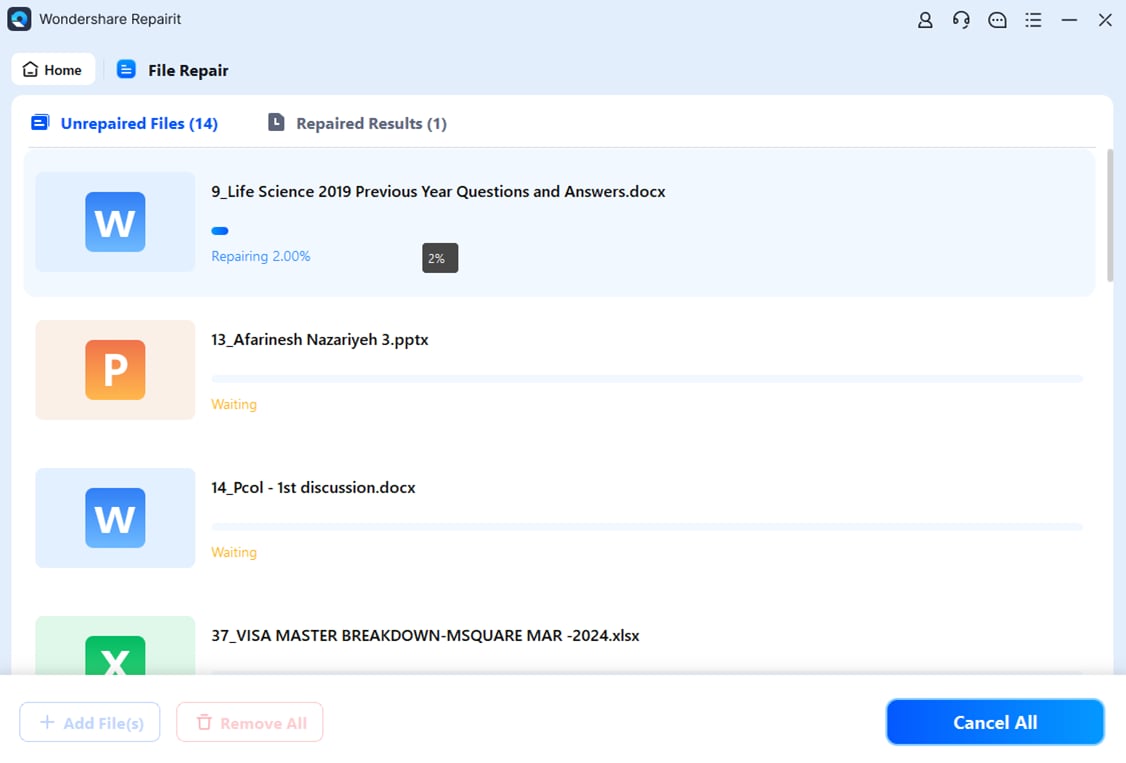
Step 1. Open Repairit, select File Repair, and upload the corrupted file(s) you want to fix.

Step 2. Click the Repair button to allow the software to scan and repair the damaged file.
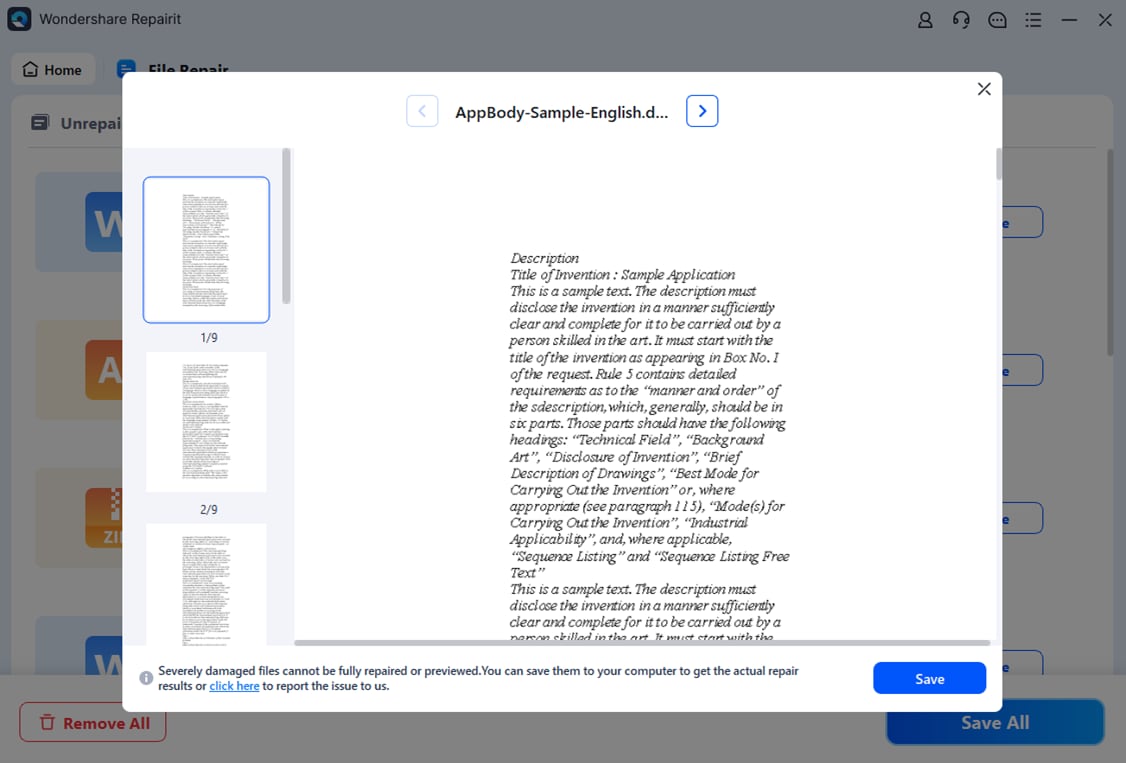
Step 3. Preview the repaired file to confirm recovery quality, then save it to your preferred location.
Conclusion
DISM error 0x800f081f usually occurs when Windows can’t locate or access the source files required to repair system components. The most common triggers are component store corruption, update failures, .NET Framework dependency issues, or mismatched repair sources.
Start with safer fixes (cleanup and update troubleshooting), then move to the most reliable solution: point DISM to a matching ISO source and the correct image index. If DISM succeeds but individual files remain corrupted, file-level repair tools can be a helpful last step—without replacing system repair methods.
FAQ
-
What is DISM error 0x800f081f, and why does it occur?
It occurs when DISM cannot locate the required repair files needed to restore Windows components—often due to update corruption, missing dependencies, or an invalid/mismatched repair source. -
Can I fix DISM error 0x800f081f without reinstalling Windows?
Yes. Most cases are resolved using component cleanup, update troubleshooting, enabling dependencies like .NET 3.5, or specifying a matching ISO as the repair source. -
Does running SFC always fix DISM errors?
Not always. SFC relies on a healthy component store. If the component store is corrupted, DISM typically must be fixed first. After DISM succeeds, run sfc /scannow. -
How do I specify a Windows ISO as the source for DISM repair?
Mount a matching ISO, locate install.wim or install.esd, find the correct image index using /Get-WimInfo, then run /RestoreHealth with the proper /Source syntax. -
When should I consider a filer repair for this error?
Only when Windows repairs complete but individual personal/work files remain corrupted or won’t open. File repair tools do not replace DISM/SFC for system component repair.




