
Nothing ruins your momentum quite like seeing the Windows "something didn't go as planned" error pop up out of nowhere. It's like your PC paused your productivity, leaving you totally confused about what you did wrong. At this point, instead of panicking, think that it's your computer's way of signaling that something small needs attention.
From a minor update obstacle to temporary file corruption, most causes are fixable with a few targeted steps. Thus, a brief guide turns a stressful interruption into a simple troubleshooting win in no time. With this perspective in mind, keep reading the following article for simple and advanced workarounds.
Table of Contents
Part 1. Why This Message Appears During Windows Updates or Tasks
In general, the "something didn't go as planned" error occurs when Windows encounters a problem that can't be automatically fixed. This error could be tied to multiple reasons during Windows update or tasks, as highlighted below:
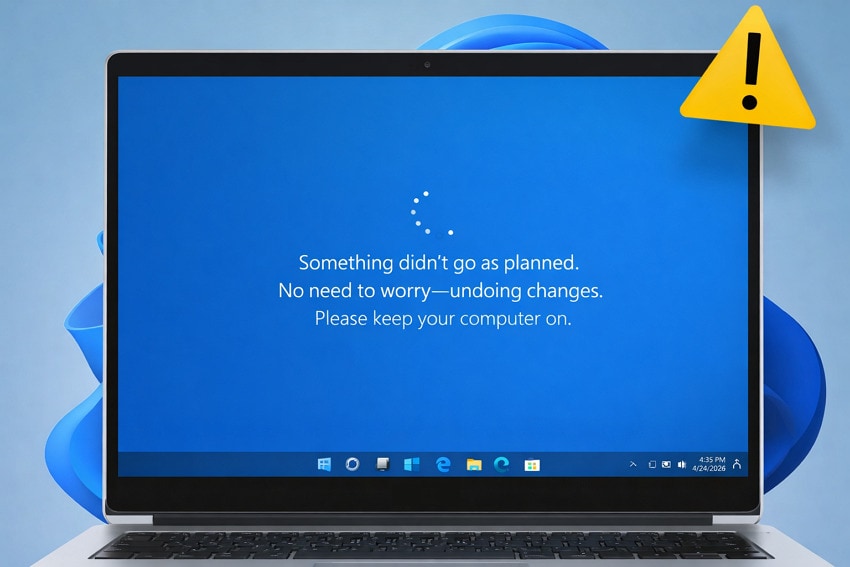
- Due to Corrupted System Files or Configurations: If important Windows components or configuration entries are already damaged, any attempt to replace or update them can fail. During an update, Windows tries to modify system files in a specific order, and when anything goes missing, the chain breaks.
- Conflicts With Drivers or Installed Software: Even a driver or system utility that hooks deeply into Windows, but doesn't behave well when system files change. Those components might block certain files or inject code during an update, which the installer needs to stop.
- Problems with System Partitions or Boot Setup: Once you've changed disks, cloned the system, and resized partitions, the metadata might not match what the update logic expects. When the installer can't correctly identify where to place or update boot files, it treats that as a serious risk and backs out.
- Insufficient Disk Space or System Resources: Soon, when your system drive is nearly full, or the machine is under heavy load, the update engine might not proceed. Subsequently, Windows can't continue or guarantee data integrity, and reports that things didn't go as planned.
Part 2. 4 Simple Fixes for "Something Didn't Go as Planned" Errors
Considering the need, below are 4 simple fixes that target the most common causes of "something didn't go as planned":
Fix 1. Run Windows Update Troubleshooter
The Windows Update Troubleshooter is a built-in tool that automatically detects and fixes common update-related issues. It scans for corrupted update files, identifies misconfigured settings, and resolves stalled update processes. With this fix, you ensure your system is up to date, allowing updates and installations to complete without unexpected errors. Follow the guidelines below and learn how to run Windows Update Troubleshooter:
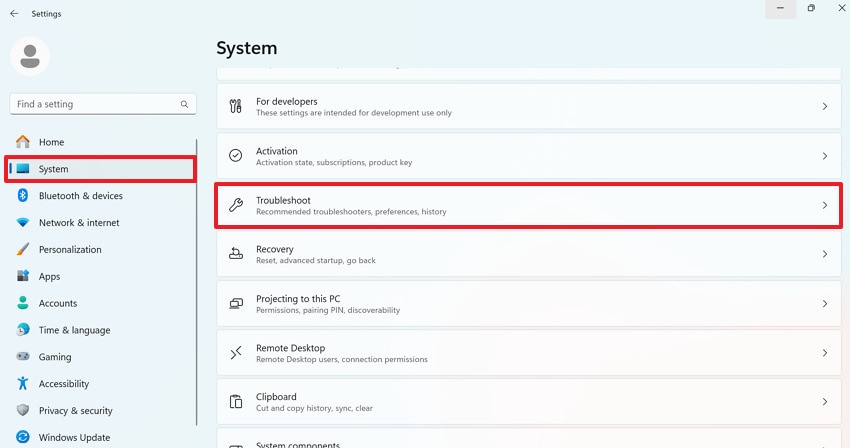
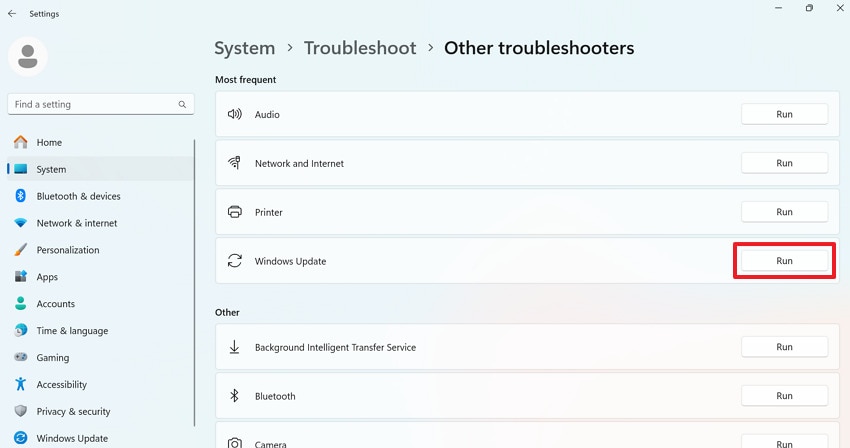
Step 1. Enter your Windows Settings, access the "System" section, and press the "Troubleshoot" option.
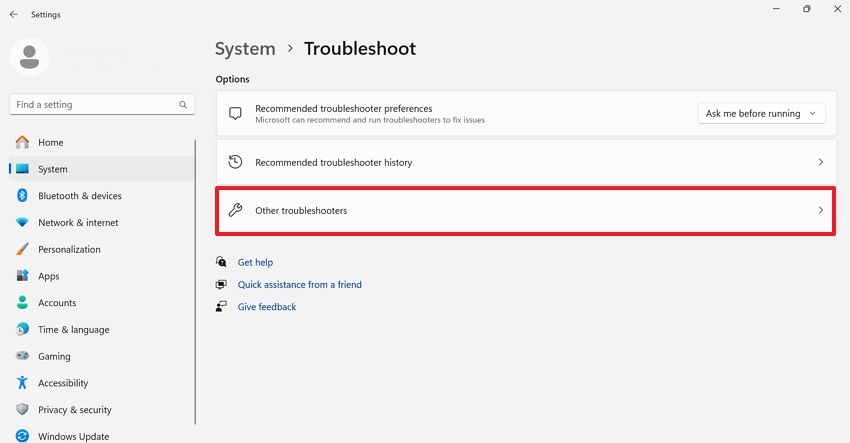
Step 2. After this, click the "Other Troubleshooter" option to run Windows Update Troubleshooter.
Step 3. Move forward and press the "Run" button beside the Windows Update option to fix all update-related issues.
Fix 2. Update Drivers and System Components
For "something didn't go as planned," you can try updating drivers to ensure that all hardware components work fine. Similarly, updating essential system components, such as the Visual C++ Redistributable, fixes compatibility issues that might otherwise cause errors. Overall, keeping your drivers and components updated reduces crashes and improves system stability, making it easier to handle updates later. To proceed, adhere to the given guidelines and update your drivers:
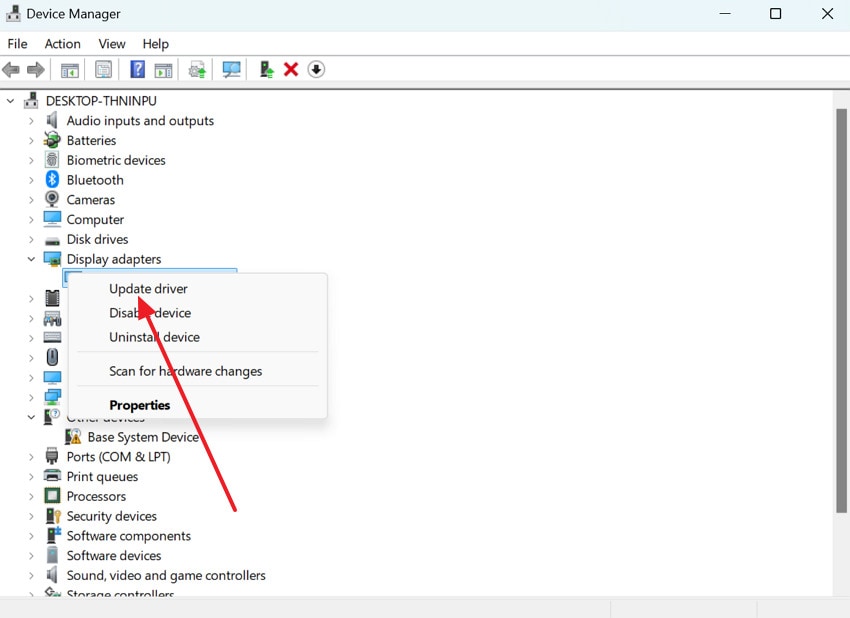
Step 1. Open Device Manager first, then expand the Display Adapters option and right-click a driver. Next, choose the "Update Driver" option to install the latest version of the driver.
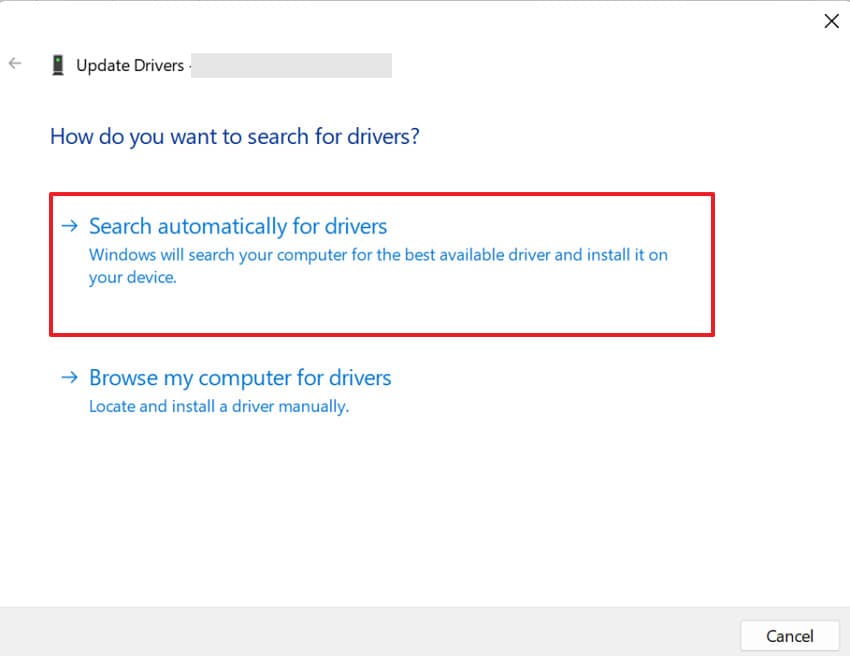
Step 2. Now, press the "Search Automatically for Drivers" option and allow Windows install the latest driver version. Subsequently, repeat it for any key device, then restart your PC and try the update again.
Fix 3. Run SFC and DISM System Scans
System File Checker (SFC) and DISM are powerful tools for repairing corrupted or missing Windows system files. SFC scans your PC for corrupted files and attempts to automatically repair them. However, DISM fixes the underlying Windows image to restore system integrity. Combined, they not only resolve "something didn't go as planned" error but also strengthen the stability of your Windows installation. Follow the tutorial to run SFC and DISM scans for Windows update error:
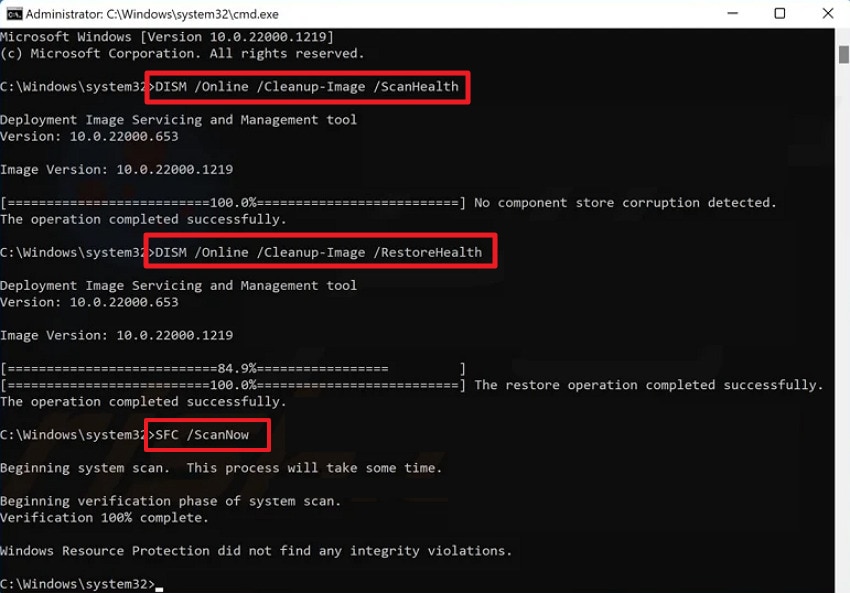
Instructions: Run Command Prompt as an administrator, then run the listed commands one by one, entering after each:
"DISM /Online /Cleanup-Image /ScanHealth"
"DISM /Online /Cleanup-Image /RestoreHealth"
Then, at last, type "sfc /scannow" and let the commands completely finish.
Once the scans and repairs are complete, restart your PC and try Windows Update or the failing tasks again.
Fix 4. Perform a Clean Boot
A clean boot starts Windows with only essential services and drivers, temporarily disabling unnecessary startup programs. Many software conflicts might activate "something didn't go as planned" errors, but a clean boot allows you to isolate the actual cause. This way, you can identify problematic applications and services without risking your system's stability. For more clarity, perform a clean system boot following the stepwise manual below:
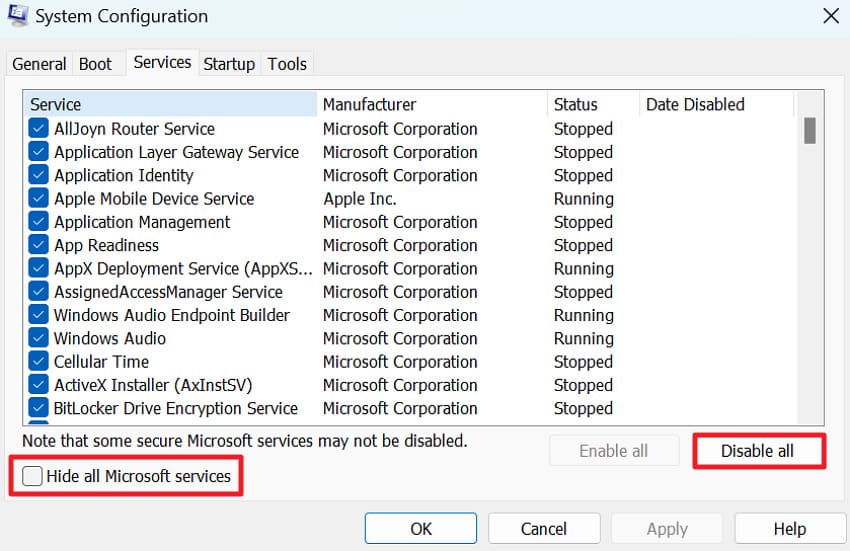
Step 1. Initially, press the "Windows and R" keys together to run a dialogue box and enter the "msconfig" command. In the System Configuration window, access the "Services" section and mark the "Hide all Microsoft Services" option. Afterward, press the "Disable All" button to turn off all remaining (third-party) services.
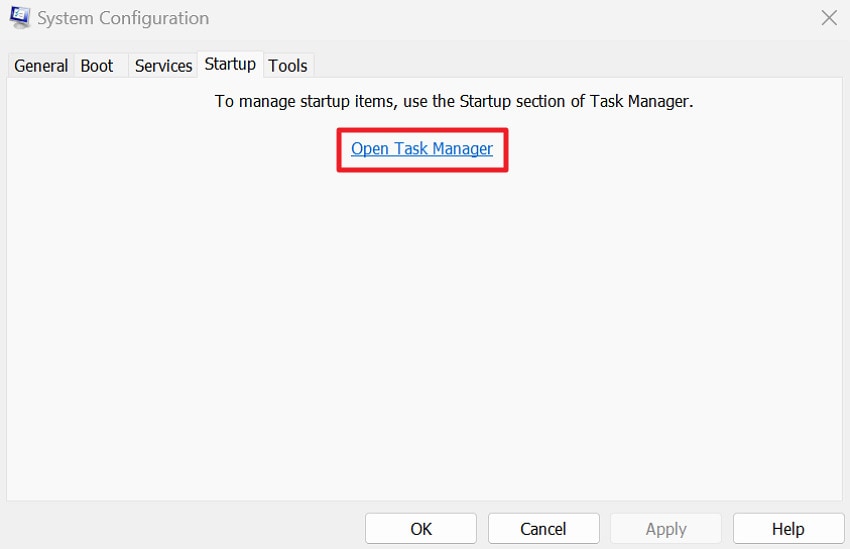
Step 2. Now, switch to the "Startup" tab and click the "Open Task Manager" Option.
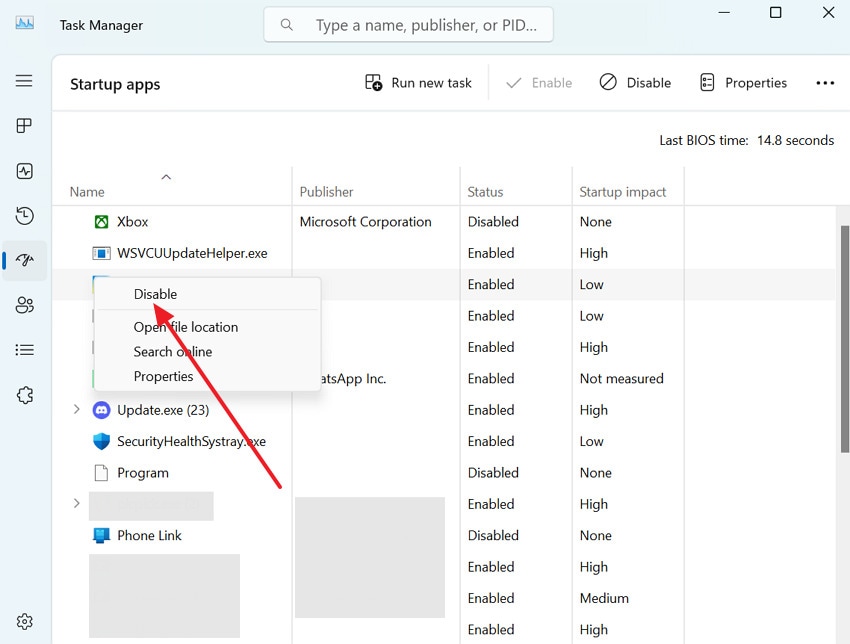
Step 3. In Task Manager, locate and right-click each startup application, then choose to "Disable." Once done, close Task Manager, click "OK" in System Configuration, and restart your PC.
Part 3. Try 2 Advanced Options When the Error Persists
Once you've tested basic troubleshooting and the error "something didn't go as planned" still appears, try these advanced options:
Option 1: Manual Windows Update Installation
Manual installation of Windows updates allows you to bypass automatic update failures that often cause the error. Direct downloading and installing updates from Microsoft ensures your system receives the exact update package it needs. Most importantly, this improves the update success rate and overcomes built-in update system struggles for any reason. Follow the provided stepwise tutorial and update your Windows manually:
Step 1. Enter your Windows Settings, open the "Windows Update" section, and press the "Update History" option. After this, note the KB number of the update that fails (for example, KB50xxxxx)

Step 2. In your browser, visit the Microsoft Update Catalog and type the noted KB number in the search box. From the results, find the entry that matches your Windows version and type. Here, click the "Download" button, then the link in the pop-up to save the .msu file to your PC. Next, follow the Windows Update Standalone Installer prompts to install the patch.

Option 2: Reset This PC (Keeping Your Files)
If you reset your PC while keeping personal files, you fix the persistent "something didn't go as planned" error caused by damaged system settings. This process reinstalls the Windows system files, preserving your data, such as documents and pictures. The major benefit is getting a stable space without losing important files, which can eventually improve performance. To initiate, adhere to the given guidelines and understand how to reset your PC:
Step 1. From the Windows Settings, choose the "System" section and click the "Recovery" option later.

Step 2. Under the Recovery Options, press the "Reset PC" button beside the Reset This PC option.

Step 3. When asked, choose the "Keep my Files…" option, then review what will be removed and click "Next." Now, let Windows complete the reset and automatic restarts; once it's finished.

Pro Tip. When Updates Fail, Use Repairit to Fix Corrupted Files
Whenever Windows Update fails, it can leave behind corrupted documents and app-related files, throwing "something didn't go as planned." Here, as a professional repair program, Repairit rescues files that were broken during an interrupted install. Essentially, it focuses on repairing the file's structure so the app can read it again instead of showing corruption signs. The program is designed for update-related disasters, including system freezes and force restarts that interrupt installation.
Plus, if you use many different apps on the same PC, Repairit lets you recover across the whole mix. In this way, you can save valuable time compared to fixing or recreating each file individually. Instead of only addressing minor glitches, it even aims at files that completely refuse to open or always show error pop-ups. Additionally, users can open a preview of the repaired version to ensure the content looks original.
Key Features

-
Repairs Files Broken Mid-Update: This software is designed to reconstruct partially or half-written saved files so the app can recognize them.
-
Supports Multiple File Formats: It can repair multiple file formats, such as Word, AutoCAD, Text, Adobe, RAR, Excel, and PDFs, from the same project.
-
Intelligent Error Pattern Matching: Repairit uses built-in corruption pattern detection to identify inconsistencies within files and apply targeted repair algorithms for higher recovery accuracy.
Simple Tutorial to Fix Corrupted System/App Files via Repairit
Follow the guided tutorial to detect, repair, and prevent corrupted system or app files before they turn into major problems:
Step 1. Access the Document Repair Tool to Begin Repair
At first, press the "More Types Repair" tab from the left sidebar and click the "Start" button for Document Repair.

Step 2. Insert All the Corrupted System & App Files
Here, press the "+Add" button to incorporate all the broken system or app files at once.

Step 3. Start Repairing Corrupt or Damaged App Files
Move forward, click the "Repair" button, to begin the process of repair immediately. Once the repair action completes, preview the repaired files and download them to fix system or app errors.

Repair Corrupted Files Now
 Security Verified. Over 7,302,189 people have downloaded it.
Conclusion
In conclusion, the "something didn't go as planned" error is a clear sign that your system needs attention, but without panic. Considering all the possible reasons, the article above provides valuable fixes to maintain system efficiency and reduce downtime. Perhaps applying these solutions promptly can ensure smoother system performance in the long run. However, when built-in Windows tools fall short, Repairit becomes a necessity, repairing all the corrupted system or app files.
Frequently Asked Questions
-
1. Can this error appear even if the file extension is common?
Yes, even common formats can trigger this error if they are encoded with unsupported codecs or settings. The file may use advanced compression, a high bitrate, or a newer encoding standard that your media player doesn't recognize. Moreover, the file might also be partially corrupted, causing playback to fail despite having a familiar extension. -
2. Is this error related to DRM-protected files?
In some cases, DRM-protected media may fail to play if authorization is missing or if the player doesn't support the required protection standards. This often happens when the file is moved to a different device, user account, or media player that isn't authorized to access it. -
3. Will updating graphics drivers help with this error?
Absolutely, since video playback relies on GPU decoding, outdated graphics drivers can contribute to playback errors. When drivers are not fully compatible with your operating system or media player, "this item was encoded in a format 0xc00d5212" might appear. Thus, updating graphics drivers improves hardware acceleration support and overall codec stability.




