
Chrome users sometimes face the STATUS_STACK_BUFFER_OVERRUN crash error on Windows, which suddenly closes the browser without warning. This happens when Chrome detects a memory issue or conflict that could affect system stability. Regardless of the reason, this error can stop browsing, disrupt work, and make tabs or extensions unusable.
Therefore, understanding why this error appears helps you prevent it and restore Chrome’s normal function. In this guide, you will be able to learn the common causes and 7 possible solutions to fix the error fast, so Chrome runs smoothly again.
Table of Contents
-
- Way 1. Restart Chrome and the System Before Anything Else
- Way 2. Disable Hardware Acceleration in Chrome
- Way 3. Update Chrome to the Latest Version
- Way 4. Update or Reinstall Graphics Drivers
- Way 5. Disable or Remove Problematic Extensions
- Way 6. Reset Chrome Flags and Profile Data
- Way 7. Run Chrome in a Clean Boot Environment
Part 1. What STATUS_STACK_BUFFER_OVERRUN Means in Chrome
The “STATUS_STACK_BUFFER_OVERRUN Chrome” is a crash error that happens when the browser encounters a serious memory or compatibility problem. Windows detects that Chrome encountered corrupted stack memory or an invalid execution flow during runtime. Additionally, the system treats this as a critical security risk and immediately closes Chrome to protect the computer.
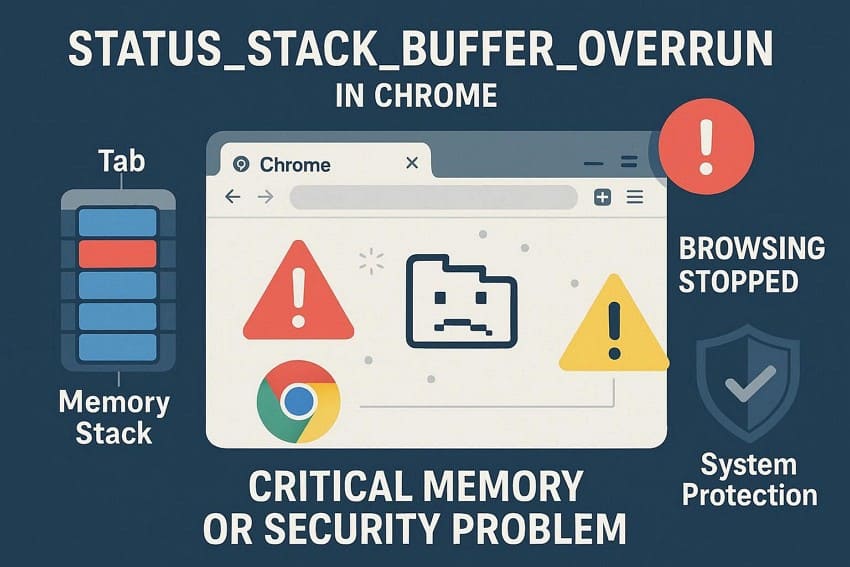
This error can appear in any Chromium-based browser and usually stops browsing, tabs, or extensions from working until the problem is resolved. It signals that something went wrong at a low level, not a simple browser glitch.
Typical Scenarios When You See This Chrome Error
Here are some situations where you can face the STATUS_STACK_BUFFER_OVERRUN crash error:
| Scenario | What’s Happening in Practice |
| Chrome Set to Compatibility Mode | Chrome is forced to run as if it were on Windows 7 or Windows 8 through compatibility settings. |
| Corrupted Chrome Installation or Files | Chrome program files or user profile data are damaged or only partially updated. |
| Problematic Extensions or Add-ons | A buggy or malicious extension interferes deeply with web pages or browser internals. |
| Interference from Security or System Tools | Antivirus software, security suites, exploit protection, or system policies interfere with Chrome processes. |
| Heavy or Complex Webpages or Scripts | Script-heavy pages, web apps, or advanced workloads such as WebAssembly execution are running. |
Is STATUS_STACK_BUFFER_OVERRUN a Virus or Security Threat?
No, “STATUS_STACK_BUFFER_OVERRUN Chrome” is not a virus, but a Windows safety error that is reported when Chrome has a severe stack memory issue. Consequently, Windows can shut down the browser to avoid potential crashes or loss of data. The majority of cases are due to bugs, corrupted Chrome files, malfunctioning extensions, or compatibility issues.
Nonetheless, stack buffer attacks are commonly used by attackers to compromise programs. Therefore, frequent crashing may be a reason to scan the system using a reputable antivirus. Another thing you need to check is to make sure that Chrome is completely updated and its files are not corrupted.
Part 2. Why STATUS_STACK_BUFFER_OVERRUN Happens (Root Causes)
To know why you get the STATUS_STACK_BUFFER_OVERRUN crash error on Windows, adhere to the listed reasons:
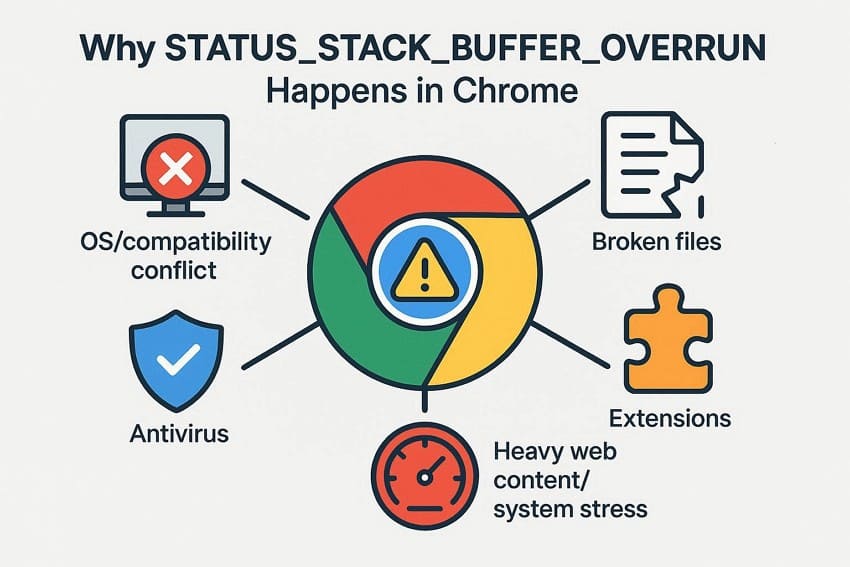
Compatibility Mode or OS–Browser Conflicts: When you run Chrome in Windows compatibility mode, it can make it call old system functions that the current Windows does not expect. Thus, this mismatch can create memory or stack problems, and Windows stops Chrome to prevent crashes or security risks.
Corrupted Chrome Files or Broken Installation: Damaged Chrome files or an incomplete installation can make the browser run invalid instructions or mishandle memory. When this happens, stack corruption can overflow, and Windows shows STATUS_STACK_BUFFER_OVERRUN and closes Chrome.
Buggy or Malicious Extensions and Injected Code: Poorly written extensions can run unsafe code that overflows memory or causes infinite loops inside Chrome. Moreover, malicious toolbars or boosters can interfere with memory use, leading to stack corruption and browser crashes.
Conflicts with Security or Antivirus Settings: Some antivirus programs or Windows Exploit Protection inject monitoring code into Chrome to protect the system. So, if these tools misinterpret Chrome’s normal behavior, they can cause memory misuse and trigger a stack buffer error.
Heavy Web Content or System Problems: Complex web pages, large scripts, or WebAssembly apps can stress Chrome’s engine and memory. Additionally, driver problems or unstable hardware can make these situations trigger STATUS_STACK_BUFFER_OVERRUN, forcing Windows to close the browser.
Part 3. 7 Quick Fixes to Stop STATUS_STACK_BUFFER_OVERRUN Crashes
If you want to resolve the “STATUS_STACK_BUFFER_OVERRUN Chrome” error, adhere to the 7 listed fixes along with a detailed guide:
Way 1. Restart Chrome and the System Before Anything Else
A Chrome restart ends stuck background tasks, reloads add-ons, frees temporary memory, and applies updates. Whereas a system restart reloads system files, drivers, and services, clears conflicts, finishes updates, and resets low-level memory, which often stops the crash without risky changes. So, to know how you can perform this action, review the mentioned instructions for guidance:
To Restart Chrome Completely
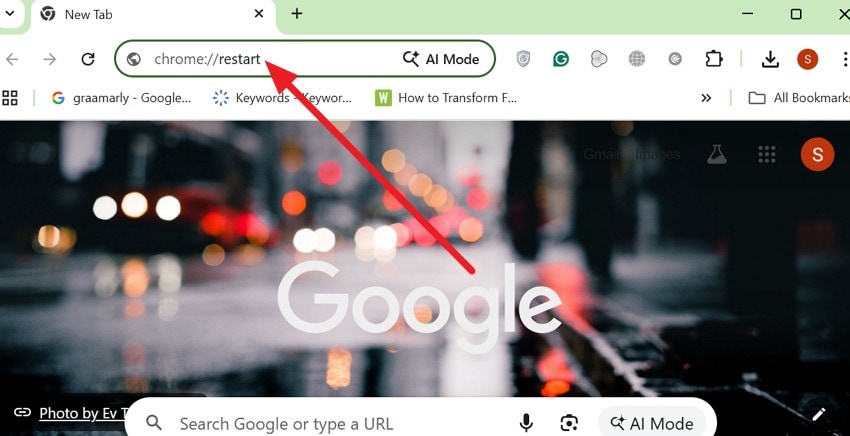
Step 1. In Chrome, type “chrome://restart” and press the “Enter” key to let Chrome close and reopen.
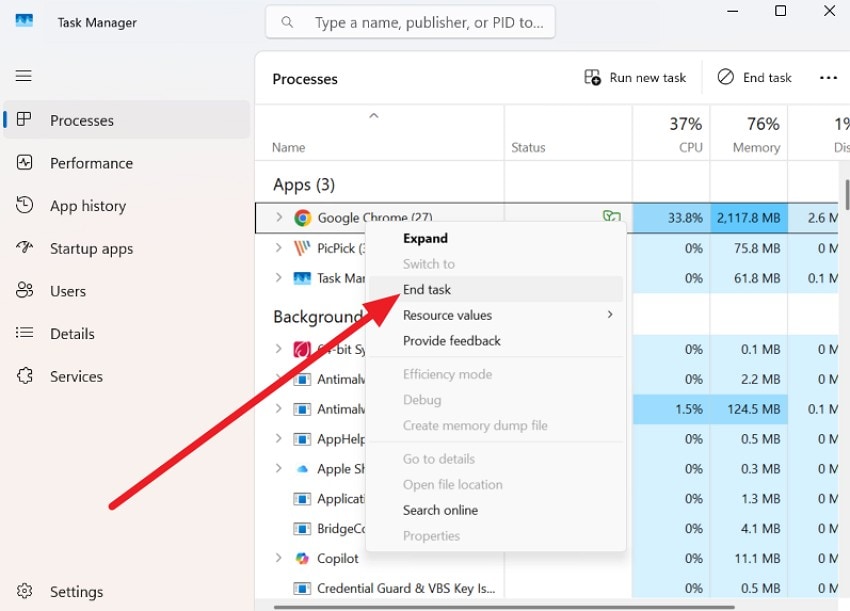
Step 2. If it's frozen, press “Ctrl + Shift + Esc” to open Task Manager, then right-click all Google Chrome processes and select “End Task.”
To Restart Windows
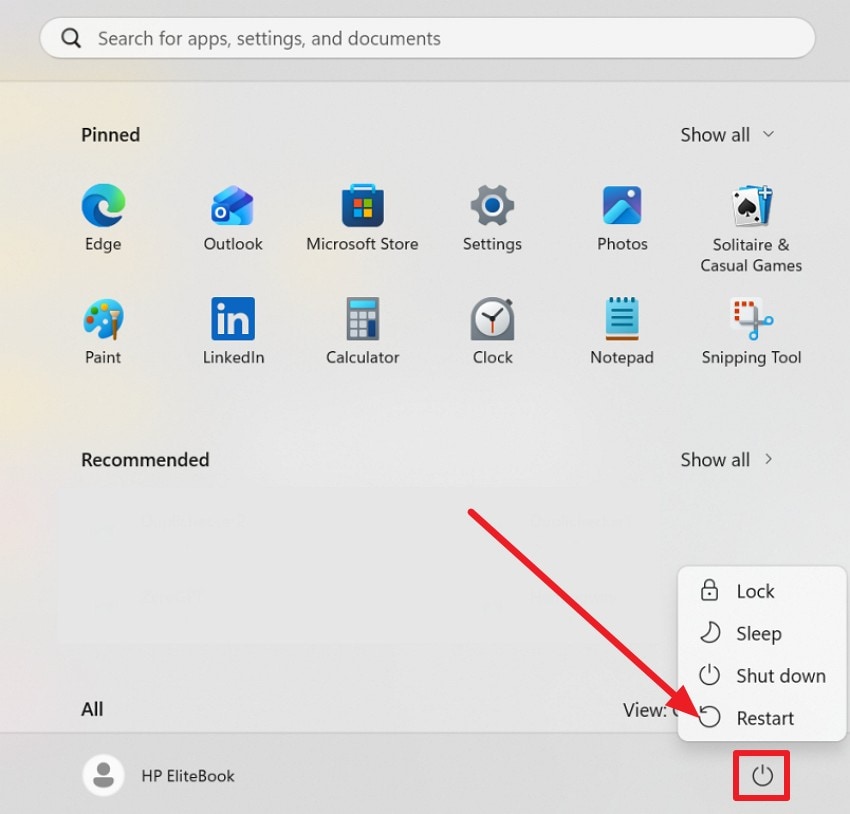
Instructions. As you close all the programs, click the “Power” icon in the Start menu and choose the “Restart” option.
Way 2. Disable Hardware Acceleration in Chrome
This solution can also stop the STATUS_STACK_BUFFER_OVERRUN error when the cause is the GPU or graphics driver, rather than Chrome itself. Hardware acceleration lets Chrome use the GPU for graphics and video, but bad, old, or incompatible drivers can corrupt memory and force Chrome to close for safety. So, when you turn it off via this guide, Chrome uses the CPU, which avoids faulty GPU paths and makes Chrome more stable:
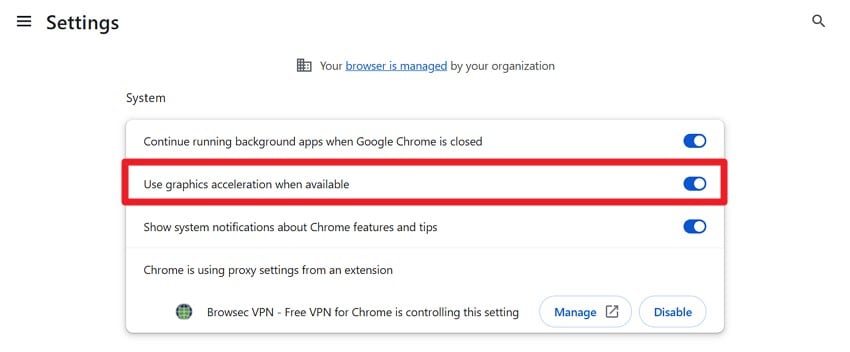
Step 1. In the Chrome Settings, head to the “System” section and toggle off the “Use Graphics Acceleration When Available” option.
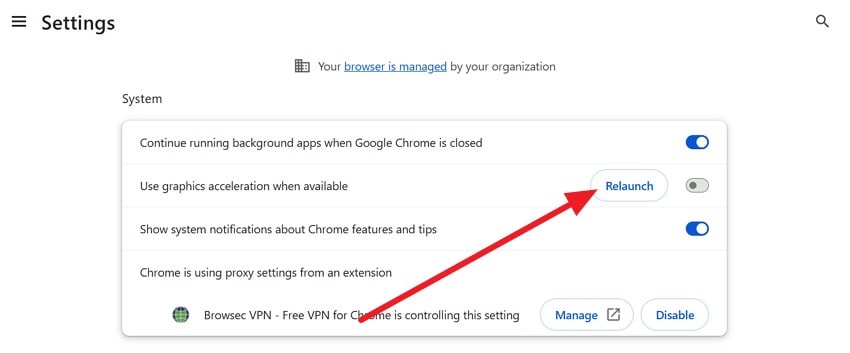
Step 2. Now, press the “Relaunch” option to restart Chrome and apply the change.
Way 3. Update Chrome to the Latest Version
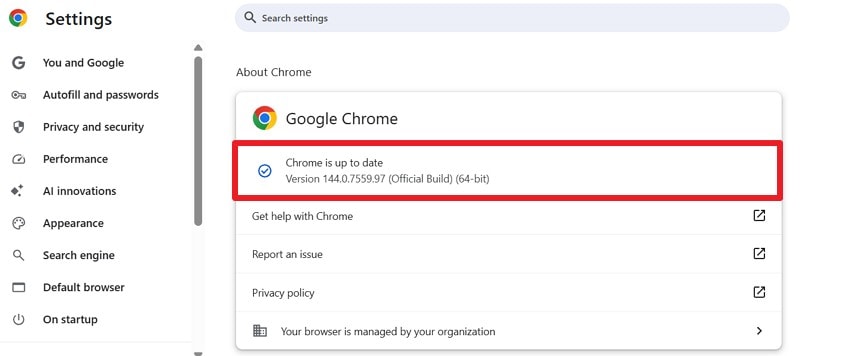
This error often links to a bad or old build, so an update replaces faulty files with clean, fixed ones and improves stability. Additionally, new versions fix bugs, close security gaps, and improve support with Windows and drivers. So, to know how you can update Chrome to boost performance and help prevent the same “STATUS_STACK_BUFFER_OVERRUN Chrome” problem from coming back, review these steps:
Step 1. On Chrome, as you press the “Three Dots” icon to locate the “Help” option, choose the “About Google Chrome” option.

Step 2. Once directed to the new interface, Chrome will check and install updates automatically. As it ends, relaunch it and see if the crash error persists.
Way 4. Update or Reinstall Graphics Drivers
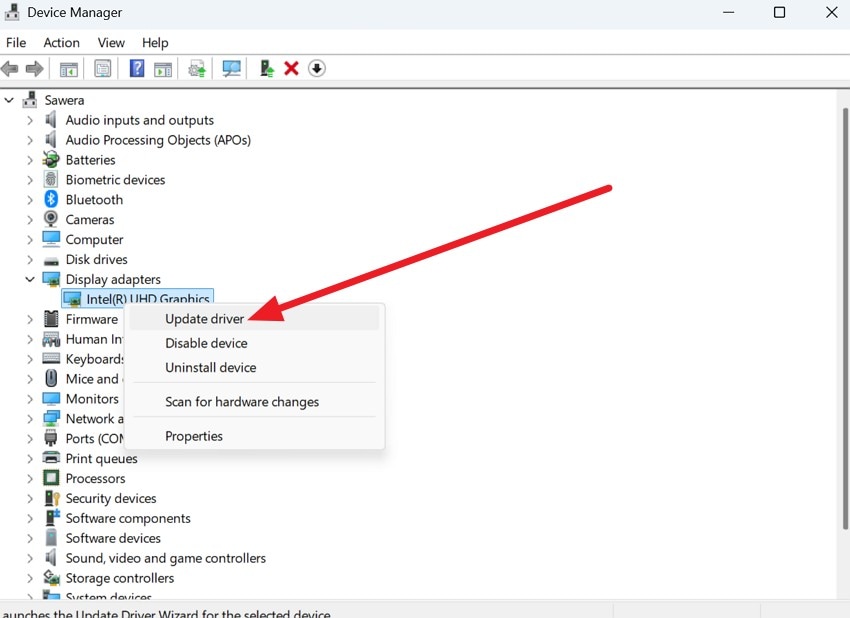
The diver update solution can also resolve stop STATUS_STACK_BUFFER_OVERRUN crashes caused by outdated or corrupted GPU drivers. As you update them, it fixes bugs, improves compatibility with Windows and apps, and refreshes damaged driver files. Besides, a clean reinstall removes leftover files, resets driver settings, and often stops crashes during video, 3D, or heavy GPU tasks. Hence, here is how you can update the graphic drivers in mere seconds:
Step 1. In Device Manager, locate and right-click the graphics driver, then select “Update Driver.”
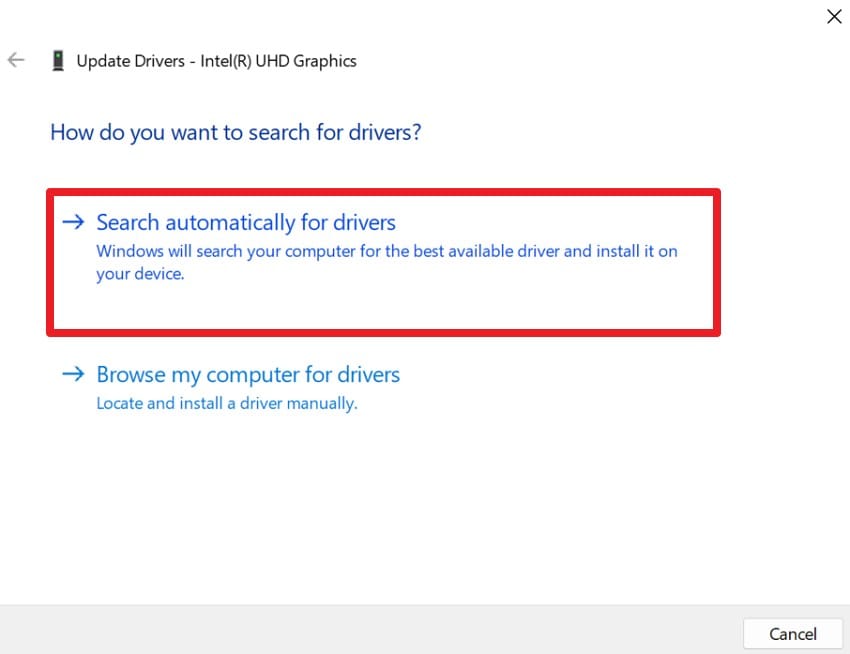
Step 2. After that, click the “Search Automatically for Drivers” option and follow the prompts to update.
Way 5. Disable or Remove Problematic Extensions
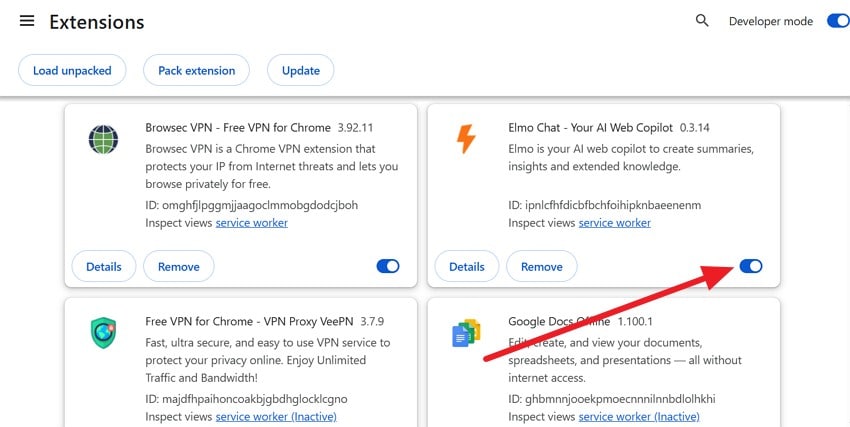
STATUS_STACK_BUFFER_OVERRUN crashes caused by memory leaks, conflicts, or corrupted page scripts can be resolved with this simple fix. Know that extensions run extra code in Chrome, and if one is faulty, it can overuse memory or crash the browser. So, when you turn them off through the mentioned guide, it stops the bad code, lowers memory use, isolates the problem, and improves stability:
Step 1. After pressing the three dots icon on Chrome, choose “Extensions” and the “Manage Extensions” option.

Step 2. Here, locate the problematic extension and toggle the “Blue” switch off to disable it.
Way 6. Reset Chrome Flags and Profile Data
Flags enable risky features that may conflict with hardware or Windows, while profile data stores settings, cache, and extensions that can get corrupted. Hence, as you remove the experimental settings, corrupted files, and bad cache that destabilize the browser, you can fix this error. Besides, this solution rebuilds clean files, clears bad data, disables problematic extensions, and restores default settings, as guided below:
To Reset All Chrome Flags
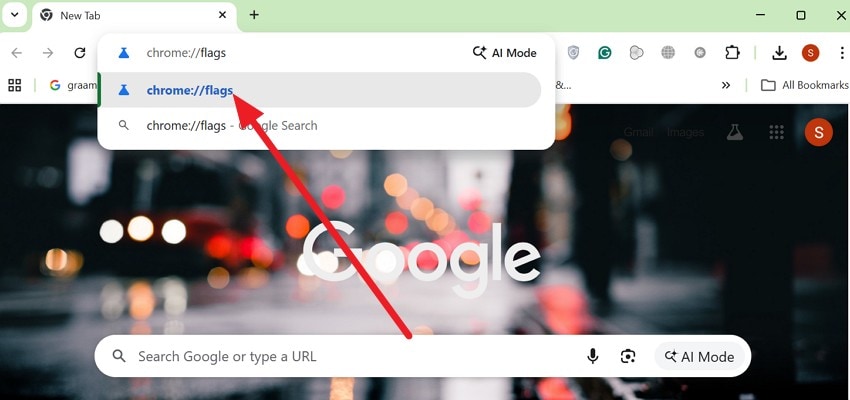
Step 1. To fix the “STATUS_STACK_BUFFER_OVERRUN Chrome” issue, type “chrome://flags” in the browser and press “Enter.”
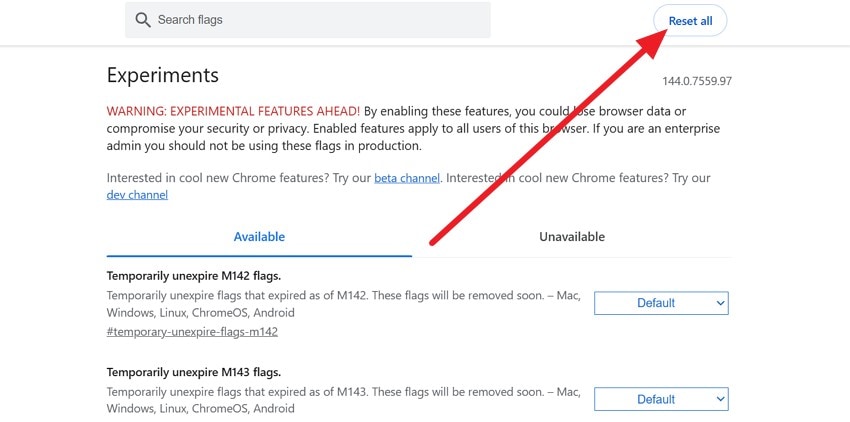
Step 2. At the top of the interface, pick the “Reset All” option and choose “Relaunch” when prompted. This will enable Chrome to restart and apply the default flag settings.
To Reset Chrome Settings
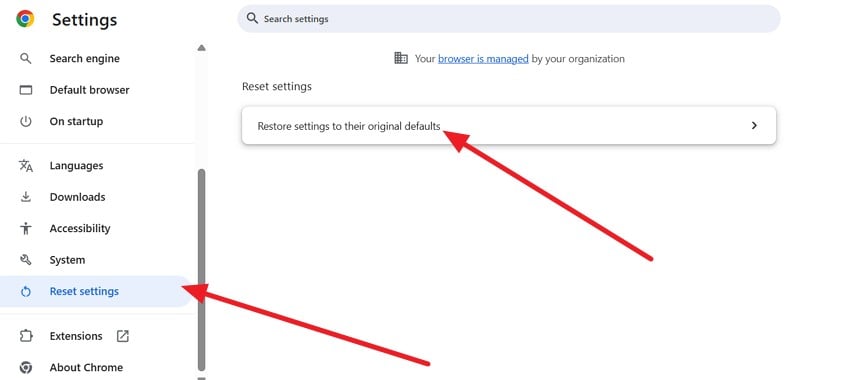
Step 1. In the Chrome Settings, choose the “Reset Settings” section and expand the “Restore Settings to Their Original Default” menu.
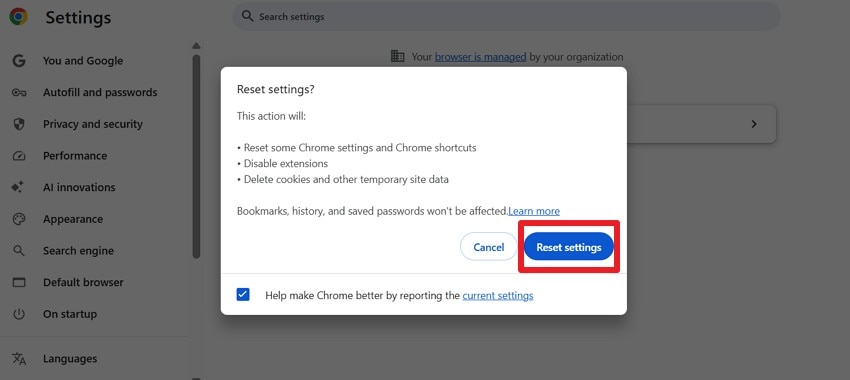
Step 2. After that, pick the “Reset Settings” option to confirm the action.
For Full Profile Reset by Recreating the Profile
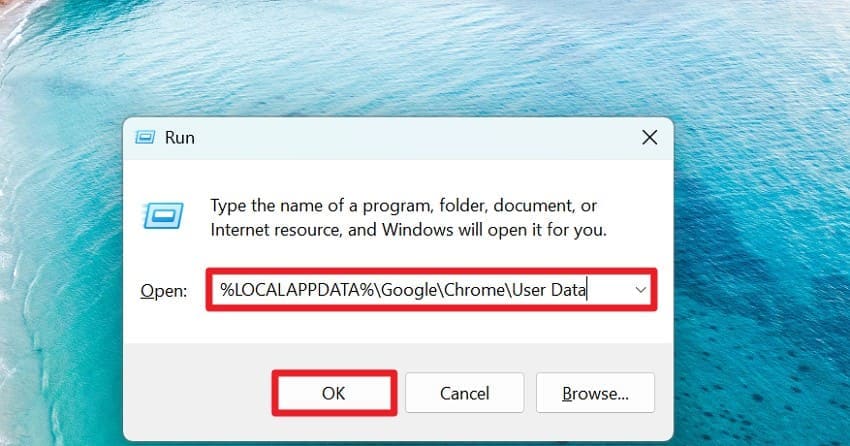
Step 1. As you press “Win + R,” type “%LOCALAPPDATA%\Google\Chrome\User Data” in the given textbox and press “OK.”
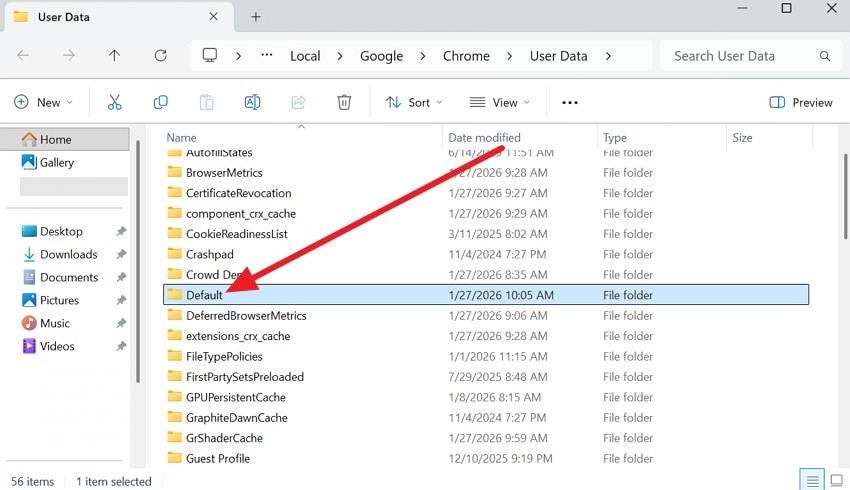
Step 2. In the File Explorer window, locate the “Default” folder that is crashing and rename it to “Default_Backup” rather than deleting it. After that, open Chrome again, and it will automatically create a fresh Default profile folder.
Way 7. Run Chrome in a Clean Boot Environment
Running Chrome in a clean boot can stop STATUS_STACK_BUFFER_OVERRUN crashes by starting Windows with only essential Microsoft services, so no third-party programs interfere. Moreover, a clean boot disables extra startup apps and background tools, and lets Chrome run in a minimal environment. This prevents conflicts from antivirus, overlays, or other utilities that can corrupt memory or the stack, as illustrated below:
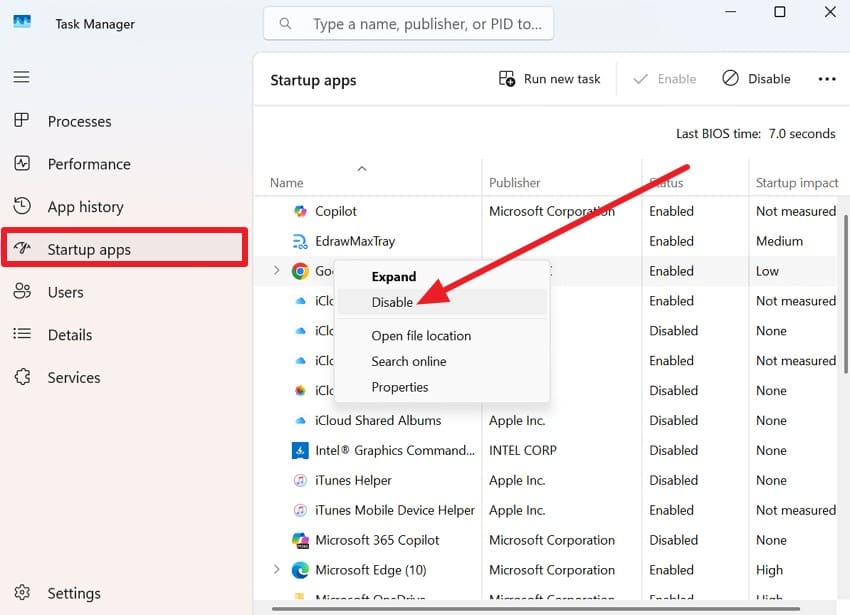
Step 1. In the Task Manager, go to the “Startup Apps” section now and right-click all the startup apps listed there and pick the “Disable” option.
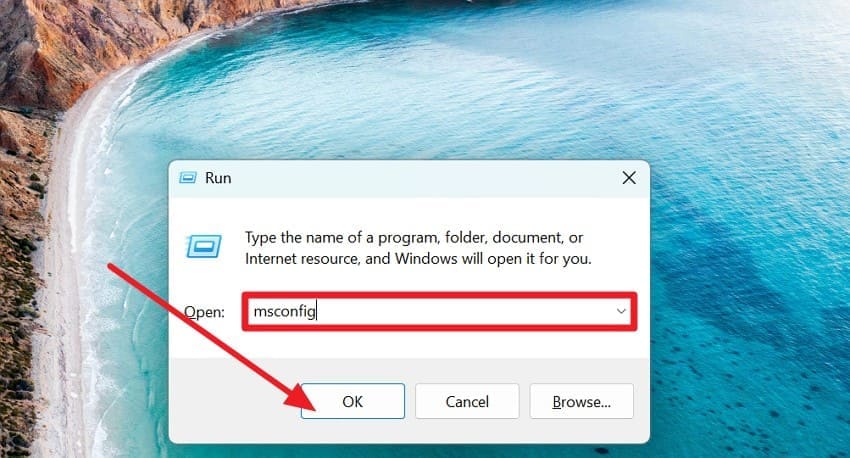
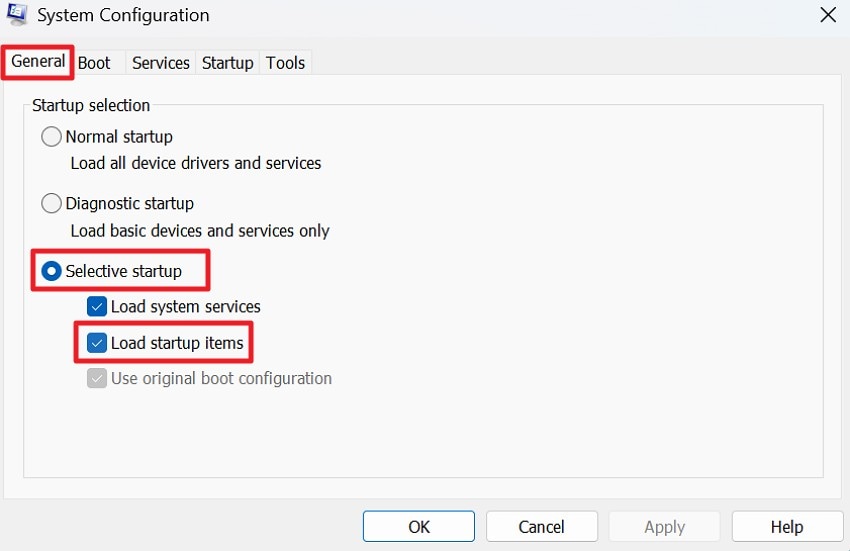
Step 2. After closing all the Chrome tabs, press “Win + R” and type “msconfig” to open System Configuration.
Step 3. Now, in the “General” tab, check the “Selective Startup” option and uncheck the “Load Startup Items” option.
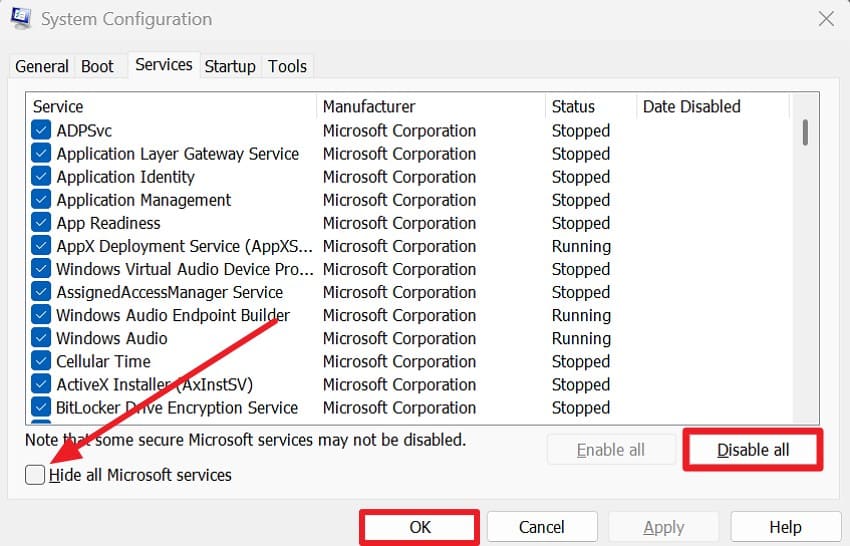
Step 4. Go to the “Services” tab, check “Hide all Microsoft Services,” then click “Disable All” to turn off other services. Restart your PC when prompted; Windows will start in a clean boot with only essential services running.
Pro Tip. Fix Chrome Crashes Quickly by Repairing Corrupted Files with Repairit
Bad files can cause memory or stack errors inside Chrome or its plugins, and cause the “STATUS_STACK_BUFFER_OVERRUN Chrome.” Once repaired, Chrome can run the files normally and remove the crash trigger. Hence, Repairit can repair corrupted files, such as PDFs, videos, or documents, that can crash Chrome when opened. The tool scans files for broken headers, missing indexes, or corrupted metadata, then rebuilds the file structure so the files become readable again.
Thus, this makes Chrome more stable without changing any browser settings and protects files that might otherwise be deleted. Another foremost aspect of this tool is that it offers a batch processing facility with the preview option to save the manual hassle and determine if the file is fixed. Users can also use this tool to repair corrupted ZIP or Archive files, without having any skills needed.
Key Features

-
Corrupted File Reconstruction: Repairit rebuilds damaged file structures, such as broken headers, indexes, and metadata, that can trigger Chrome crashes when opened.
-
Crash Prevention Handling: It stabilizes corrupted files before access, preventing repeated browser crashes and execution failures.
-
Parsing Error Elimination: This software resolves file parsing errors that lead to stack buffer overrun crashes in Chrome.
Guide to Fix the Corrupted Chrome Files Using Repairit
To know how you can fix the STATUS_STACK_BUFFER_OVERRUN issue by fixing bad files, adhere to the given guide:
Step 1. Locate the File Repair Tool
In the “Document Repair” tool, add the corrupted Chrome files by pressing the “Start” and “+Add” buttons.

Step 2. Repair Your Corrupt Chrome Files
Choose the “+Add Files(s)” button to import more Chrome files and pick the “Repair” button to start the process.

Step 3. Preview and Save the Fixed Chrome Files
Once it ends, select the “Preview” option to check accuracy, then select “Save” to export them to the device.

Conclusion
To sum up, this comprehensive guide has explained the STATUS_STACK_BUFFER_OVERRUN error and why it happens. Moreover, the top 7 tested solutions are provided in detail so that you can review and follow them to safely fix the issue and prevent it from recurring. However, if the corrupted files are causing the issue again, it is recommended to fix them with Repairit, as it supports over 30 file formats.
Frequently Asked Questions
-
1. Can this error damage my files or system?
Normally no, this error only stops the app quickly, keeping your files completely safe. However, ignoring underlying issues like bad drivers or corrupted files may cause broader system instability. -
2. Do too many browser tabs cause it?
Having many tabs mostly stresses the memory and CPU, but it does not directly create this error. Still, heavy tabs can trigger existing bugs or weak drivers, leading Chrome to crash unexpectedly. -
3. Is this error a sign of serious hardware failure?
Usually, it comes from software bugs, corrupted drivers, or Chrome configuration, not hardware automatically. Yet faulty RAM, GPU, or repeated errors across programs may indicate hardware problems to check.




